
Objective
This SOP explains how to upload, review, manage, and automate Book of Business (B.O.B.) data in ComTrack so the team can accurately track policy changes, new policies, and paid-to-date updates alongside commissions. It also covers how to send B.O.B. data to a CRM through webhooks for downstream follow-up and record management.
Key steps
1. Understand the purpose of B.O.B. tracking 0:00
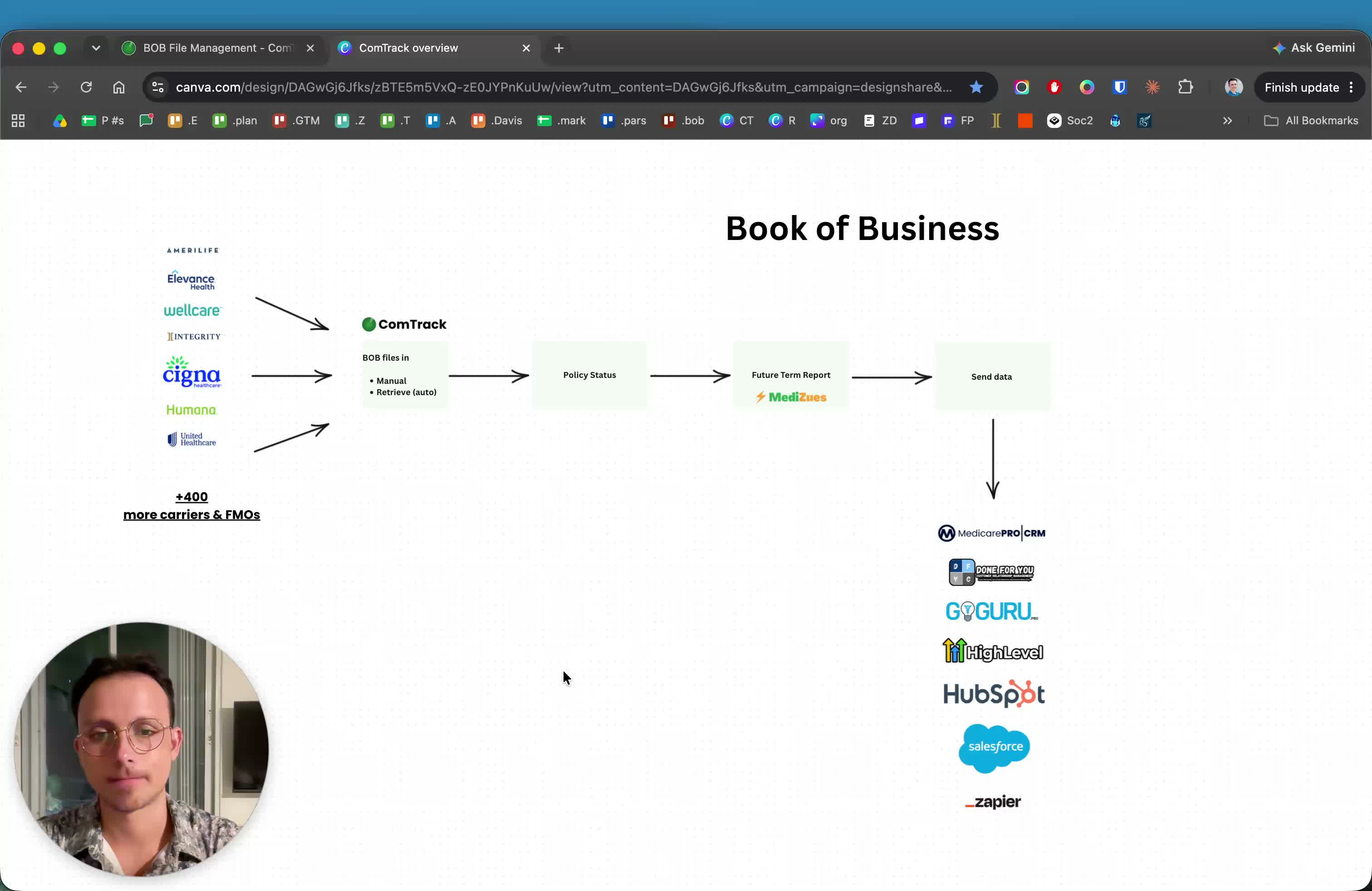
- Use B.O.B. tracking to compare carrier book-of-business data against commission data in ComTrack.
- Confirm that every client in the book of business is accounted for and paid correctly.
- Treat B.O.B. as a separate but related data source from commissions.
2. Know how B.O.B. data is structured in ComTrack 0:15
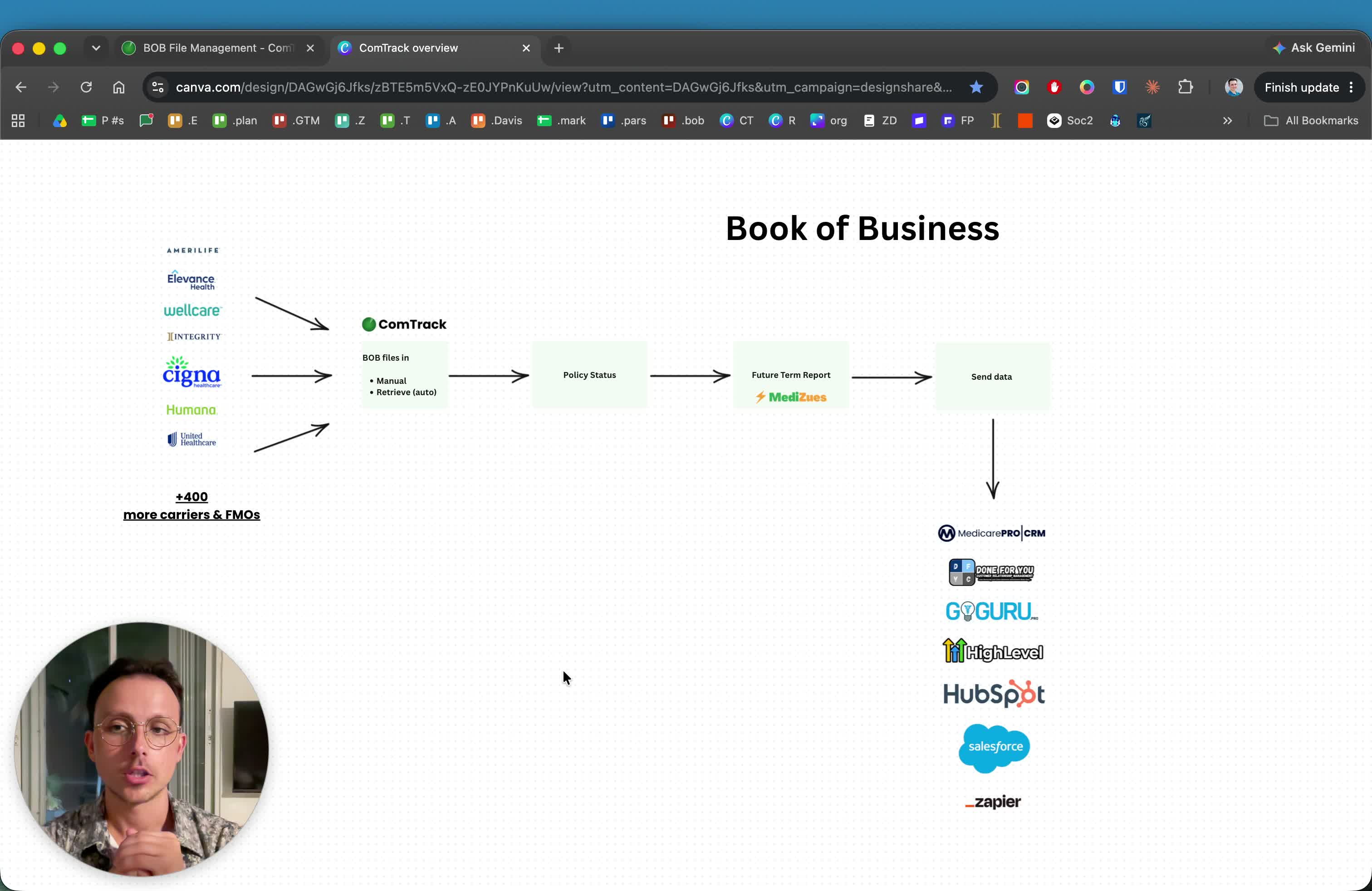
- ComTrack aggregates carrier B.O.B. files into one consolidated B.O.B. dataset.
- Unlike commission statements, B.O.B. files are used to track policy status changes and new policies.
- Use this dataset to identify when a client may be falling off the books before a chargeback or missing renewal occurs.
3. Upload a B.O.B. file into the B.O.B. section 1:16
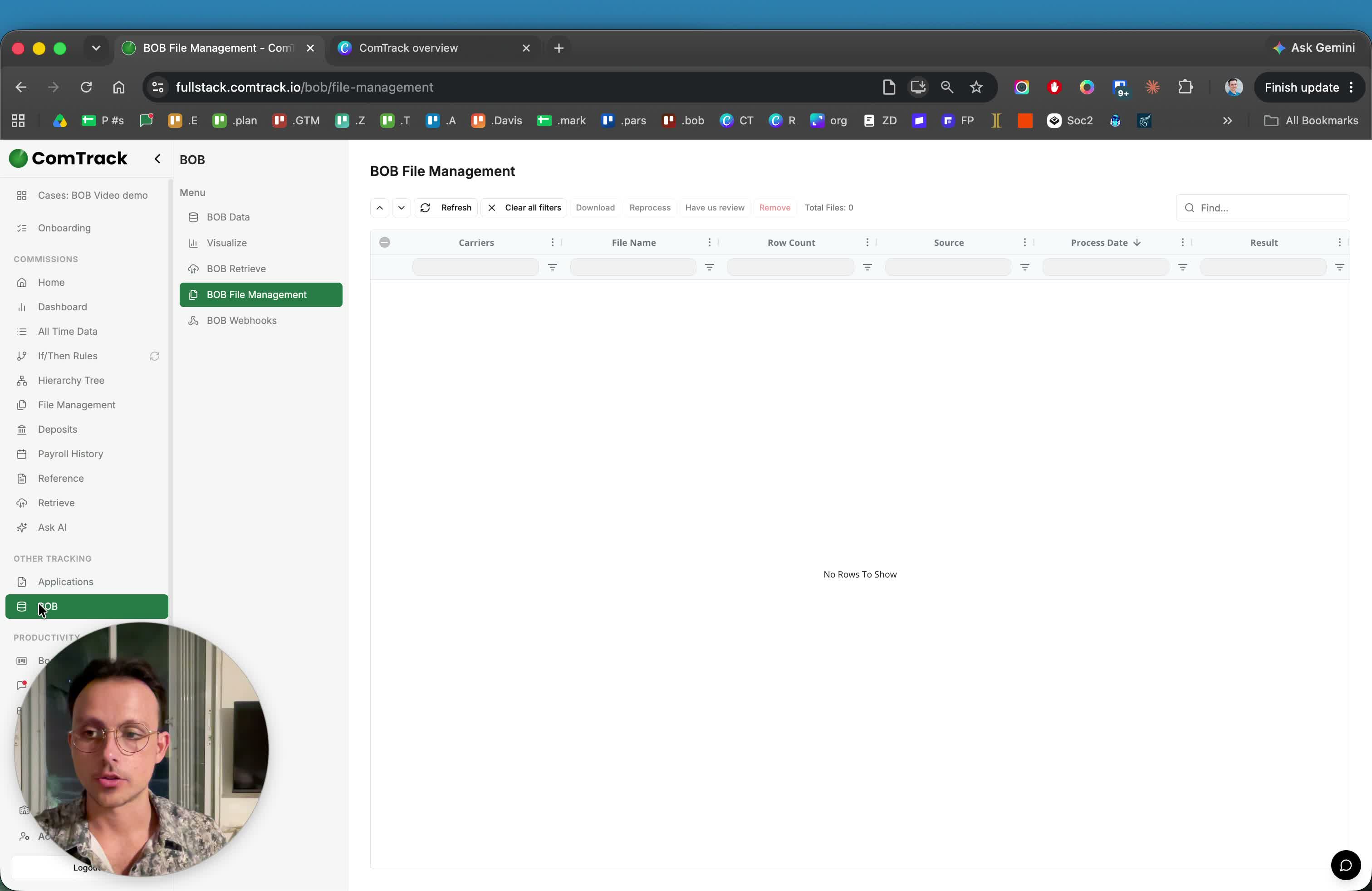
- Navigate to the B.O.B. Data area in ComTrack.
- Choose any of the B.O.B. submenu items and drag a carrier B.O.B. file into the upload area.
- Wait for ComTrack to digest the file as a B.O.B. file, not a commission statement.
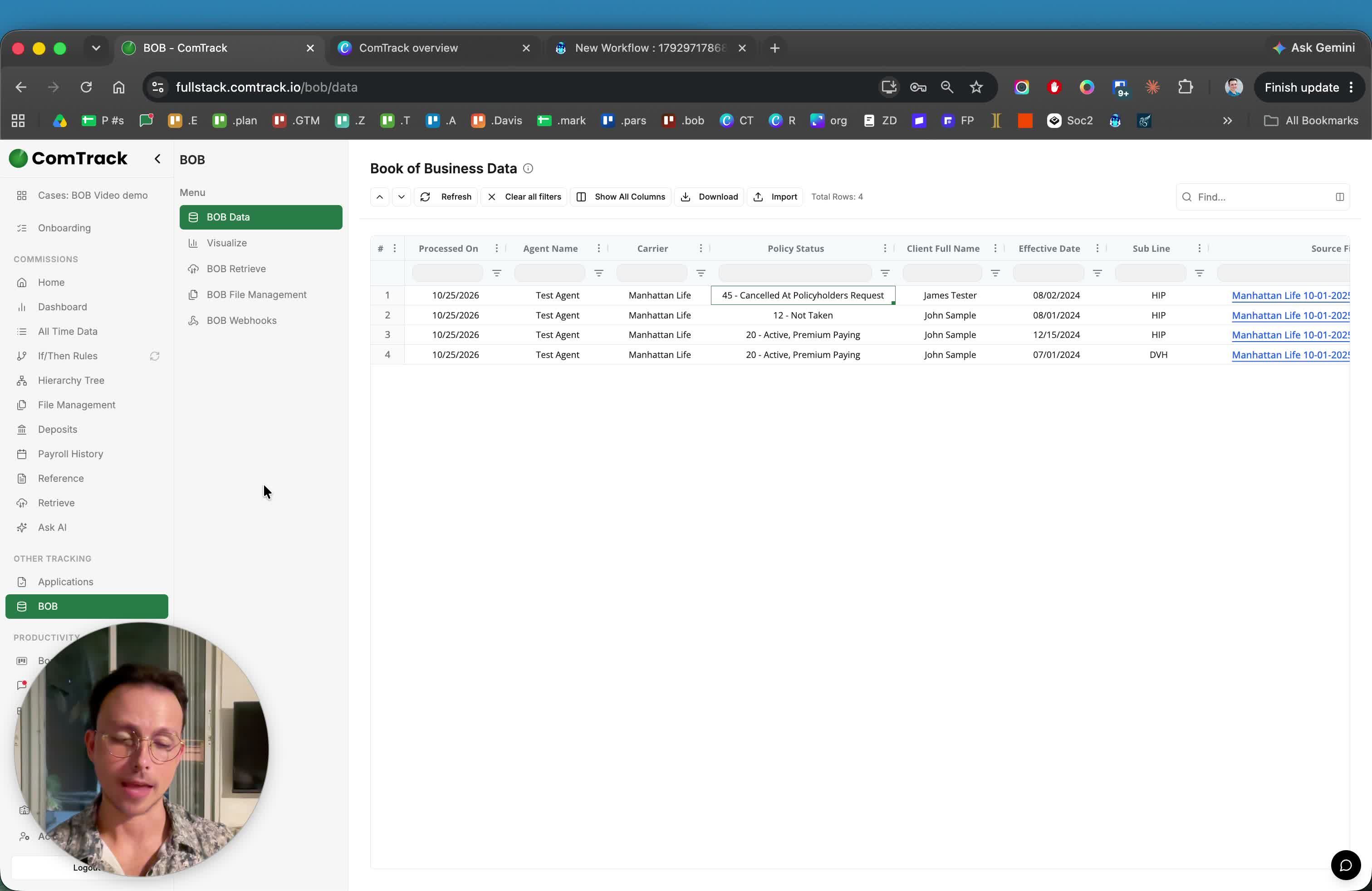
4. Review the normalized B.O.B. data 2:04
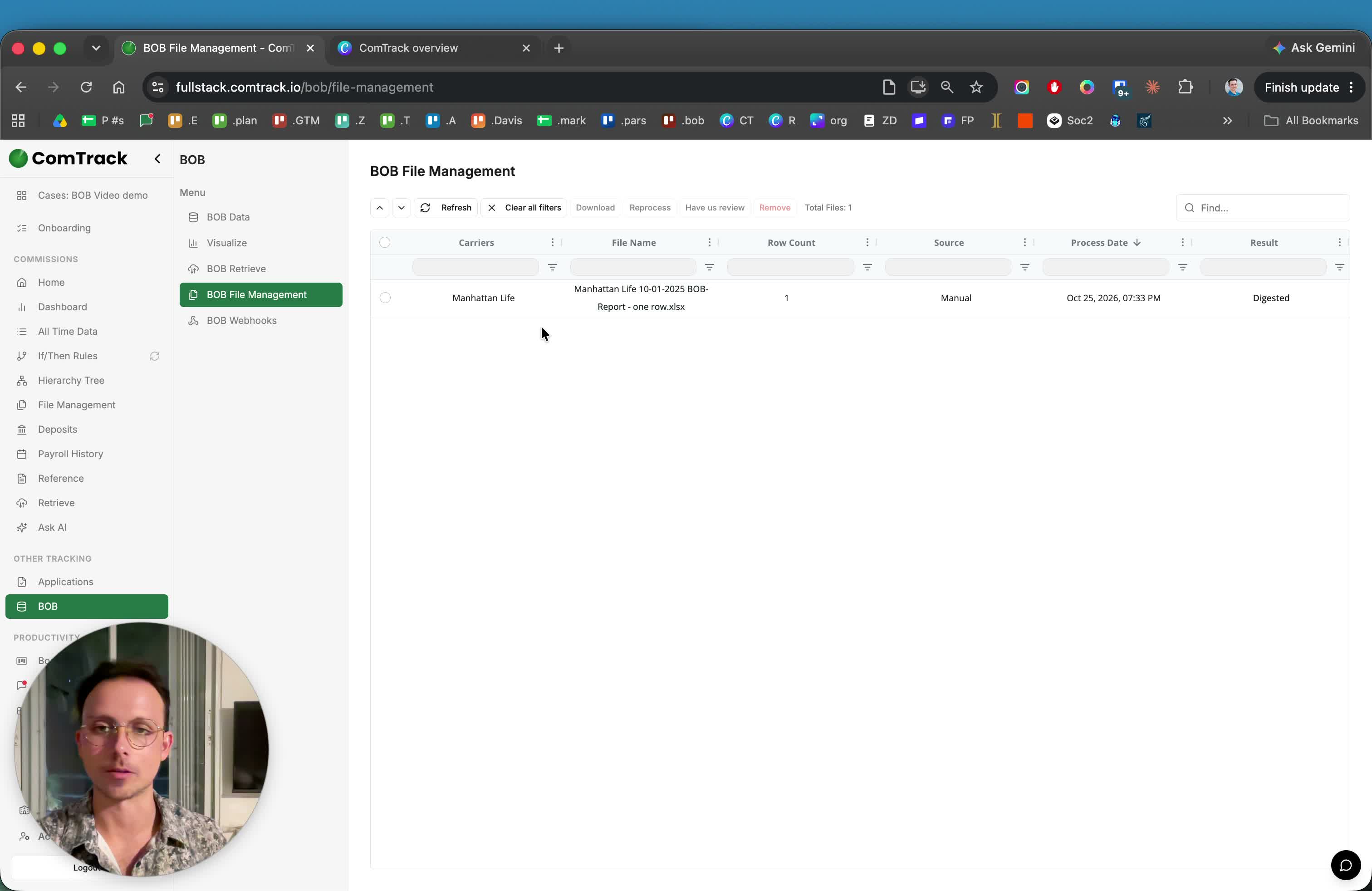
- After upload, ComTrack normalizes and formats the file into a readable table.
- Review key fields such as:
- Policy status
- Agent ID
- Phone number
- Address
- PCP
- Date of birth
- Gender
- Use Hide Non-Essentials to focus on the most commonly used fields:
- Processed on
- Agent name
- Carrier
- Policy status
- Client full name
- Effective date
- Subline
5. Understand how duplicate rows are handled 3:12
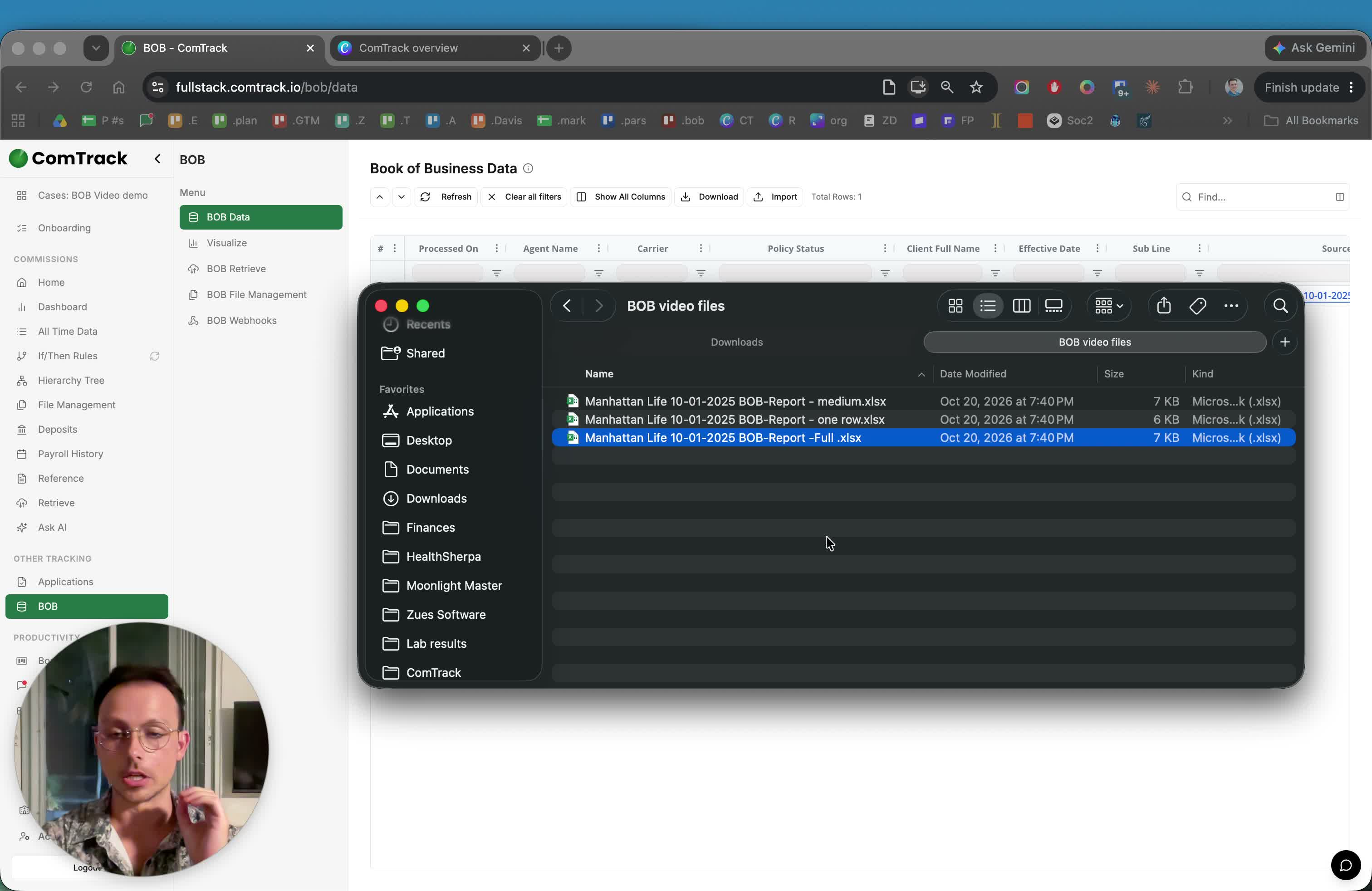
- B.O.B. files are snapshots of the carrier’s current book of business.
- When a newer B.O.B. file is uploaded, ComTrack does not duplicate existing rows.
- Only new rows that are not already in the database are added.
- Existing rows remain in place unless a newer version of the same record is detected.
6. Add new clients without duplicating existing records 4:00
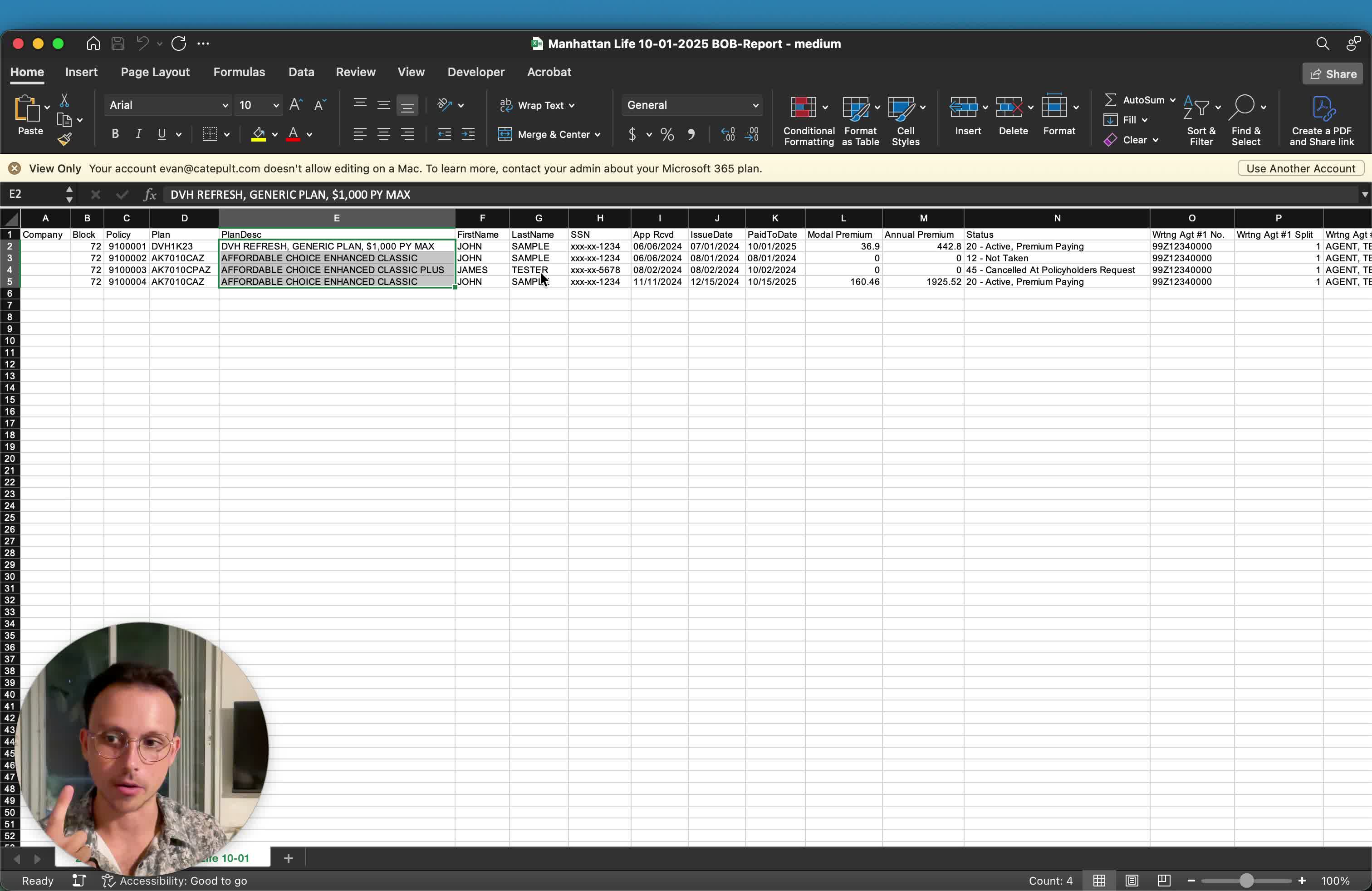
- Upload a later B.O.B. file that contains additional clients.
- ComTrack will keep the original row(s) and add only the new rows.
- Verify that the system did not replace the prior file; it should simply expand the dataset with new records.
7. Use paid-to-date to refresh existing records 5:24
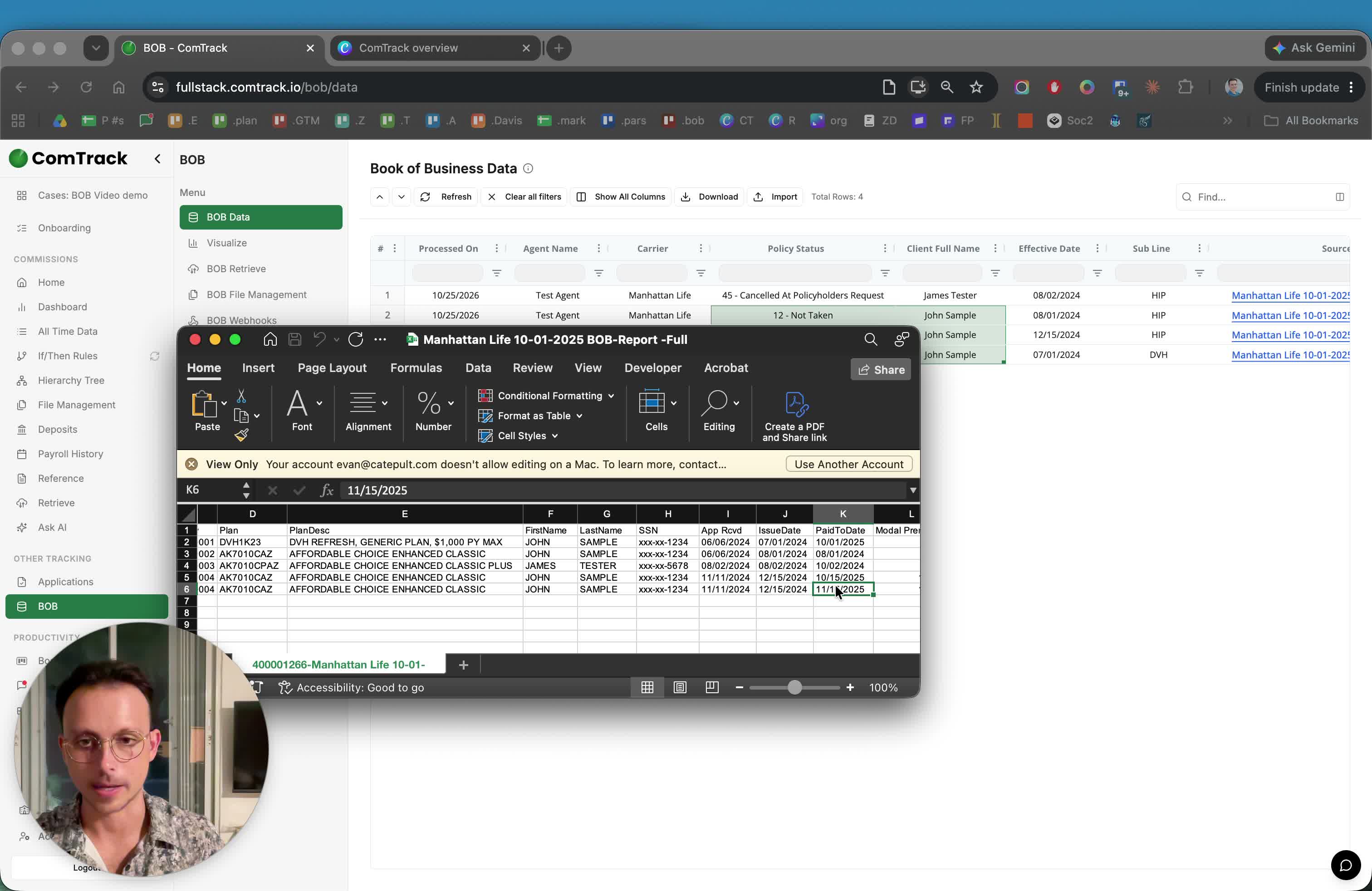
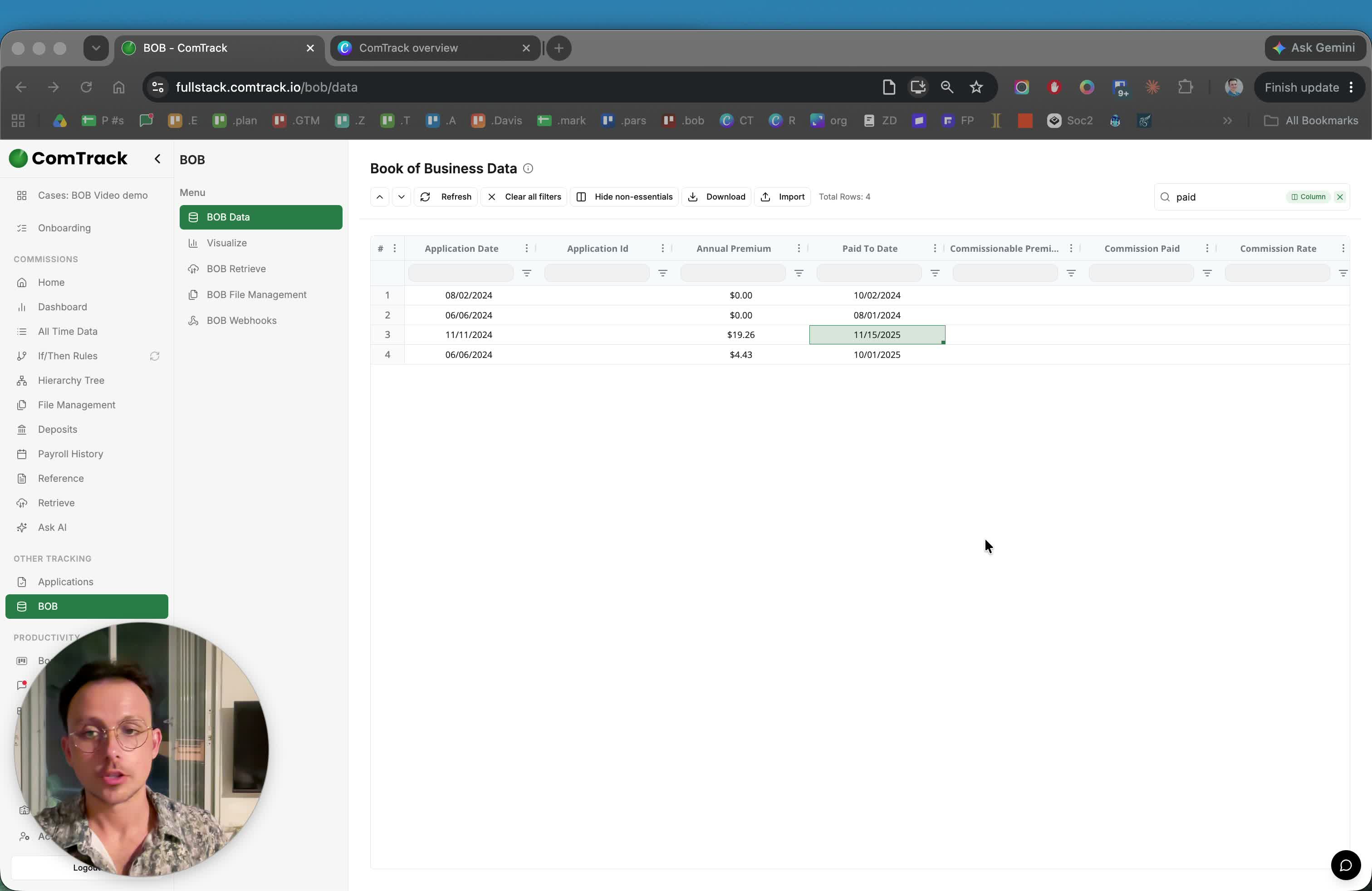
- Locate the paid-to-date field in the B.O.B. table.
- Understand that this field shows how current a client is with the carrier.
- When a newer file contains the same client with a more recent paid-to-date, ComTrack updates the existing row instead of creating a duplicate.
- Confirm the row reflects the most recent paid-to-date value after upload.
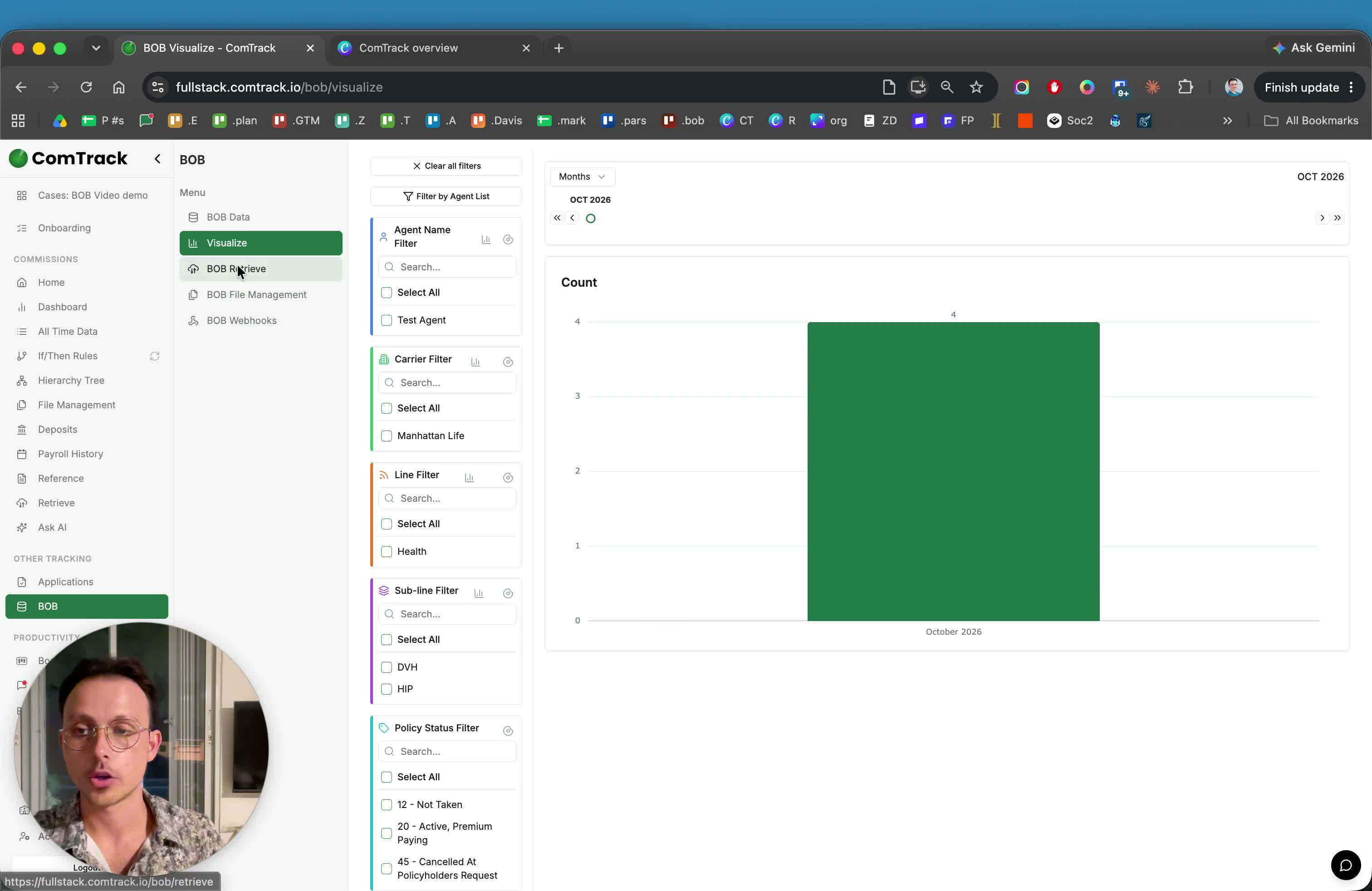
8. Filter and analyze the B.O.B. dashboard 7:38
- Use the B.O.B. dashboard to visualize your book of business over time.
- Filter by:
- Carrier
- Line
- Sub-line
- Policy status
- Agent
- Use the dashboard views and charts to monitor trends and identify changes across your book of business.
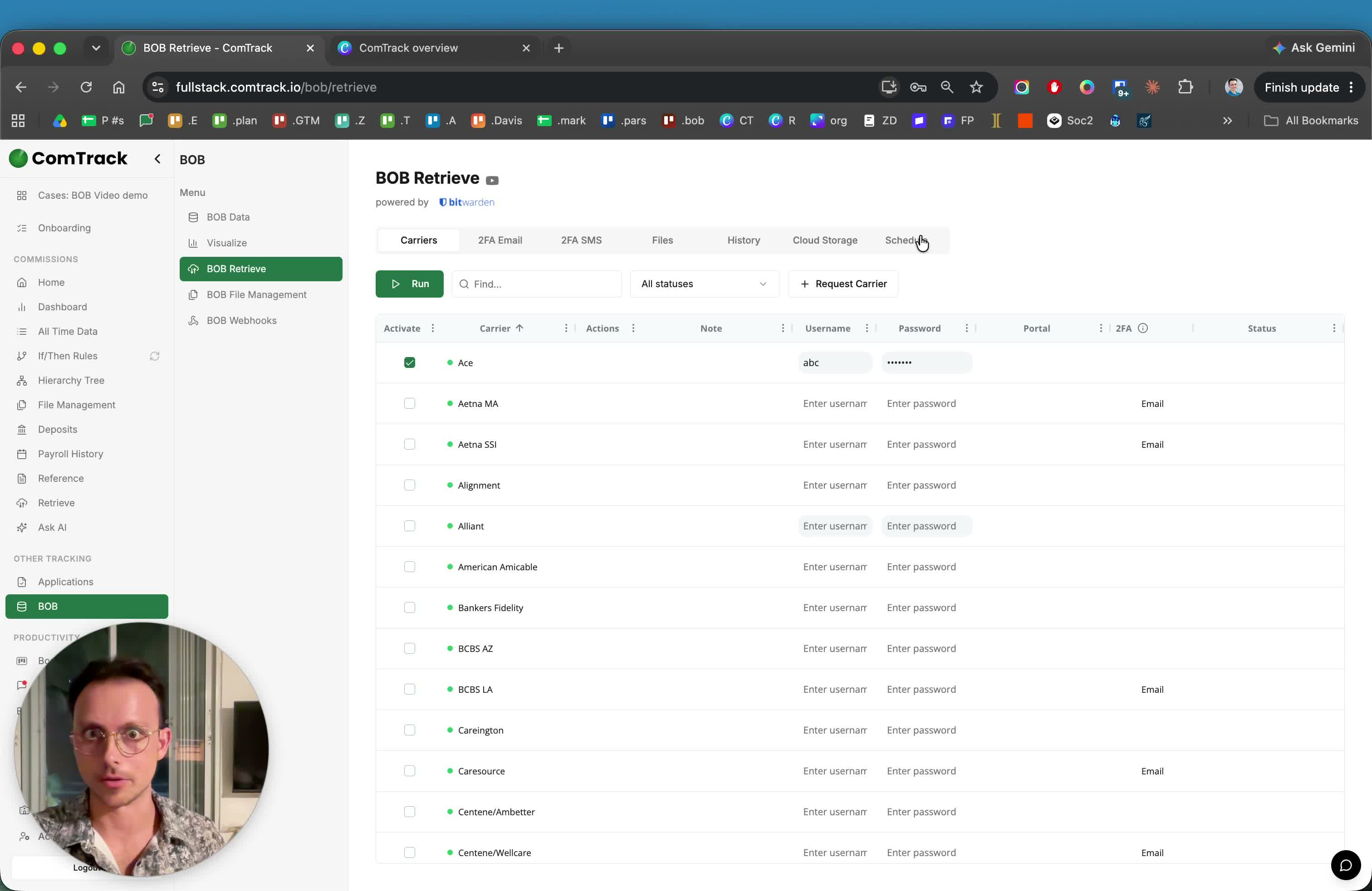
9. Retrieve B.O.B. files on a recurring schedule 8:21
- Use BOB Retrieve to pull carrier B.O.B. files automatically.
- If credentials are already saved in commission retrieval, they can also be reused for B.O.B. retrieval.
- Set a recurring schedule for retrieval.
- Recommended cadence: every two weeks or monthly; daily retrieval is usually unnecessary.
10. Manage B.O.B. files like other file records 9:08
- Use B.O.B. file management tools similarly to commission file management.
- Delete or edit files as needed.
- Keep file records organized so the dataset remains accurate and easy to audit.
11. Set up a B.O.B. webhook to send data to a CRM 9:24
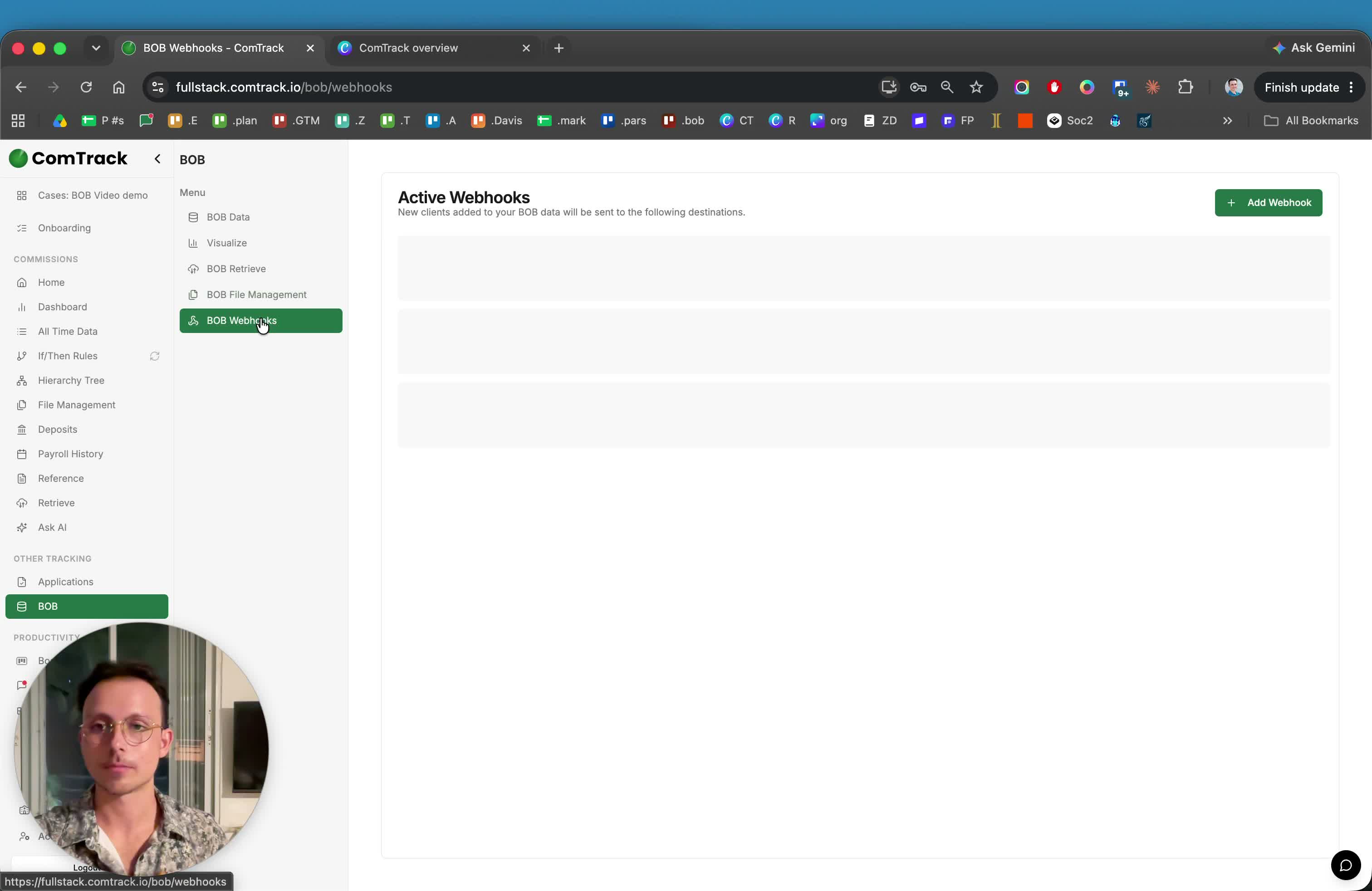
- Use B.O.B. webhooks when you want new B.O.B. rows sent to another system, such as a CRM.
- Click Add Webhook and enter:
- A webhook name
- The destination webhook URL from your CRM
- In your CRM, create or select an Inbound Webhook trigger and copy its URL into ComTrack.
12. Test the webhook before going live 10:27
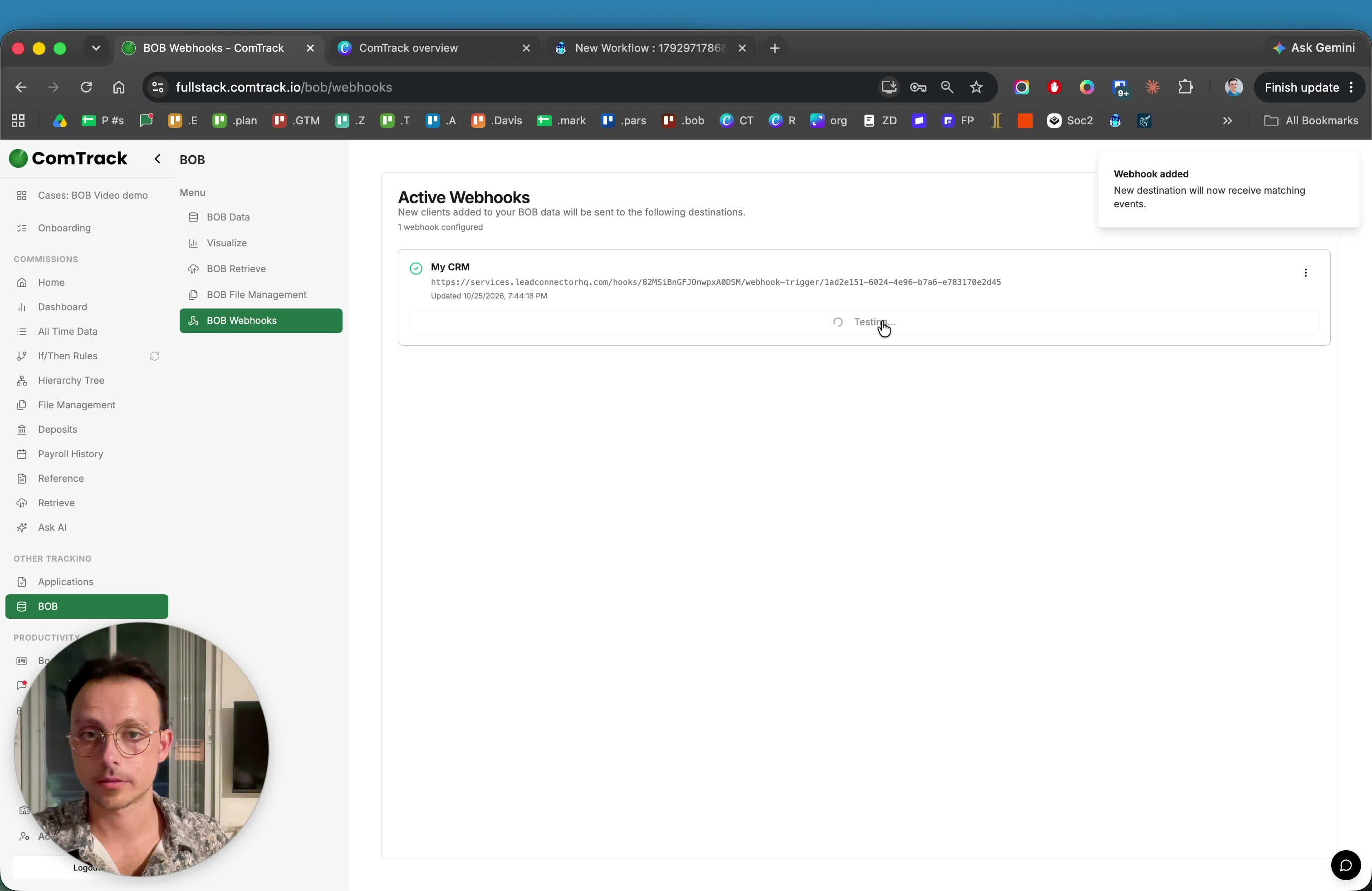
- Click Test Webhook to send sample data to the destination.
- Confirm the CRM receives the sample request successfully.
- Review the sample payload to ensure the correct fields are being transmitted.
13. Map B.O.B. fields to CRM fields 10:55
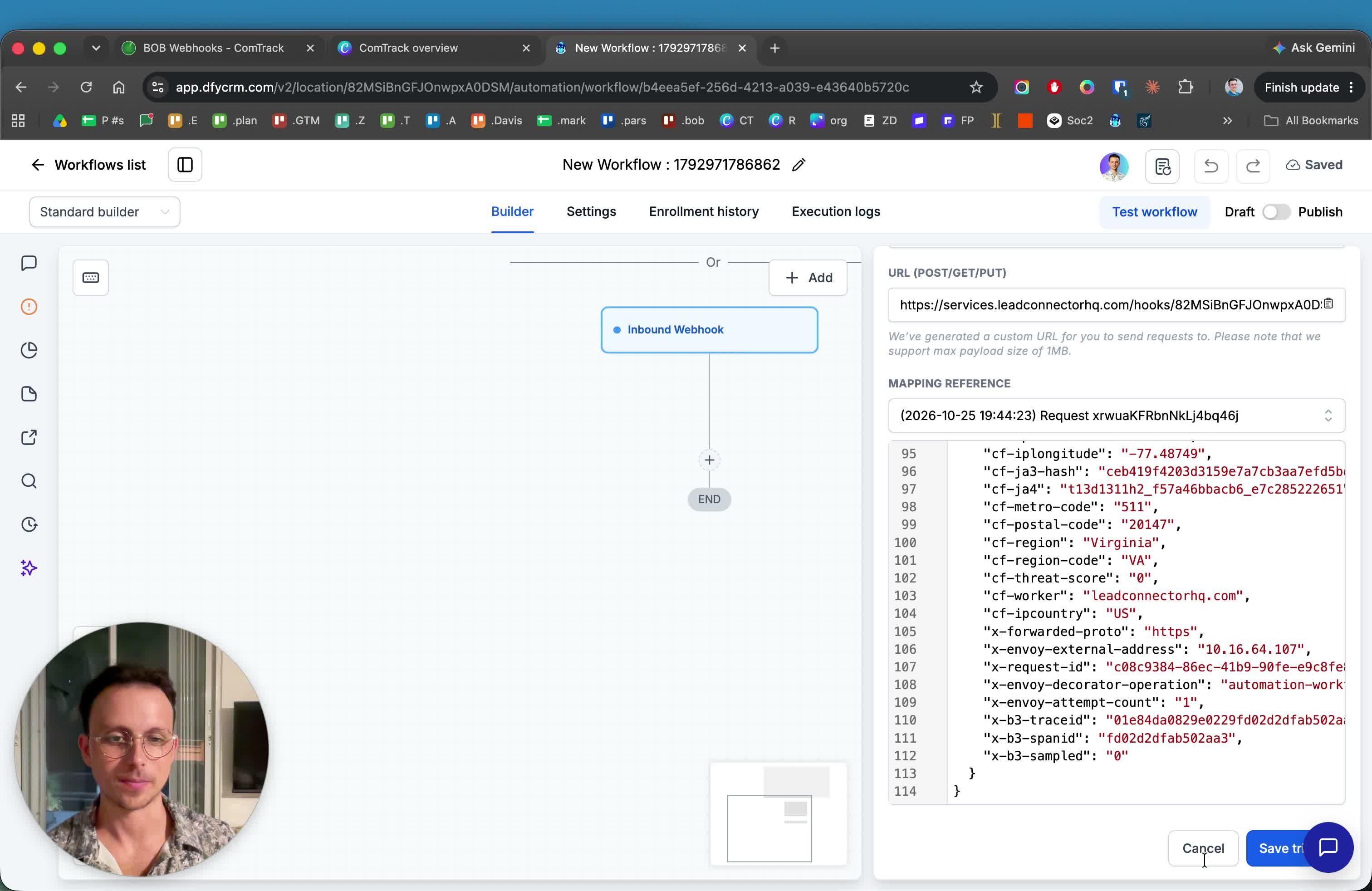
- In the CRM workflow, create a contact or update an existing contact.
- Map ComTrack B.O.B. fields to the corresponding CRM fields.
- At minimum, map key fields such as email or phone.
- Save and publish the workflow once field mapping is complete.
14. Monitor policy status changes and categorize them as needed 12:18
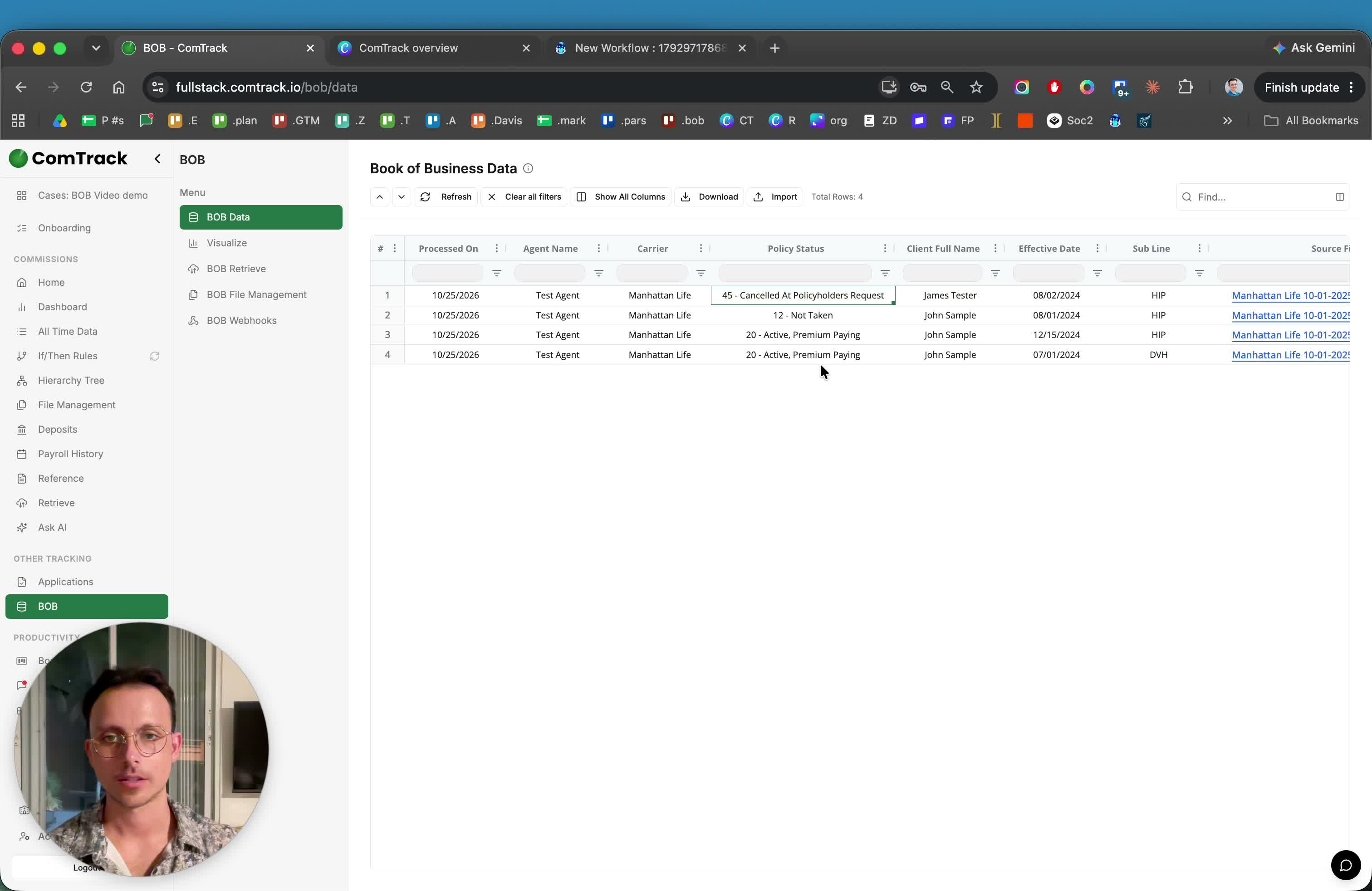
- Understand that policy status updates refresh existing records rather than creating new rows.
- Review carrier-provided policy statuses such as:
- Active premium payment
- Not taken
- Canceled
- Pending cancellation
- Canceled due to nonpayment
- Categorize policy statuses internally if your team needs standardized reporting.
15. Use B.O.B. to connect applications to commissions 13:19
- Track the full lifecycle of a client from application to B.O.B. to commission.
- Use B.O.B. to confirm when an application becomes an active policy in the carrier’s book of business.
- Use commission data afterward to verify payment on that client.
- Treat B.O.B. as the bridge that fills the gap between application tracking and commission tracking.
Cautionary notes
- Do not treat B.O.B. files like commission statements. They are separate datasets with different logic.
- Do not expect duplicate rows to be added repeatedly. ComTrack skips existing records and updates only what is new or changed.
- Paid-to-date updates replace older values. Always verify the latest date after uploading a newer file.
- Policy status values may vary widely by carrier. Avoid assuming one universal status taxonomy.
- Test webhooks before publishing. This prevents broken CRM automation and missing data.
- Map at least one reliable contact field such as email or phone before going live.
Tips for efficiency
- Upload B.O.B. files on a consistent schedule so changes are caught early.
- Use dashboard filters to isolate carrier-specific or policy-status-specific issues quickly.
- Reuse saved credentials for both commission retrieval and B.O.B. retrieval when possible.
- Keep webhook mappings simple at first; expand field mapping after confirming the workflow works.
- Focus on the most important fields first: client name, carrier, policy status, and paid-to-date.
- Review policy status changes regularly to catch lapses before they affect commissions.