
The If/Then Rules feature in ComTrack lets you automatically transform and calculate your commission data based on conditions you define. Rules follow this simple format:
IF [conditions are met] THEN [perform these actions]
Example:
IF Carrier = "BCBS TX" AND Sub Line = "Med Adv"
THEN Agent Payroll = "200"
Rule Basics
Every rule has two main parts:
- Conditions (IF) → What must be true for the rule to run
- Actions (THEN) → What happens when conditions are met
You can also use:
- Operators (equals, greater than, contains, etc.)
- Formulas (math or text operations)
Rule Structure
Rules live inside your account hierarchy:
Organization
└── Case
    └── Rule Folders
        └── Rules
            ├── Conditions (IF)
            └── Actions (THEN)
Fields You Can Use
You can build rules using the fields in your commission data.
Agent Information
| Field | Type | Description | Example |
|---|---|---|---|
agent_name |
Text | Agent's full name | John Smith |
agent_id |
Text | Unique Agent identifier | AG001 |
agent_split |
Number | Commission % split | 50 |
agent_payroll |
Number | Calculated payout | 15000 |
Client Information
| Field | Type | Description | Example |
|---|---|---|---|
client_first_name |
Text | Client's first name | Jane |
client_last_name |
Text | Client's last name | Doe |
client_full_name |
Text | Combined full name | Jane Doe |
Policy Information
| Field | Type | Description | Example |
|---|---|---|---|
carrier |
Text | Insurance company name | Blue Cross Blue Shield |
policy_number |
Text | Policy identifier | BC123456789 |
plan |
Text | Insurance plan name | Silver PPO |
line |
Text | Line of business | Health |
Financial Information
| Field | Type | Description | Example |
|---|---|---|---|
premium |
Number | Monthly premium amount | 25000 |
commission |
Number | Commission amount | 2500 |
comp_rate |
Number | Commission rate percentage | 1000 |
Condition Operators
Text Operators
| Operator | Description | Example |
|---|---|---|
| equals | Exact match | carrier equals "Aetna" |
| not equals | Not equal | carrier not equals "Unknown" |
| contains | Contains text | agent_name contains "Smith" |
| starts with | Begins with text | policy_number starts with "BC" |
| is empty | Field has no value | client_middle_name is empty |
Numeric Operators
| Operator | Description | Example |
|---|---|---|
| is greater than | Greater than | premium > 100 |
| is less than | Less than | commission < 0 |
Date Operators
| Operator | Description | Example |
|---|---|---|
| before | Date is before | effective_date before "01/01/2024" |
| after | Date is after | statement_date after "01/01/2024" |
Action Formulas
You can define what happens when conditions are met using formulas:
Static values:
"ABC","123"Field references:
<premium>,<agent_name>Math:
<commission> * .30
Using Variables (Field References)
When writing Action Formulas, you can dynamically reference data from the same row using variables — also known as field references.
These are enclosed in angle brackets (< >) and automatically pull values from your commission data.
Example
THEN agent_payroll = <commission> * 0.8
This sets Agent Payroll to 80% of that record’s Commission value.
You can combine multiple variables in the same formula:
THEN note = <carrier> || ' - ' || <plan_type> || ' (' || <agent_name> || ')'
Available Variables
<agent_name>
<agent_id>
<agent_npn>
<statement_date>
<client_full_name>
<client_first_name>
<client_middle_name_initial>
<client_last_name>
<carrier_member_id>
<policy_number>
<effective_date>
<prior_plan>
<termination_date>
<termination_reason>
<sub_line>
<plan_type>
<member_state>
<member_county>
<agent_split>
<comp_rate>
<expected_comm>
<commission_action>
<agent_comp_plan>
<agent_payroll>
<upline1_name>
<upline1_comp_plan>
<upline1_payroll>
<upline2_name>
<upline2_comp_plan>
<upline2_payroll>
<upline3_name>
<upline3_comp_plan>
<upline3_payroll>
<upline4_name>
<upline4_comp_plan>
<upline4_payroll>
<upline5_name>
<upline5_comp_plan>
<upline5_payroll>
<upline6_name>
<upline6_comp_plan>
<upline6_payroll>
<upline7_name>
<upline7_comp_plan>
<upline7_payroll>
<base_comp_plan>
<base_payroll>
<true_up>
<aca_new_sale>
💡 Tip: Field references are case-sensitive and must be enclosed in < >. You can use them in math, string concatenation, or conditional logic.
Examples
1. Agent Payroll

This Rule enforces that whenever a row’s Agent Name equals “Tom Brady” and the Carrier field contains “UnitedHealthcare,” the Agent Payroll value will be set to 10,000 (which displays as $100.00 in ComTrack, since all monetary values are stored in cents).
2. Expected Comm

This Rule enforces that whenever a row’s Carrier equals “Cigna Med Adv,” the Effective Date is after 12/31/2024, and the Classification equals “Renewal,” the Expected Comm (Expected Commission) value will be set to 2,608 — which appears as $26.08 in ComTrack since all monetary values are stored in cents.
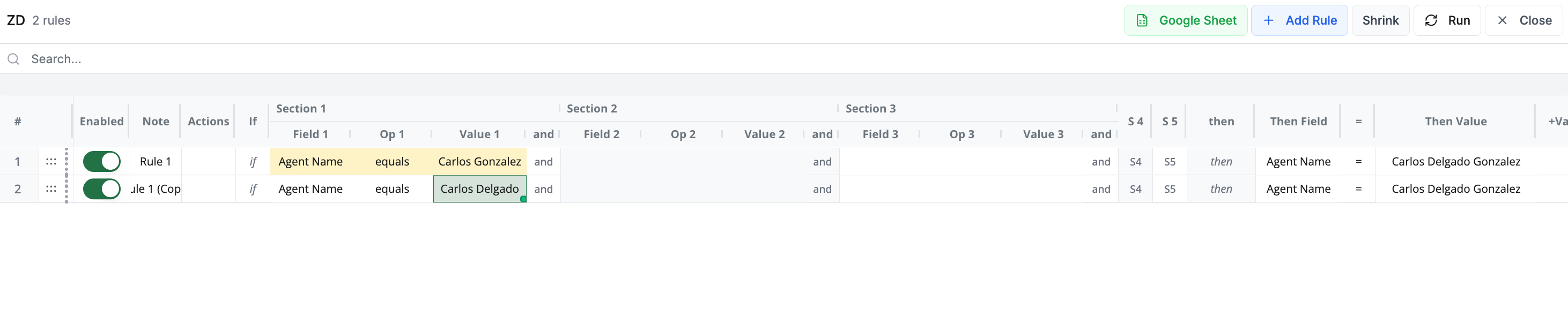
3. Correcting an Agent Name
Rule 1
If a row’s Agent Name equals “Carlos Gonzalez,” the Agent Name will be replaced with “Carlos Delgado Gonzalez.”
Rule 2
If a row’s Agent Name equals “Carlos Delgado,” the Agent Name will also be replaced with “Carlos Delgado Gonzalez.”
Sometimes carriers only provide a partial Agent name — for example, just a first and one last name — or, in the case of Hispanic names, they may only include one of the two last names. These Rules correct and standardize those variations so that all records for the same person appear under the full, accurate name “Carlos Delgado Gonzalez.”
4. AOR Change

Rule 1
If a row’s Client Full Name equals “Joe Namath,” the Agent Name will be replaced with “Patrick Maholmes.”
Rule 2
If a row’s Client Full Name equals “Eli Manning,” the Agent Name will also be replaced with “Patrick Maholmes.”
These Rules are used when you need to change the Agent Name associated with a specific client or list of clients.
This can happen when the wrong writing number was used on the application, or in cases of a Book of Business acquisition, where the original Agent of Record (AOR) remains listed on the statement even though the client now belongs under a different Agent.
Troubleshooting
Common Issues & Fixes
| Issue | Symptom | Fix |
|---|---|---|
| Formula not working | Rule runs but values don’t change | Check field names, data types, conditions |
| Validation error | “Invalid formula” message | Check syntax: parentheses, commas, quotes |
| Wrong values | Results are unexpected | Add parentheses, handle nulls with COALESCE |
Error Messages
- Invalid field reference → Check spelling of field names
- SQL syntax error → Verify commas, quotes, parentheses
-
Division by zero → Use
NULLIF(field, 0) -
Type mismatch → Use
CAST()to align data types
Best Practices
- Start with simple rules, then add complexity
- Test on small data before applying widely
- Break down big rules into smaller steps
Need Help?
If you’re stuck:
- Test your formula in isolation
- Review available field names
- Try one of the example rules
- Contact ComTrack Support with your rule details and any error messages