
Objective
This SOP explains how to log in to the Senior Market Sales portal, download commission statements, and interpret the key fields in the Excel file. It also outlines an optional automated workflow for retrieving statements and reviewing them in Retrieve.
Key Steps
1. Log in to the SMS portal and confirm the statement period 0:09
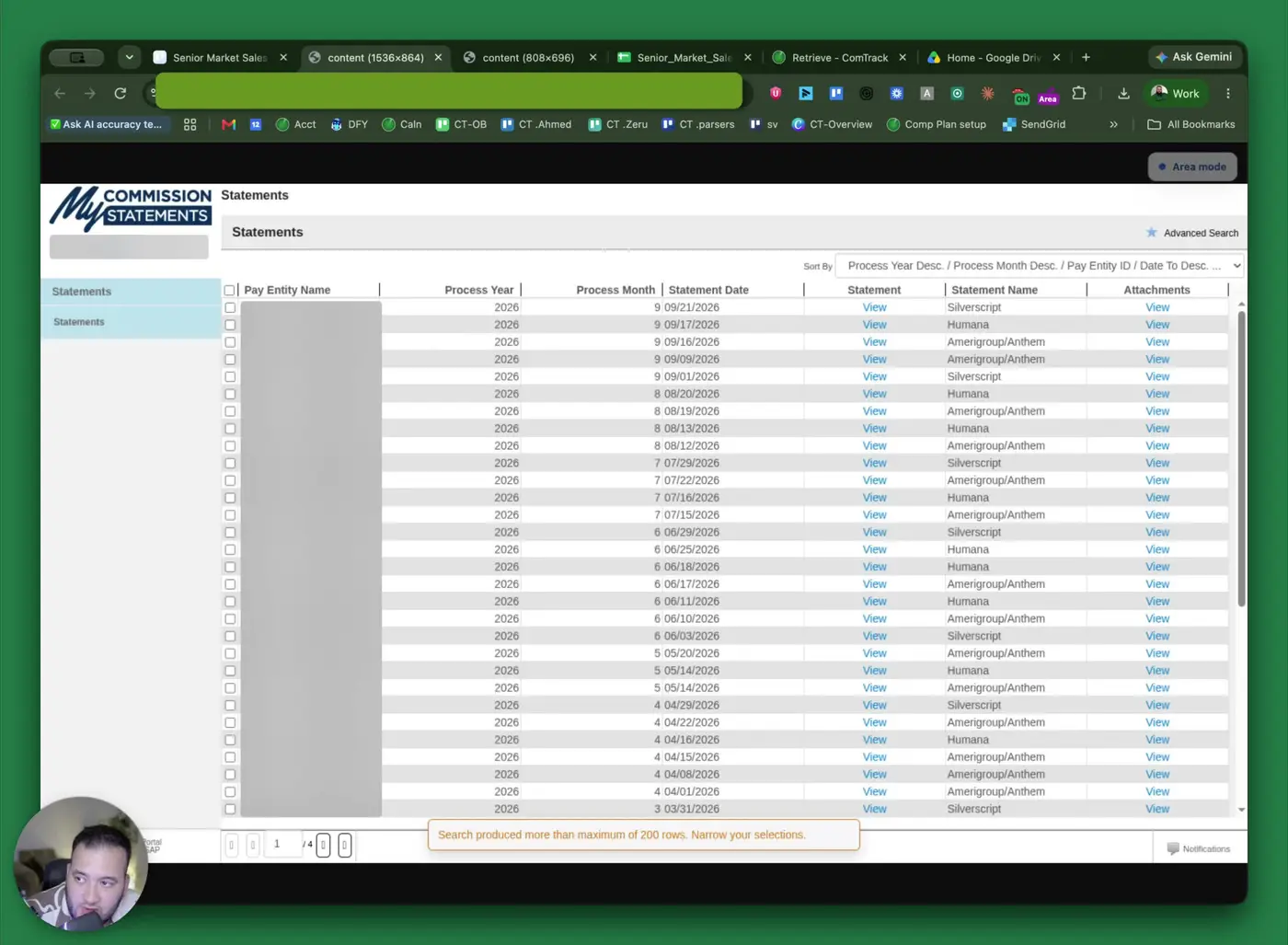
- Log in to the Senior Market Sales (SMS) portal.
- Complete 2FA authentication when prompted.
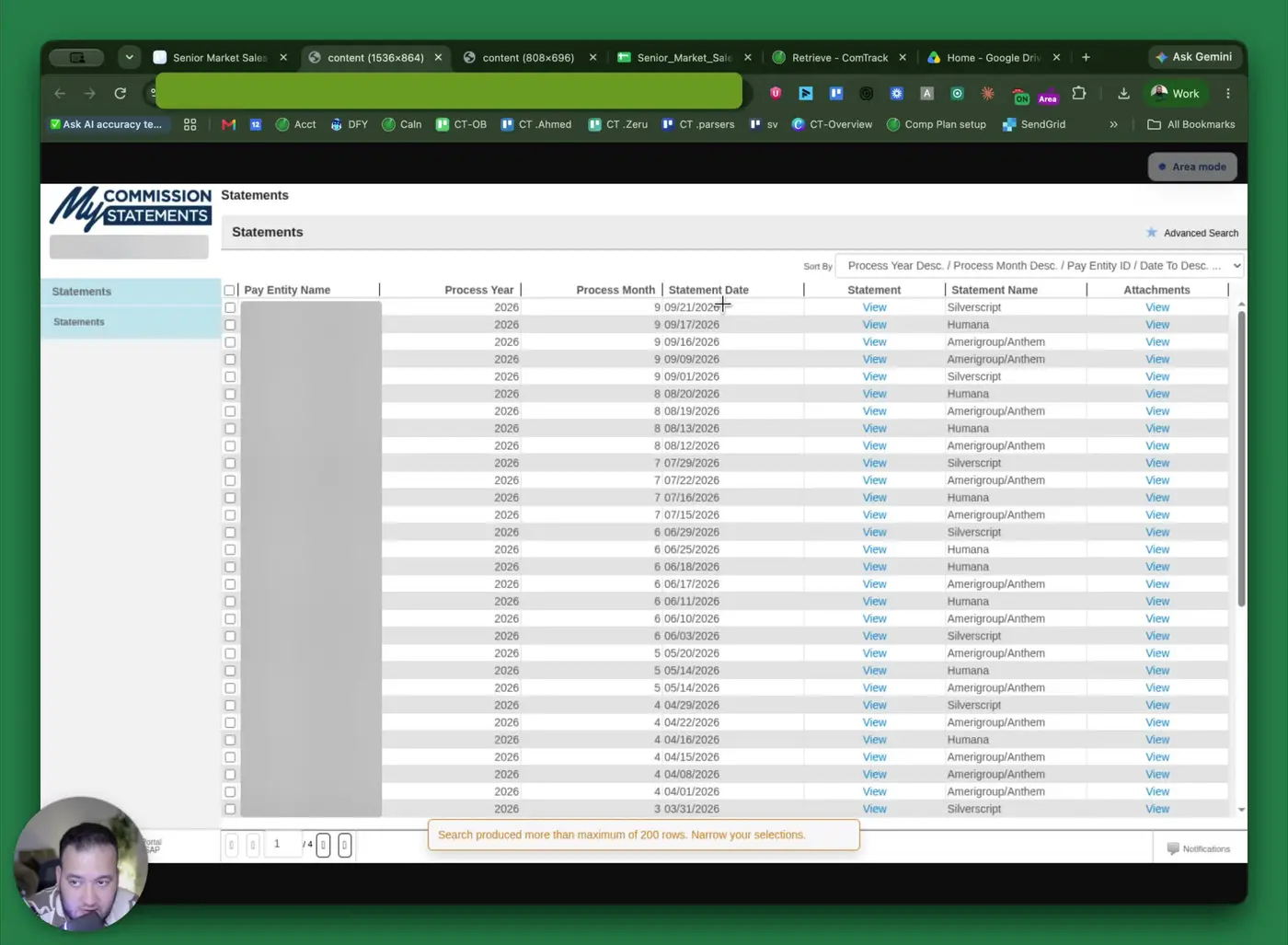
- On the home page, verify the process month and process year before selecting a statement.
- Confirm you are opening the correct statement period before proceeding.
2. Open the correct statement attachment 0:26
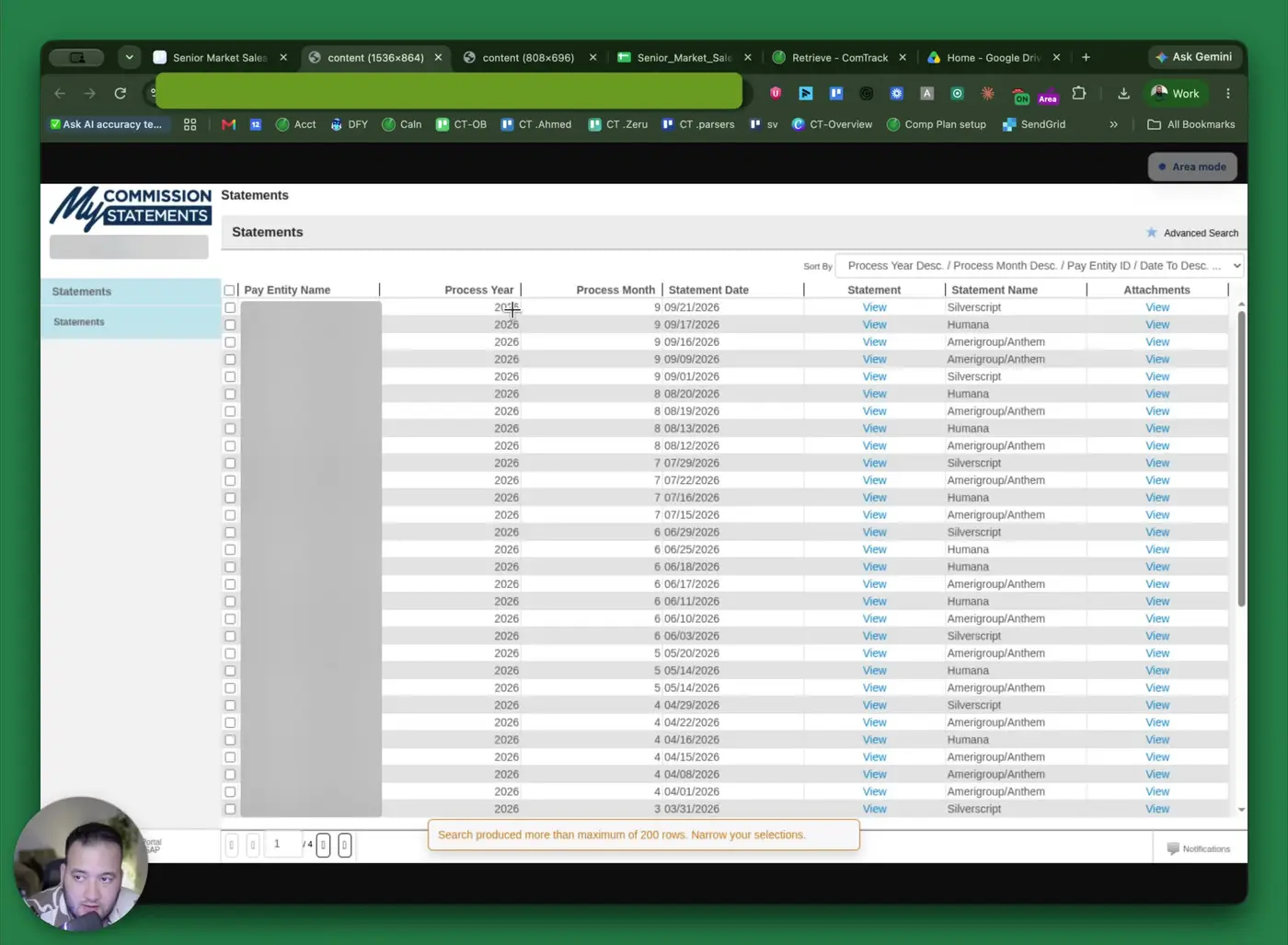
- Locate the statement you want to download.
- Under Attachments, click View for the correct statement row.
- Confirm the statement date matches the period you need (for example, a specific September statement).
- Use this step carefully to avoid downloading the wrong month or date.
3. Download the statement as an Excel file 0:41
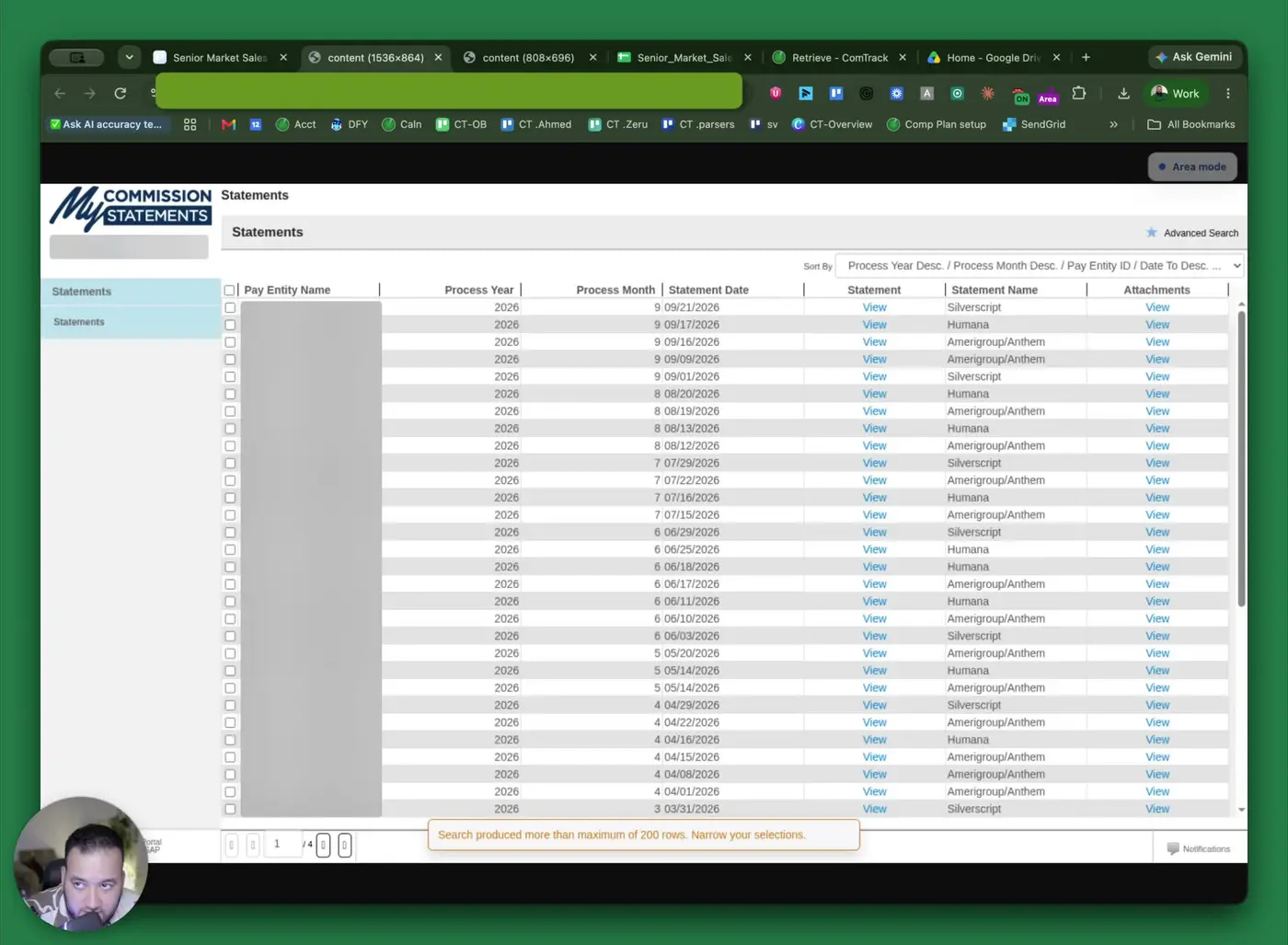
- After clicking View, a pop-up will appear.
- In the pop-up, click Download next to the Excel statement option.
- Save the file to your computer.
- Verify the file downloads successfully and opens as an Excel spreadsheet.
4. Review the main commission statement columns 1:03
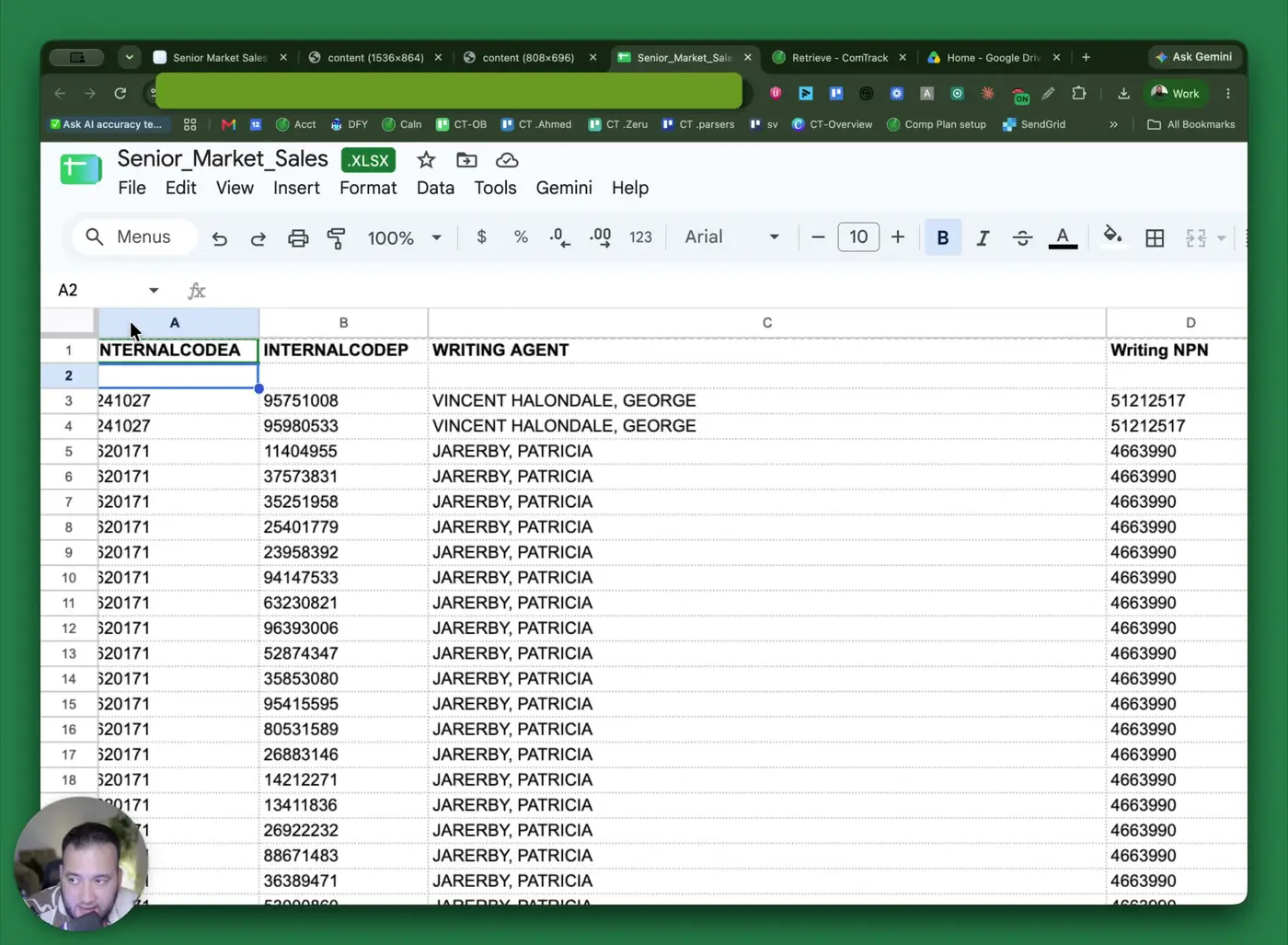
- Open the downloaded Excel statement and review the columns from left to right.
- Key fields include:
- A / Internal Code A: Agent internal ID.
- B / Internal Code P: SMS internal policy ID.
- Writing Agent: Name of the agent who sold the policy.
- NPN: National Producer Number for the agent.
- Writing Number: Agent ID with the carrier.
- Policy Number: Carrier policy number.
- Insured: Client name.
- Product: Plan type (for example, MA or MAPD).
- Use these fields to identify the agent, policy, and client associated with each commission line.
5. Check balance, policy status, and commission details 1:59
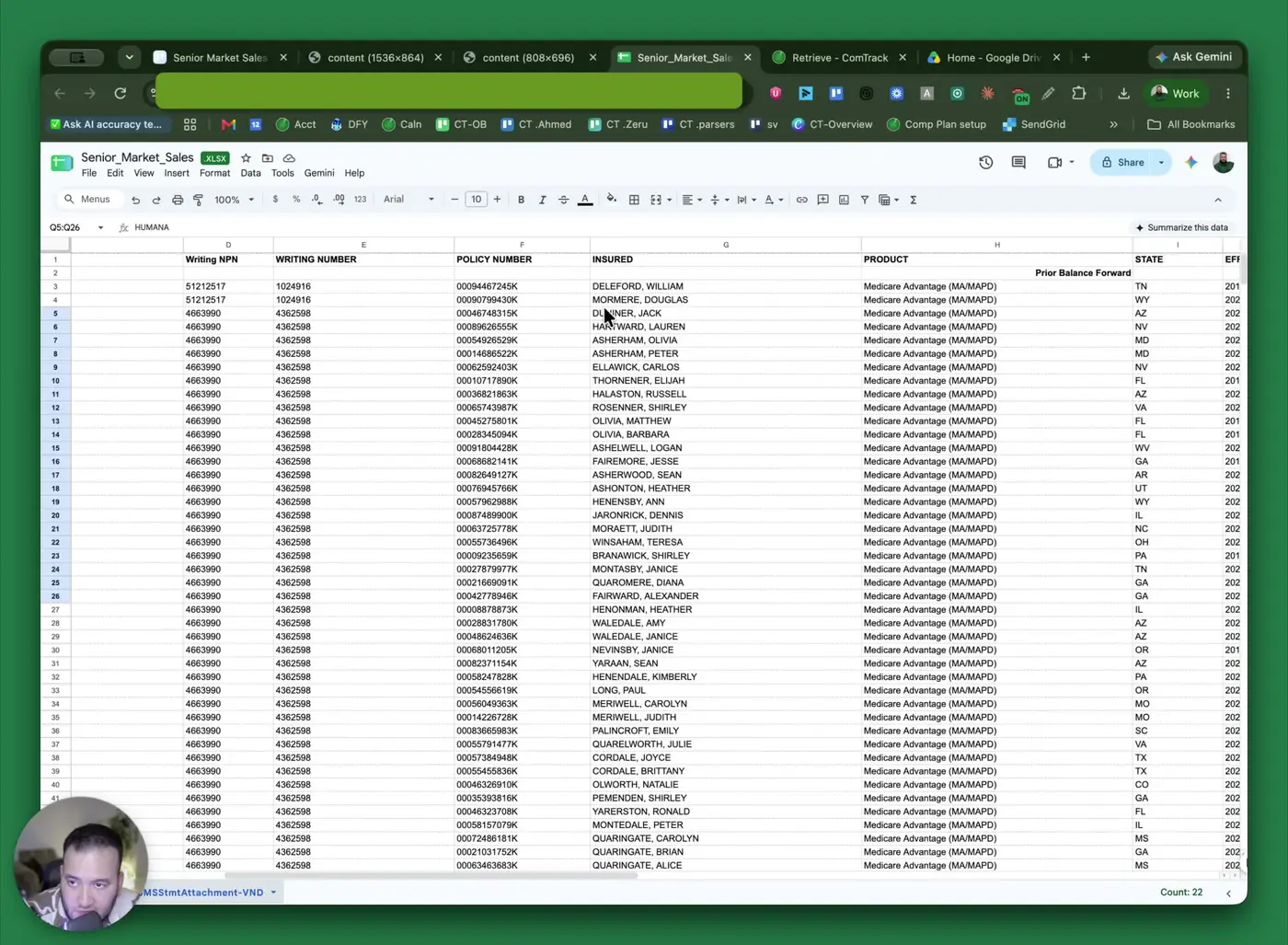
- Review the Prior Balance Forward row under Product.
- This shows any unpaid balance carried over from a previous statement.
- If blank or zero, there is no prior balance.
- Check the State field for the client’s state.
- Review the Effective Date and Policy Term Date.
- A blank term date usually means the policy is still active.
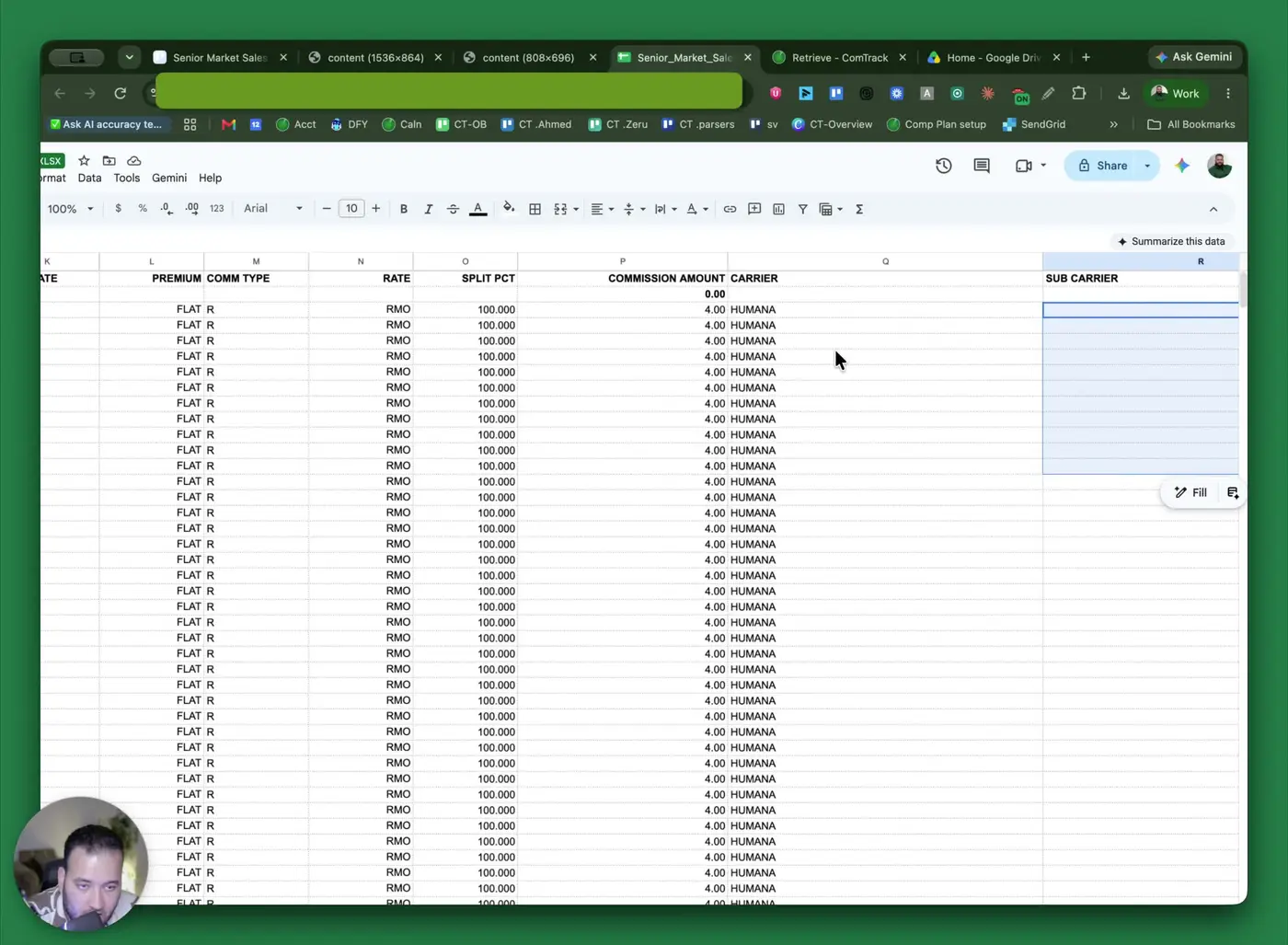
- Confirm the commission details:
- Premium: Flat dollar amount, not a percentage.
- Comm Type: Commission type.
- R: Renewal commission.
- RMO: Renewal monthly.
- Split Percentage: Your share of the policy.
- Commission Amount: Your pay for that row.
- Carrier / Subcarrier: Insurance company and any sub-entity involved.
6. Verify totals and understand prior balances 3:28
- Scroll to the bottom of the statement to find the total commission amount.
- Confirm the total equals the sum of the individual commission rows.
- Review any prior balance forward amount included in the total.
- If a balance from a previous month was unpaid, it may appear here and be paid in a later statement.
7. Use Retrieve to automate statement collection 4:15
- If you want to avoid manually downloading each statement, open Retrieve.
- Search for Senior Market Sales in the platform.
- Enter your SMS username and password.
- Connect your 2FA method if enabled.
- If using email-based 2FA, add your Gmail or Outlook account so Retrieve can access verification codes.
8. Run the automated pull and review results 5:18
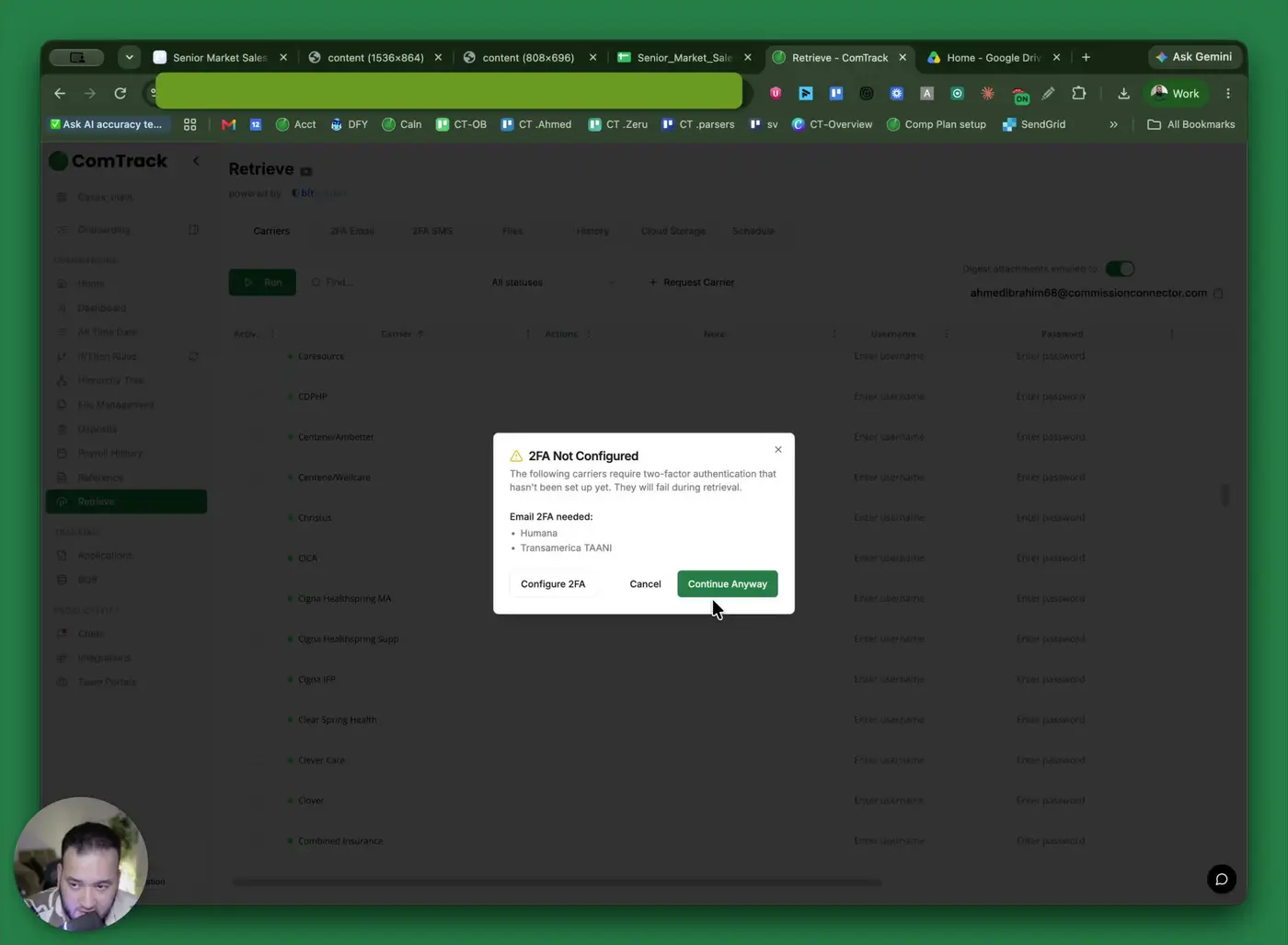
- After connecting SMS and 2FA, click Run.
- Choose how far back to retrieve statements:
- 30 days
- 60 days
- 90 days
- Custom timeframe
- Wait for the process to complete; it may take up to about 20 minutes.
- Review the pulled statements in Track or All Time Data.
- Use filters to narrow results by:
- Name
- Carrier
- Agent ID
- Use the dashboard to review carrier performance, agent contribution, and commission trends.
- To review chargebacks, open the Chargeback view and inspect monthly negative values.
- Double-click a chargeback entry to see the underlying client-level breakdown.
- Download reports if you need a local copy.
Cautionary Notes
- Always confirm the process month and year before downloading a statement to avoid using the wrong file.
- Do not assume a blank field means an error; for example, a blank policy term date may simply mean the policy is still active.
- Prior balance forward may affect the total commission amount, so review it carefully.
- When using Retrieve, make sure your username, password, and 2FA access are correct before running the automation.
- If you connect email accounts for 2FA, ensure you have permission to access those inboxes and that the account is properly authenticated.
Tips for Efficiency
- Use Retrieve to batch-download statements instead of manually opening each attachment.
- Apply filters in Track/All Time Data to quickly find a specific agent, carrier, or policy.
- Save downloaded Excel files in a consistent folder structure by month and year for easier auditing.
- Review the total commission and prior balance forward first if you only need a quick reconciliation check.
- Use the dashboard for a fast high-level view of carrier performance and chargeback trends.