
Objective
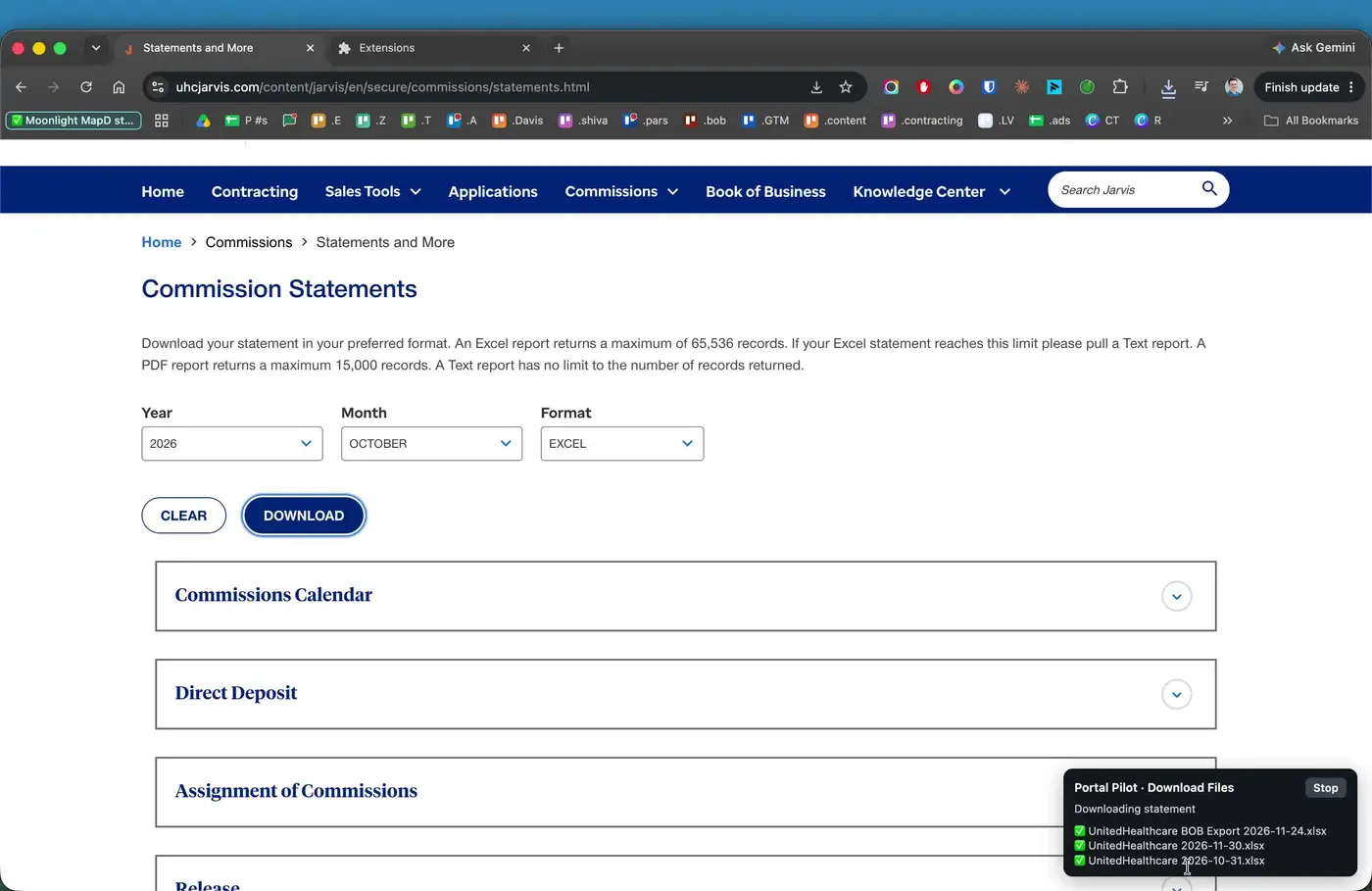
Use Portal Pilot to retrieve book-of-business and commission statement files from a carrier portal, then open plan data and Summary of Benefits (SOB) information from contract numbers on any webpage. Portal Pilot is a free Chrome extension and works without a ComTrack account.
Key Steps
1. Open the carrier portal and Portal Pilot 0:00
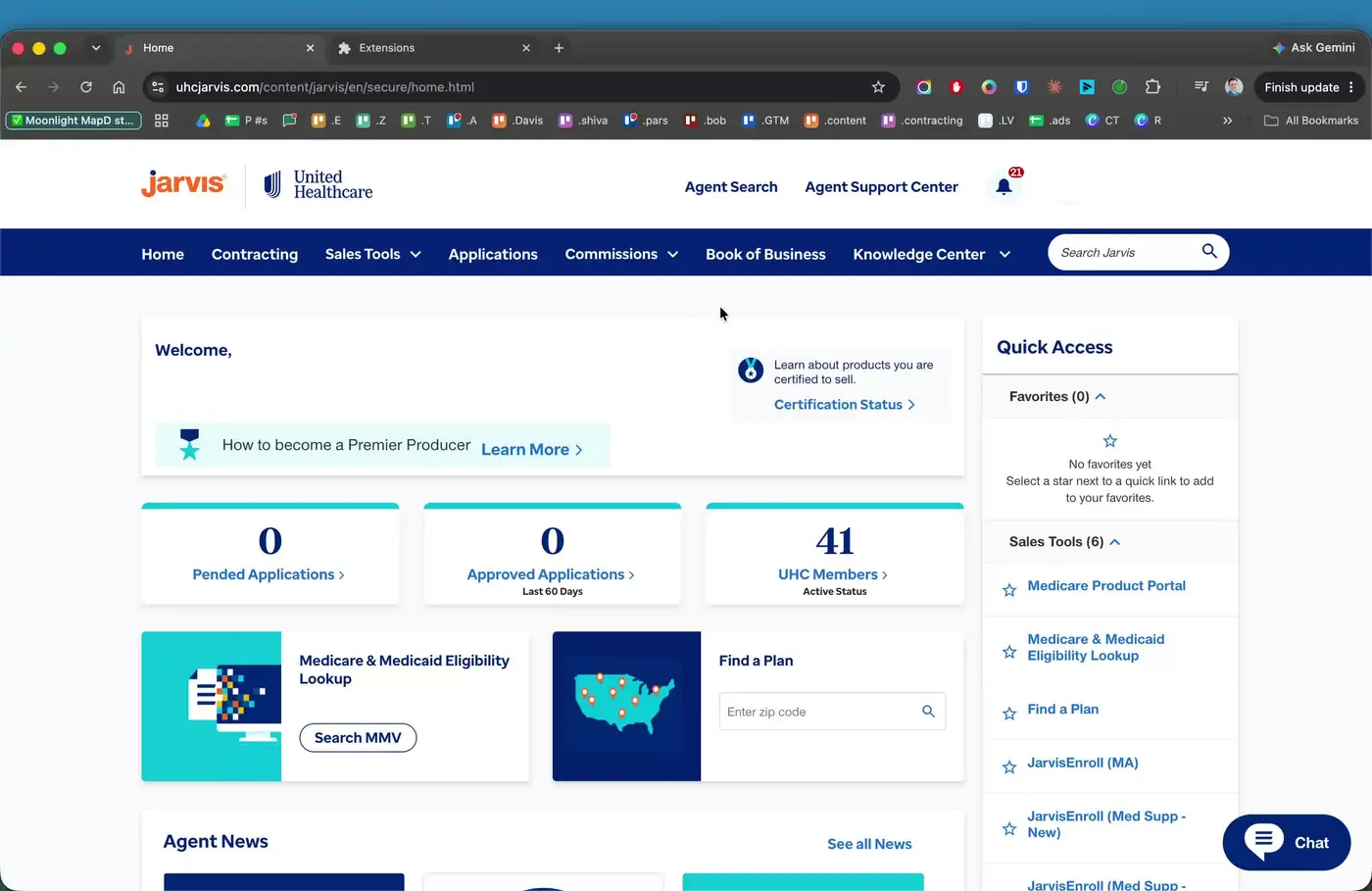
- Sign in to the carrier portal that holds the records you need.
- Open the Portal Pilot browser extension.
2. Choose the download period and start the download 0:16
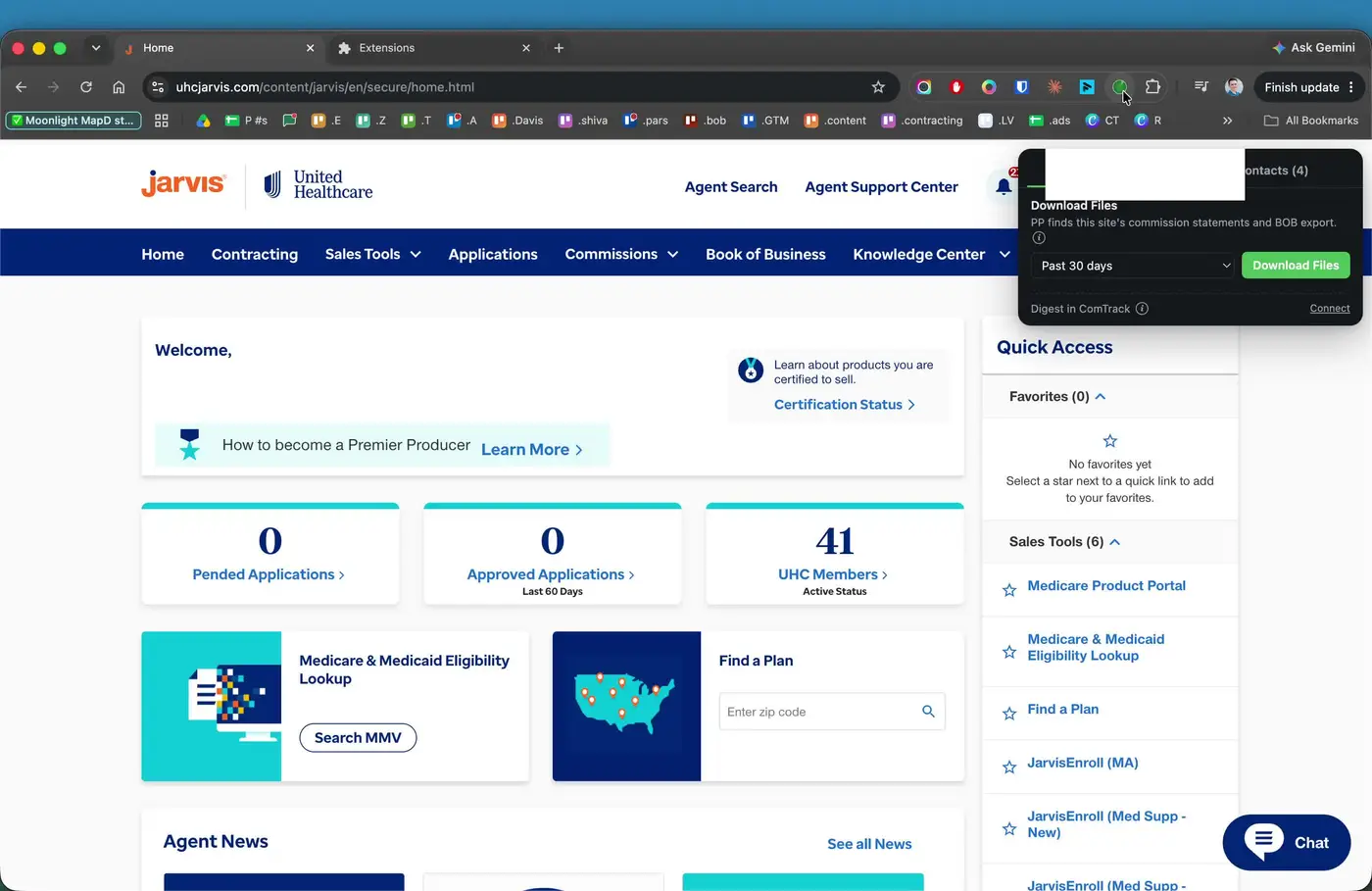
- Select the period you want files for, such as the past 30, 60, or 90 days, or all available history back to when you became an agent.
- Click Download files to begin.
3. Wait for the files and verify the downloads 0:34
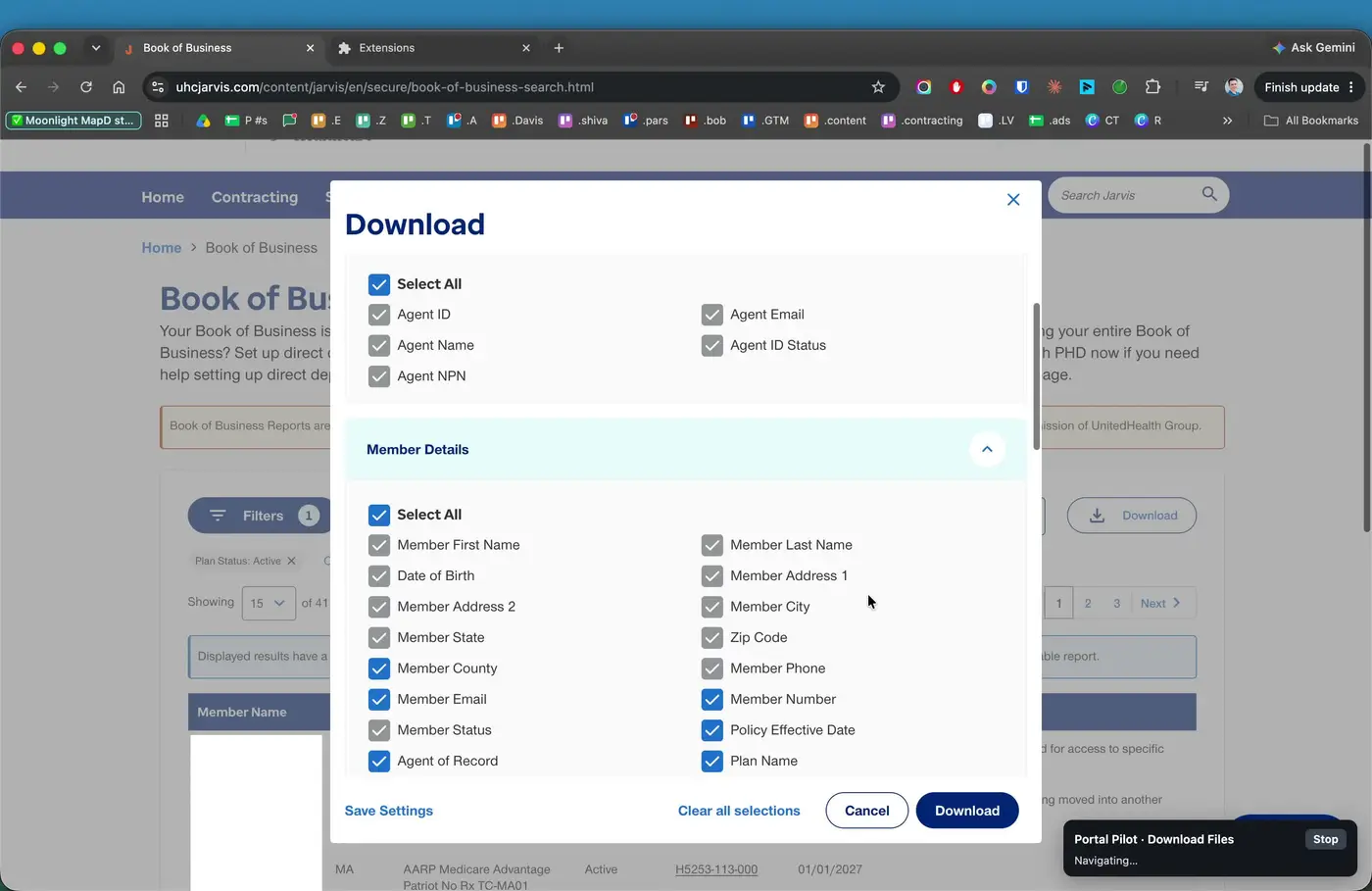
- Allow a couple of minutes for Portal Pilot to retrieve the files.
- Check the folder Portal Pilot saves to on your computer for the book-of-business (BOB) export and the available commission statements.
4. Optionally send the downloaded data to ComTrack 0:42
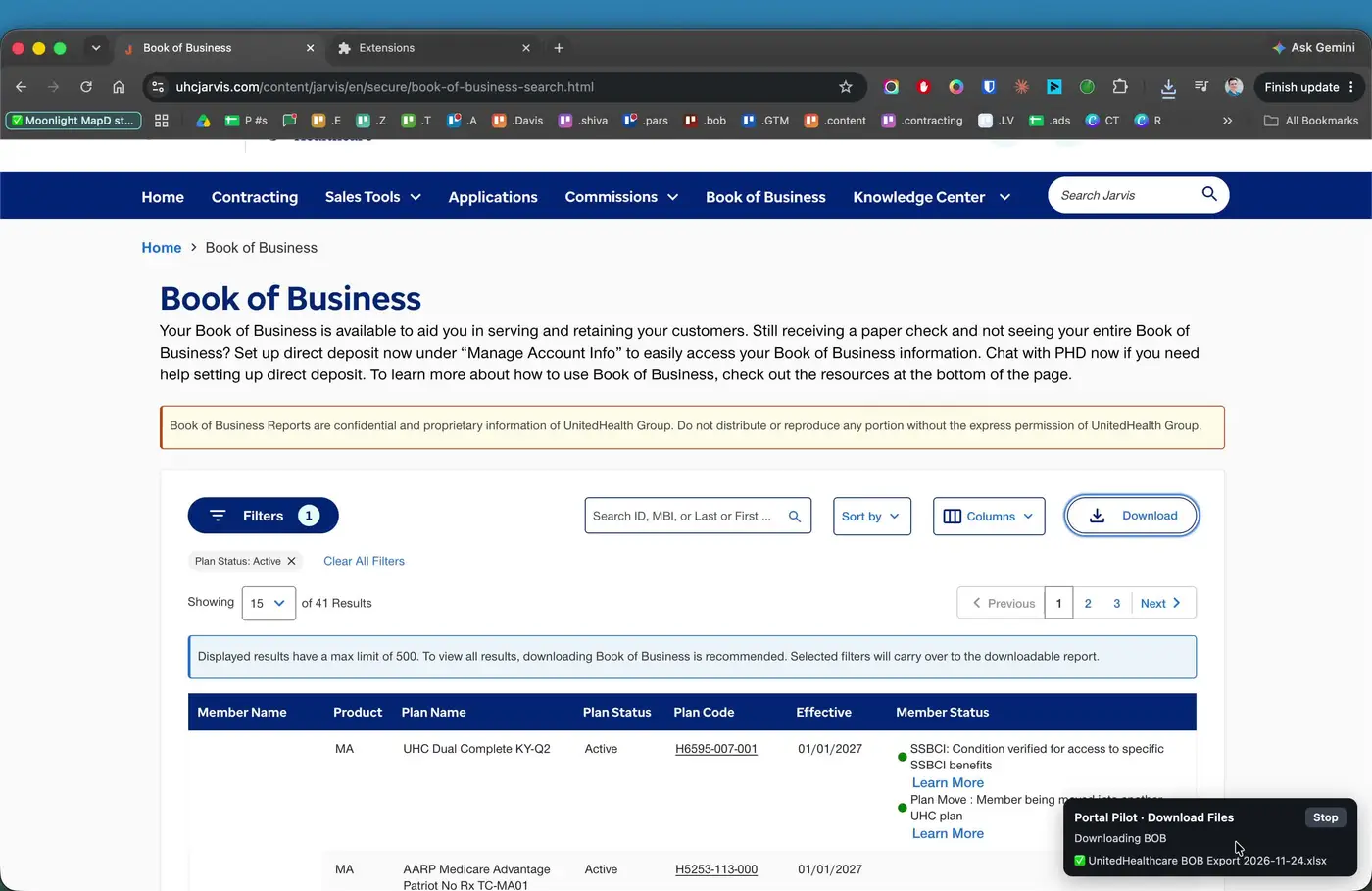
- If you want the downloaded information digested into ComTrack, connect Portal Pilot to your ComTrack account.
- Otherwise, work from the files saved in the folder on your computer.
5. Quote a client and open plan codes from an eligibility check
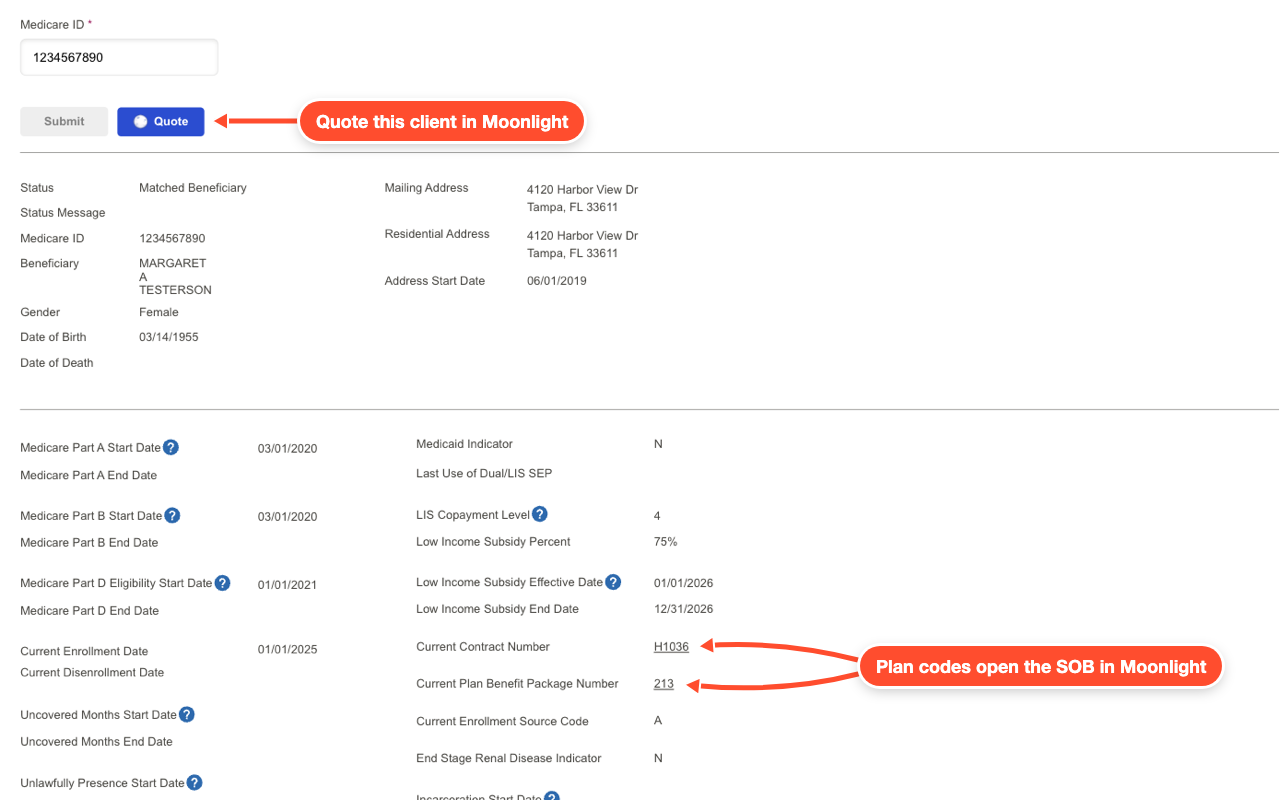
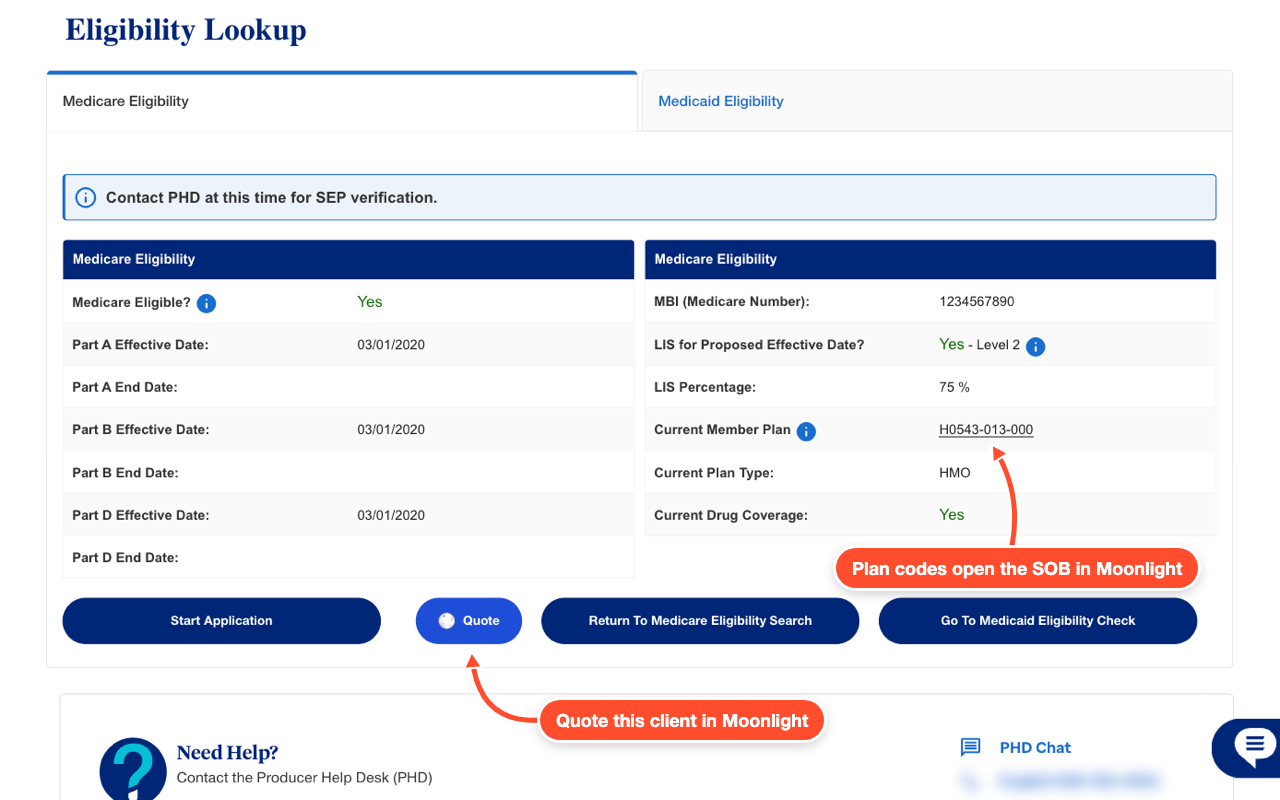
On any carrier portal, Portal Pilot adds two shortcuts of its own wherever a client or plan appears, such as an eligibility check:
- A Quote button next to the portal’s own buttons. Click it to open that client in Moonlight with their details filled in.
- Every plan code on the page (contract number, PBP, or the combined plan ID such as H0543-013-000) becomes a link. Click it to open that plan’s Summary of Benefits in Moonlight.
Two examples, Humana Vantage and UnitedHealthcare Jarvis; the same shortcuts appear on every other portal:
6. Open plan data from a contract number 0:57
- On a webpage, locate a contract number in the format shown in the video: an H code followed by digits, often with a three-digit PBP (for example H1234-001).
- Click the contract number to open the plan's data.
7. Open the plan's Summary of Benefits 1:14
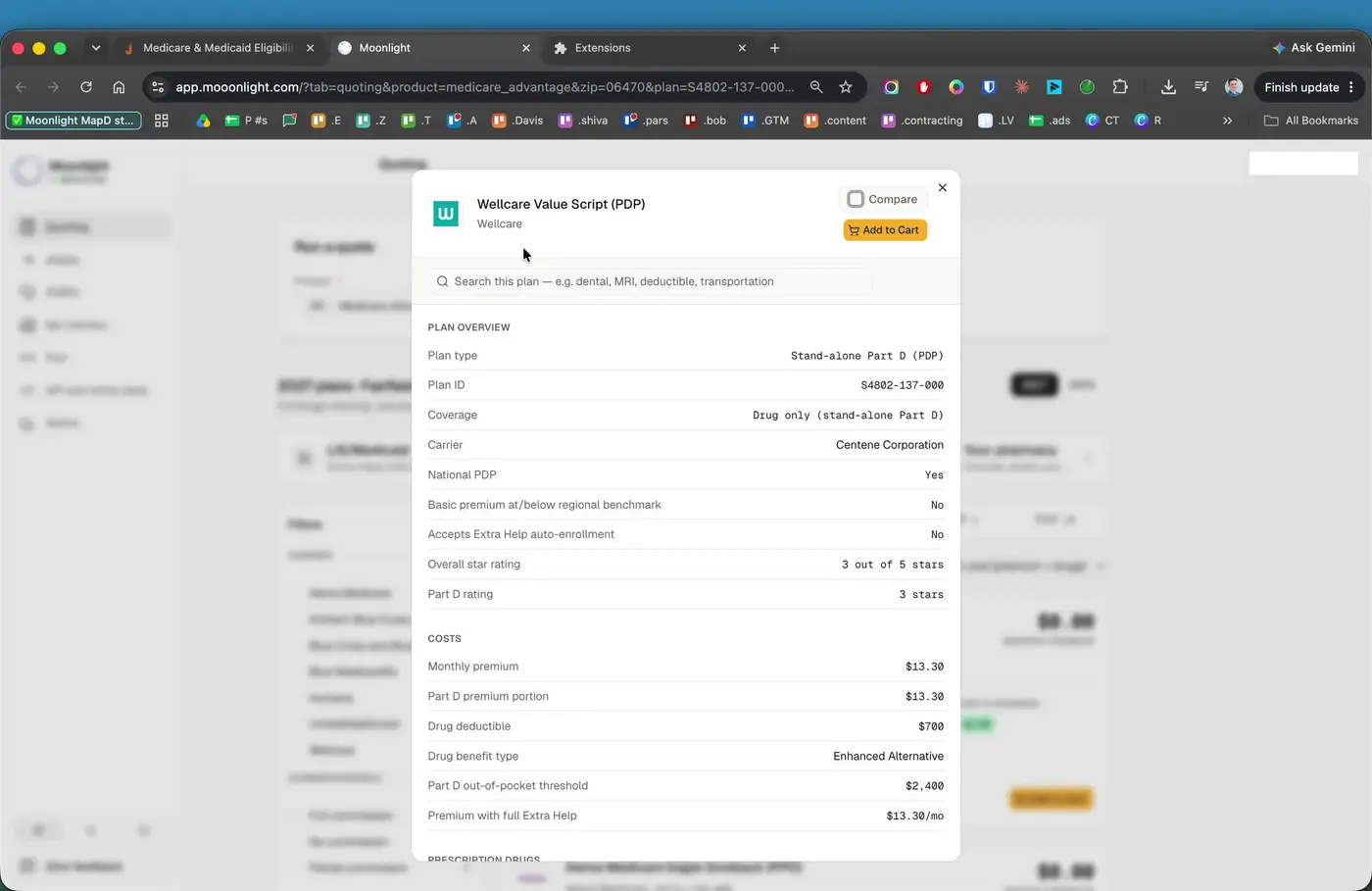
- In the plan information, select Summary of Benefits to open the plan's SOB when that option is available.
- Use the plan details shown to review the information you need.
8. Look up plans by ZIP code and use supported webpages 1:19
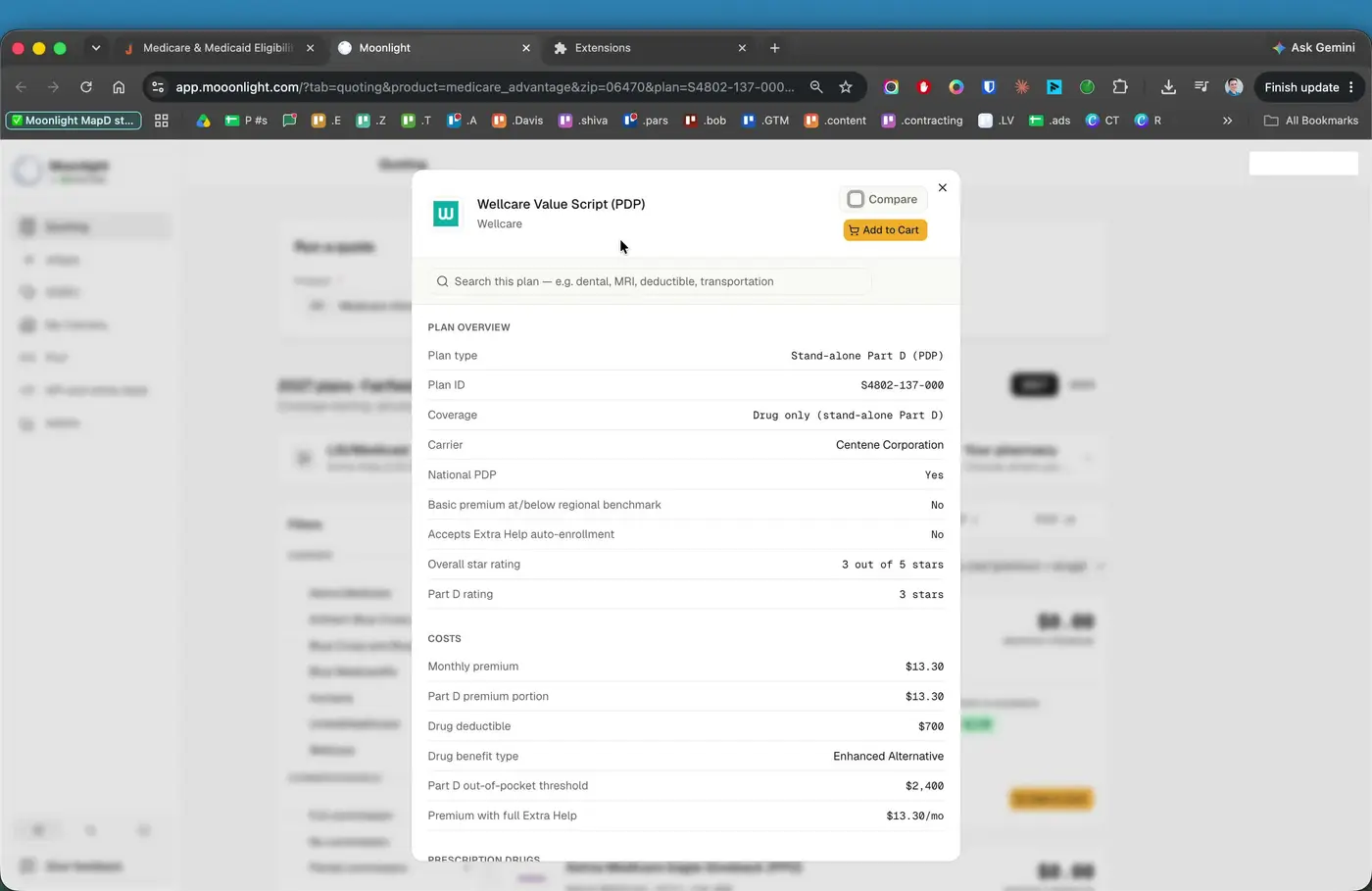
- Browse the plans available in the relevant ZIP code.
- Portal Pilot's contract-number lookup works on webpages beyond carrier portals, including Google Sheets.
9. Review contract and PBP details 1:33
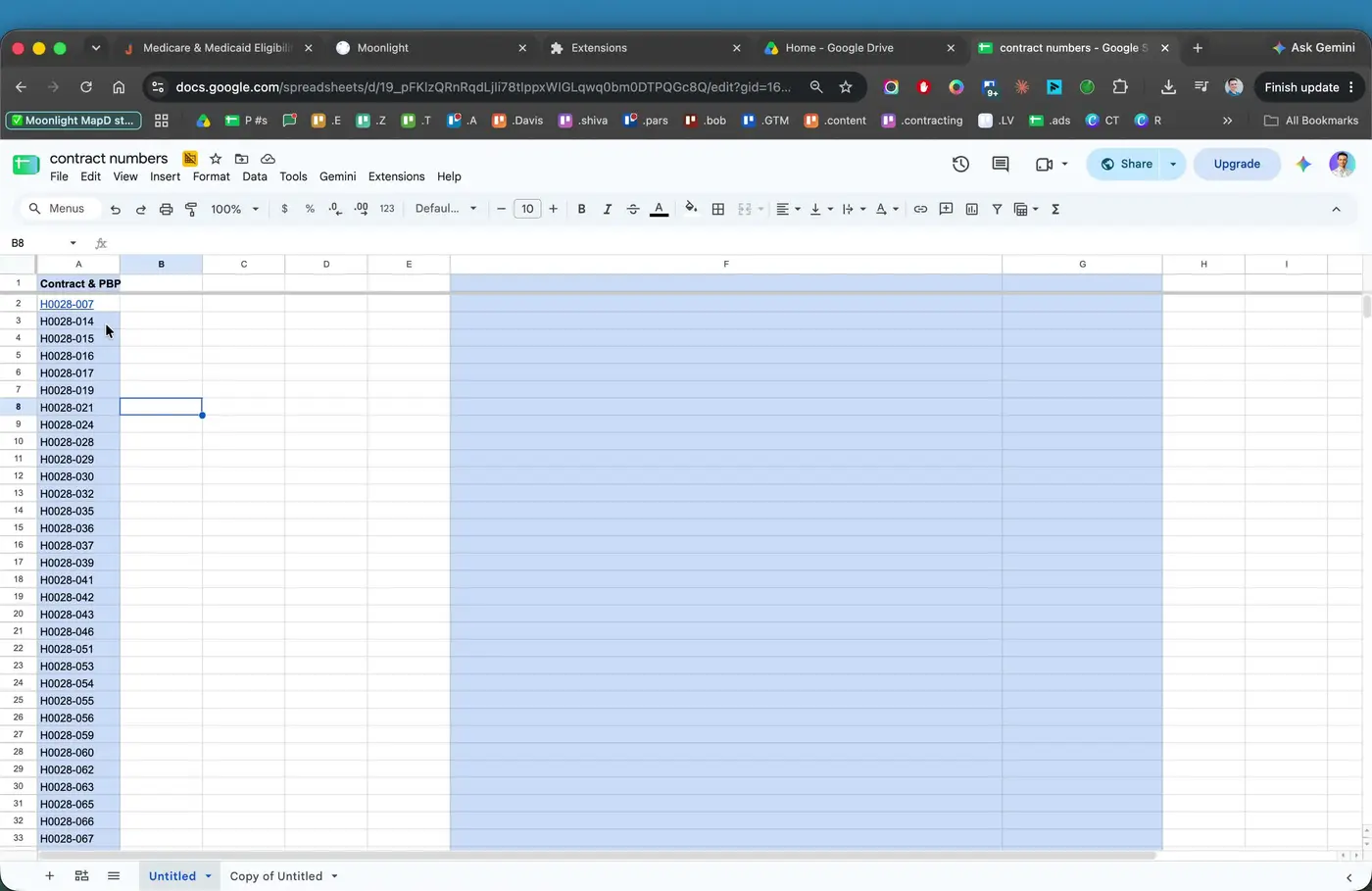
- Click a contract number in the webpage or sheet to bring up the plan data and, when available, the SOB.
- If the contract number and PBP are in separate columns, use the displayed breakdown to identify the relevant plan.
Cautionary Notes
- Downloads may take a couple of minutes to complete; check the destination folder before assuming files are missing.
- The video describes Summary of Benefits as a feature that is coming soon. Its availability may depend on the version of Portal Pilot you have installed.
Tips for Efficiency
- Choose the date range that matches your needs: a recent period for your monthly tasks, or all available history for a first-time pull.
- Use the contract-number lookup directly from a supported webpage, including Google Sheets, instead of navigating away to search for plan data.
- Confirm that the expected BOB export and commission statements appear in the saved folder after a download.