
Downloading Commission Statements in Providence
Step 1: Log into Providence
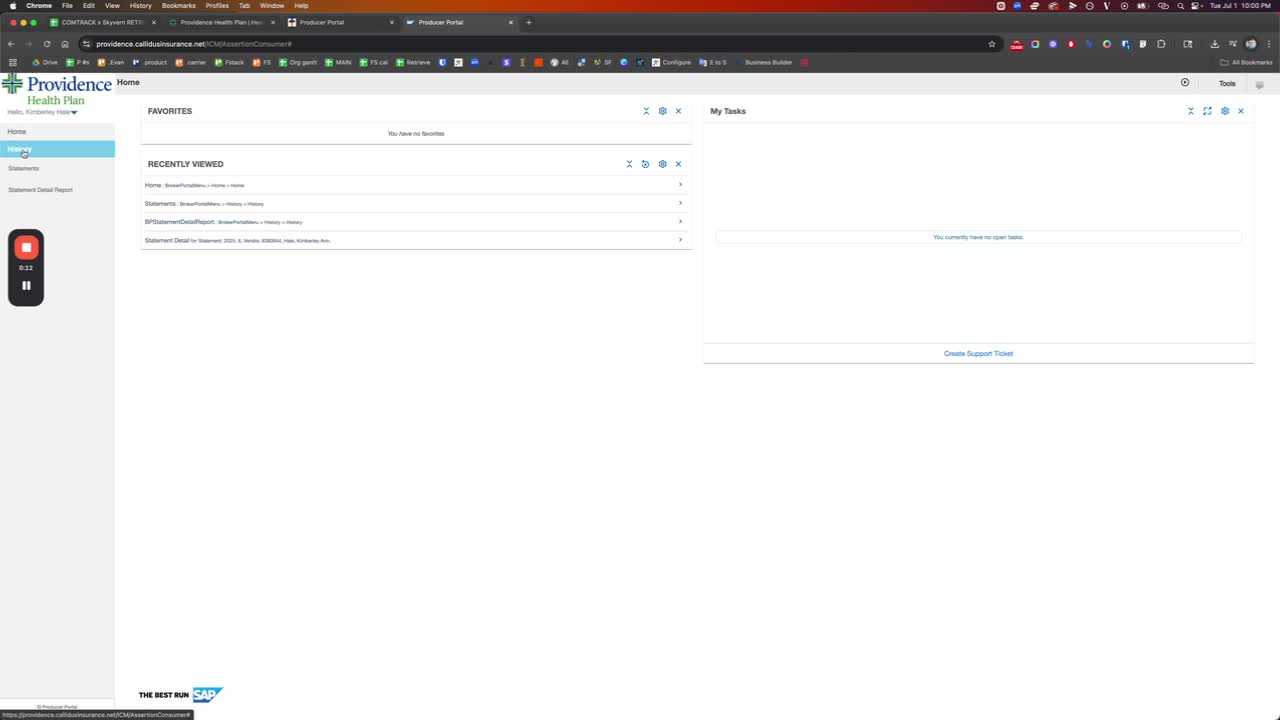
Open the Providence application.
Log in with your credentials.
Step 2: Navigate to Commissions
Click on the 'Commissions' tab in the main menu.
Step 3: Access Commission History
Select 'History' from the dropdown options.
Step 4: Go to Statements
Click on 'Statements' to view the available commission statements.
Step 5: Download Each Statement
-
For each statement:
Note the date associated with the statement.
Click on the row of the statement you want to download.
Step 6: Download the Statement
Click on 'Download Statement'.
Enter the date noted earlier (e.g., 6/27).
Name the file appropriately (e.g., '6-27-Providence').
Select 'Download as PDF'.
Step 7: Repeat for Additional Statements
Continue the process for each statement in the list.