
How to Generate and Export Commission Statements in Combined
Step 1: Access the Reports Section
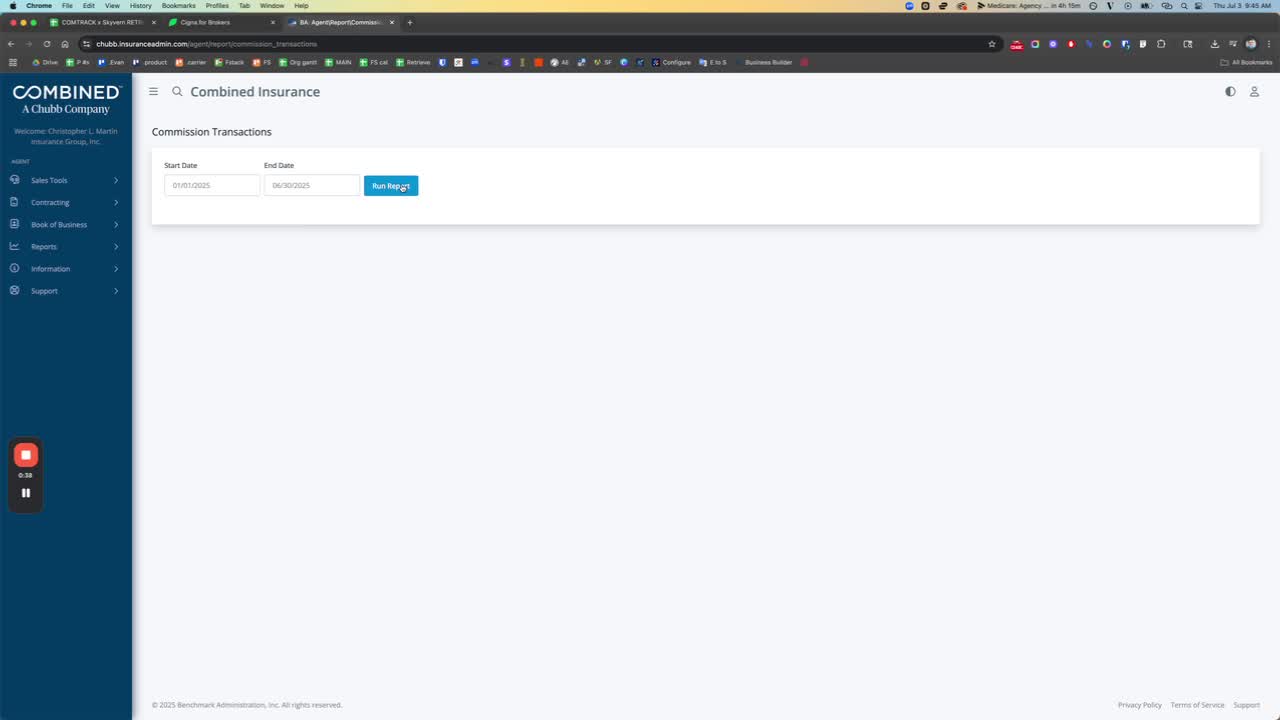
Open the Combined application.
Navigate to the 'Reports' section.
Click on 'Finance'.
Step 2: Select Commission Transactions
In the Finance section, click on 'Commission Transactions'.
Step 3: Input Date Range
Enter the start date in the format MMDD (e.g., 0101 for January 1).
Enter the end date in the same format (e.g., 0630 for June 30).
Step 4: Run the Report
Click on 'Run Report' to generate the data.
Step 5: Export the Data
Scroll to the bottom of the report.
Click on 'Export' and select 'Rows to CSV'.
Step 6: Name the Exported File
Name the file using the format: 'Combined Life, 01, 01, 2025, 2, 0630'.
Ensure the naming convention is clear and includes the relevant dates.
Step 7: Save the File
Click 'Save' to complete the export process.