
How to Download Commission Statements in Sigma
Step 1: Introduction to Sigma
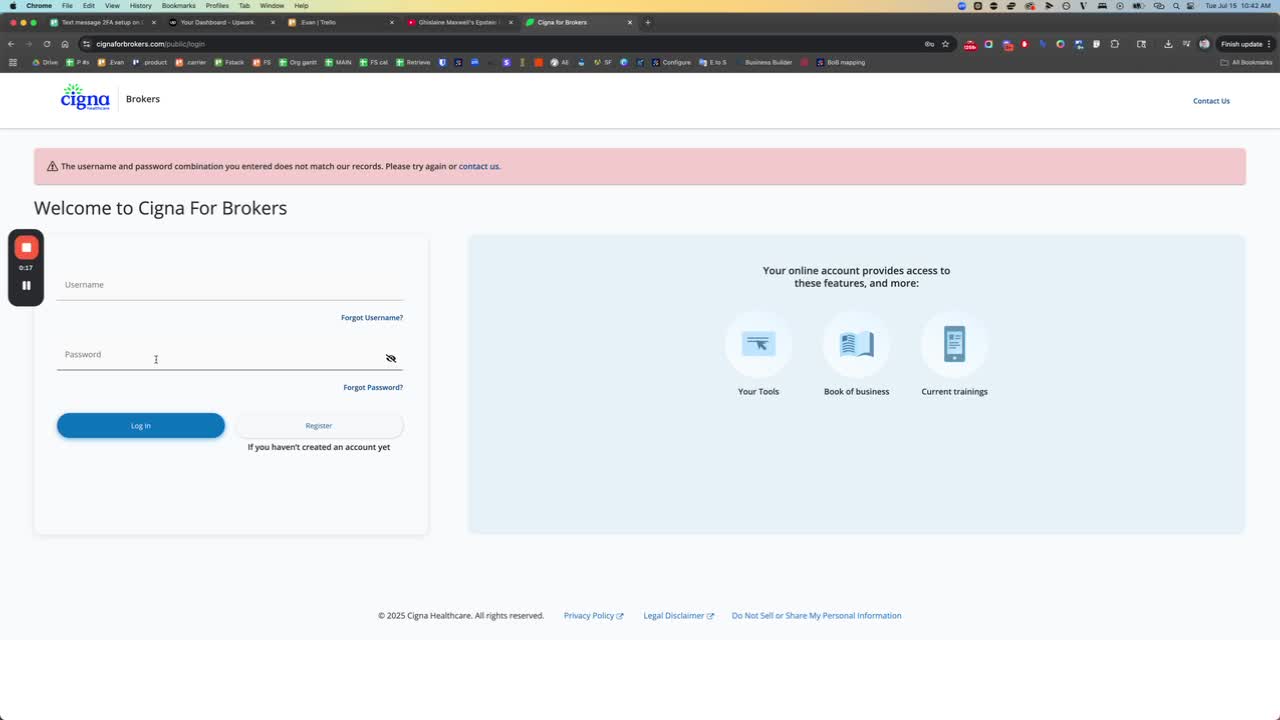
Overview of Sigma and its functionalities.
Mention of various crantles available for use.
Step 2: Accessing the Correct Code
Attempt to enter a code.
Note that the first attempts were incorrect.
Step 3: Receiving the Code
Confirmation that you will receive the correct code next week.
Step 4: Navigating to Commissions
If the 'meta-advantage' section is collapsed, un-collapse it.
Navigate to the 'commissions' section.
Step 5: Downloading the Statement
Click the button to download the statement.
Adjust the date range if necessary (e.g., set to nine months).
Step 6: Downloading Individual Statements
Click on each statement to download.
Ensure to add the suffix 'sigma' to the file name.
Step 7: Finalizing the Download
Hit the download button to complete the process.
Step 8: Conclusion
Acknowledgment of the process and thanks.