
Downloading WellCare Statements from Centene Workbench
Step 1: Access Centene Workbench
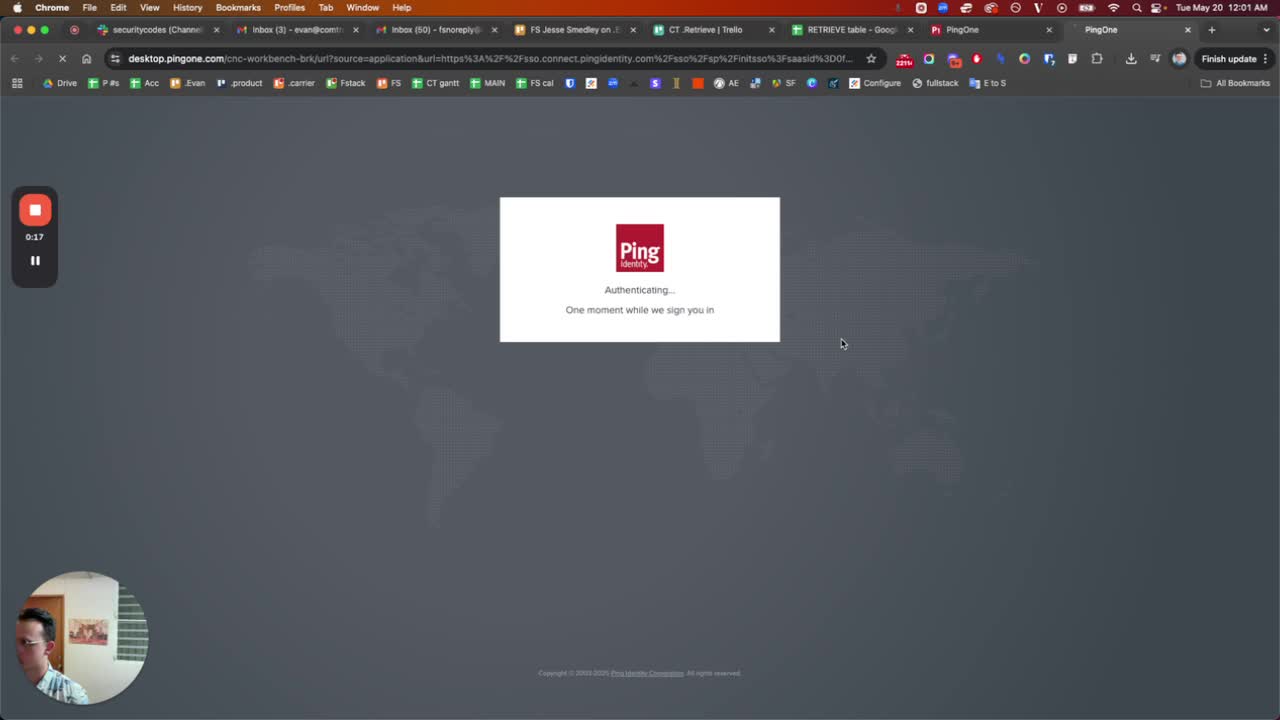
Open the Centene Workbench application.
Navigate to the section labeled 'Statements'.
Step 2: Check Statement Dates
Review the dates of the statements available.
If the dates are outdated, consider switching to a different date range.
Note: You can check for future dates (e.g., 2025) if applicable.
Step 3: Download Statements
For each statement, click on the 'Excel' option to download.
When saving the file, include 'WellCare' and the relevant date in the file name.
(Optional) If you're in a hurry, you can skip renaming the file for now.)
Wait for the download to complete.
Step 4: Confirm Download Completion
Ensure that all statements have been downloaded successfully.
Check the downloaded files to verify their contents.