
ComTrack

Download Statements

Peek Performance FMO 1

How to Generate CSV Statements in Peak Step 1: Log into Peak Enter your PPI. Input your agent ID. Enter your password. Step 2: Navigate to Statements Click on the 'Statements' sect
1 min readUpdated

How to Generate CSV Statements in Peak


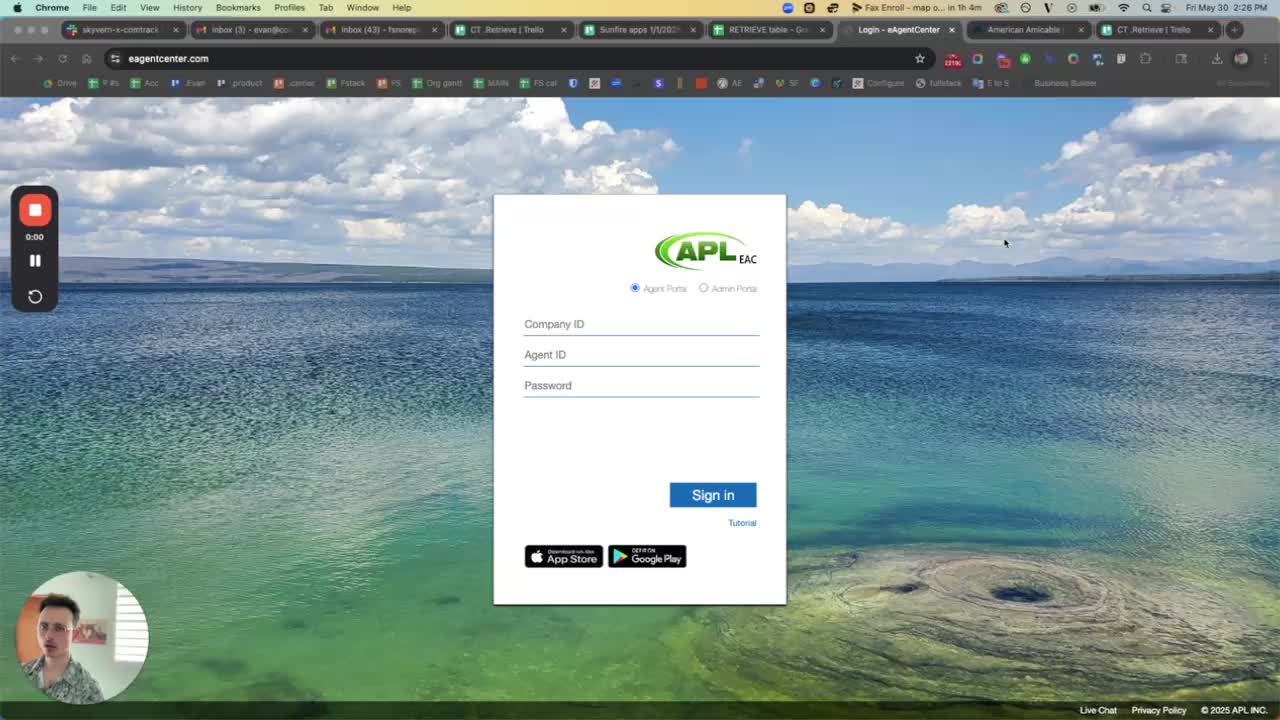
Step 1: Log into Peak

https://loom.com/i/2eb0f0e2e88e4cb7a53363e1c1b4566f?workflows_screenshot=true
  • Enter your PPI.

  • Input your agent ID.

  • Enter your password.


Step 2: Navigate to Statements

  • Click on the 'Statements' section in the interface.


Step 3: Select the Period

https://trello.com/1/cards/689c005913b7ae0caabeb38b/attachments/68b97f0643fc4d1f89b8d3d7/download/2.jpg
  • Click on the value underneath the 'Period' option.


Step 4: Choose CSV Format

https://trello.com/1/cards/689c005913b7ae0caabeb38b/attachments/68b97f1487316272f71b0fc5/download/3.jpg
  • Select 'Always CSV' as the format for the statement.


Step 5: Add Suffix Value

https://trello.com/1/cards/689c005913b7ae0caabeb38b/attachments/68b97f200c348b244fa11ebe/download/4.jpg
  • Include the specified suffix value in the appropriate field.


Step 6: Ensure Carrier Settings

https://trello.com/1/cards/689c005913b7ae0caabeb38b/attachments/68b97f2b67e3eeef0f556a8a/download/5.jpg
  • Make sure that the carrier options 'NB' and 'RN' are not selected.


Step 7: Confirm Visibility Settings

  • Ensure that the visibility settings are always checked.