
ComTrack

Download Statements

Ritter FMO

Exporting Commission Statements from Ritter Step 1: Log into Ritter Access the Ritter platform. Ensure you are logged in to your account. Step 2: Navigate to Commissions Locate the
1 min readUpdated

Exporting Commission Statements from Ritter

Step 1: Log into Ritter

https://trello.com/1/cards/689c003b6b82e31af1e5aea9/attachments/68b9b5df96126ec1b177bd85/download/1.jpg
  • Access the Ritter platform.

  • Ensure you are logged in to your account.


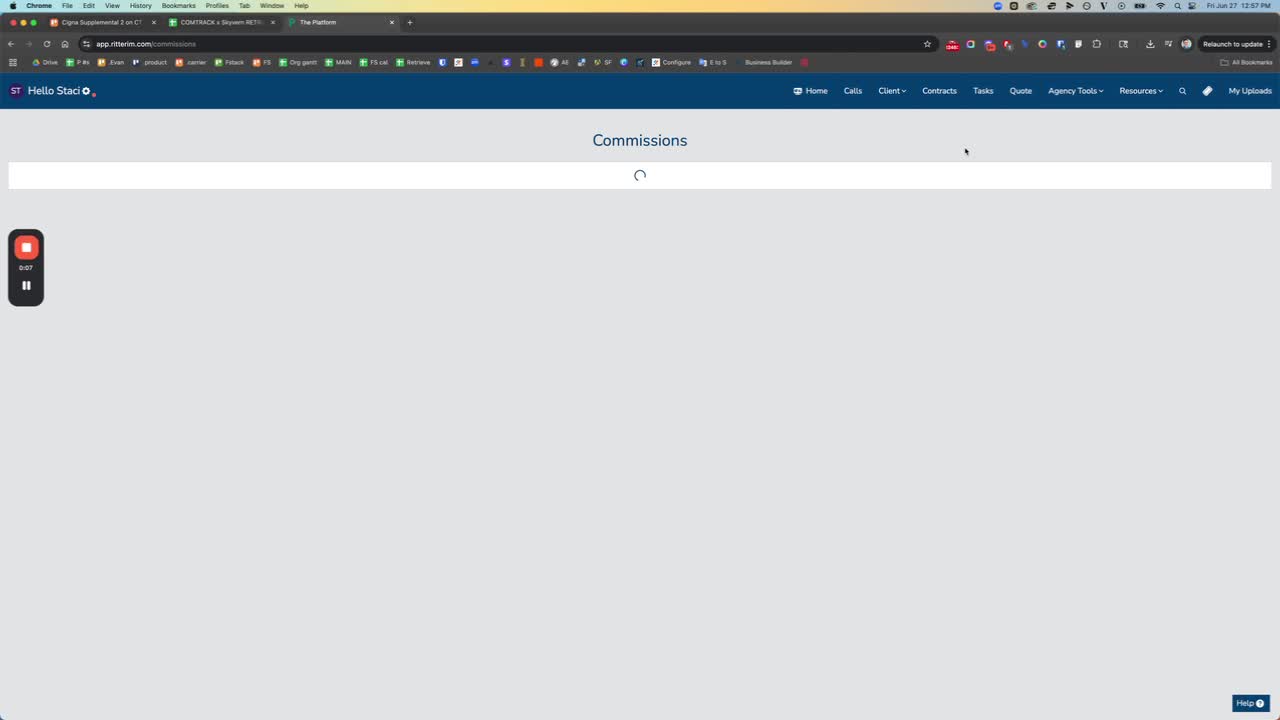
Step 2: Navigate to Commissions

https://trello.com/1/cards/689c003b6b82e31af1e5aea9/attachments/68b9b5f3945046b5b3564707/download/2.jpg
  • Locate the 'Client' section in the menu.

  • Click on 'Commissions' to view commission statements.


Step 3: Select a Commission Statement

https://loom.com/i/de46cefd4ece437282830daed689615c?workflows_screenshot=true
  • Under the 'Date Paid' section, find the commission statement you want to export.

  • Click on the first commission statement to select it.


Step 4: Export the Statement

https://trello.com/1/cards/689c003b6b82e31af1e5aea9/attachments/68b9b6095f0df93a07b170b7/download/4.jpg
  • Look for the 'Export to CSV' option.

  • Click on it to download the commission statement in CSV format.


Step 5: Rename the File

https://trello.com/1/cards/689c003b6b82e31af1e5aea9/attachments/68b9b6140ee1fec6b5ec7ce7/download/5.jpg
  • After downloading, ensure the file name includes 'Ritter' at the end for easy identification.


Step 6: Completion

https://trello.com/1/cards/689c003b6b82e31af1e5aea9/attachments/68b9b6208e674a4f31f02ead/download/6.jpg
  • Confirm the download is complete and the file is saved correctly.