
ComTrack

Download Statements

Sentara

How to Download Commission Statements in Sentara Step 1: Access Commission Statements Log into Sentara. Click on Commission. Select Statements. A new tab will open displaying the s
1 min readUpdated

How to Download Commission Statements in Sentara


Step 1: Access Commission Statements

https://trello.com/1/cards/689c00697fc293248dc389c6/attachments/68b9c3d412ff542a60f15970/download/1.jpg
  • Log into Sentara.

  • Click on Commission.

  • Select Statements.

  • A new tab will open displaying the statements.


Step 2: View Statement History

https://loom.com/i/33c5e34e2c88436fa2ef13d94937701f?workflows_screenshot=true
  • Click on the first item under History.

  • Select Version List to view all available statements.


Step 3: Identify the Statement to Download

https://trello.com/1/cards/689c00697fc293248dc389c6/attachments/68b9c3e8596172da34eeedcd/download/3.jpg
  • Locate the statement you want to download (e.g., June 10th, May 6th, etc.).

  • Click on the desired statement.


Step 4: Export the Statement

https://trello.com/1/cards/689c00697fc293248dc389c6/attachments/68b9c3f7a933bfdf6a095bef/download/4.jpg
  • Click on the Save button that appears.

  • Ensure the option is set to All and the format is Text.


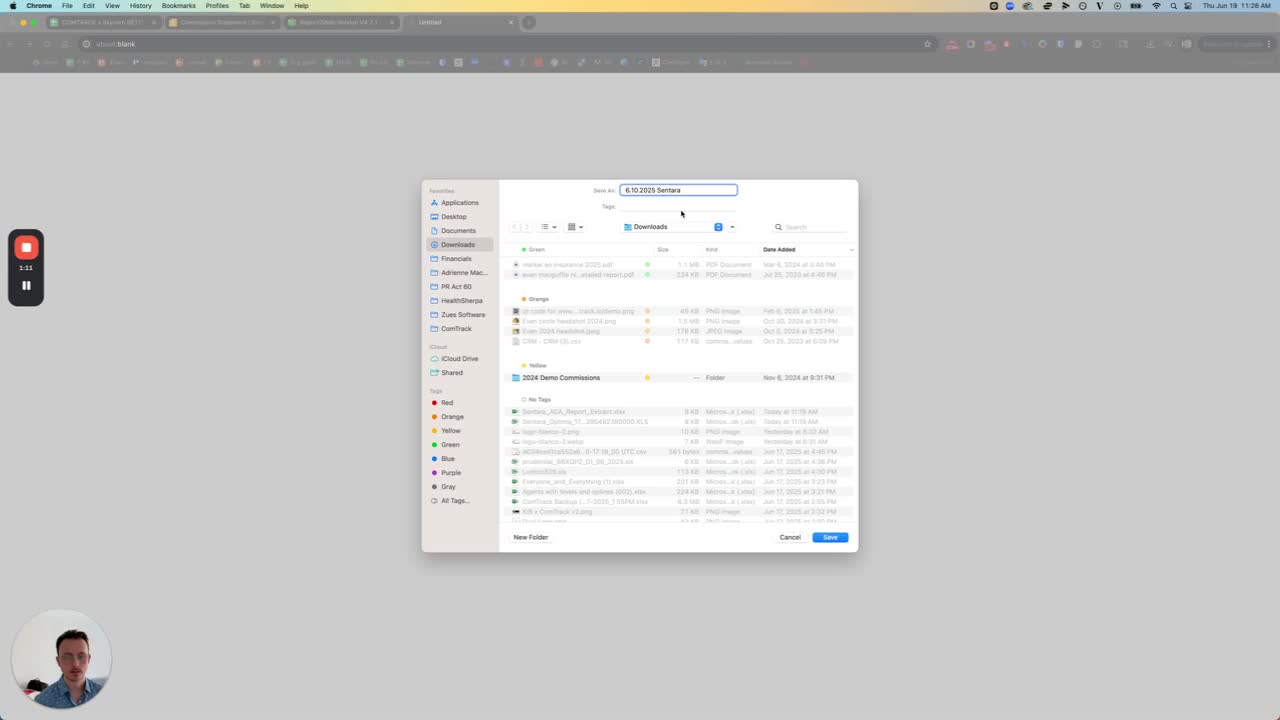
Step 5: Fill in Export Details

https://loom.com/i/2db7b623d3d54292adb6763755d8f65e?workflows_screenshot=true
  • In the export dialog, enter the Date (e.g., 6-10-2025) and the Carrier (e.g., Suntara).

  • Save the file in the appropriate location.


Step 6: Repeat for Additional Statements

https://loom.com/i/e72604dd4c15430b94dfa9f270df8e57?workflows_screenshot=true
  • Go back to the Version List.

  • Repeat steps 3 to 5 for any additional statements you wish to download.


Step 7: Confirmation

https://trello.com/1/cards/689c00697fc293248dc389c6/attachments/68b9c40c1242b81397ad71bb/download/7.jpg
  • Confirm that the process makes sense and thank the viewer for their attention.


Was this article helpful?