
Objective
This SOP explains how to interpret a Banner Life commission statement and how to import or retrieve those statements in ComTrack. It ensures team members can accurately review statement fields, load statements into the system, and access clean, organized commission data for reporting and reconciliation.
Key Steps
1. Identify the core fields on the Banner Life commission statement 0:16
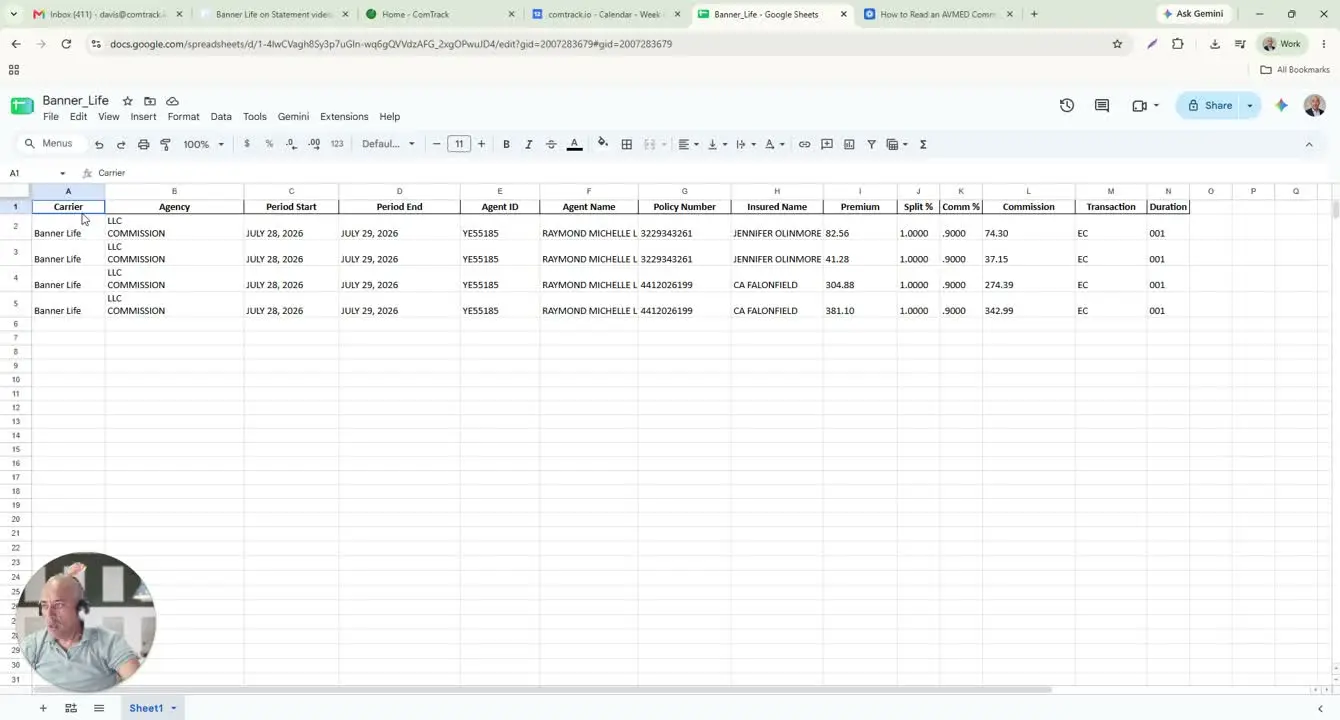
- Review the statement header and confirm the key identifiers.
- Understand each field before using the statement for processing:
- Carrier = the insurance company.
- Agency = the agency the statement is issued to.
- Period Start / Period End = the commission period covered by the statement.
- Agent ID = Banner Life’s ID for the writing agent.
- Writing Agent Name = the agent associated with the policy.
2. Verify policy and insured details 0:43
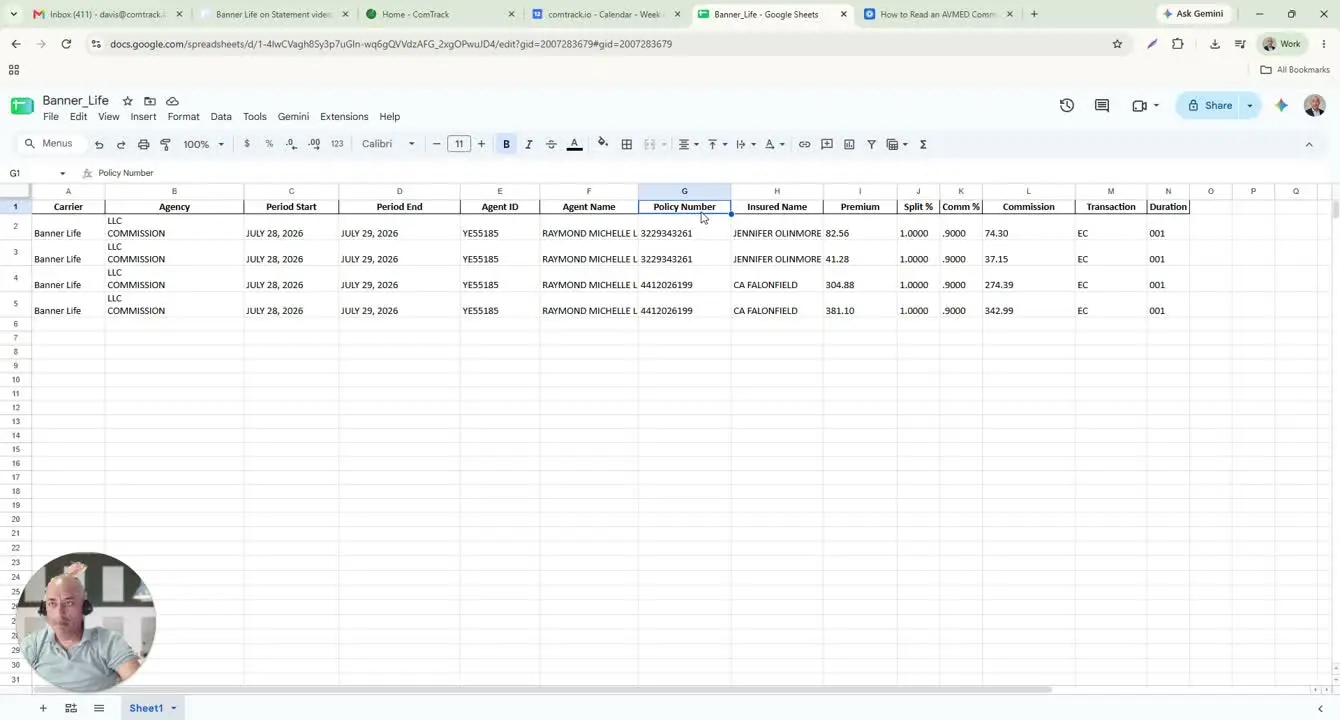
- Locate the policy-level information on the statement.
- Confirm the following fields:
- Policy Number = the policy identifier.
- Insured Name = the policyholder or insured person.
- Use these fields to match the statement to the correct policy record before proceeding.
3. Review premium, split, and commission rate 0:55
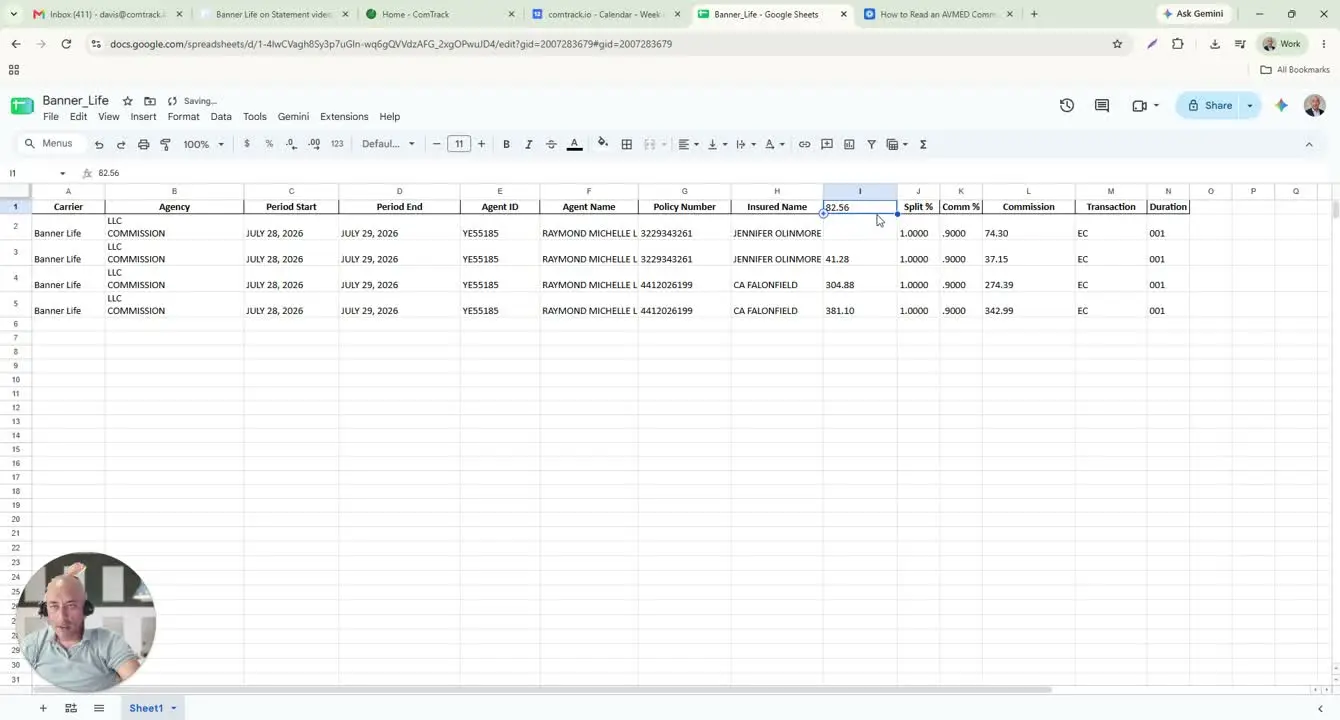
- Check the financial fields that determine the commission amount.
- Confirm:
- Premium = the premium amount used to calculate commission.
- Agent’s Share / Split = the portion assigned to the agent.
- Commission Rate = shown as a decimal.
- Interpret the decimal correctly:
1.0= 100%0.9= 90%
4. Confirm the commission calculation and payment type 1:18
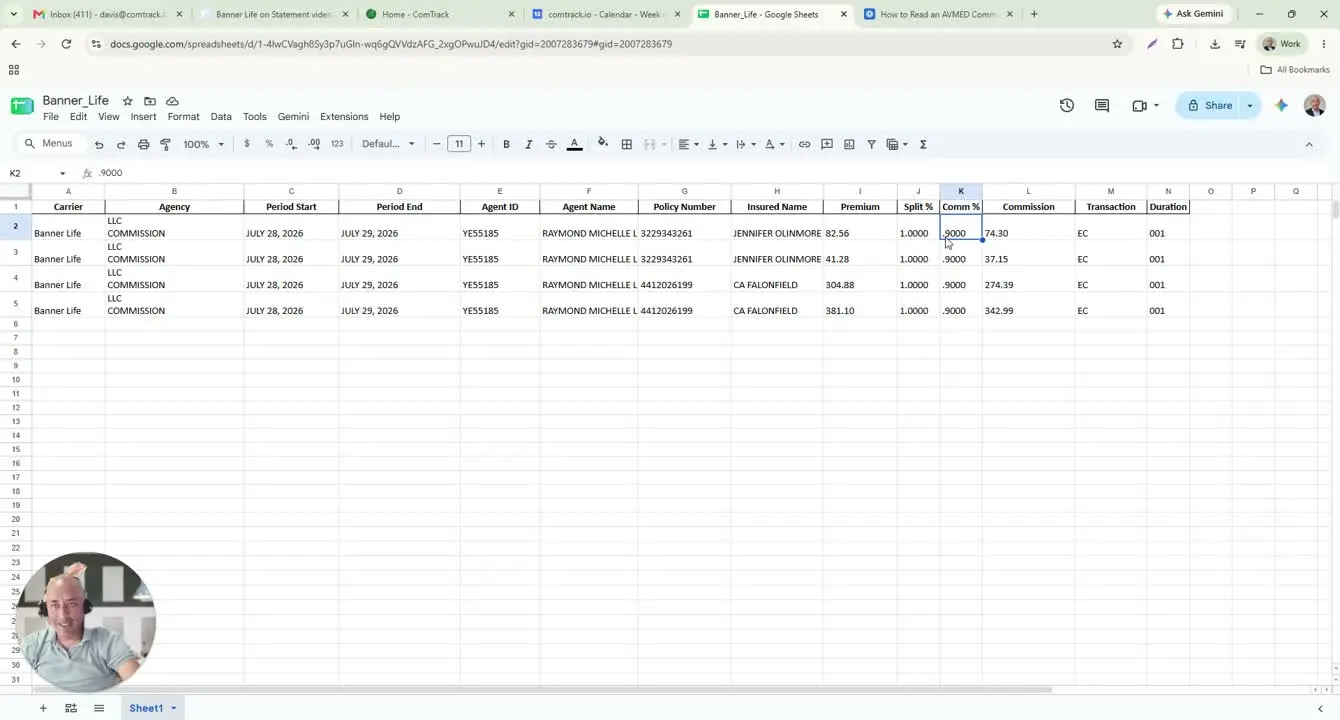
- Review the commission amount shown on the statement.
- Understand the calculation as:
- Commission = Premium × Split
- Check the payment type label:
- EC is the payment type shown in the example.
- Verify the duration field to determine the policy year covered by the commission.
5. Import the statement into ComTrack using Digest 2:07
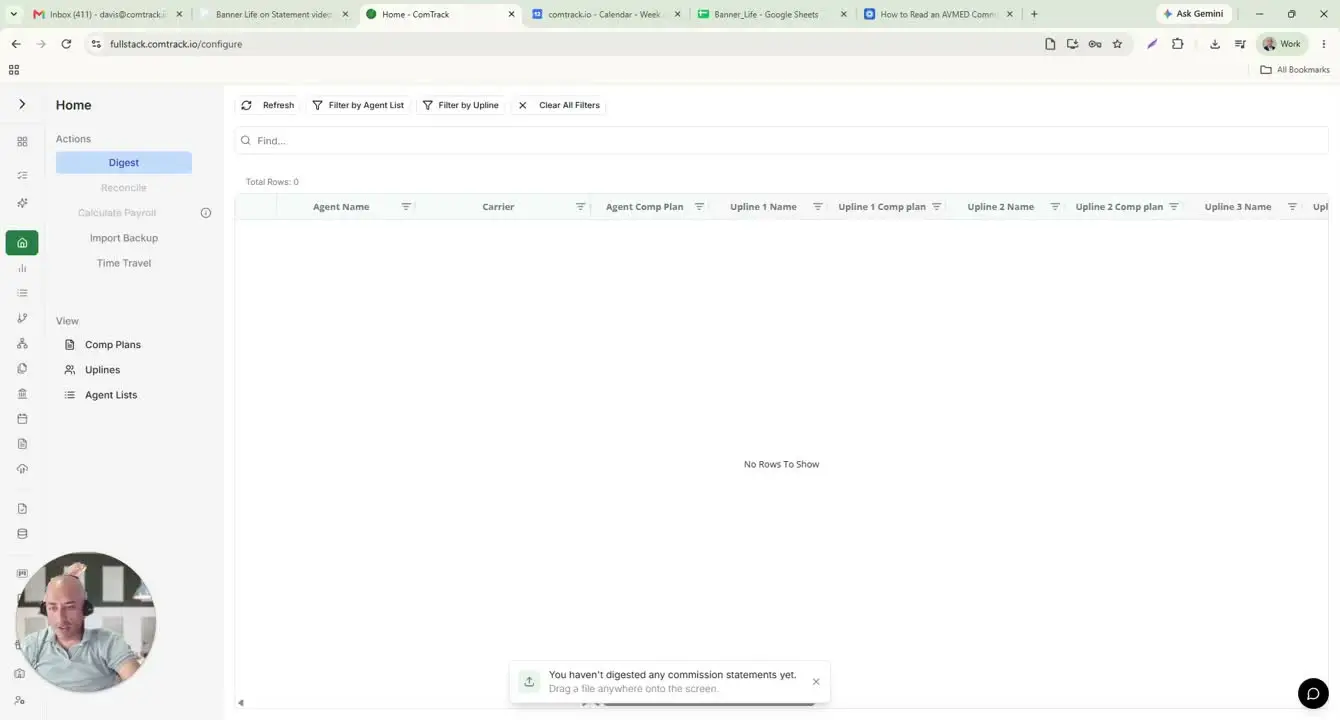
- Open ComTrack and add the Banner Life commission statement.
- Drop or upload the statement into ComTrack.
- Click Digest to prepare the system to read the statement.
- When prompted, click OK to confirm and proceed.
- Wait for ComTrack to process the statement and make the details available.
6. Set up Retrieve to connect carrier portals 2:28
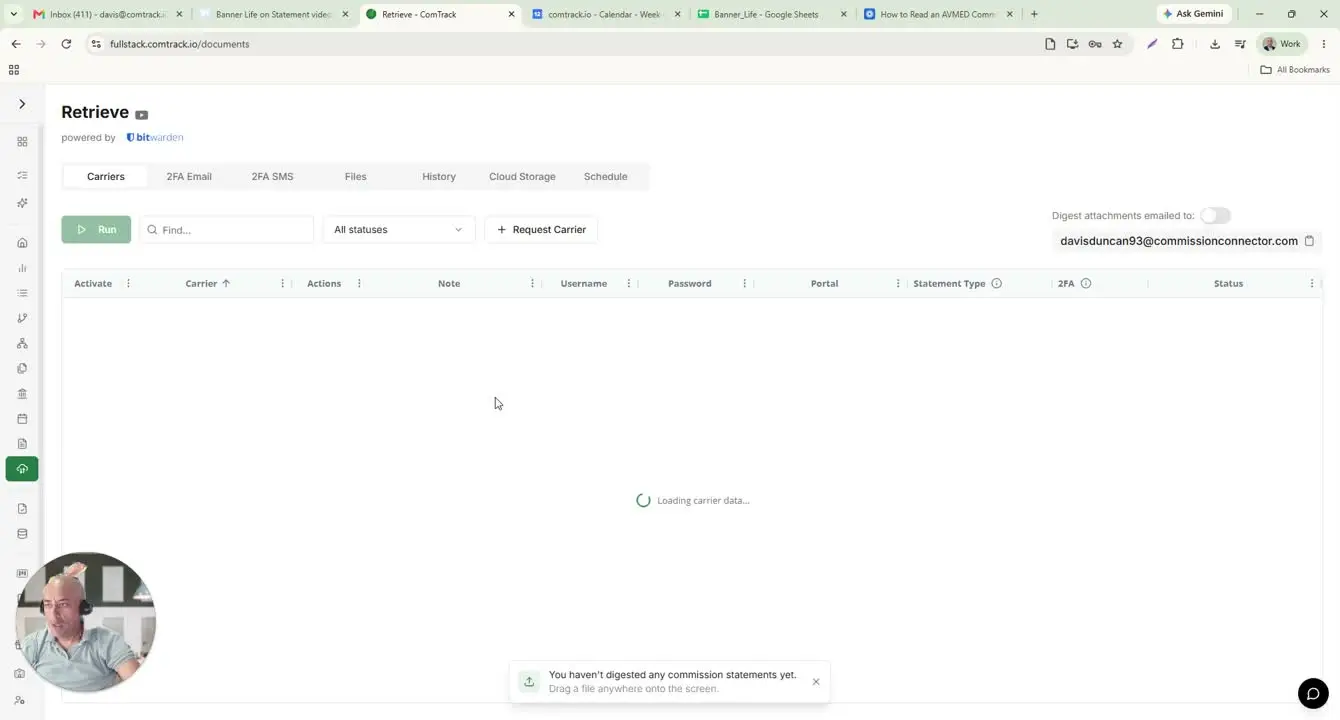
- Use Retrieve to connect ComTrack directly to carrier portals.
- Enter the username and password for each carrier portal you need.
- Save the credentials so the connection only needs to be configured once.
- After setup, ComTrack can pull commission statements directly from the carrier portals.
7. Choose the retrieval date range and run the process 2:49
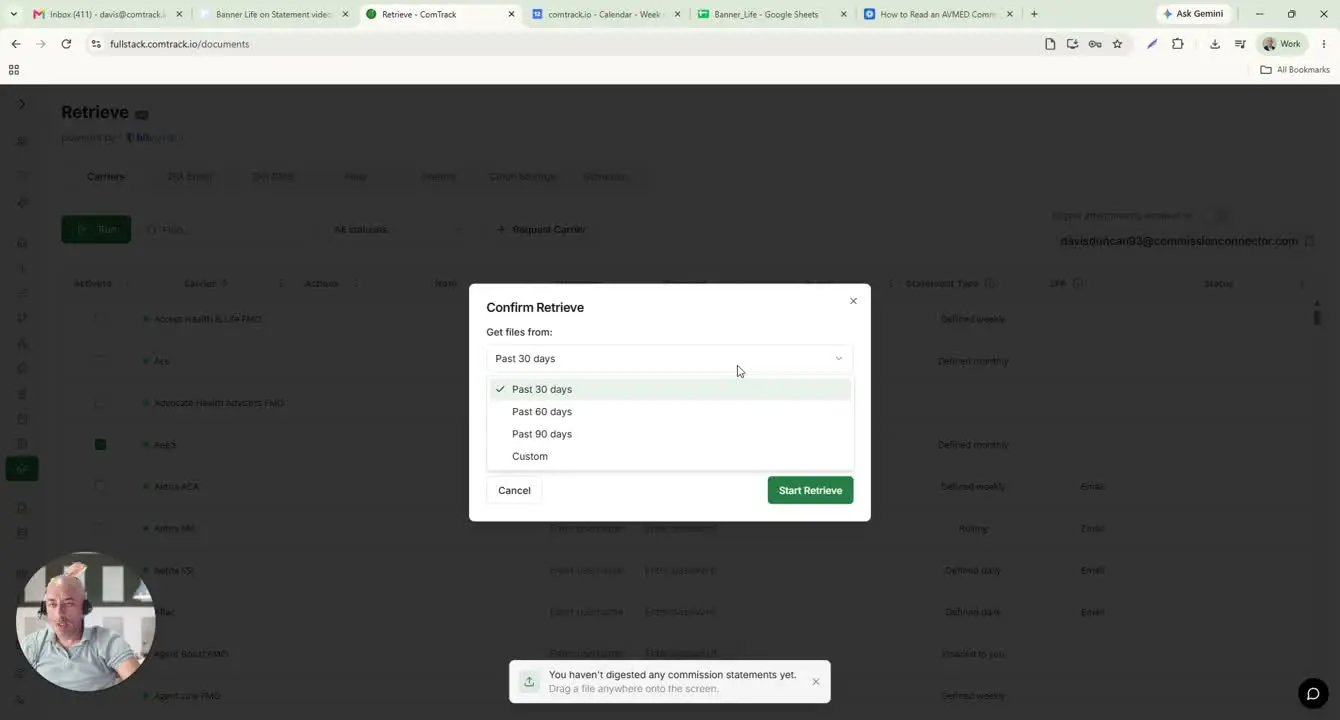
- Select the date range for retrieval based on your needs:
- Last 30 days
- Last 60 days
- Last 90 days
- Custom date range
- Click Start Retrieve to begin the process.
- Allow a few minutes for the retrieval to complete.
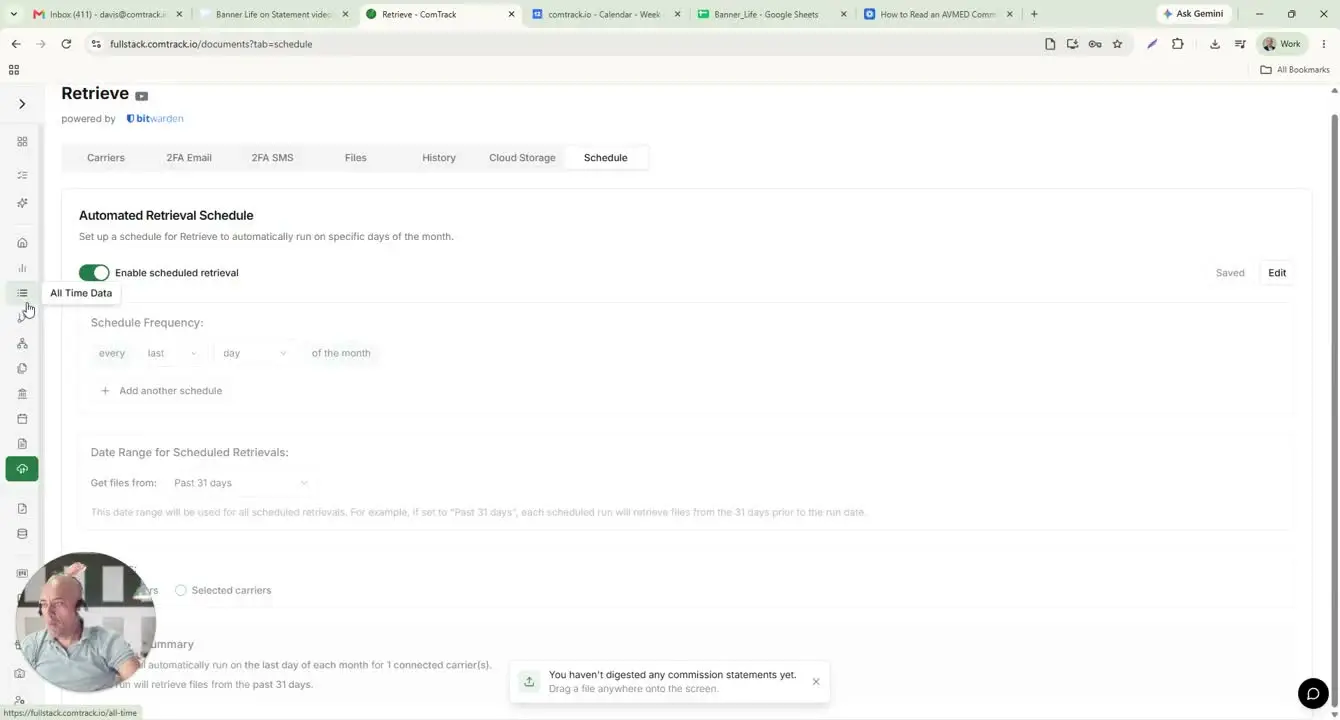
8. Schedule automatic retrievals for recurring updates 3:15
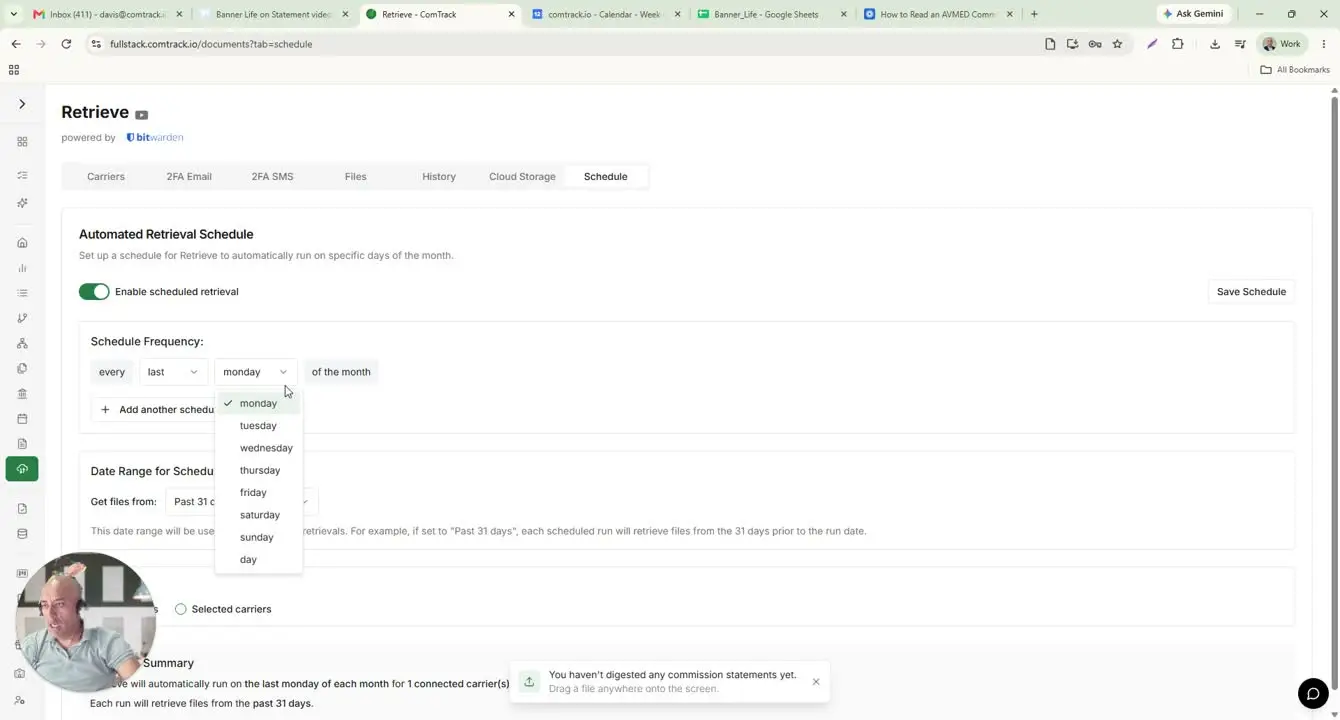
- If recurring retrieval is needed, enable Schedule Retrieval.
- Choose the frequency that matches your workflow.
- Example setup:
- Run on the last day of each month
- Pull files for the previous 31 days
- Save the schedule so ComTrack continues retrieving statements automatically.
9. Review the formatted data in All Time Data 3:35
- Go to All Time Data after retrieval or digest processing is complete.
- Review the cleaned and formatted columns, including:
- Agent name
- Carrier
- Payment period
- Client full name
- Effective date
- Premium
- Commission amounts
- Use the top summary area to view the total commission calculation without manual math.
10. Use the cleaned output for reporting and reconciliation 4:02
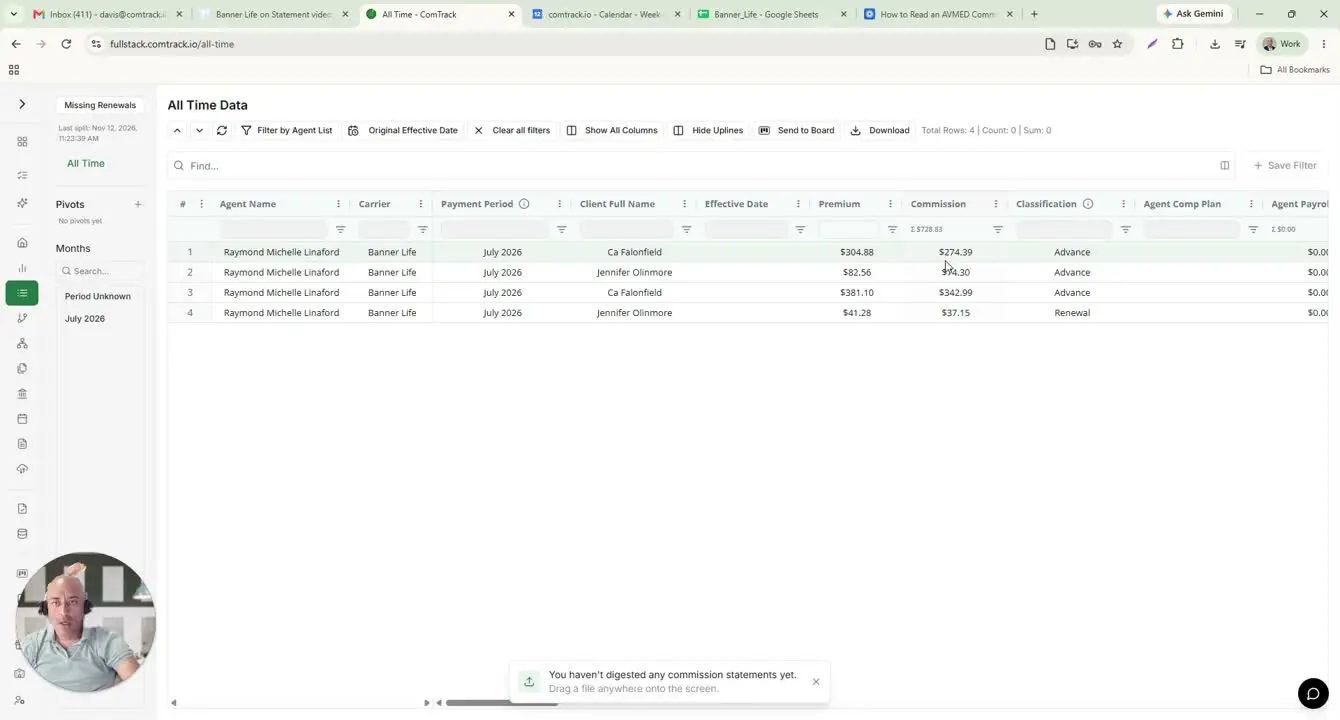
- Confirm that the data is properly classified and easy to read.
- Use the formatted output for:
- Commission review
- Reconciliation
- Reporting
- Recordkeeping
- Rely on ComTrack’s structured layout to reduce errors caused by hard-to-read source statements.
Cautionary Notes
- Always verify the carrier, agency, policy number, and insured name before using the statement for reconciliation.
- Commission rates are displayed as decimals; misreading
0.9as 0.9% instead of 90% will cause calculation errors. - Ensure portal credentials are entered correctly before using Retrieve.
- If scheduling retrievals, confirm the frequency and date range are correct to avoid missing or duplicating statement pulls.
- Review imported data for completeness after Digest or Retrieve completes, especially if the source statement is unclear or formatted differently.
Tips for Efficiency
- Use Retrieve for recurring carrier portals to reduce manual downloads.
- Save portal credentials once so future retrievals are faster.
- Schedule monthly retrievals to automate routine statement collection.
- Use the All Time Data view for cleaner, standardized reporting instead of working from raw statements.
- Rely on the built-in commission totals in ComTrack to avoid manual calculations and reduce errors.