
Objective
This SOP explains how to access, download, and interpret Blue Cross Blue Shield of Alabama commission statements. It also outlines how to use ComTrack to view the same statement data in a more organized and readable format.
Key Steps
1. Access the Blue Cross Blue Shield portal and select the correct payment period 0:12

- Log in to the Blue Cross Blue Shield of Alabama portal.
- Locate the Medicare option in the top-left area of the portal.
- Select the payment date that matches the commission period you want to review or export.
- Confirm you are viewing the correct statement period before downloading.
2. Download the commission statement in Excel format 0:35
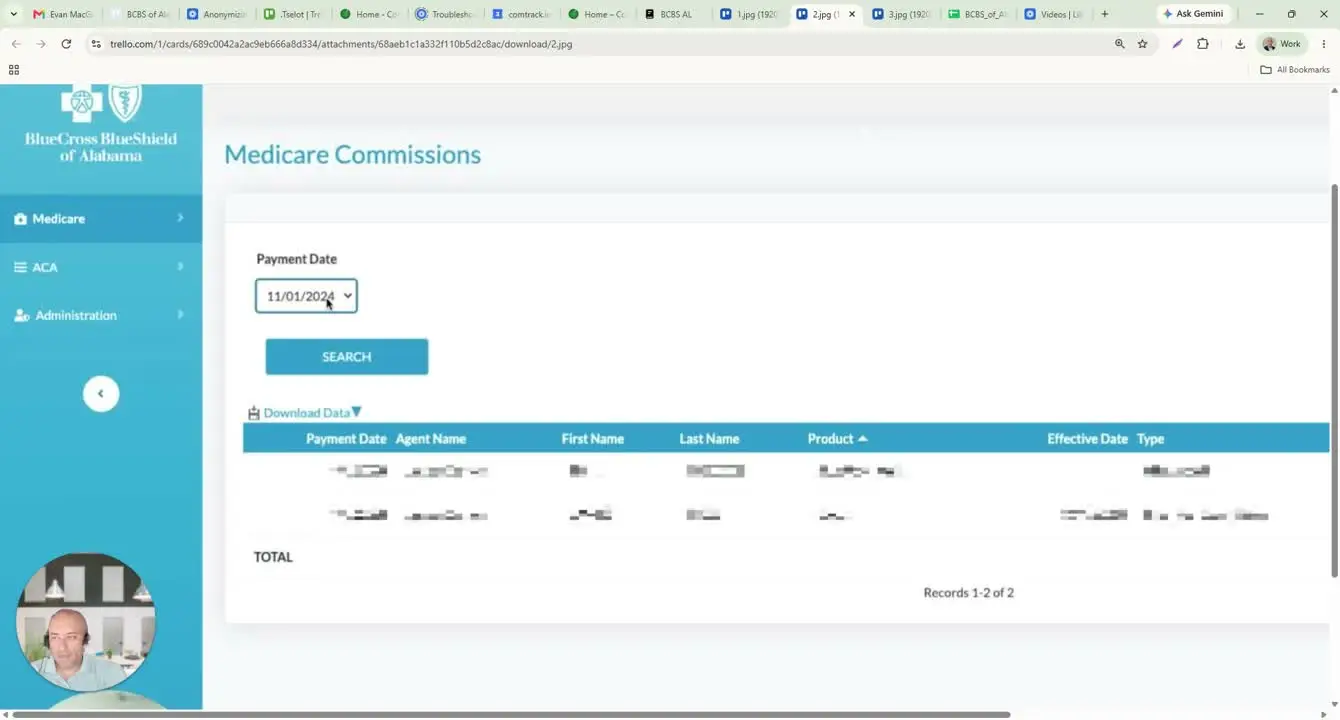
- After selecting the payment date, choose the download/export option.
- Available formats may include:
- Excel
- CSV
- Select Excel for the easiest review and analysis.
- Download the file and open the statement to begin reviewing the data.
3. Review the raw statement layout and identify the main columns 0:51
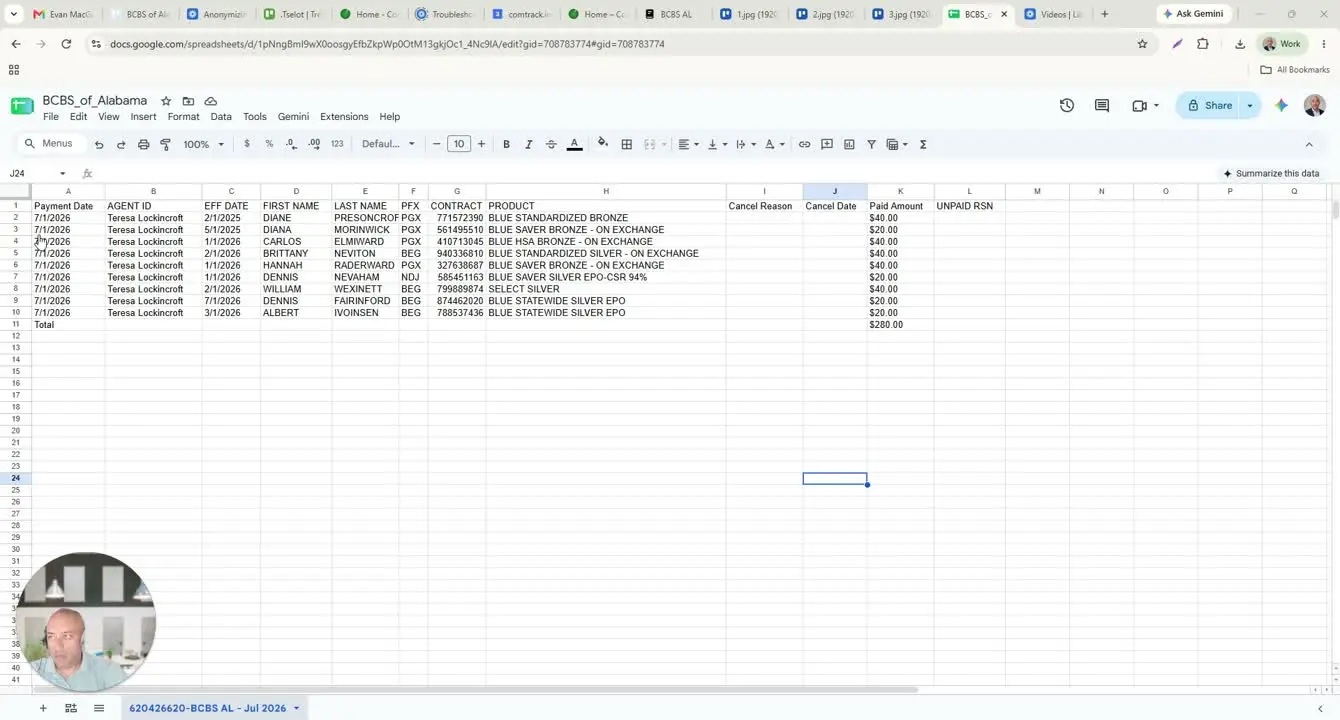
- Open the downloaded Excel statement.
- Note that the file typically contains a single tab.
- Identify the producer number at the top or in the sheet header.
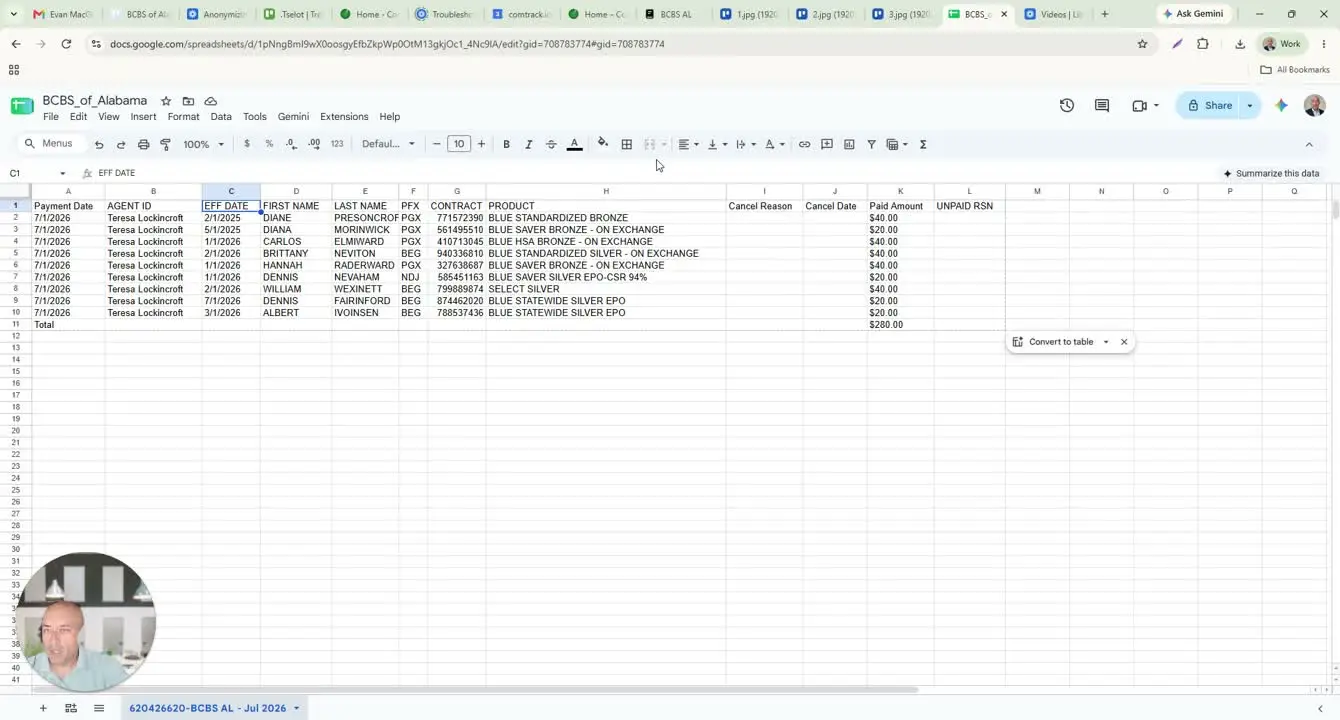
- Review the key columns in the statement, including:
- Payment Date: the period being paid
- Agent ID: may display the writing agent’s name instead of an ID
- EFF Date: the policy effective date
- Client First Name / Last Name: member name split into two columns
- PFX: contract prefix that ties the policy to a plan family
- ComTrack: the member’s Blue Cross Blue Shield policy number
- Product: the plan name, including metal tier or ACA exchange indicators
- Cancellation Reason: shown only if the policy was cancelled
- Cancelled Date: the date cancellation occurred
- Commission Amount: the paid commission amount
- Unpaid RSN: reason a row was not paid, if applicable
4. Interpret the commission statement fields correctly 2:28
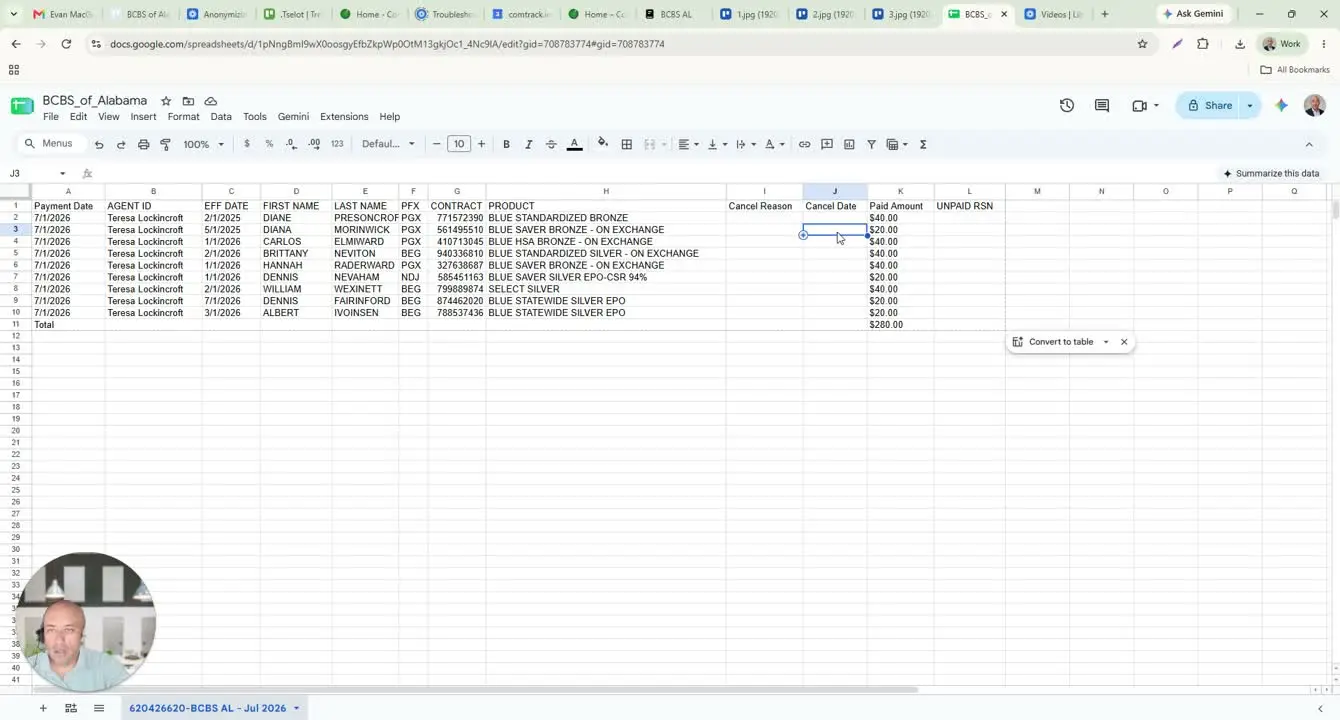
- Use the Commission Amount column to identify the actual paid commission.
- Check the Unpaid RSN column if a row is blank or not paid.
- Review the Cancellation Reason and Cancelled Date when a policy has been terminated.
- Use the Product and PFX fields to understand how the policy is grouped and what plan family it belongs to.
- Confirm totals at the bottom of the statement for a quick summary of paid commissions.
5. Use ComTrack to view the statement in a more readable format 3:13
- Open ComTrack to review the same commission statement in a cleaner format.
- Locate the statement and click the Digest button.
- Wait for the system to process the statement.
- Confirm the digest is complete before continuing.
- Use this view when the raw Excel statement is difficult to interpret.
6. Review the organized data in ComTrack 3:37
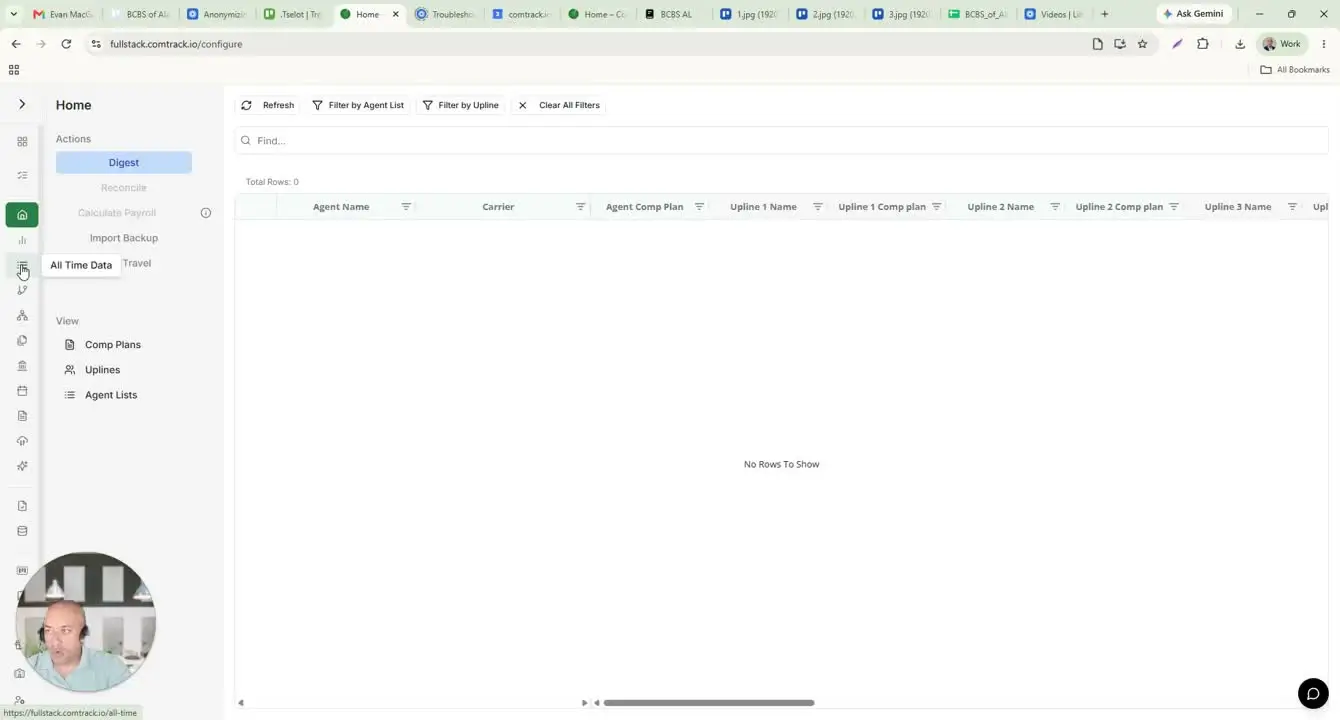
- Go to All Time Data in ComTrack to view the processed statement.
- Review the standardized columns, which may include:
- Agent name
- Carrier
- Payment period
- Client full name
- Effective date / coverage month
- Premium association
- Commission amount
- Use the built-in explanations to understand any unfamiliar column labels.
- Check the totals displayed at the top for a quick summary.
- Review how each commission amount is classified in ComTrack for easier tracking.
Cautionary Notes
- Verify the payment date before downloading to avoid reviewing the wrong commission period.
- Column labels in the raw Excel statement may not match common terminology; some fields may appear differently than expected.
- The Agent ID field may display the writing agent’s name instead of a numeric ID.
- Blank fields do not always indicate an error; for example, Unpaid RSN may be blank when there is no unpaid reason to report.
- If a policy was cancelled, always check both the cancellation reason and cancelled date before drawing conclusions.
Tips for Efficiency
- Use the Excel version of the statement when you need to sort, filter, or reconcile data.
- Use ComTrack’s digest view when you want a faster, easier-to-read summary of the same information.
- Keep a reference guide for common column meanings so team members can interpret statements more quickly.
- Review totals first, then drill into individual rows only when discrepancies appear.
- Standardize your review process by checking payment date, commission amount, cancellation status, and unpaid reason in the same order each time.