
Objective
This SOP explains how to interpret a Blue Cross Blue Shield of Kansas commission statement and how to load it into ComTrack for a cleaner, organized view. It also covers how to use ComTrack Retrieve to automate statement downloads from carrier portals.
Key Steps
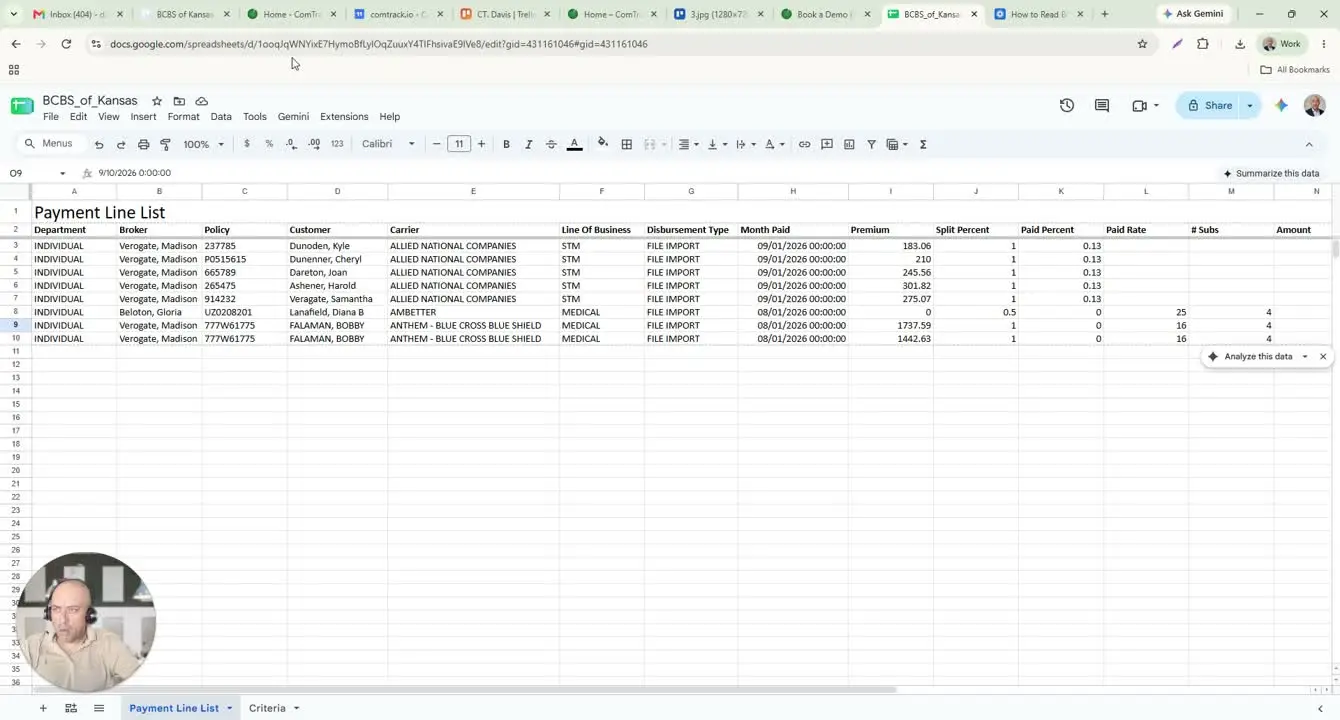
1. Identify the statement structure and key columns 0:00
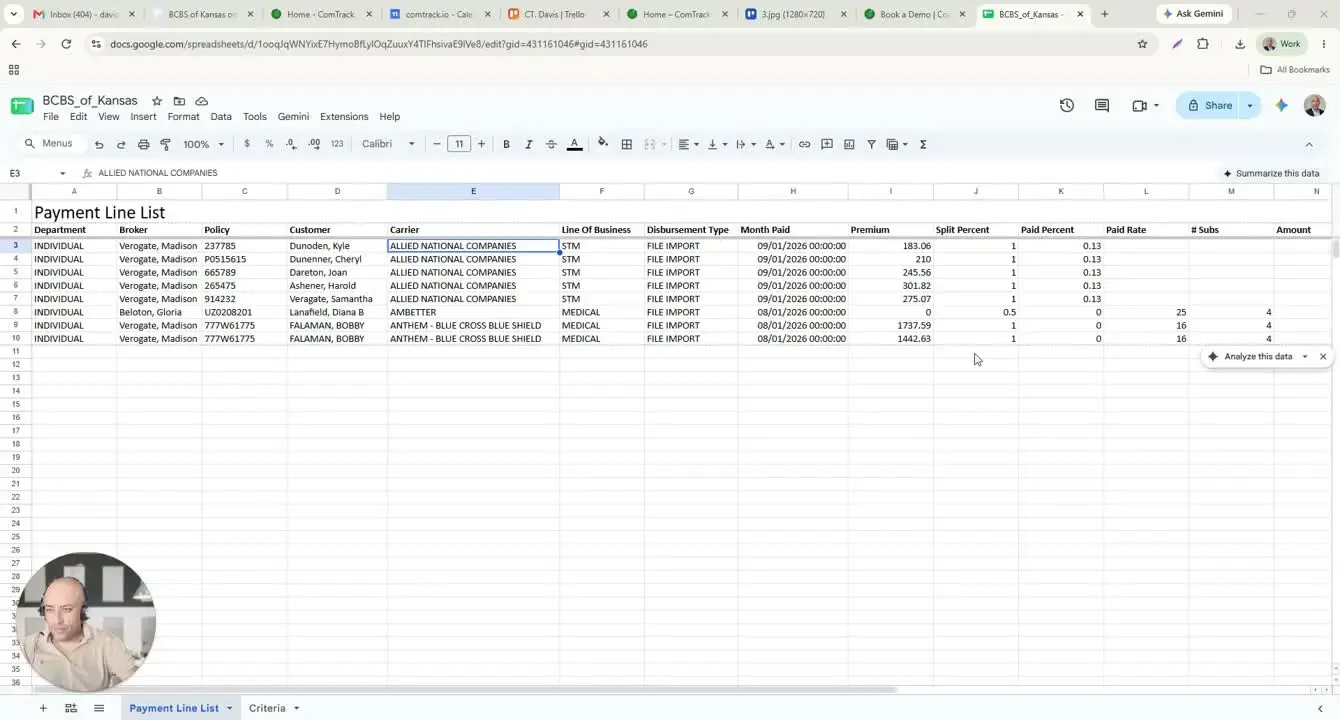
- Open the BCBS of Kansas commission statement file.
- Confirm the file contains one main tab with all required data.
- Review the primary columns before processing:
- Department
- Broker
- Policy and Customer
- Carrier
- Line of Business
- Disbursement Type
- Month Paid
- Premium
- Split Percent
- Paid Rate
- Number of Subs
- Posted Date
- Use this first review to understand how the statement is organized before entering it into ComTrack.
2. Interpret the statement fields correctly 0:19
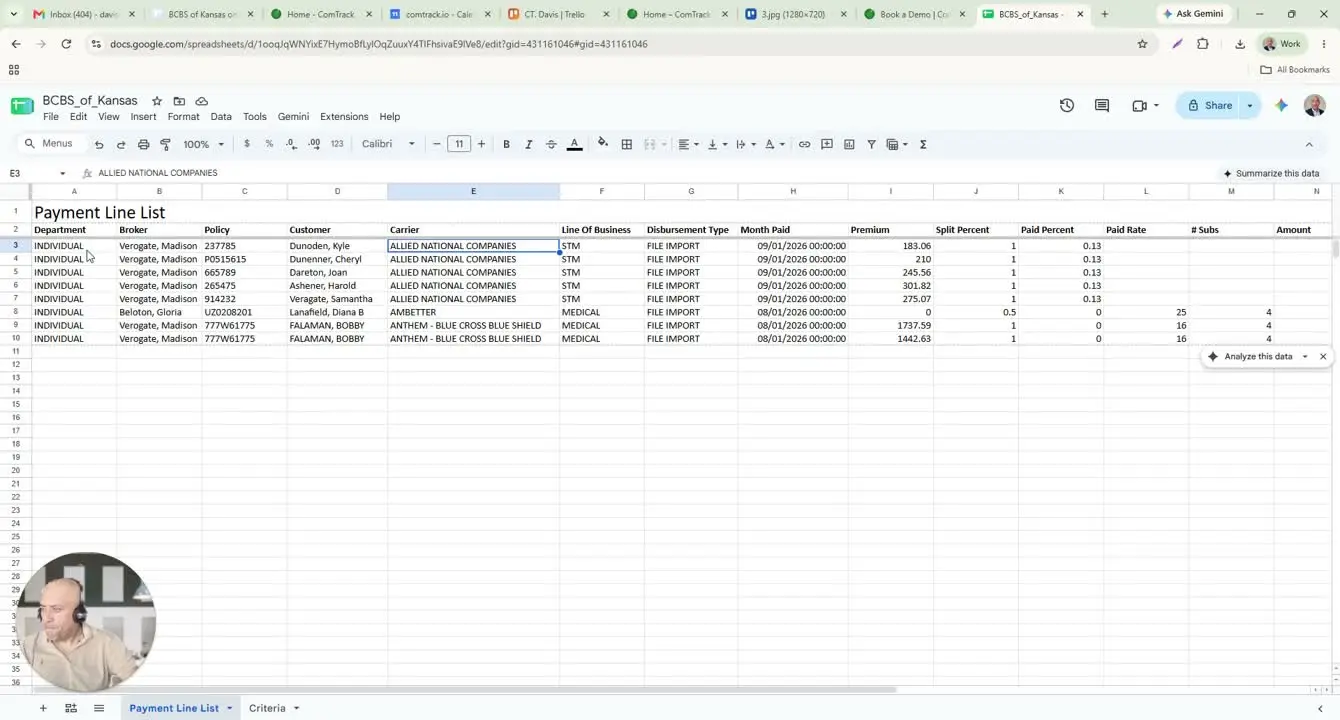
- Read the Department column as the agency department or individual record type.
- Read the Broker column as the writing agent.
- Use Policy and Customer to identify the policyholder and policy number.
- Use Carrier to identify which carrier issued the commission.
- Use Line of Business to determine the product type, such as short-term medical or medical.
- Use Disbursement Type to see how the file was loaded into the system.
- Use Month Paid to identify the coverage month being paid.
3. Verify the payment period and premium basis 1:09
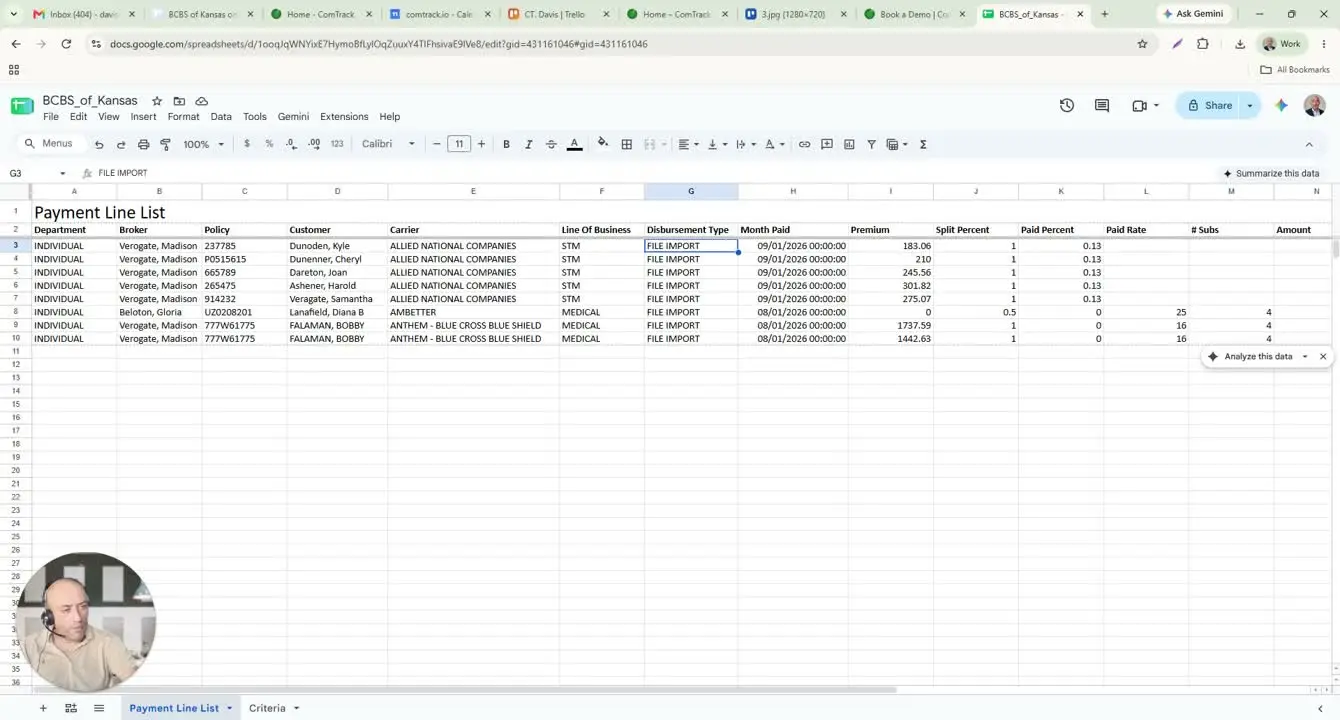
- Confirm the Month Paid value matches the expected coverage month.
- Review the Premium column as the base amount used to calculate commission.
- Use the premium amount to validate whether the commission calculation appears reasonable.
- If the month paid or premium looks incorrect, stop and verify the source file before continuing.
4. Determine how commission is calculated 1:40
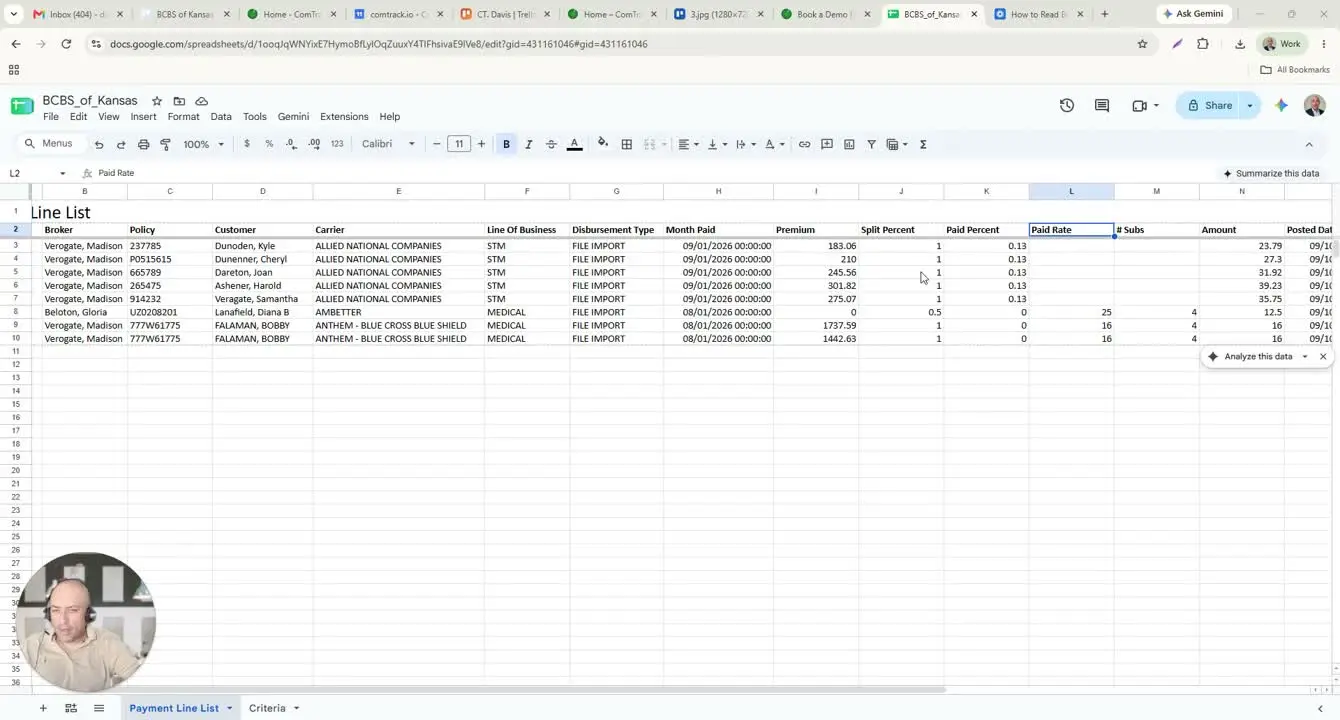
- Check the Split Percent column to identify the broker’s share.
- Interpret split percent as a decimal:
1.0= 100%0.5= 50%
- Use split percent to calculate the broker’s portion of commission when the carrier pays a percentage of premium.
- Example:
- Premium = $210
- Commission rate = 13%
- Commission = $27.30
- Confirm whether the carrier uses percentage-based or flat-rate commission rules before calculating totals.
5. Apply the correct carrier-specific commission method 2:17
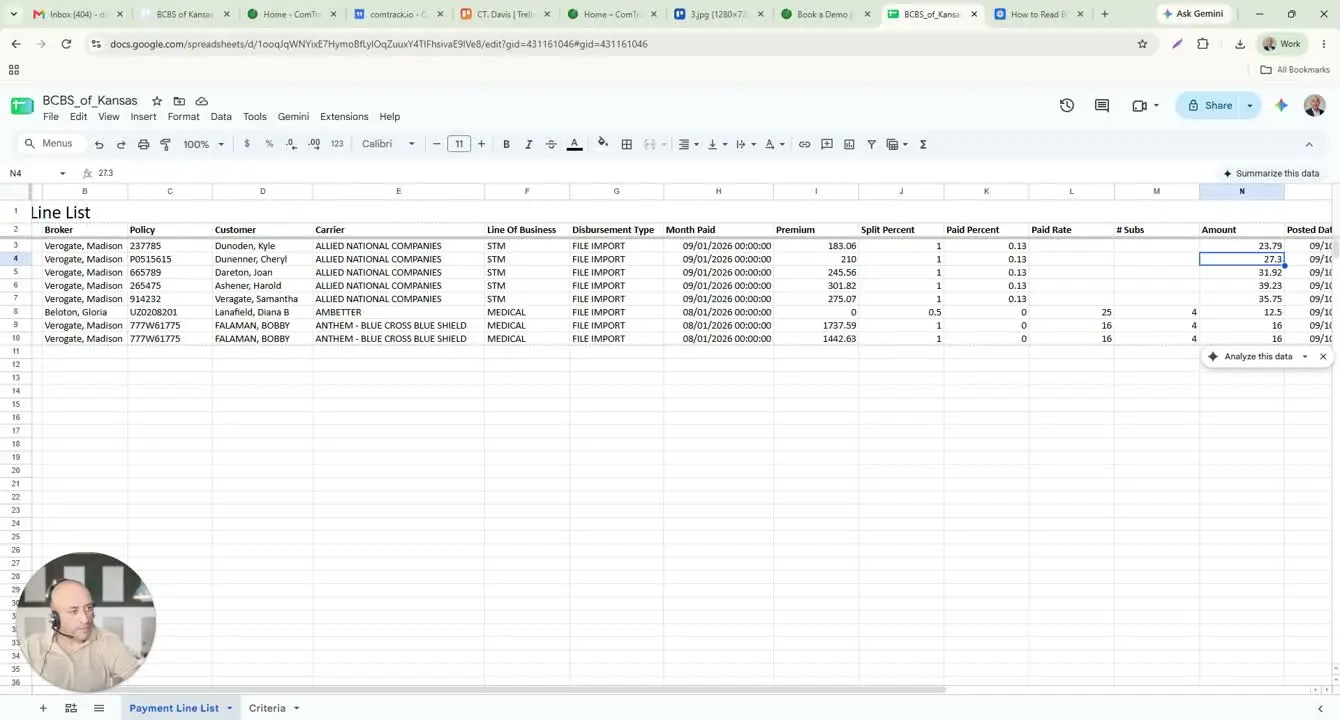
- Identify whether the carrier pays commission as a percentage of premium or as a flat amount per policy.
- For percentage-based carriers:
- Multiply the premium by the commission rate.
- Apply the split percent if the broker does not receive 100%.
- For flat-rate carriers:
- Use the Paid Rate column as the base commission amount.
- Apply the split percent to determine the broker’s share.
- Example:
- Embedder rate = $25
- Split percent = 0.5
- Broker commission = $12.50
- Example:
- Anthem rate = $16 per row
- Apply the same split logic if required by the statement.
6. Review supporting fields for reference only 3:02
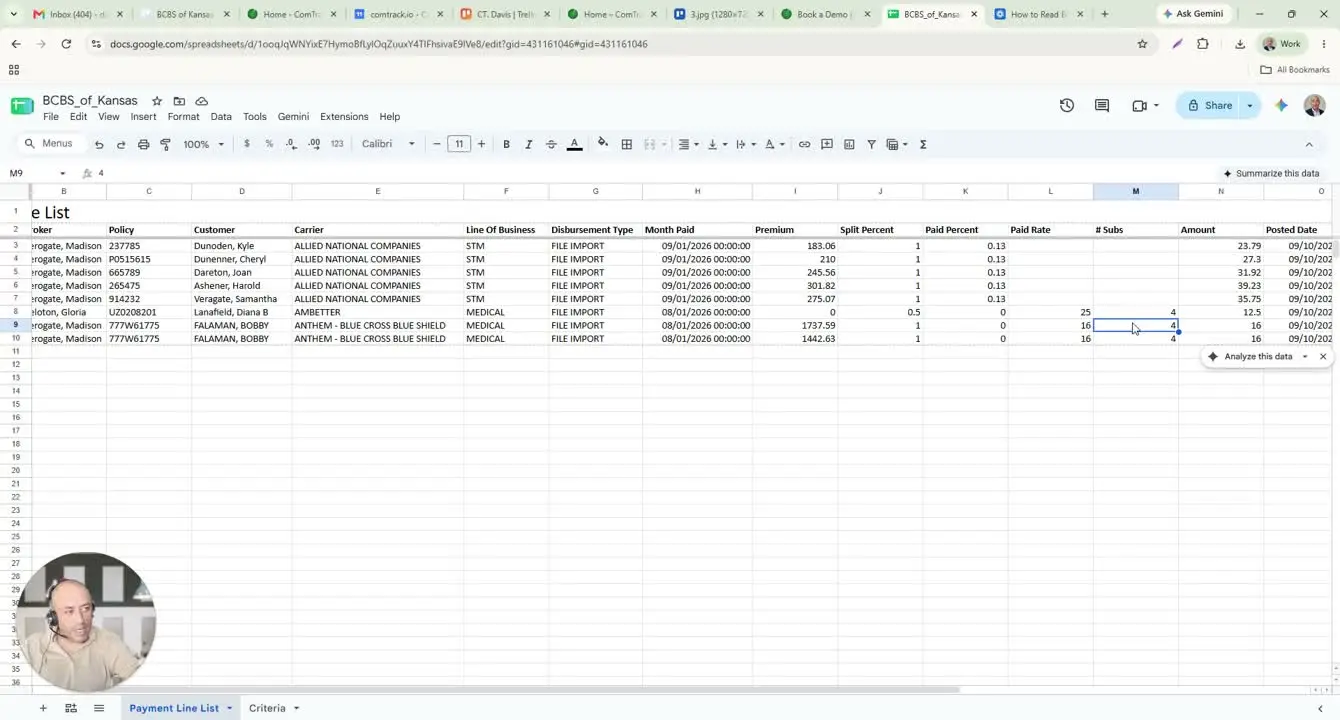
- Check Number of Subs to see how many people are on the policy.
- Treat Number of Subs as reference data unless the carrier specifically uses it in the commission calculation.
- Review Posted Date to confirm when the payment was posted.
- Use the posted date to reconcile the statement against expected deposit timing.
7. Load the statement into ComTrack 3:43
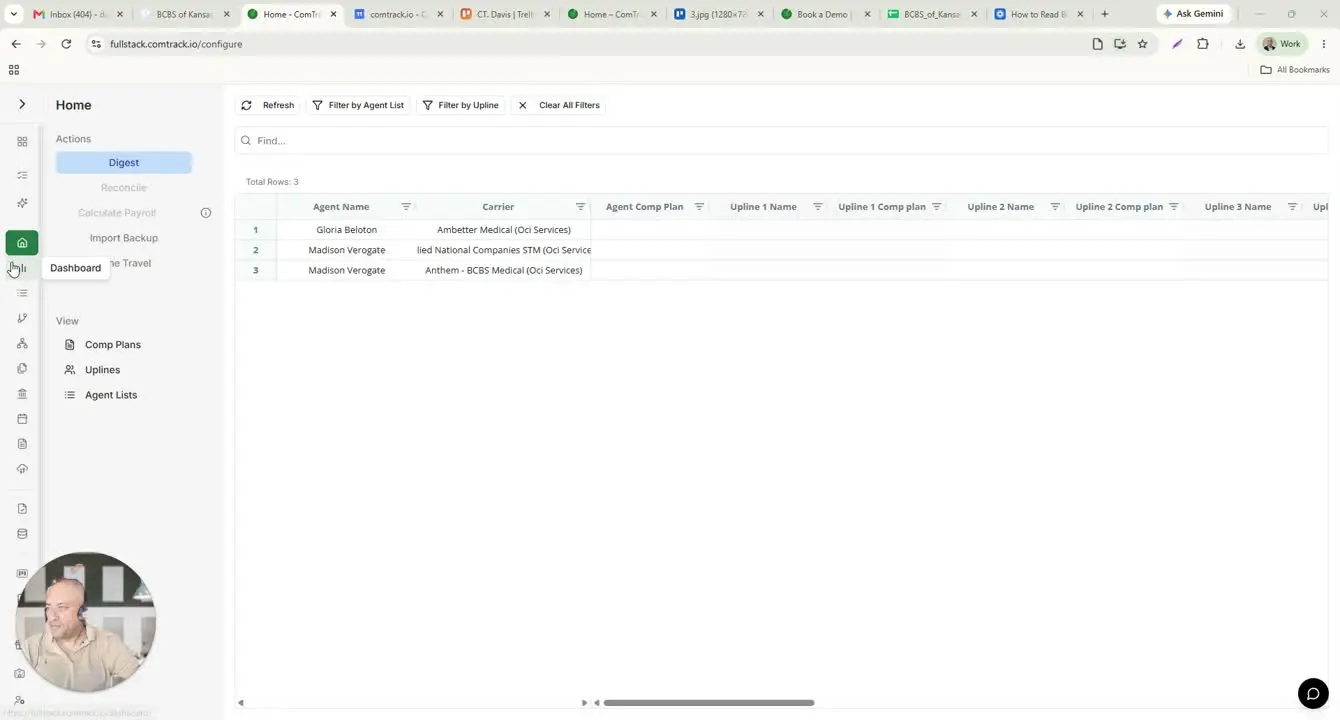
- Open ComTrack.
- Use the same statement file and upload or drop it into ComTrack.
- Wait for the import to finish processing.
- Confirm the file has been successfully loaded before moving on to review the data.
8. Review the organized data in ComTrack 4:20
- Go to All Time Data after the import completes.
- Verify the statement is displayed in a structured format.
- Confirm ComTrack has organized the following fields clearly:
- Agent name
- Carrier
- Payment period
- Client full name
- Premium
- Commission amount
- Check the totals shown at the top of the screen to avoid manual calculations.
- Review the classification assigned to the commission record.
- Confirm the record is categorized into one of the system’s commission categories.
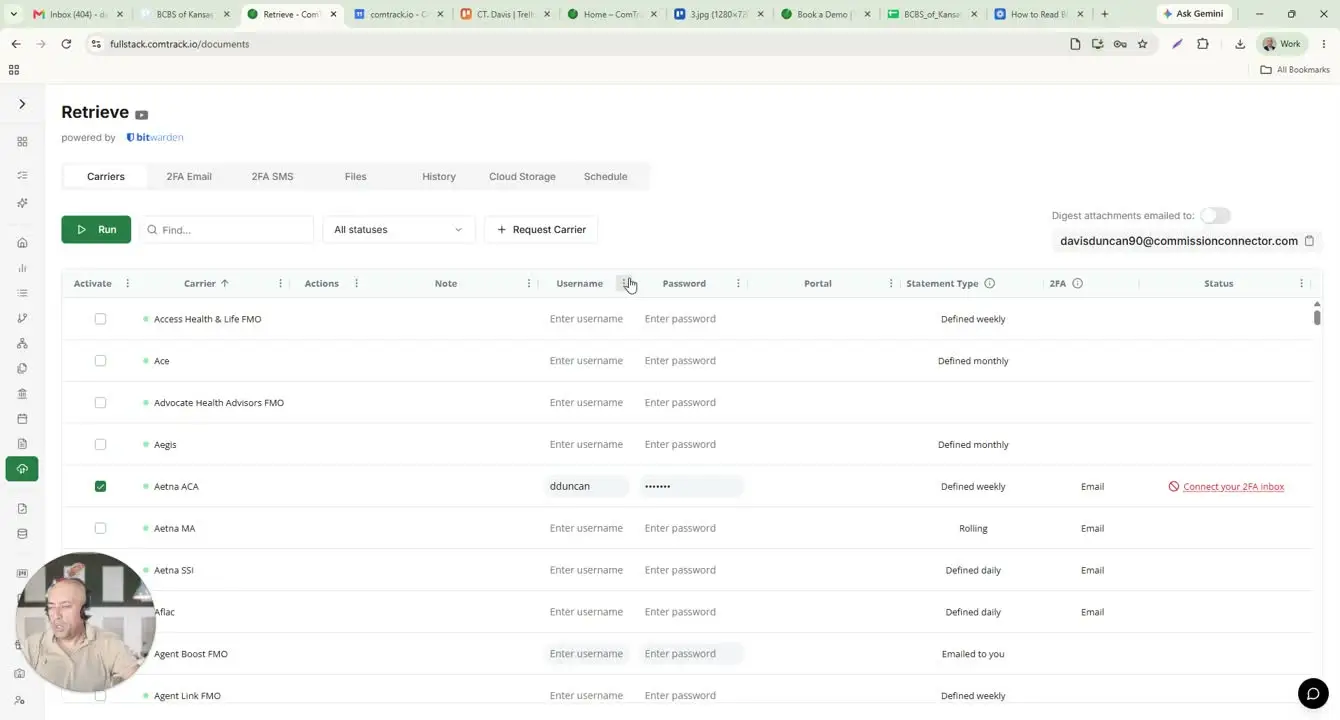
9. Set up ComTrack Retrieve for carrier portals 5:08
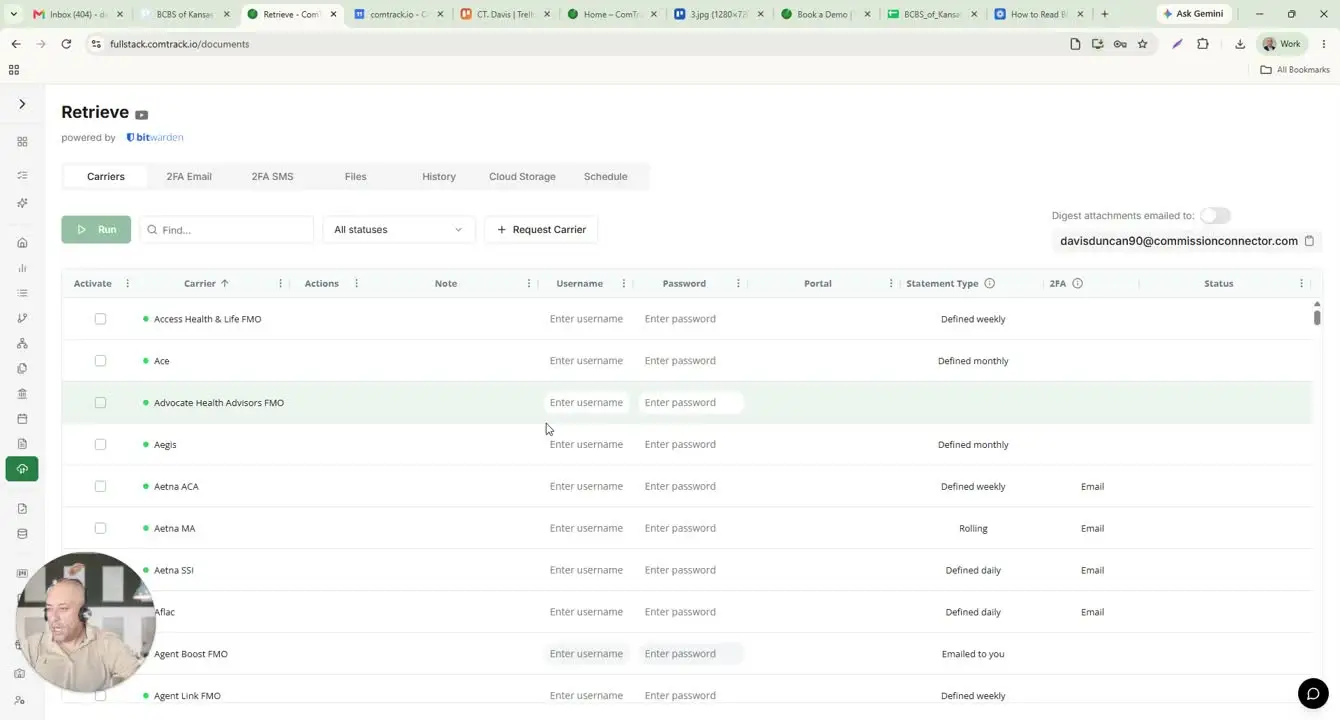
- Open the Retrieve feature in ComTrack.
- Find the carrier in the carrier list.
- Enter the carrier username and password.
- Save the credentials securely in ComTrack.
- Run a retrieve to pull statements directly from the carrier portal.
- Example:
- Select AdNet
- Enter login credentials
- Save the setup
- Retrieve statements for the last 30 days
10. Schedule automatic retrievals 5:40
- Enable scheduled retrieval if you want ComTrack to run automatically.
- Choose the desired frequency, such as the last day of each month.
- Set the retrieval window, such as the past 31 days.
- Save the schedule.
- Confirm ComTrack will continue retrieving files automatically without manual portal downloads.
Cautionary Notes
- Do not assume every carrier calculates commission the same way; always confirm whether the carrier uses a percentage-based or flat-rate method.
- Verify split percent carefully, since
0.5means 50% and1.0means 100%. - Treat fields like Number of Subs as reference data unless the carrier’s rules say otherwise.
- Make sure carrier credentials entered into Retrieve are accurate and authorized before saving.
- Confirm the statement file has fully imported before relying on totals or classifications.
Tips for Efficiency
- Use ComTrack to avoid manual calculations and reduce data-entry errors.
- Prefer Retrieve for carriers that support portal access so statements can be downloaded automatically.
- Schedule retrievals for recurring monthly statements to save time.
- Use the totals at the top of ComTrack to quickly validate imported commission amounts.
- Standardize your review process by checking the same key fields in the same order every time.