
Objective
This SOP explains how to interpret a BCBS of Nebraska commission statement, identify the meaning of each key column, and use ComTrack to organize, retrieve, and automate statement processing. It is designed to help a team member quickly understand the statement and reduce manual work.
Key Steps
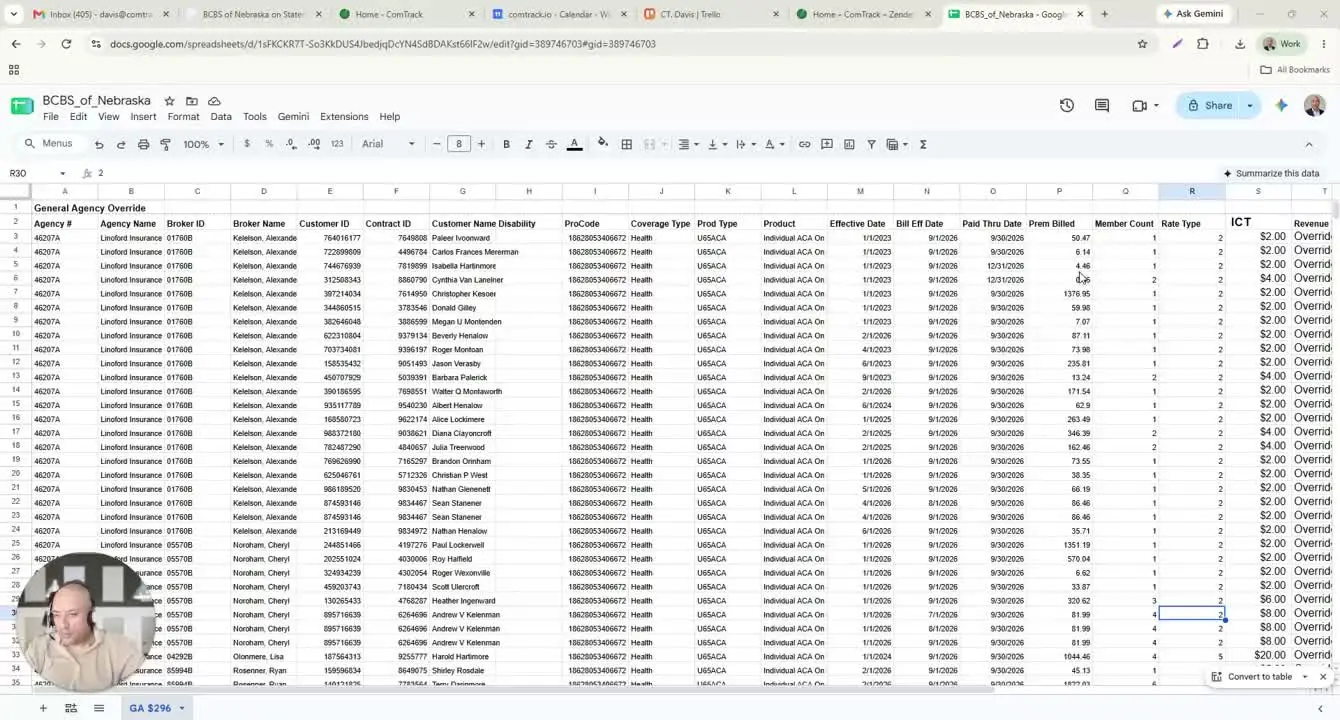
1. Identify the statement and main tab 0:00
- Open the BCBS of Nebraska commission statement.
- Locate the main tab labeled GA-296.
- Note that 296 refers to the total override amount for the GA agency.
- Confirm whether additional commission columns are present, as these may affect how totals are reviewed.
2. Review the core identifying fields 0:44
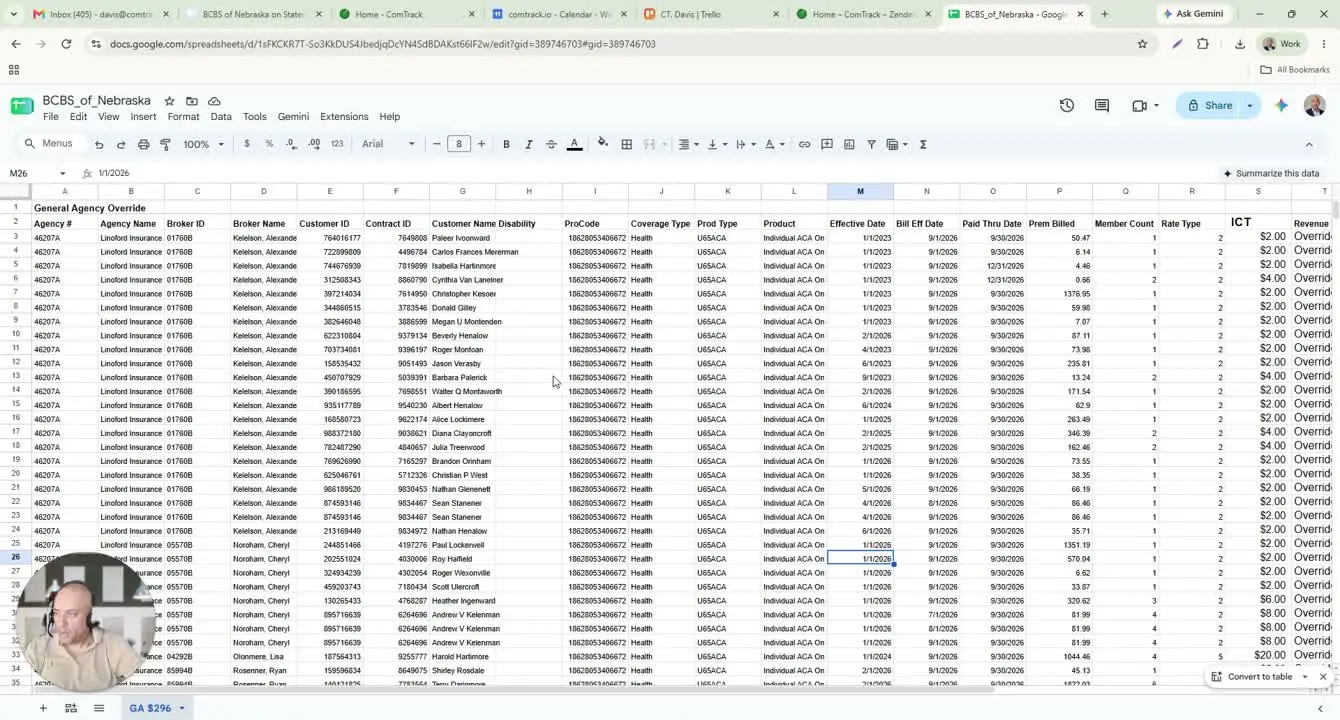
- Start with the first set of columns to identify the agency and policy details.
- Agency number: BCBS Nebraska general agency identifier.
- Agency name: Name of the agency being paid.
- Broker ID: Writing agent’s ID.
- Broker name: Name of the broker.
- Customer ID: BCBS Nebraska customer/member ID.
- ComTrack ID: Policy or contract number.
- Customer name: Policyholder name.
3. Confirm policy and product details 1:52
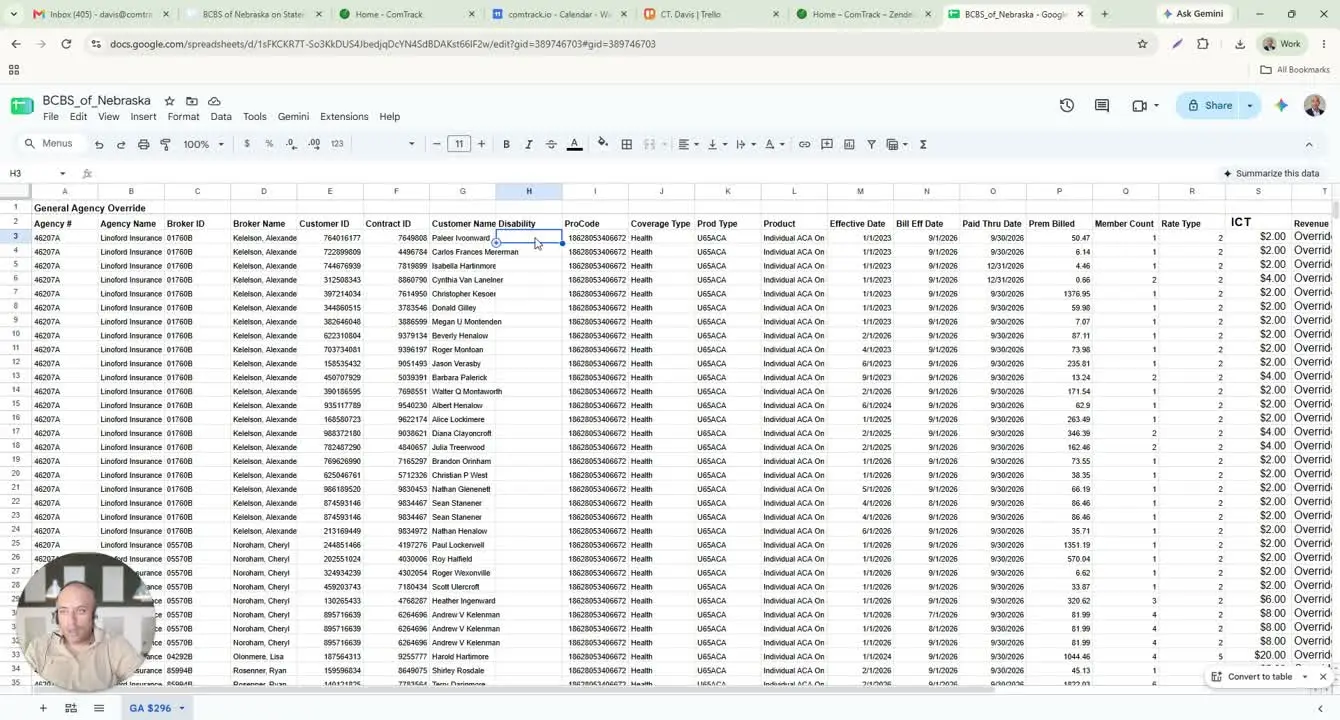
- Review the remaining descriptive fields to understand what the commission applies to.
- Disability: Flag for disability; may be blank.
- ProCode: BCBS Nebraska product code.
- Coverage type: Type of coverage, such as health.
- Product type: Product category, such as under 65 ACA.
- Product: Product name and how it was sold (for example, exchange).
4. Verify dates and billing period 2:32
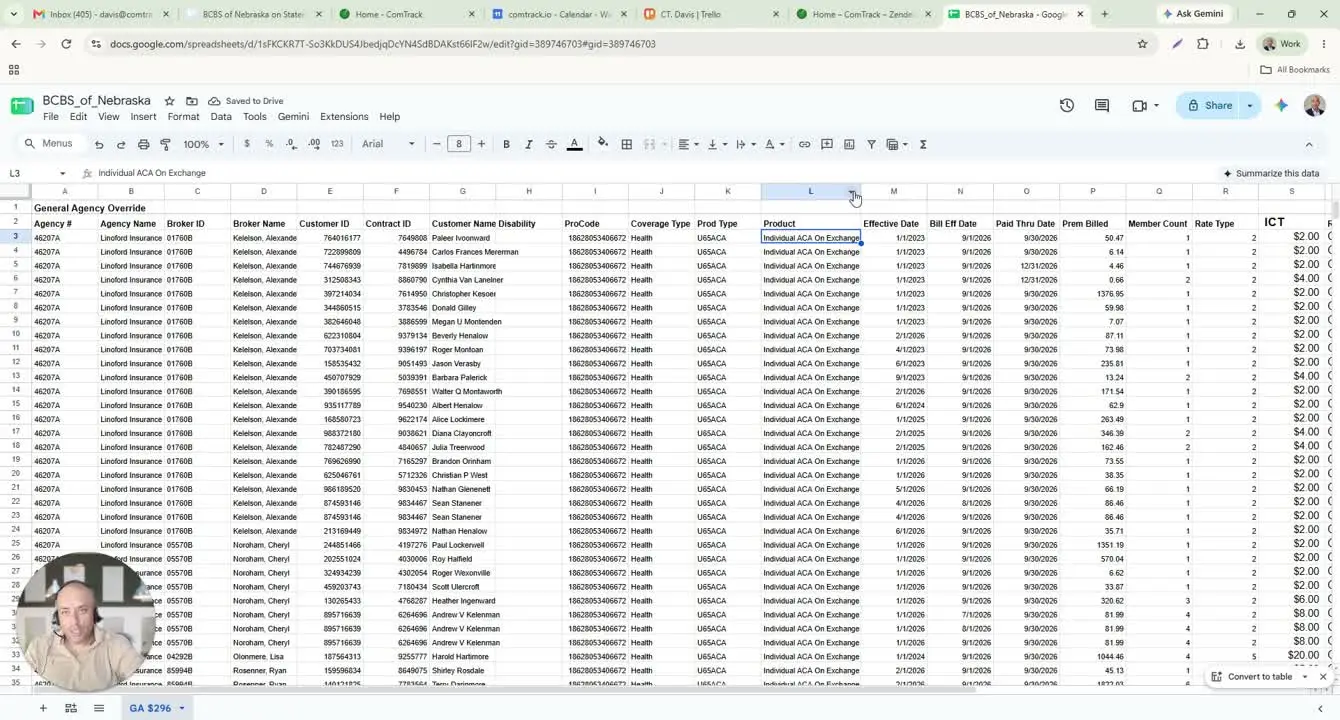
- Use the date fields to confirm the payment period and policy timing.
- Effective date: Date the policy started.
- Bill effective date: Month the payment is for.
- Pay through date: Date through which the member’s premium is paid.
- Check these dates carefully to ensure the commission statement matches the correct billing cycle.
5. Understand premium and commission calculation inputs 2:54
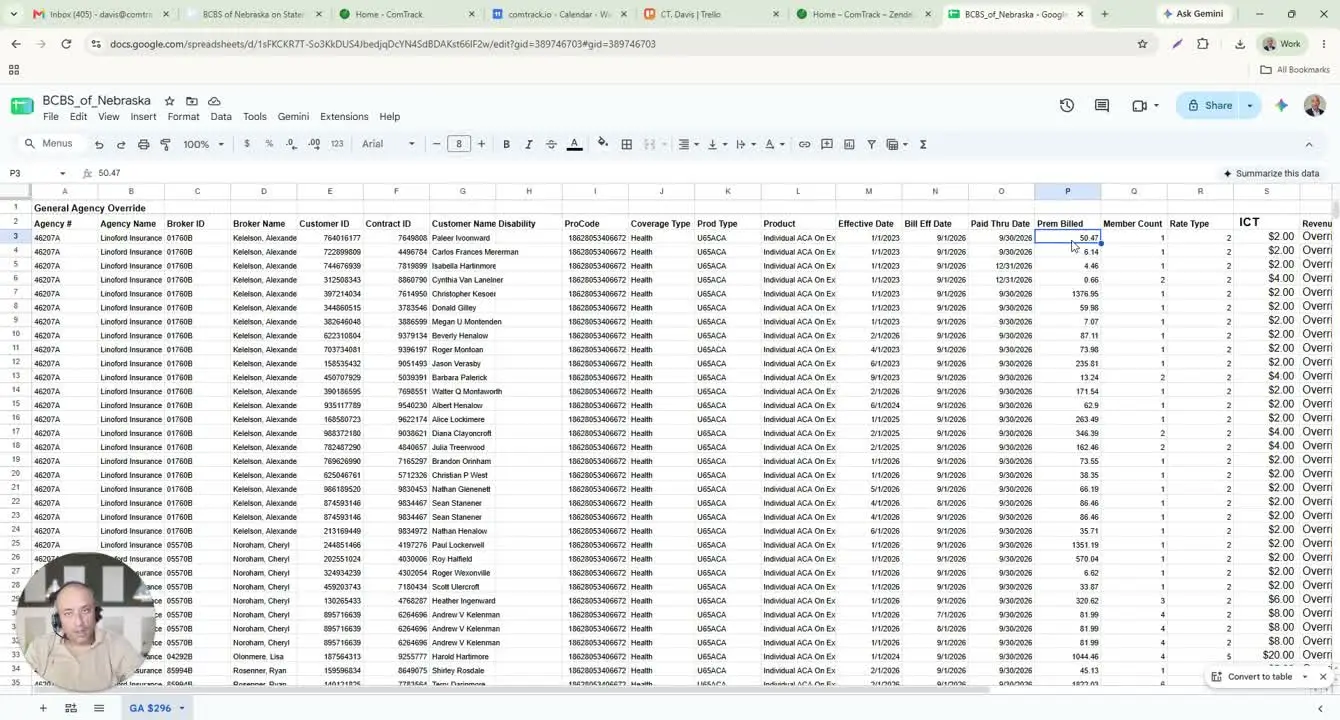
- Review the financial and enrollment fields used to calculate commission.
- Premium billed: Monthly premium amount billed.
- Member count: Number of covered members on the policy.
- Rate type: Dollar rate per member per month.
- Remember that commission is based on member count × rate type.
- Example: 2 members × $1 rate = $2 commission for that row.
6. Interpret the ICT and revenue type fields 3:41
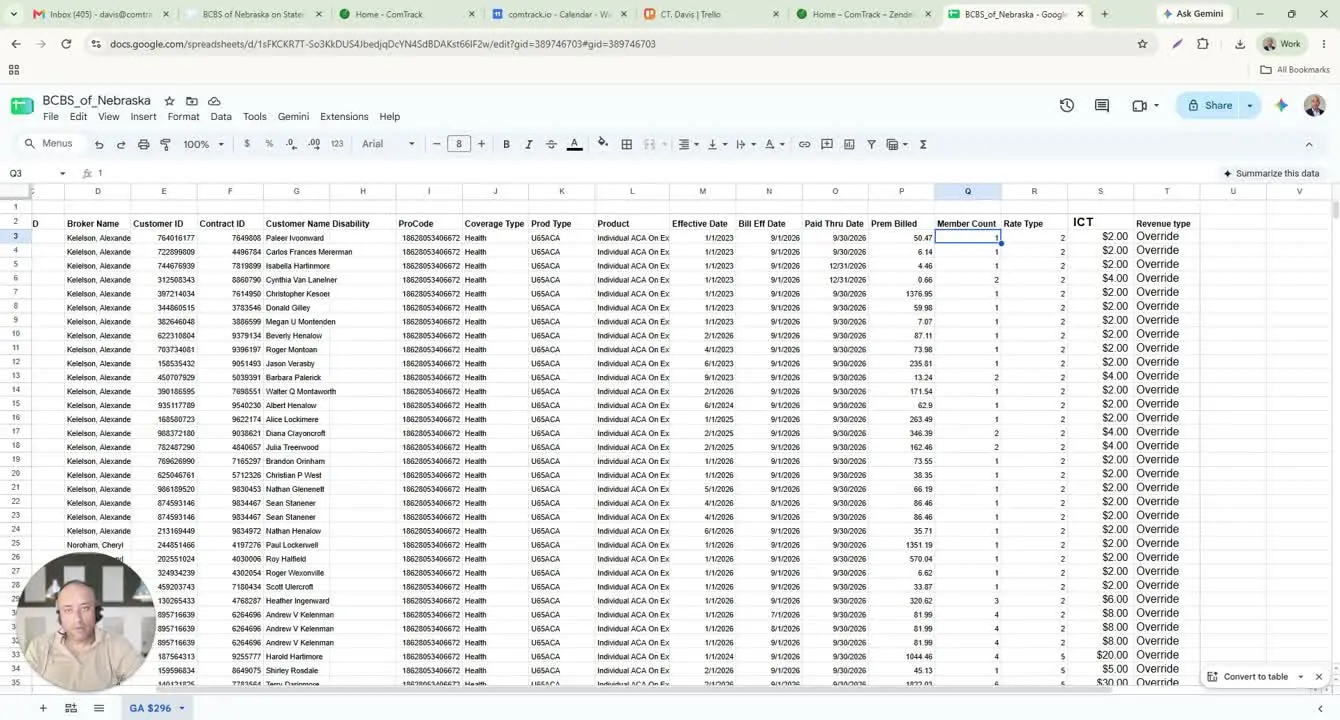
- Use ICT as the amount paid on the row.
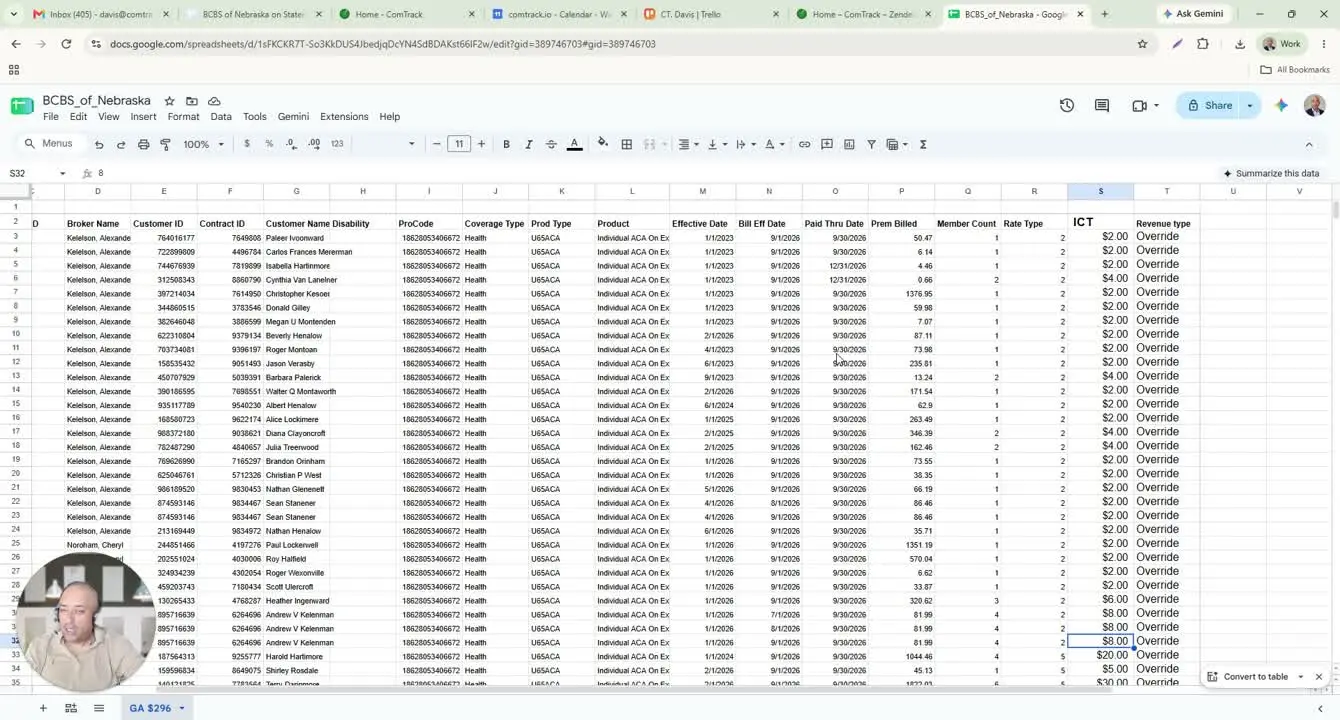
- Calculate ICT by multiplying member count × rate type.
- Example calculations:
- 2 × 1 = $2
- 2 × 2 = $4
- 2 × 4 = $8
- Review revenue type to identify overrides.
- Revenue type indicates the general agency override paid on a broker’s business or policy commission.
7. Load the statement into ComTrack for easier review 4:28
- Open ComTrack and upload the same commission statement.
- Click Digest to process the file.
- Wait for ComTrack to organize the statement into a cleaner format.
- Use the structured view to review:
- Agent name
- Carrier
- Payment period
- Client full name
- Effective date
- Premium
- Commission
- Totals
- Classification of received commissions/amounts
8. Use the retrieve function to download statements automatically 5:33
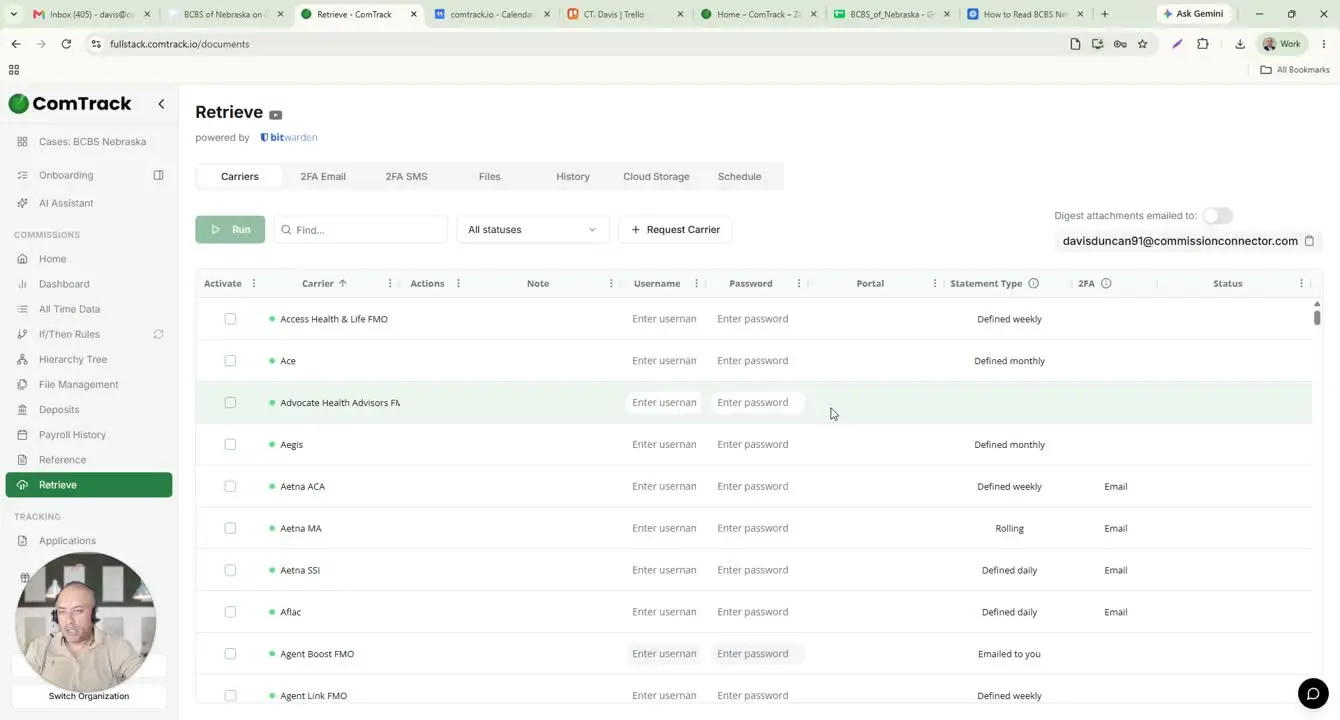
- In ComTrack, go to the Retrieve function.
- Save the carrier portal username and password.
- Select the appropriate carrier or portal for the example.
- Click Run to perform the first user retrieve.
- ComTrack will connect to the carrier portal and download the statement automatically.
9. Set up scheduled retrievals to reduce manual work 6:13
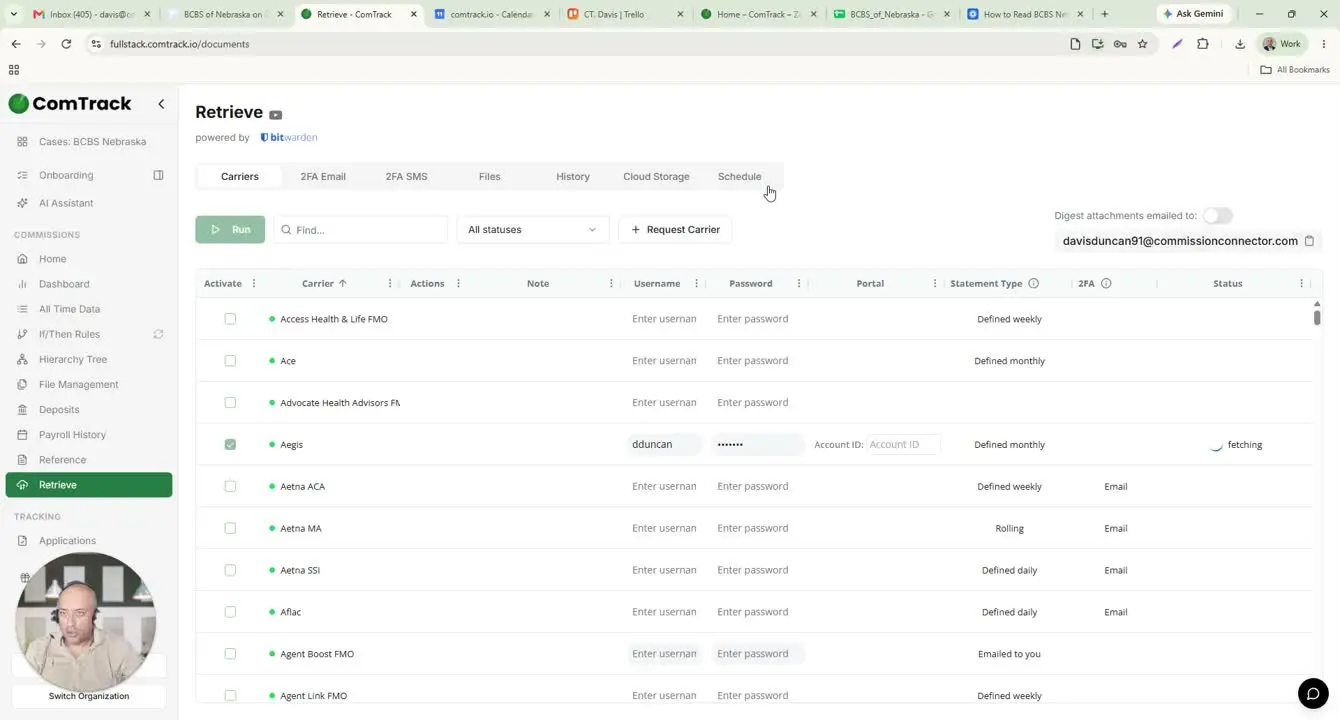
- Use Schedule in ComTrack to automate recurring downloads.
- Choose the time range you want ComTrack to retrieve, such as the past 31 days.
- Set the schedule frequency, such as the last day of every month.
- Save the schedule so ComTrack runs the retrieval process automatically at the chosen interval.
Cautionary Notes
- Do not rely only on column names; several labels are non-intuitive and require context to interpret correctly.
- Confirm that the statement tab and agency identifier match the expected BCBS Nebraska account before processing.
- Verify date fields carefully to avoid using the wrong billing period or pay-through period.
- Ensure saved portal credentials are accurate before enabling retrieve or schedule automation.
- Review automated downloads periodically to confirm the correct statements are being retrieved.
Tips for Efficiency
- Use ComTrack’s Digest feature to convert the raw statement into a more readable format.
- Save portal credentials once to avoid repeated manual logins.
- Use Retrieve for one-time downloads and Schedule for recurring automation.
- Standardize how you review key fields: agency, broker, customer, contract, dates, premium, member count, rate, and ICT.
- When checking commissions, use the formula member count × rate type to quickly validate row amounts.