
Objective
This SOP explains how to access Gerber Life commission statements from the portal, download them in Excel format, interpret the key fields on the statement, and optionally automate retrieval through Comtrek to save time.
Key Steps
1. Log in to Gerber Life and open the commissions portal 0:09
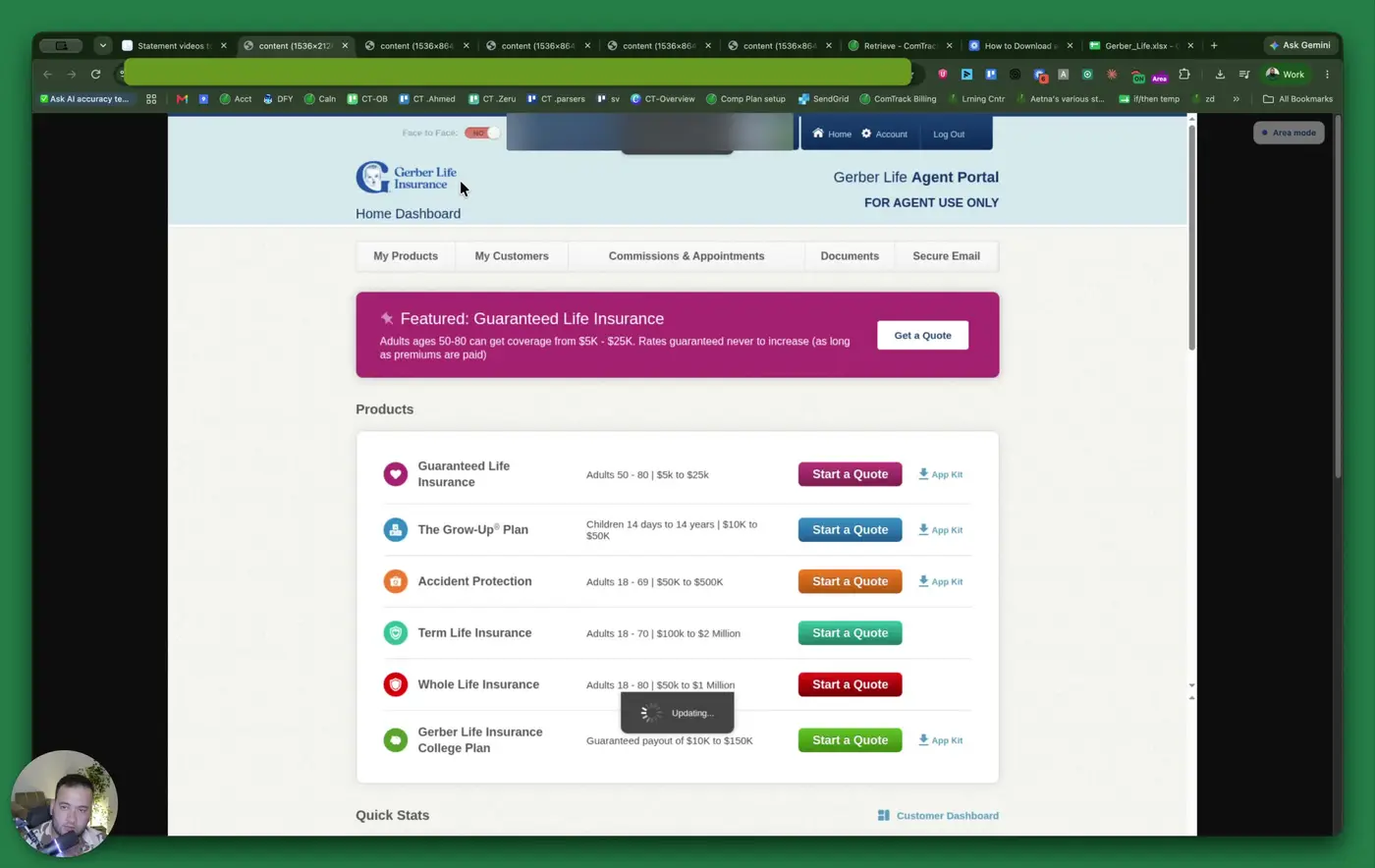
- Log in to the Gerber Life portal and complete two-factor authentication.
- From the homepage, select Commissions and Appointments.
- This opens the VIEW portal, which is still part of Gerber Life but in a separate interface.
2. Navigate to Commission Details 0:20
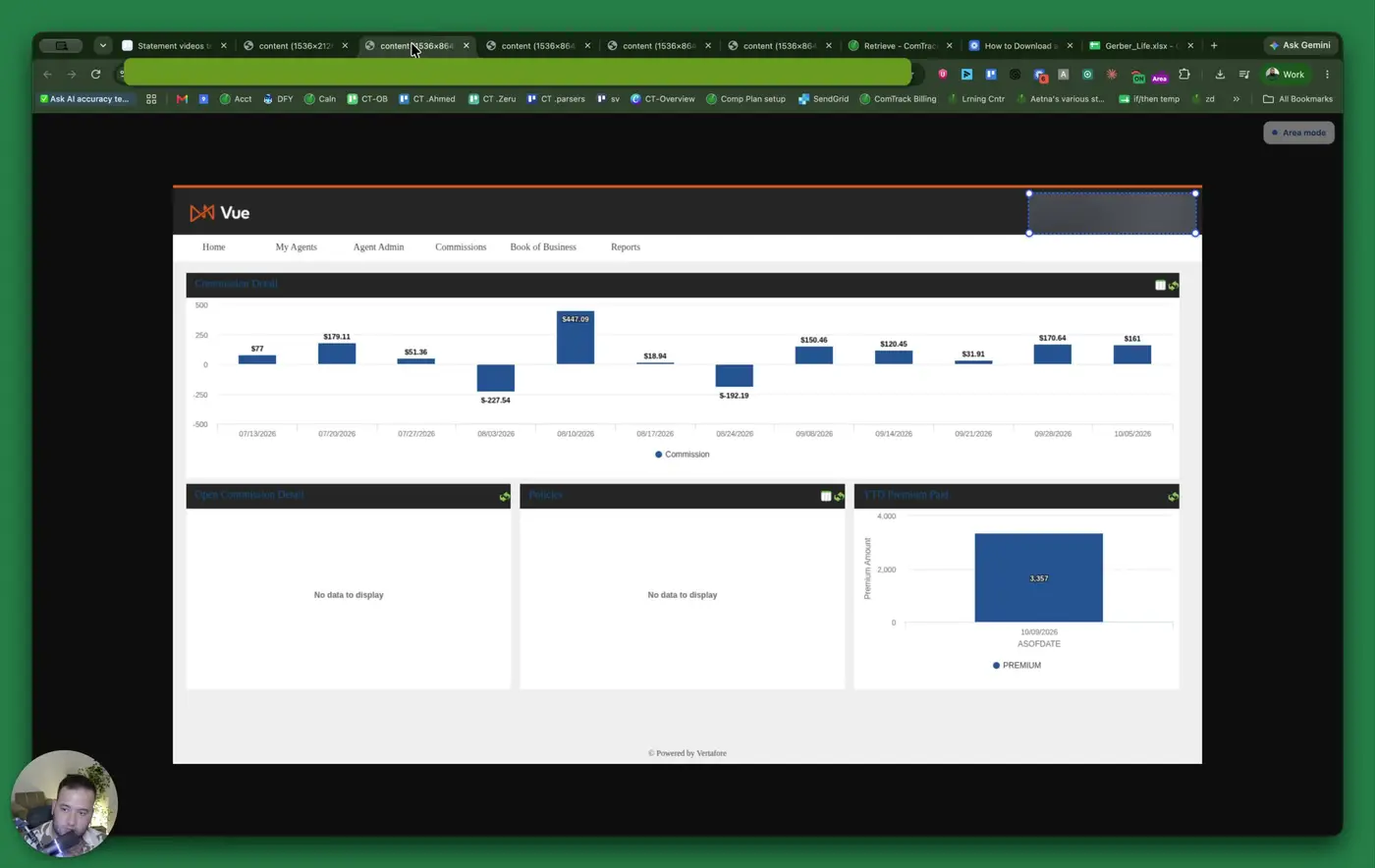
- In the VIEW portal, click Commissions in the top navigation bar.
- From the drop-down menu, select Commission Details.
- This opens the statement search page where you can filter by date range.
3. Search for commission statements by date range 0:47
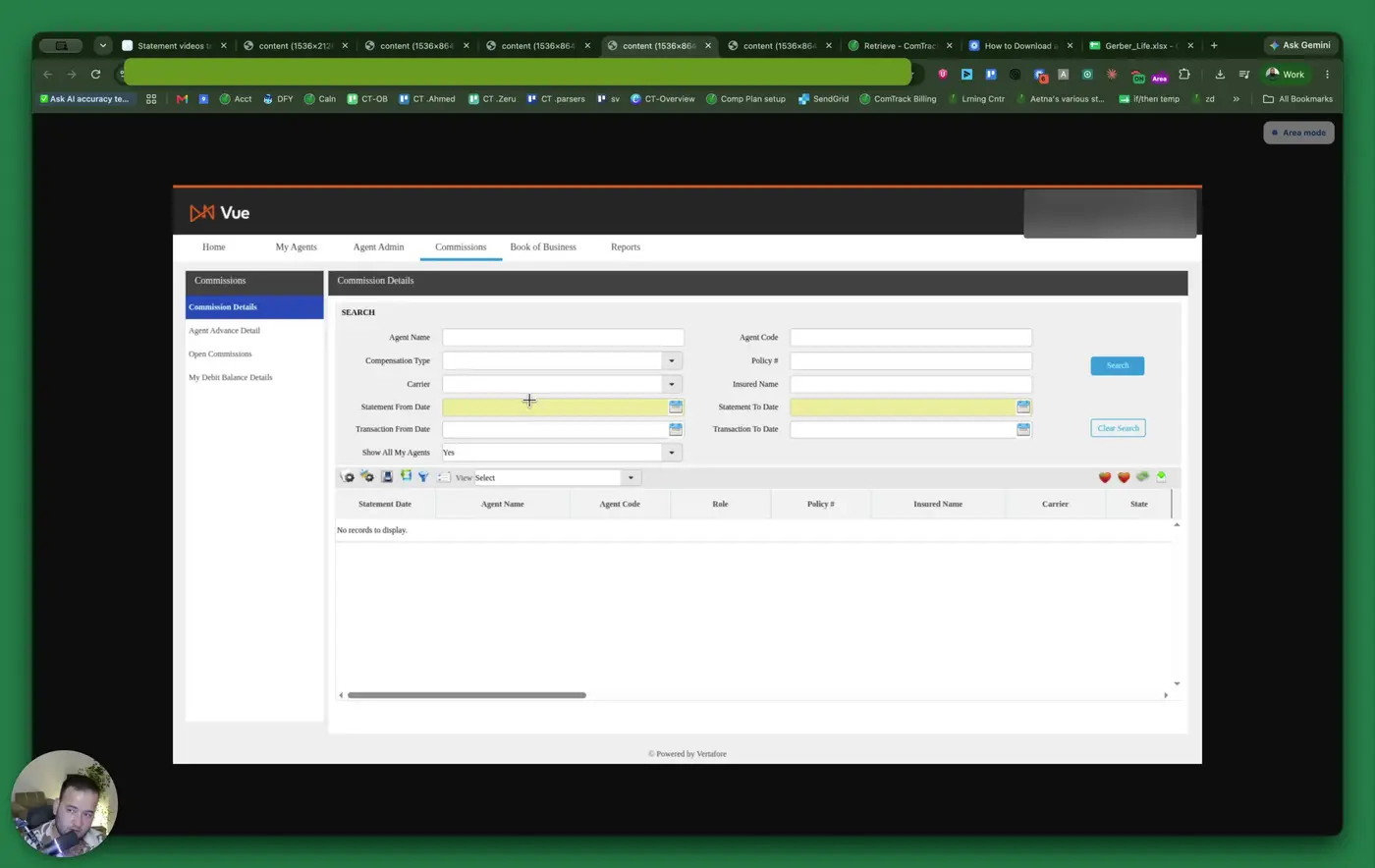
- Enter the Statement From Date and Statement To Date.
- Use the desired start and end dates for the statement period.
- Click Search to display all available commission statements for that range.
4. Download the statements to Excel 0:56
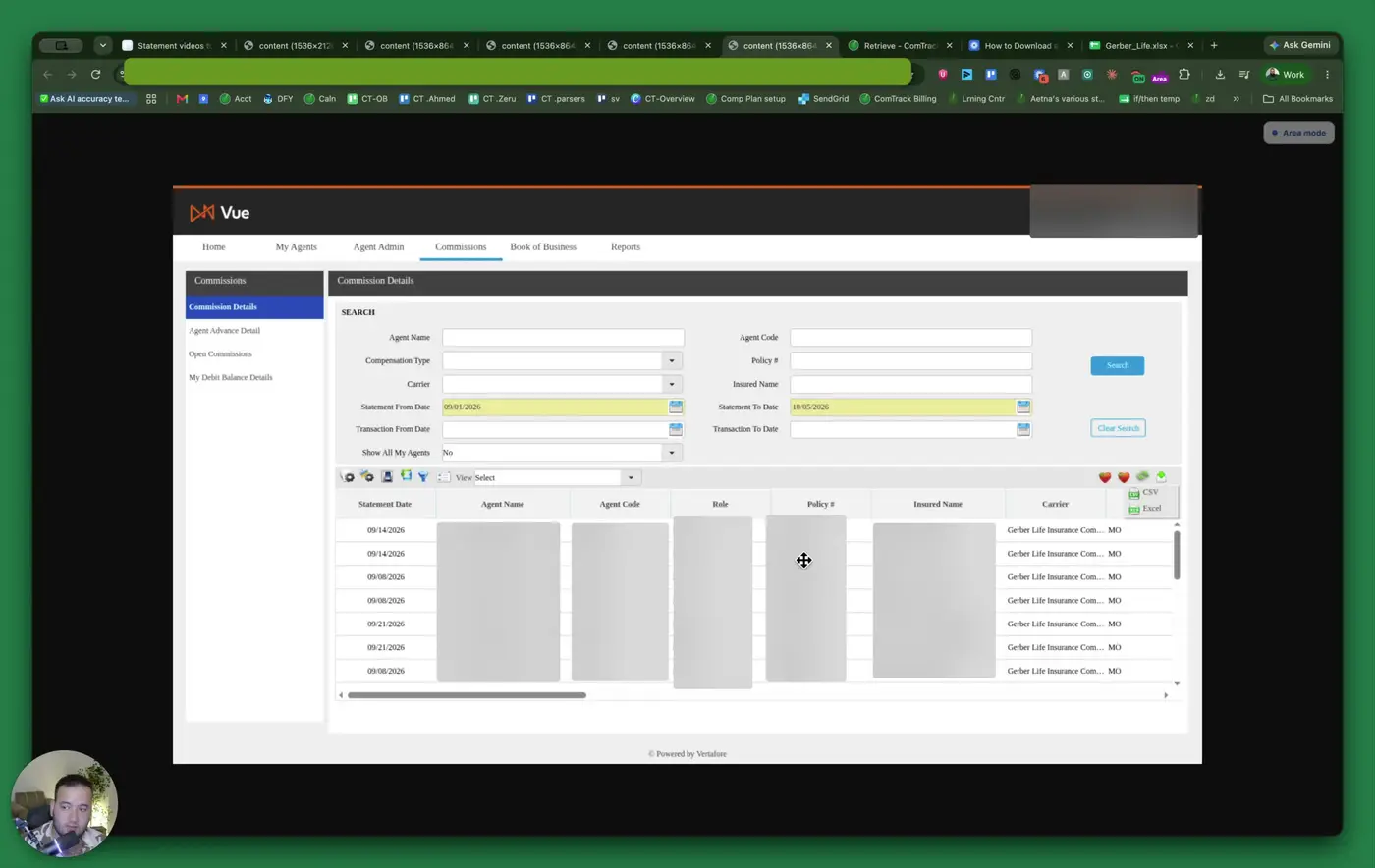
- Review the results table after the search completes.
- In the top-right corner of the table, click the Download icon.
- Select Excel to export the statements.
- Confirm the file downloads successfully to your device.
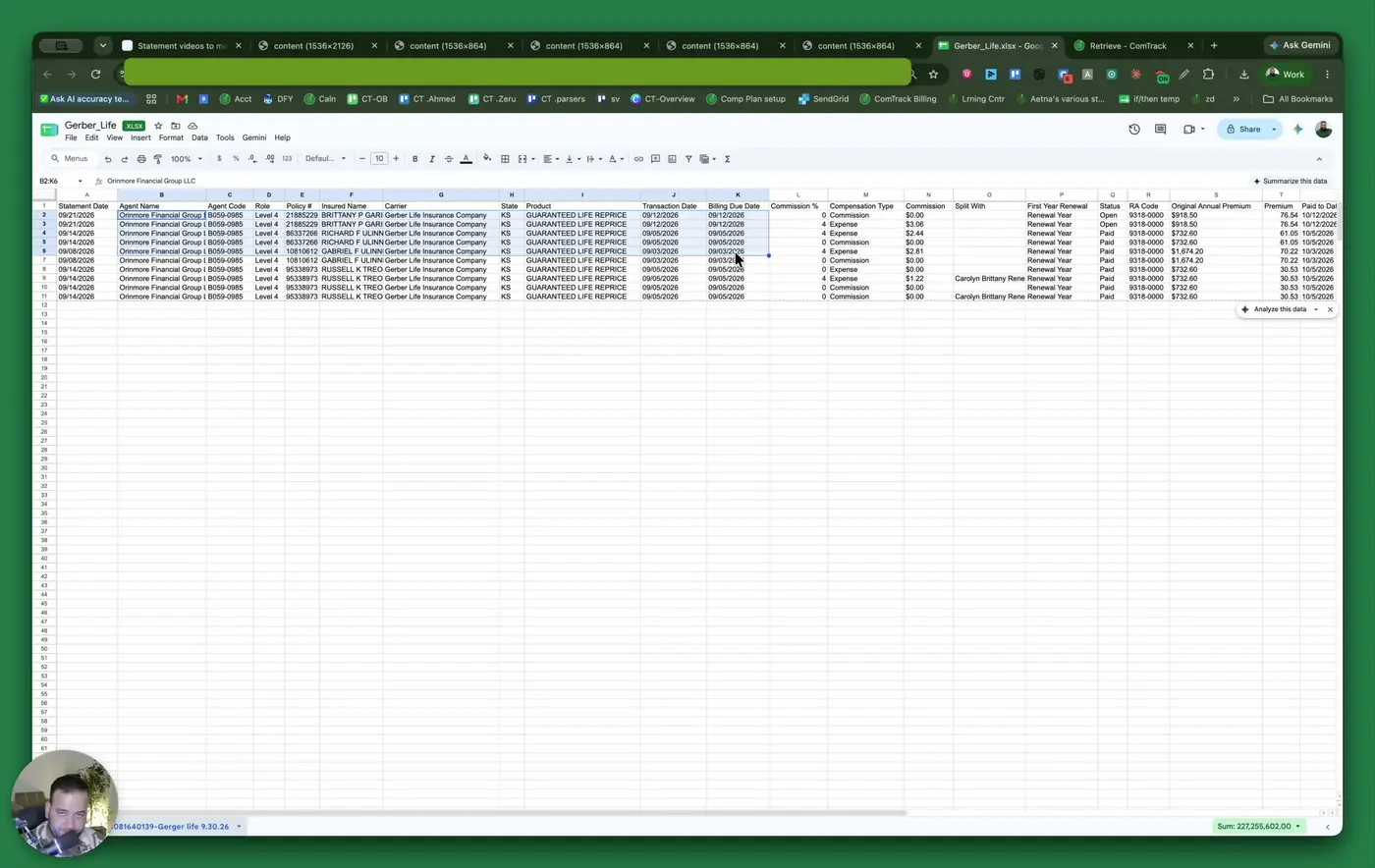
5. Identify the key fields on a Gerber Life statement 1:18
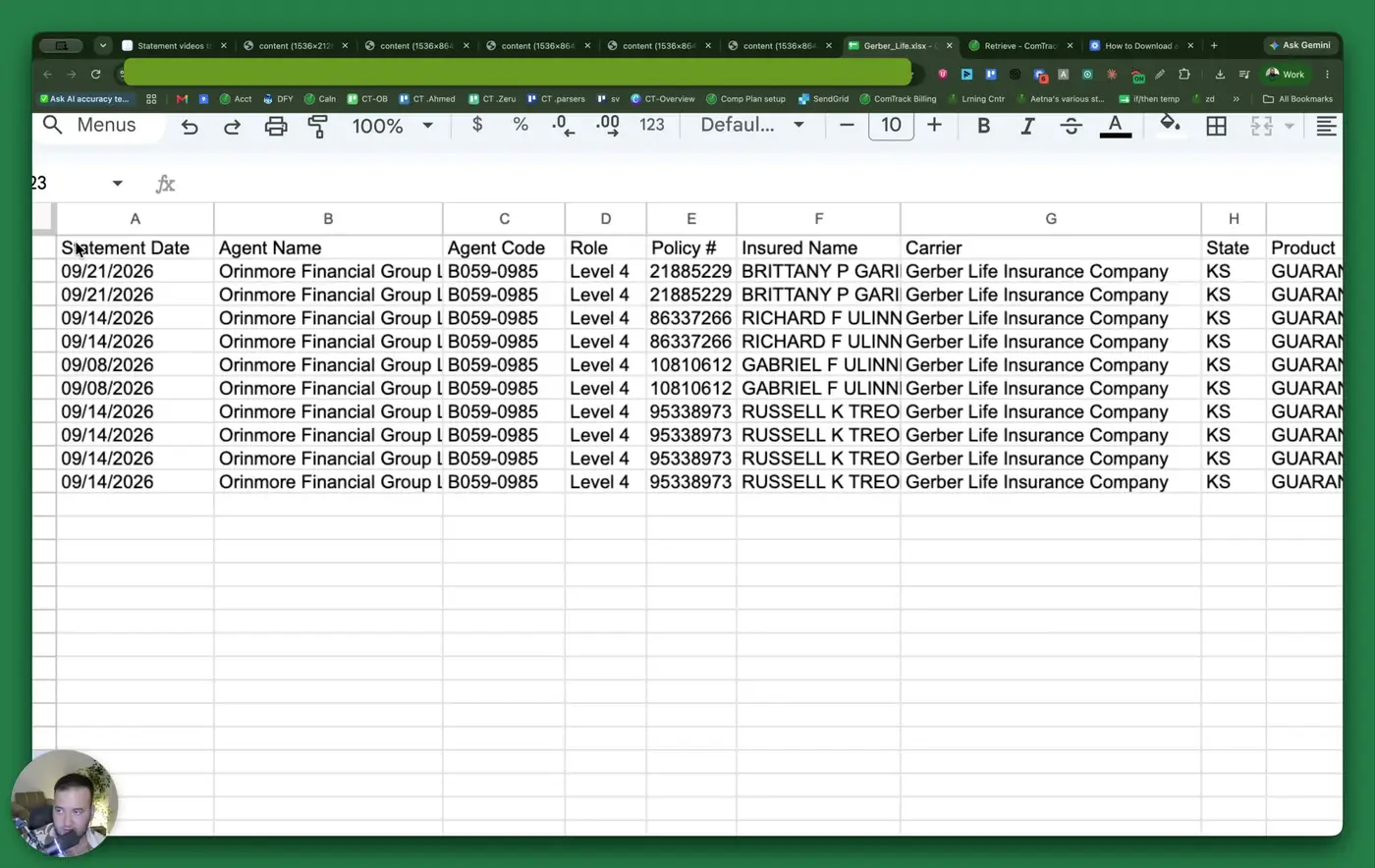
- Statement Date: The date the statement was generated.
- Agent Name / Agency Name: The agency or agent associated with the statement.
- Agent Code: The Gerber ID assigned to the agency/agent.
- Role: The contract level (for example, Level 4).
- Policy Number: The policy identifier.
- Insured Name: The client’s name.
- Carrier: Gerber Life Insurance Company.
- State: The client’s state.
- Product: The policy product type (for example, Guaranteed Life Reprice).
6. Interpret payment and commission details 2:07
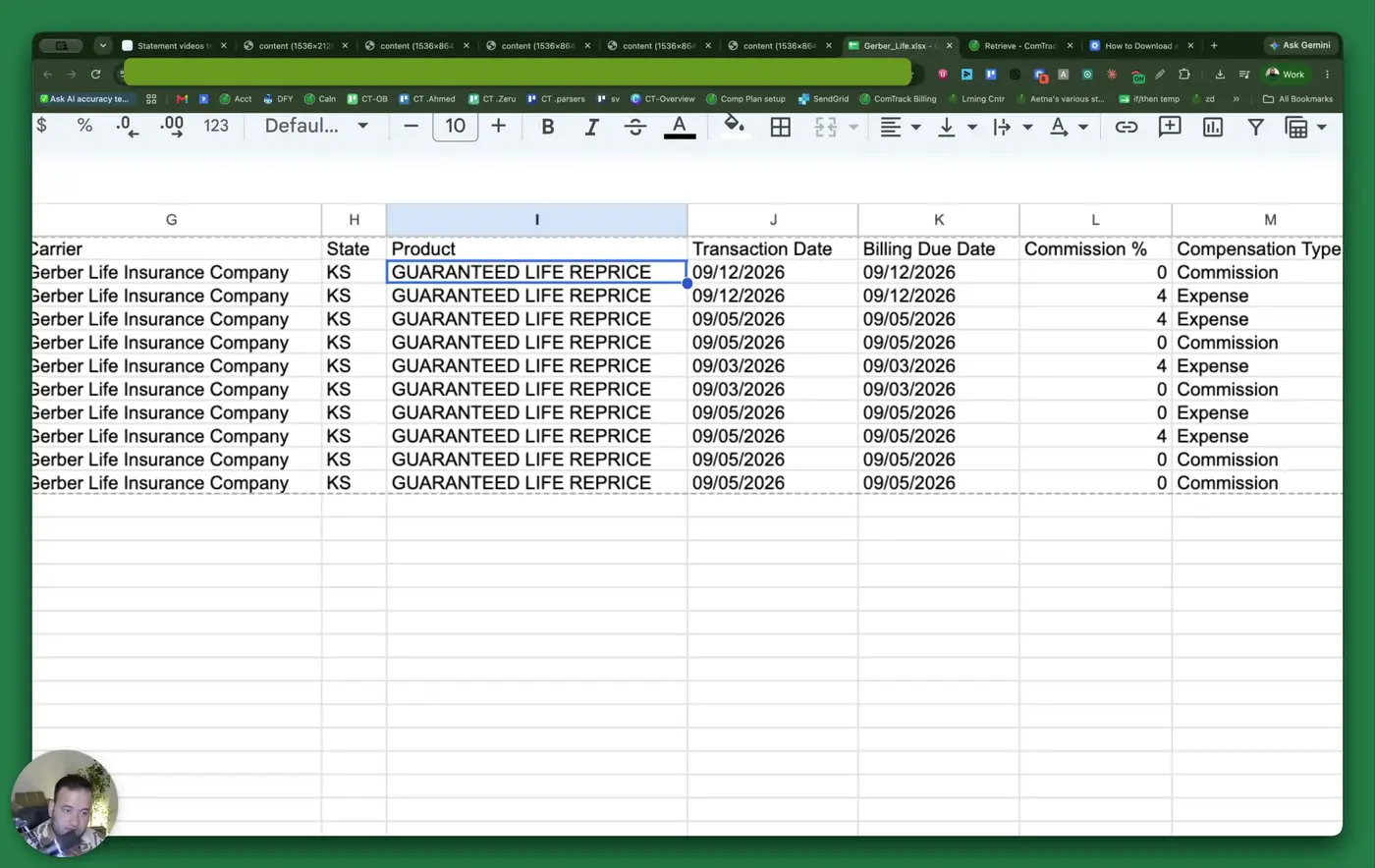
- Transaction Date: The date the client payment was received.
- Billing Due Date: The date the payment was due.
- Commission Percentage: The commission rate applied to the row.
- Commission: The dollar amount earned for that row.
- Compensation Type: The type of payment, such as regular commission.
- Expense: Additional allowance or renewal-related payment.
- Split With: Another agent involved in a split sale, if applicable.
- First Year / Renewal: Indicates whether the policy is in the first year or renewal period.
- Status: Shows whether the item is Open (pending) or Paid (received).
7. Review hierarchy, premium, and policy lifecycle fields 3:24
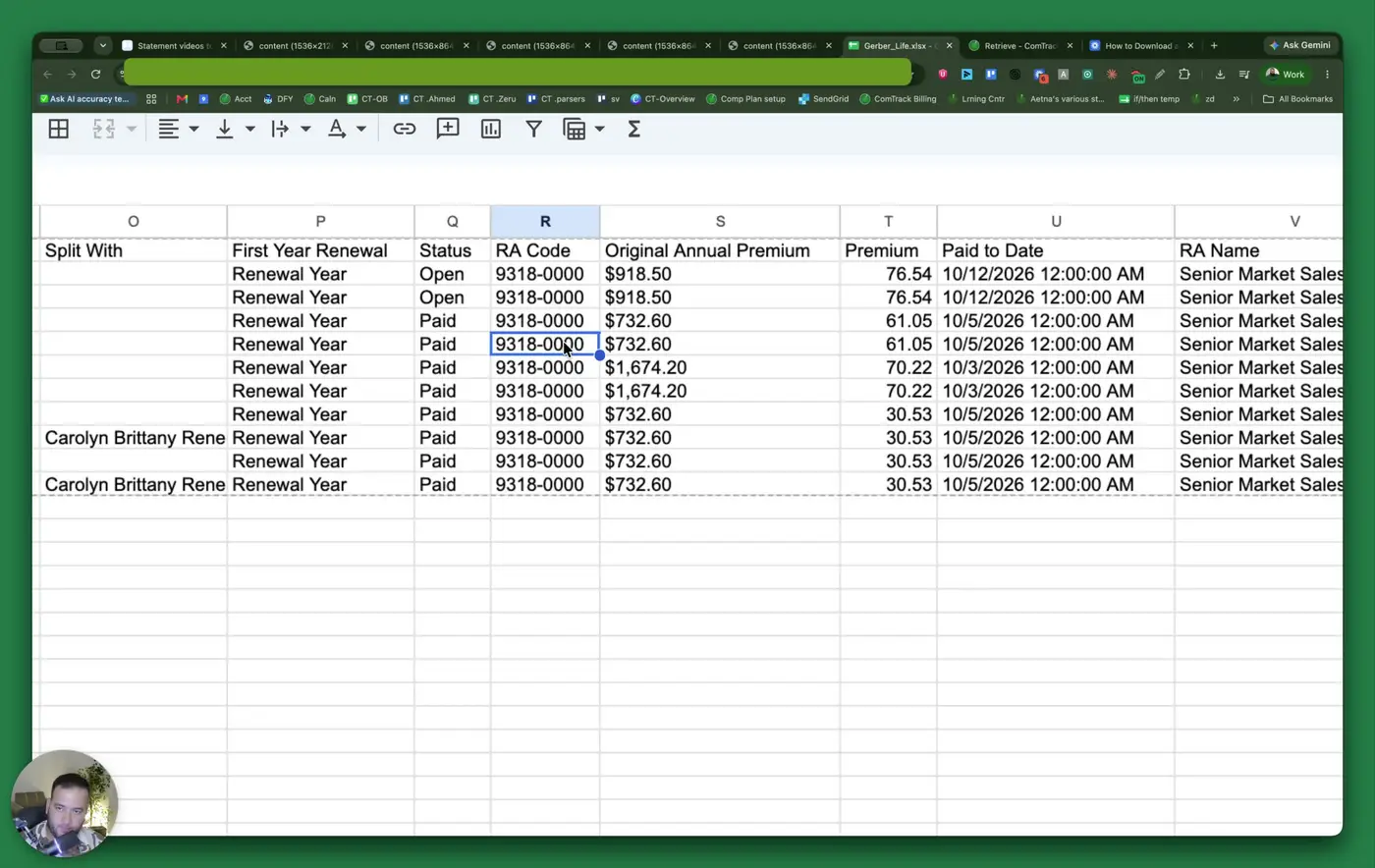
- RA Code: The upline’s Gerber ID.
- RA Name: The upline agency name.
- Original Annual Premium: The annual premium at policy start.
- Premium: The monthly premium amount.
- Pay to Date: The date through which the client has paid.
- Original Face Amount: The death benefit amount.
- Policy Term: The length of the policy, if populated.
- MOS Paid: The number of months paid in the current payment.
- Issue Date: The date the policy started.
8. Understand override and selling-agent information 4:12
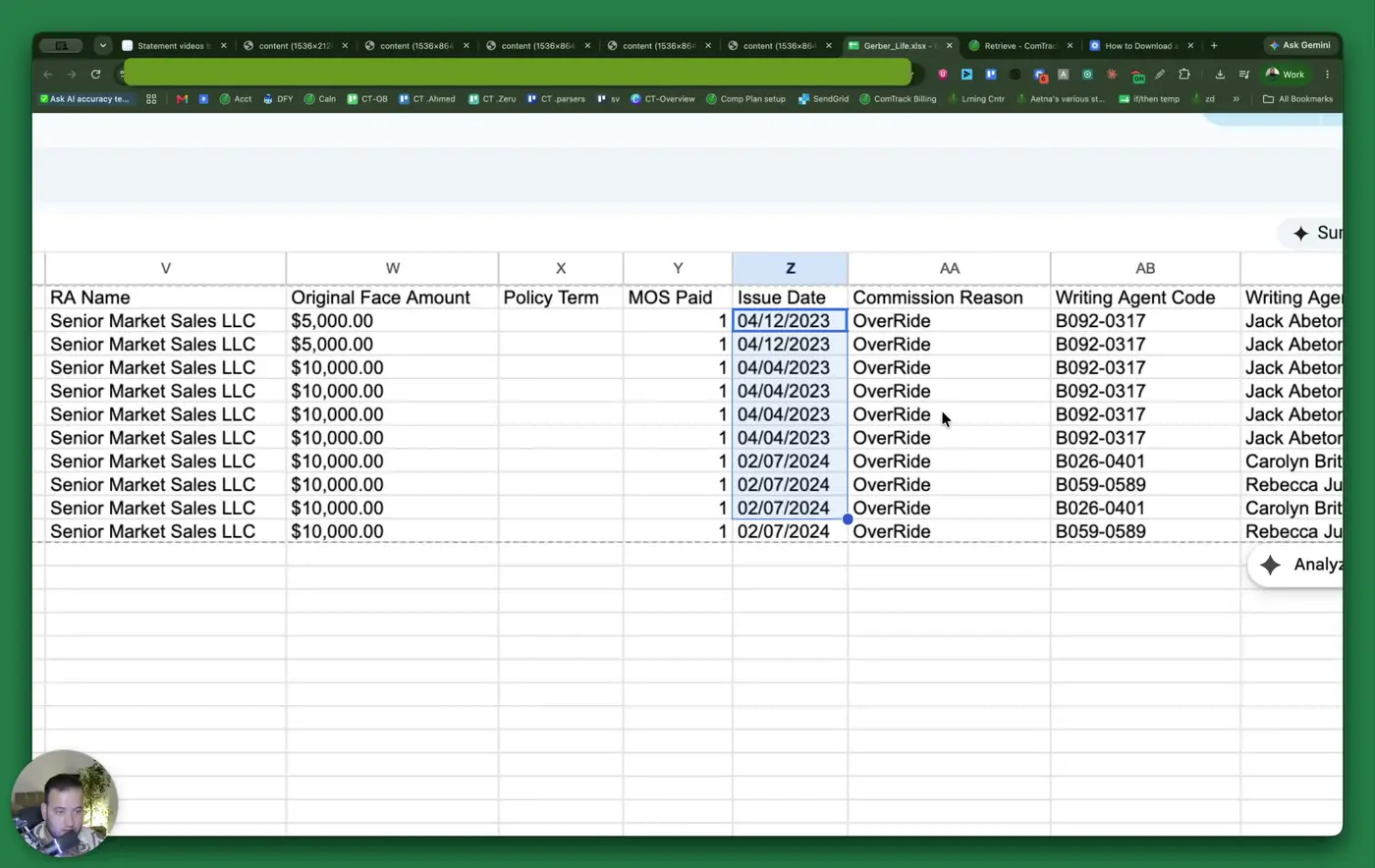
- Commission Reason: Explains why the commission was paid; for example, override means you are earning commission on business you did not directly sell.
- Writing Agent Code: The selling agent’s Gerber ID.
- Writing Agent Name: The name of the agent who sold the policy.
- Use these fields to confirm whether the payment is direct commission or override income.
9. Use Comtrek Retrieve to automate statement downloads 5:18
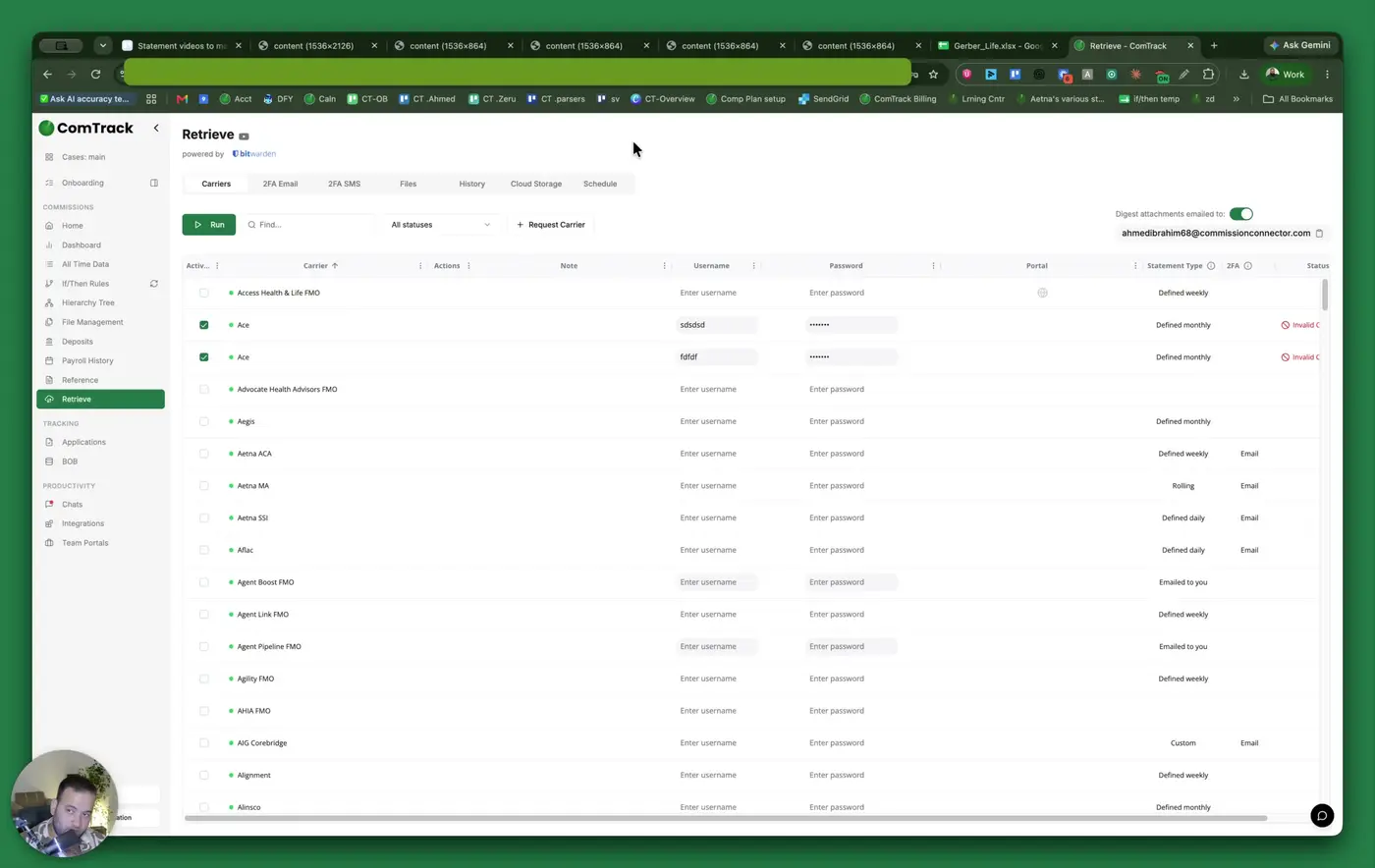
- Open Retrieve inside Comtrek.
- Search for Gerber and select the Gerber Life portal option.
- Enter your Gerber username and password.
- Choose the payment period you want to retrieve.
- Click Run, then specify how far back to pull statements (for example, 30 days).
- Click Start Retrieve to automatically download and upload the statements into Comtrek for review.
10. Set up a recurring schedule for fully automated retrieval 6:11
- Configure a schedule in Comtrek to run statement retrieval automatically.
- Choose a time trigger that matches your reporting needs.
- Example options include:
- Every last day of the month and retrieve files since the first of the month.
- Every fourth Monday of the month and retrieve the prior week’s files.
- Once scheduled, Comtrek will retrieve the statements automatically without manual intervention.
Cautionary Notes
- Ensure you are using the correct date range before searching, or you may miss statements.
- The VIEW portal is a separate interface, so navigation may feel different even though it is still within Gerber Life.
- Verify whether a row is Paid or Open before assuming commission has been received.
- If using Comtrek Retrieve, confirm your username, password, and payment period are entered correctly before running the process.
- Scheduled automation should be reviewed periodically to ensure it still matches your reporting needs.
Tips for Efficiency
- Use the Excel download option to make sorting, filtering, and reconciliation easier.
- Save common date ranges so you can quickly repeat searches each month.
- Use Comtrek Retrieve instead of manual portal downloads to reduce repetitive work.
- Set up a recurring schedule if you need statements on a regular basis.
- Review key fields like Status, Commission Reason, and Writing Agent Name first to quickly identify what each row represents.