
Objective
This SOP explains how to manually access and download a Medica commission statement, how to interpret the key fields in the statement, and how to automate future statement retrieval through ComTrack. It is designed so a team member can quickly find the correct statement, save it in Excel format, and understand the commission details.
Key Steps
1. Log in to Medica and open the Commission portal 0:08
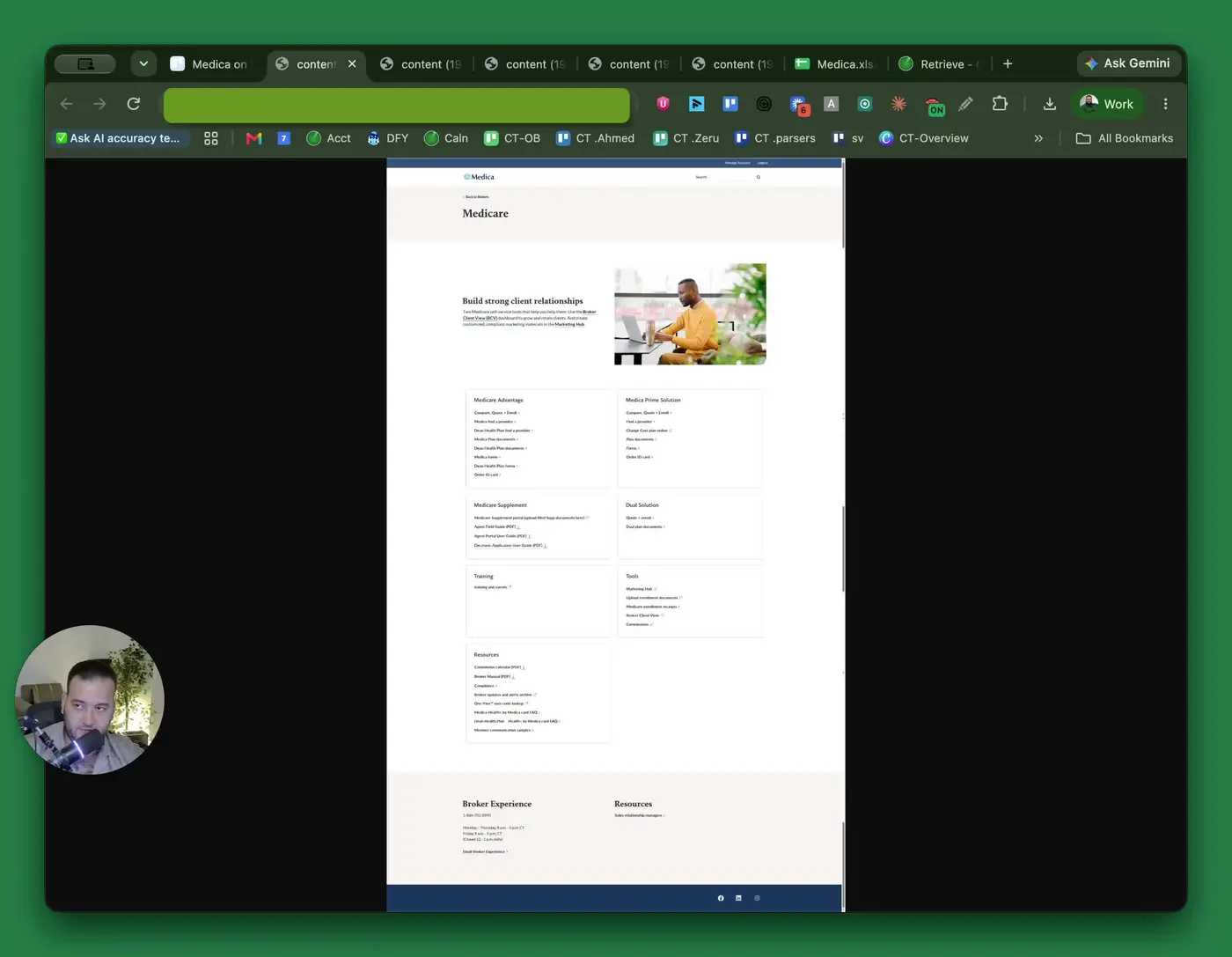
- Log in to Medica and complete 2FA authentication.
- In the Tools section, locate and click Commission.
- This opens the commission portal where statement history is available.
2. Open statement history and select the correct statement 0:30
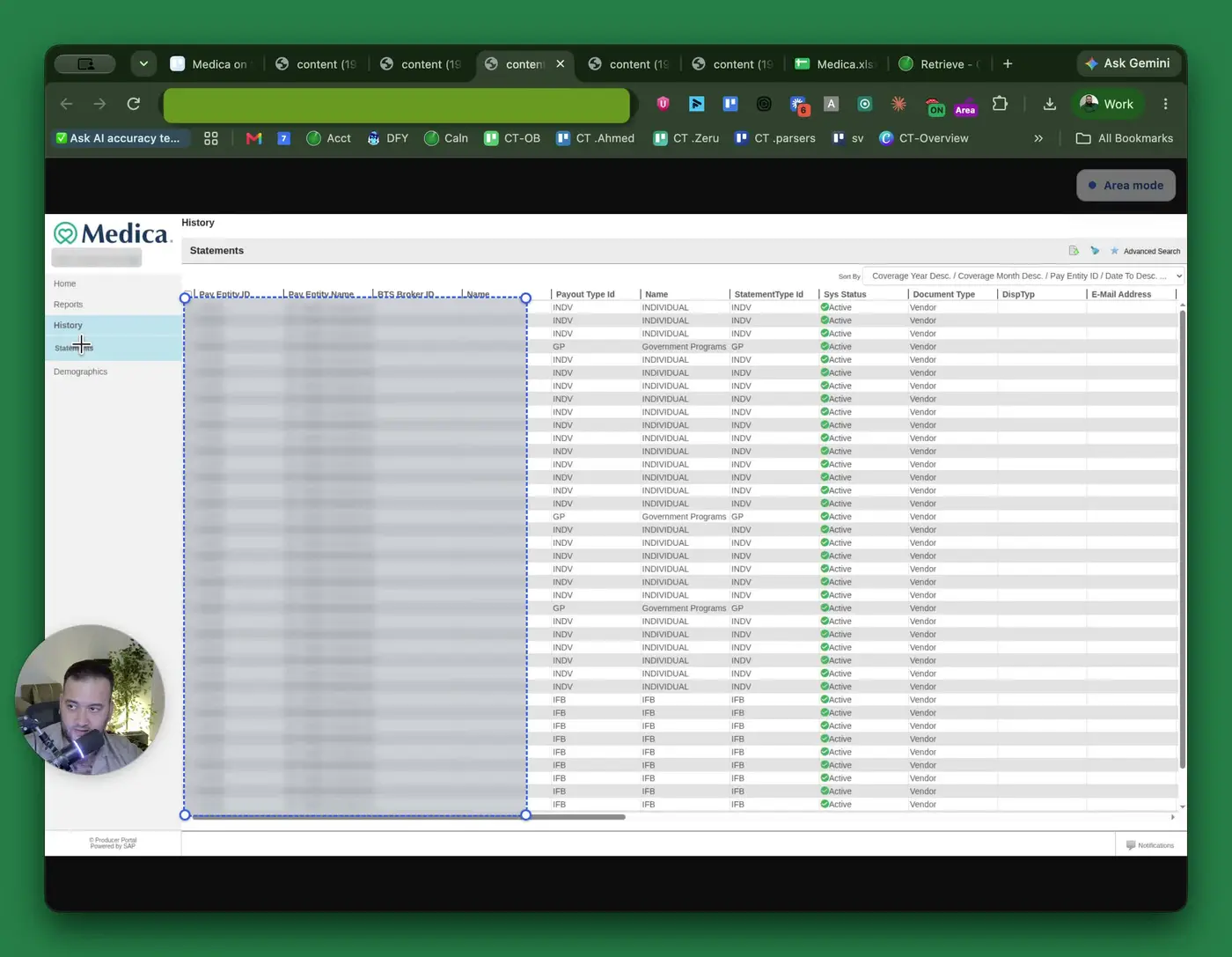
- Click History to view all available commission statements.
- Review the list of statements and locate the one you need.
- Click the Payout Type ID or another clickable row element to open statement details.
- A side menu will appear with statement options.
3. View the individual legacy statement 1:01
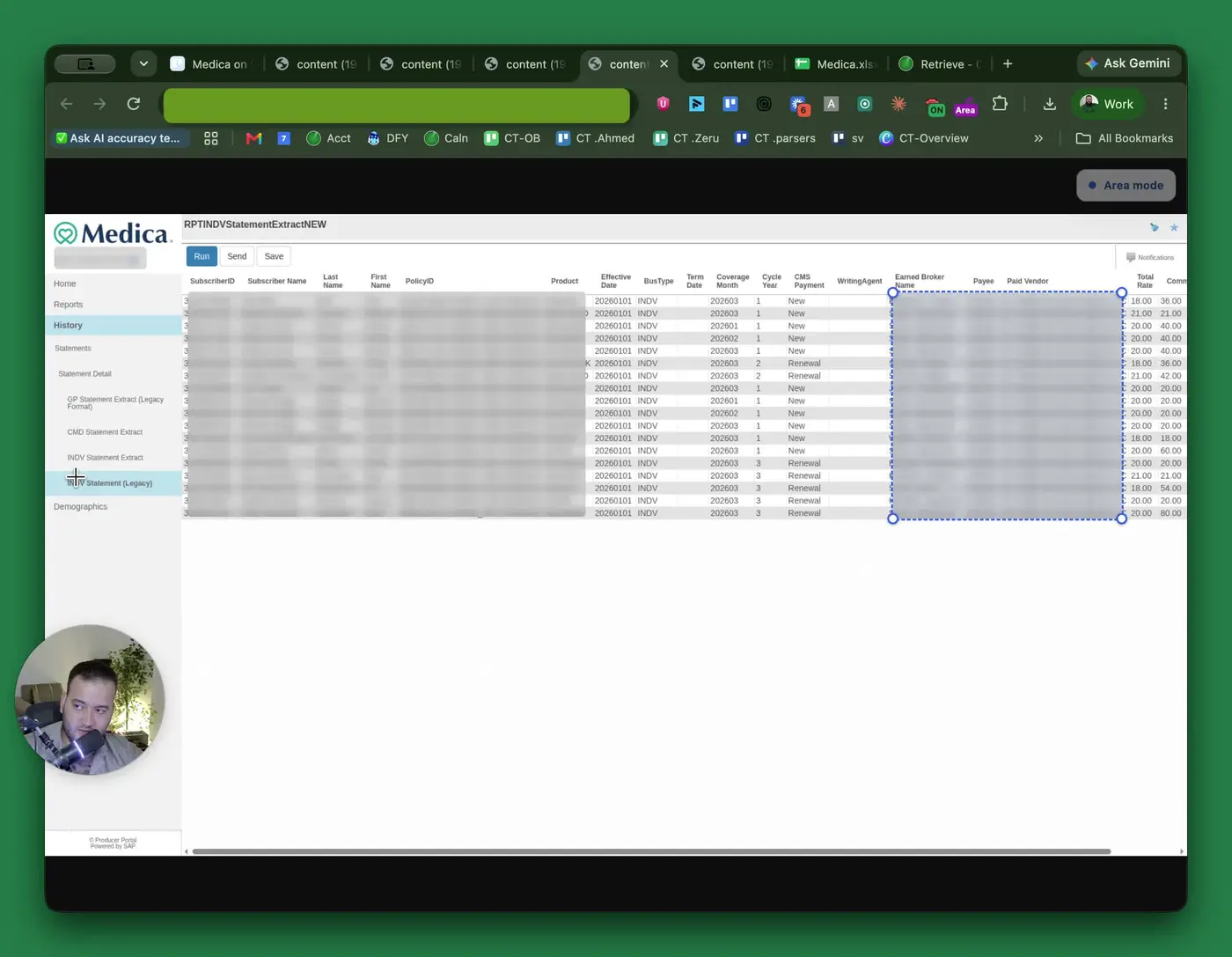
- Confirm you are in Individual Statement Legacy.
- Open the statement to display the full commission details.
- Verify that the statement shown matches the correct period before downloading.
4. Save the statement as an Excel file 1:12
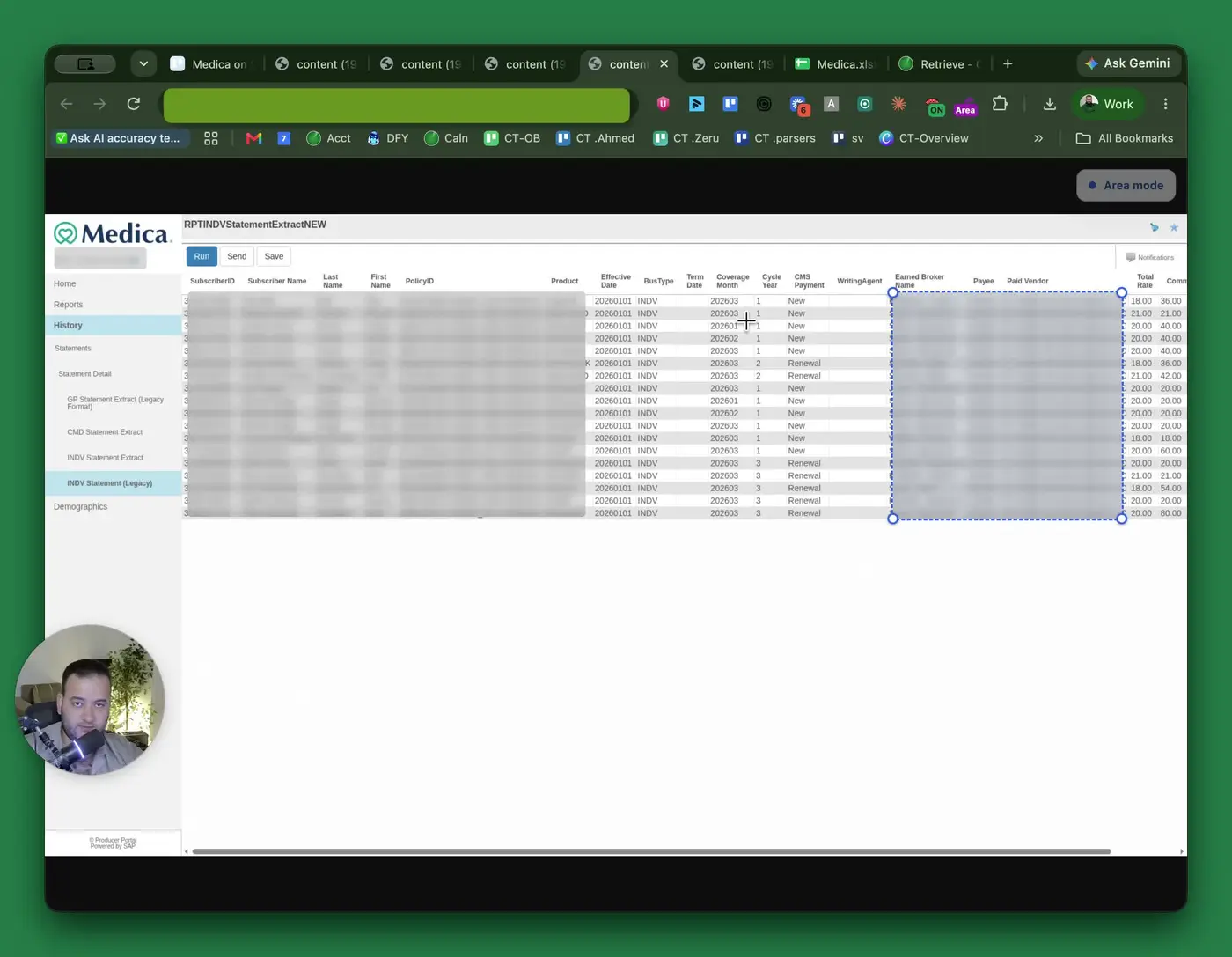
- Click Save on the statement page.
- When prompted for a file format, select Excel.
- Download the file to your computer for use in ComTrack or other internal workflows.
5. Review and interpret the statement fields 1:37
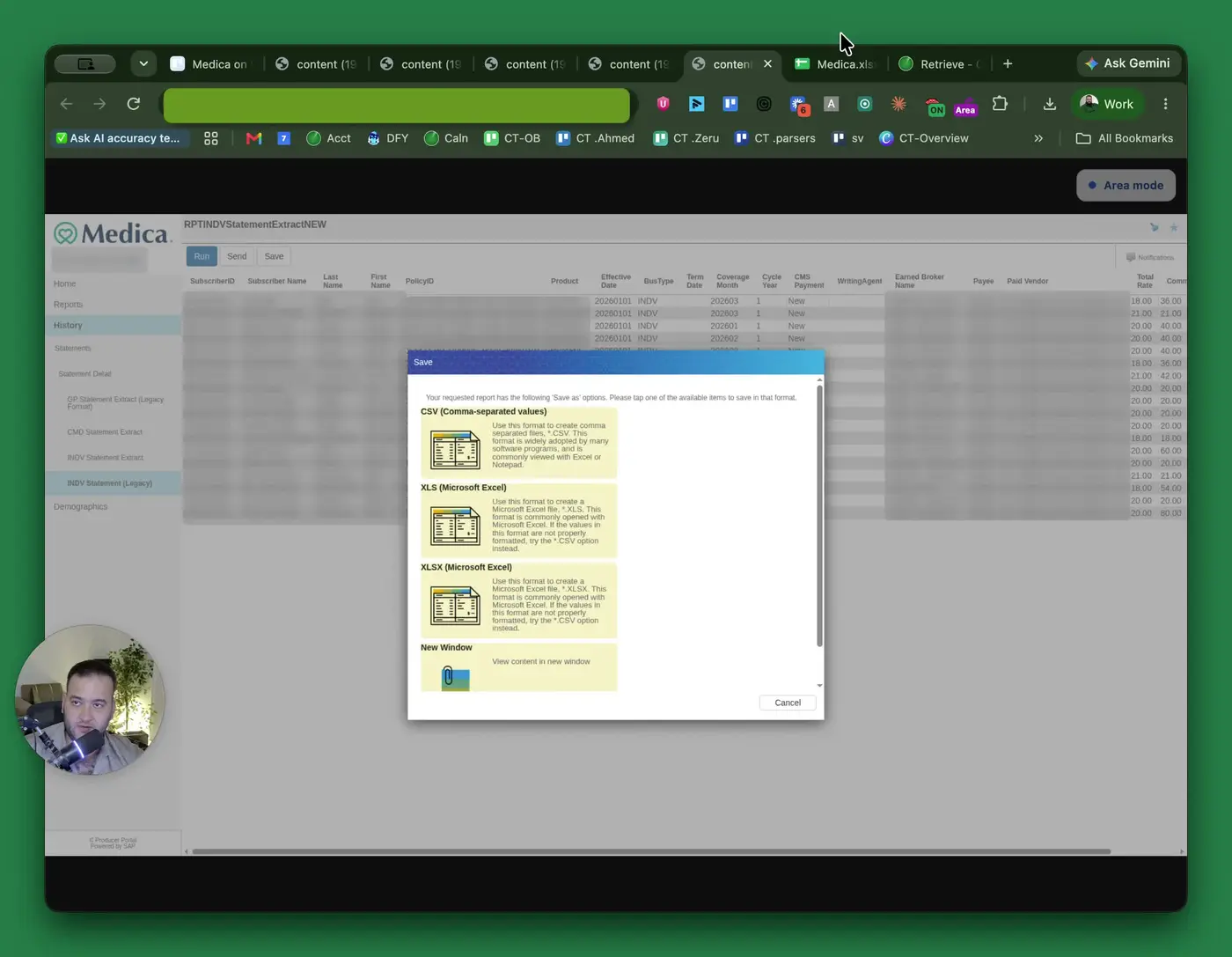
- Subscriber ID: Medica member ID for the client.
- Subscriber Name: Client’s full name, split into last and first name.
- Policy ID: Policy number, typically the member ID plus the Medica plan code.
- Product: Plan name and state code.
- Effective Date: Date coverage began.
- Biz Type: Business type, such as individual.
- Term Date: Date the policy ended; blank means the policy is still active.
- Coverage Months: The payment period the commission applies to.
- Cycle Year: The year of the client’s relationship with the agent; 1 = first year, 2 = second year, etc.
- CMS Payment: Indicates whether the payment is for new business or renewal.
- Writing Agent: Selling agent ID.
- Earned Broker Name: Agent who received credit for the sale.
- Payee: Medica agency payee number.
- Paid Vendor: Agency name that received payment.
- Total Rate: Flat dollar amount paid per member per month.
- Commission: Amount paid on that specific row.
- Date Paid: Date Medica issued the commission payment.
6. Use Retrieve in ComTrack to automate statement collection 4:43
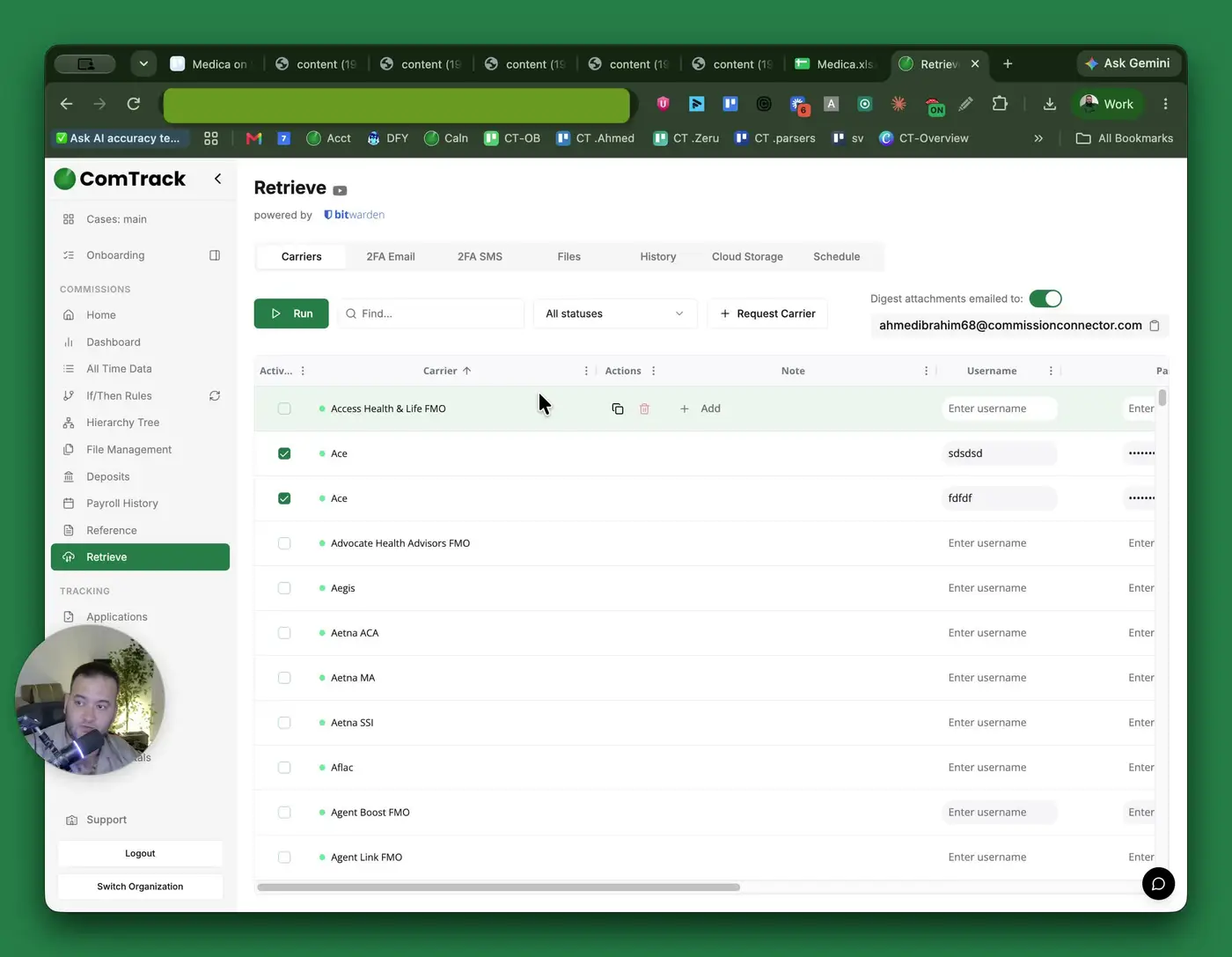
- Open Retrieve inside ComTrack.
- Search for Medica in the list of supported portals.
- Enter the Medica username and password.
- If 2FA is required, connect the email account used for authentication.
- Use Add Gmail or Add Outlook account depending on the email provider.
- Sign in to grant access to 2FA codes so retrieval can proceed automatically.
7. Run retrieval for a selected date range 5:37
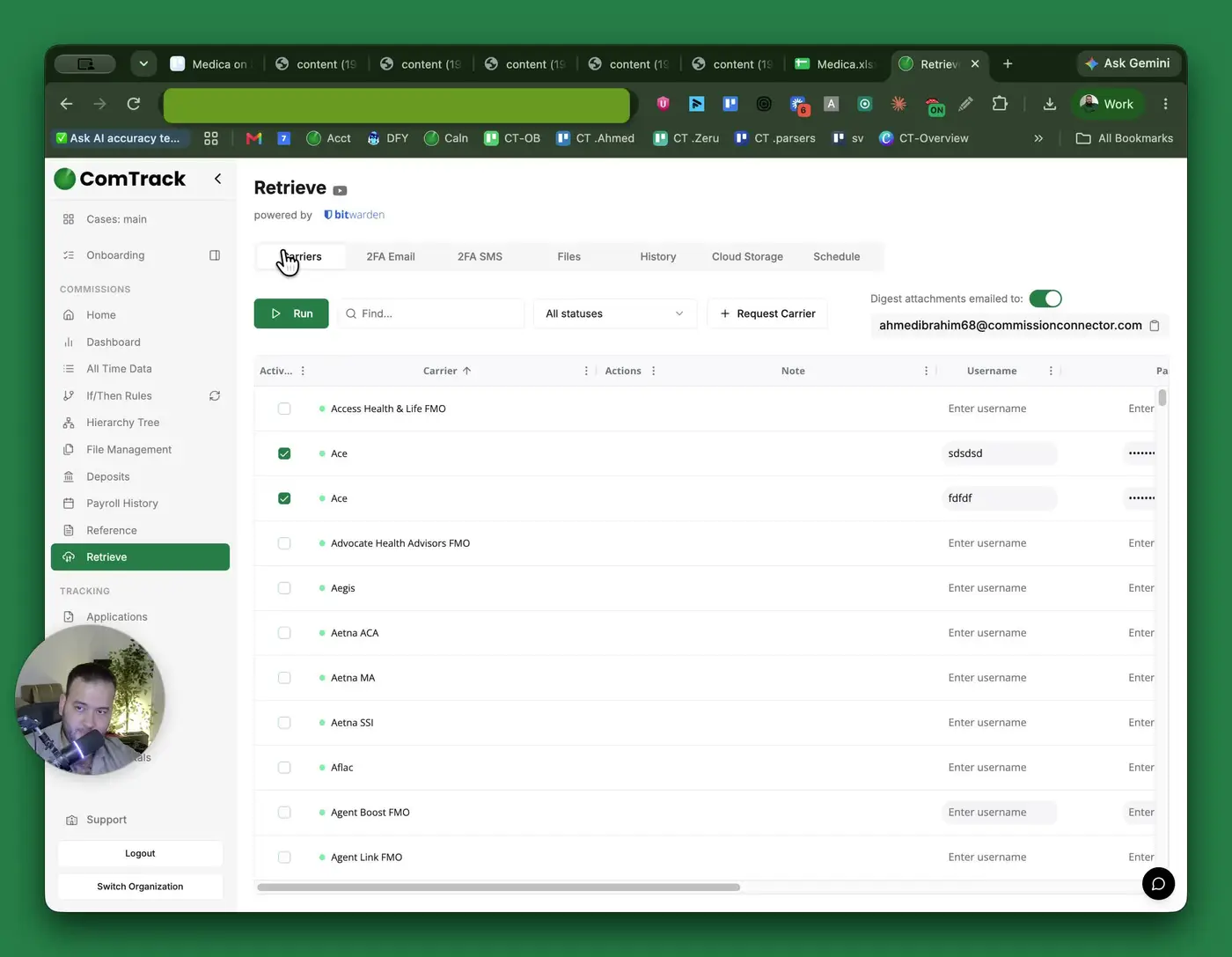
- After entering credentials for the desired carriers, click Run.
- Choose how far back to retrieve statements:
- Last 30 days
- Last 2 months
- Custom timeframe
- Click Start Retrieve to begin the automated download process.
- Wait for the files to populate in ComTrack, typically within about 20 minutes.
8. Set up scheduled retrieval for ongoing automation 6:14
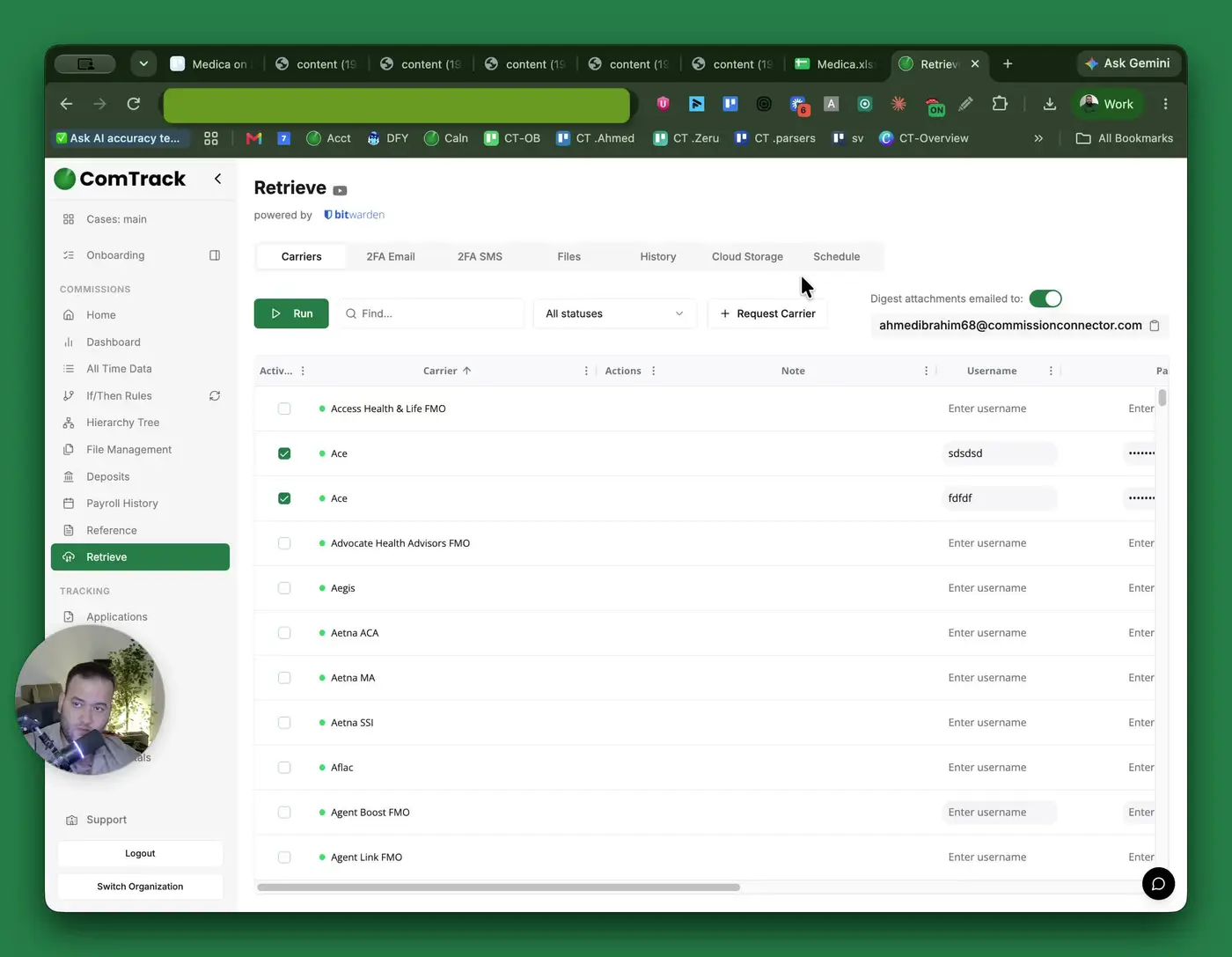
- Enable Schedule Retrieval to automate future downloads.
- Set a recurring trigger, such as the first day of each month.
- Choose the retrieval window, such as the past 31 days or the prior month.
- Save the schedule so statements are retrieved automatically without manual intervention.
Cautionary Notes
- Ensure you are in the correct statement view before downloading; the SOP specifically references Individual Statement Legacy.
- Double-check the date range and statement period so you do not download the wrong commission file.
- If 2FA is enabled, the connected email account must be accessible and properly authenticated.
- Use the correct email provider option in ComTrack (Gmail or Outlook) to avoid retrieval failures.
- Confirm that the downloaded file is in Excel format, since that is the preferred format for working with commission statements.
Tips for Efficiency
- Use Retrieve in ComTrack instead of manually downloading statements whenever possible.
- Set up scheduled retrieval to eliminate repetitive monthly manual work.
- Keep Medica credentials and 2FA access updated so automated retrieval continues without interruption.
- Save downloaded files in a consistent folder structure for easier tracking and reconciliation.
- Review the statement fields using the definitions above to speed up commission validation and troubleshooting.