
Objective
This SOP explains how to log in to the Federal Life website, download the Federal Life commission statement, and review the statement details. It also outlines how to upload the statement into ComTrack so the data is processed into an easier-to-read format for commission review.
Key Steps
1. Log in to the Federal Life website 0:00
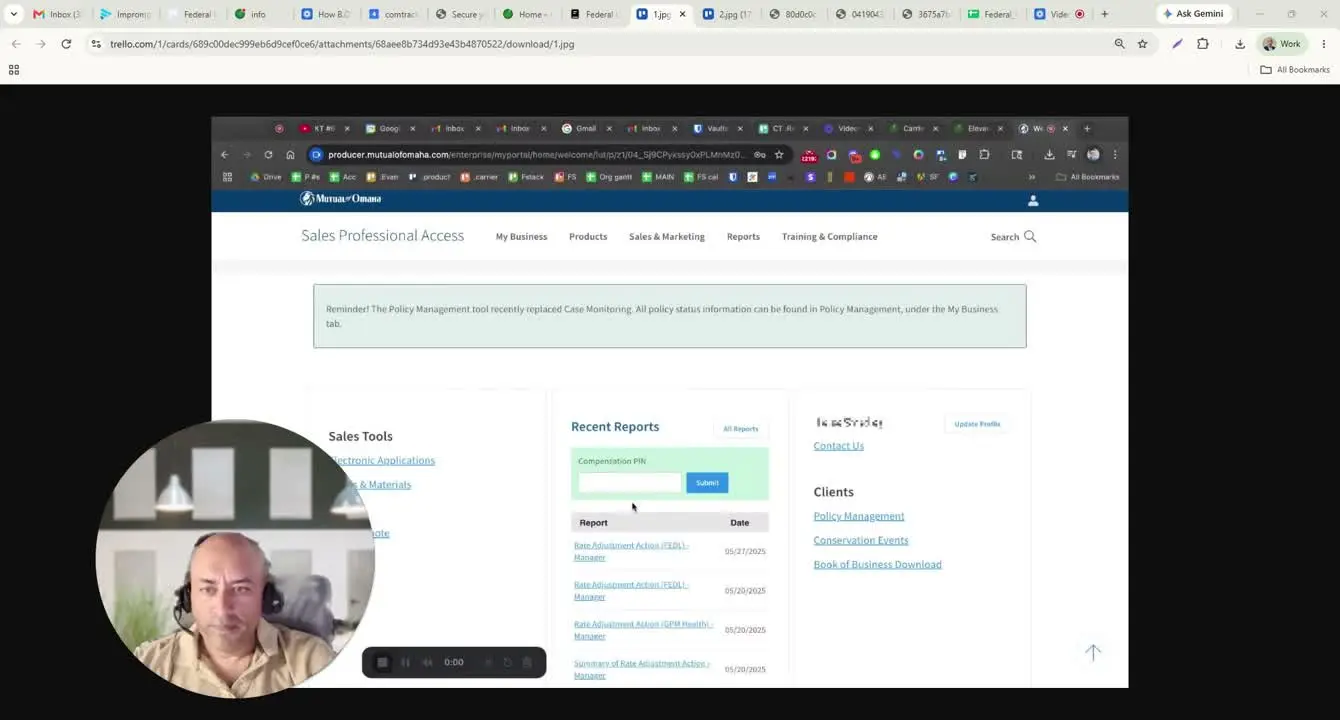
- Open the Federal Life website.
- Navigate to the Compensation PIN section.
- Enter your compensation PIN.
- Click Submit to log in.
2. Locate and download the Federal Life commission report 0:24
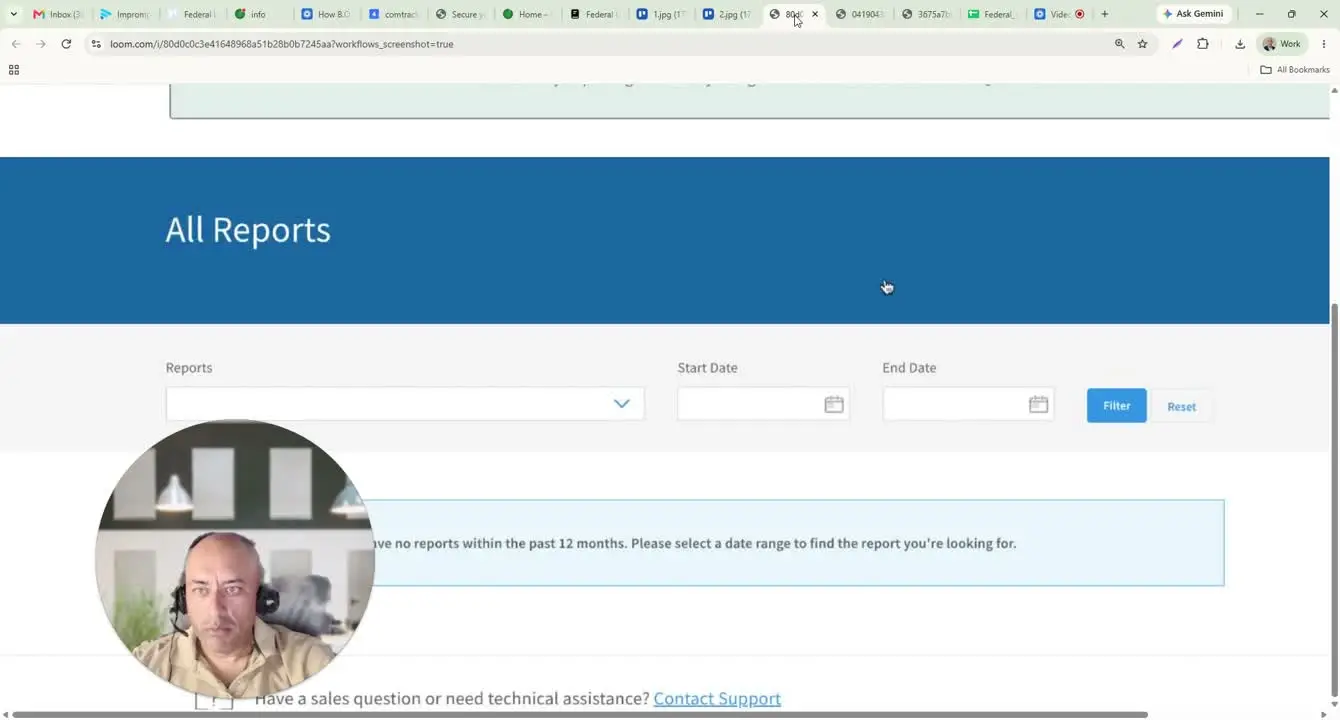
- After logging in, go to All Reports.
- Scroll until you find Compensation Report Federal.
- Click the report to download the Excel file.
- Save the file in the appropriate location for review and processing.
3. Review the raw commission statement fields 0:47
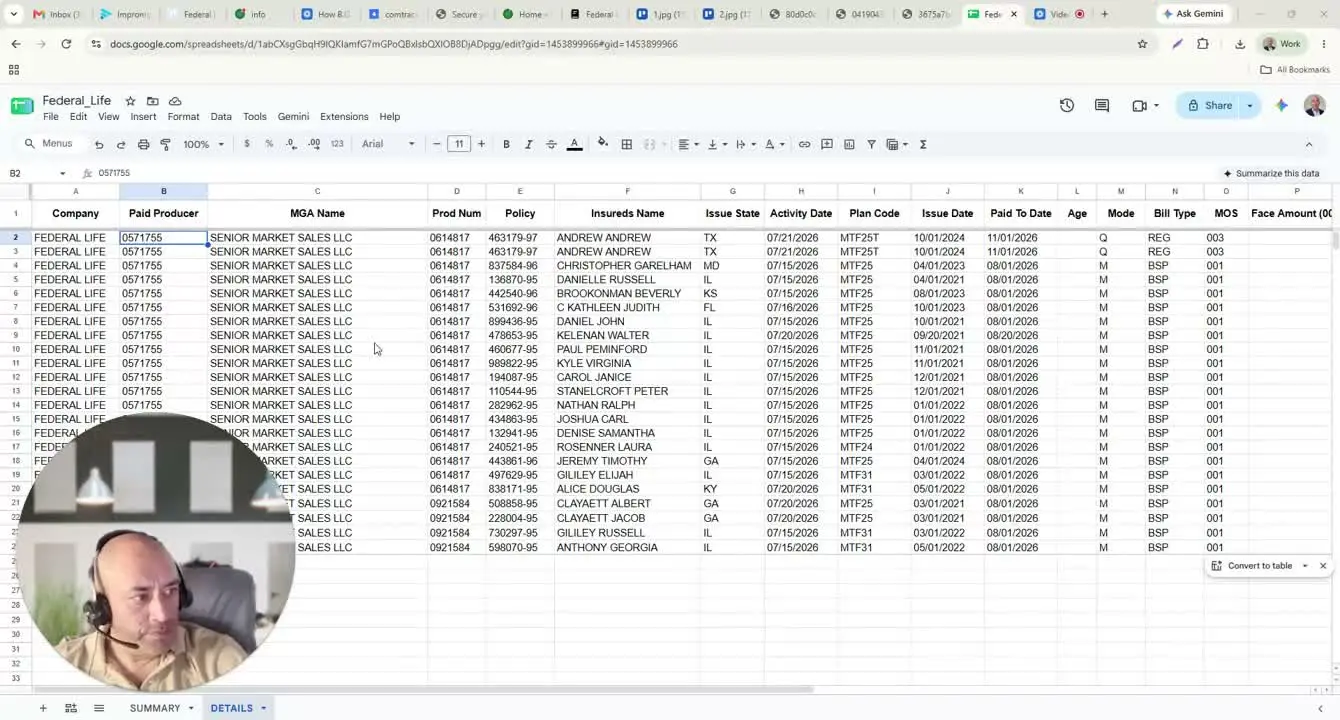
- Open the downloaded Excel statement.
- Review the key columns to understand the raw data structure:
- Company: issuing company (Federal Life)
- Producer: the producer being paid
- Managing Agency Name: agency associated with the producer
- Producer Number: producer identifier
- Policy Number: policy identifier
- Insurance Name: policyholder name
- Issue State: state where the policy was issued
- Activity Date: date the premium was processed
- Plan Code: Federal Life policy code/identifier
- Issue Date: coverage start date
- Paid-to-Date: date through which coverage is paid
- H: insurance age field, if populated
- Mode: payment frequency (for example, quarterly or monthly)
- Bill Type: payment method type (for example, regular or BSP)
- MOS: number of months covered by the premium payment
- Face Amount: death benefit amount, if applicable
4. Verify commission calculation details 2:42
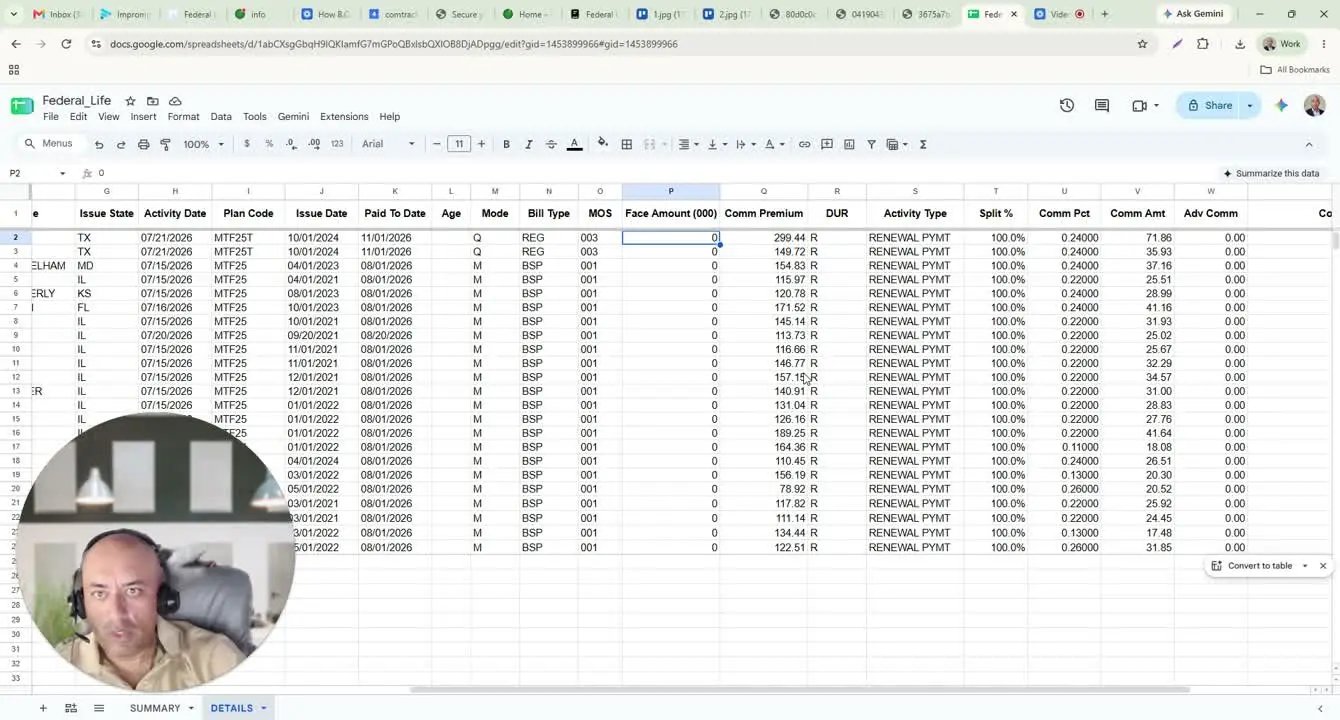
- Review the commission-related columns in the statement.
- Confirm the following fields:
- Commission Premium: premium amount used to calculate commission
- Duration: indicates whether the payment is a renewal or new/advance payment
- Activity Type: confirms the payment type, such as renewal payment
- Split: share of commission credited to the producer
- Commission Percentage: percentage applied to the commission premium
- Commission Amount: calculated commission based on the premium and percentage
- Advanced Commission: populated only when the payment is an initial/advance commission
- Comment: notes field used by the agency or paying producer
5. Upload the statement into ComTrack 4:05
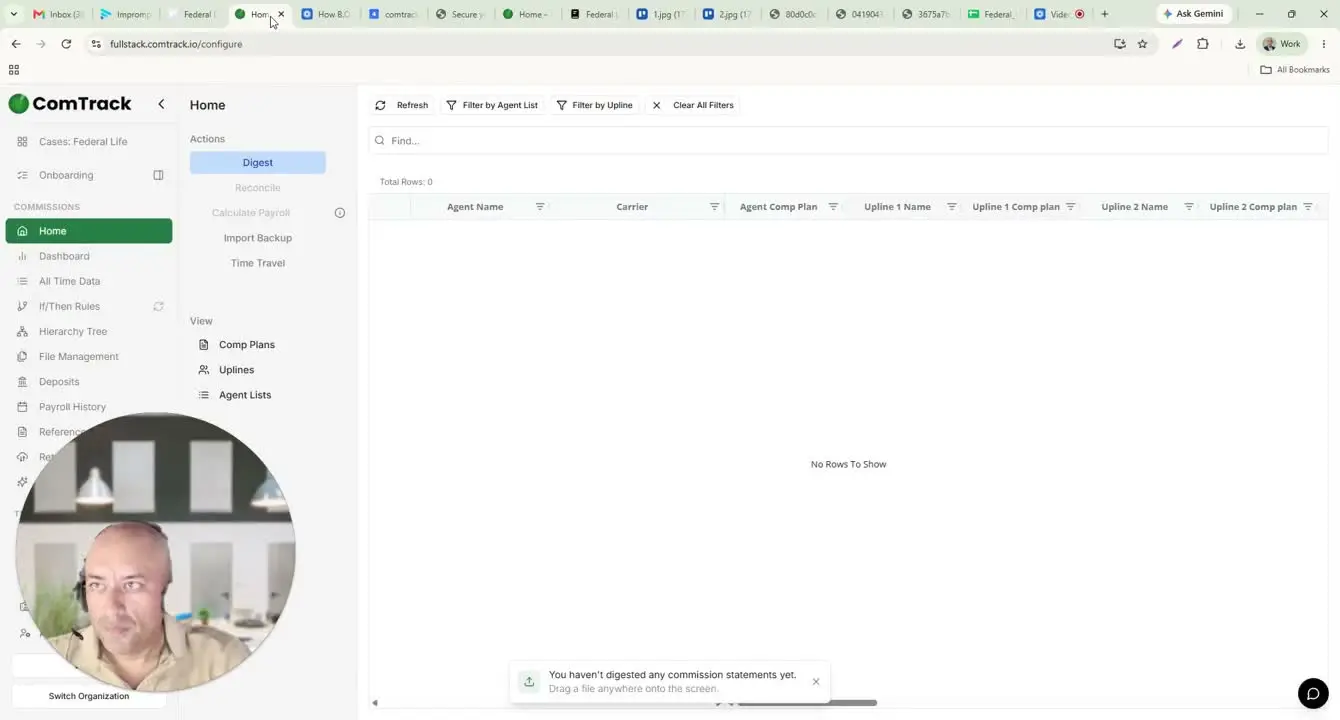
- Open ComTrack.
- Upload or drop the same Federal Life statement file into the system.
- Click Digest to process the statement.
- Wait for the system to complete processing, then click OK if prompted.
6. Review the processed statement in ComTrack 4:37
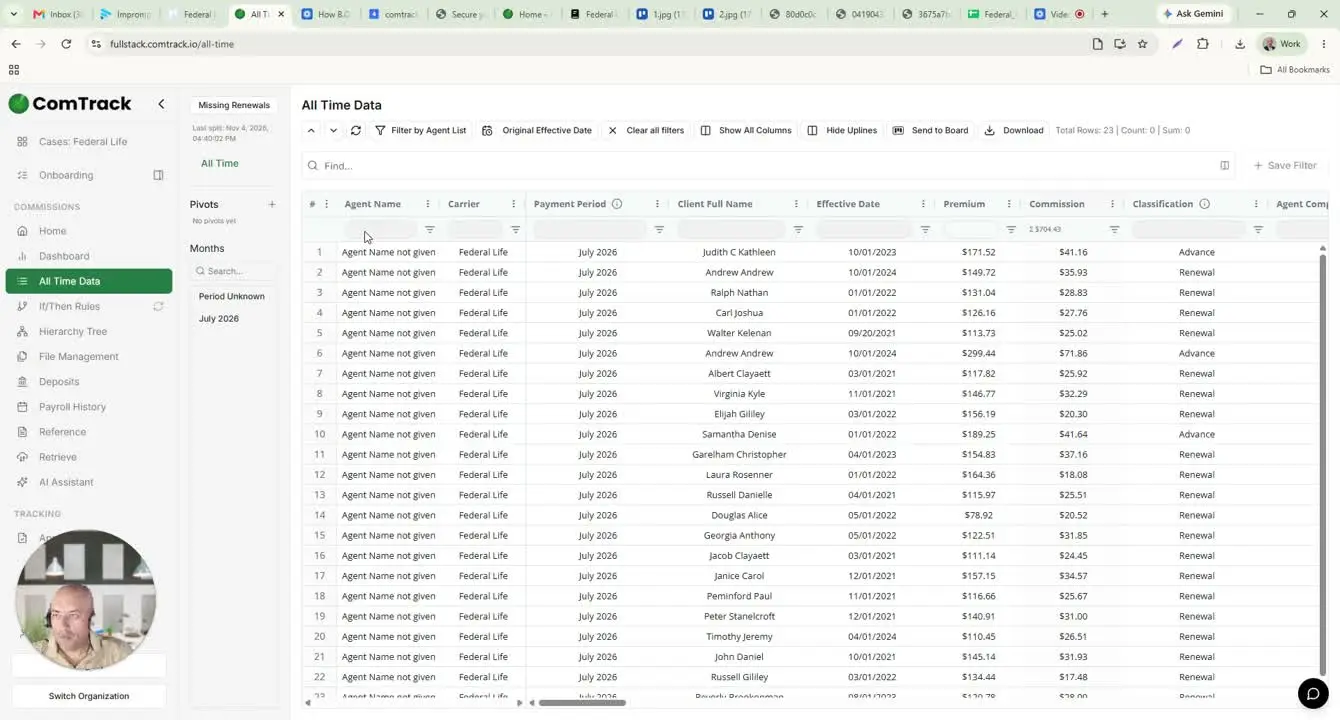
- Go to All-Time Data in ComTrack.
- Confirm the statement has been fully processed and formatted.
- Review the organized columns, including:
- Agent Name
- Carrier
- Payment Period
- Client Full Name
- Effective Date
- Premium Amount
- Commission Amount
- Total
- Verify that client names follow the standard format: first, middle, last.
- Use the processed view to quickly identify where each commission came from.
Cautionary Notes
- Ensure the correct compensation PIN is used before attempting to log in.
- Confirm you are downloading Compensation Report Federal and not another report.
- Double-check the statement period and policy details before using the data for commission review.
- Commission fields may be blank or zero when they do not apply, such as face amount or advanced commission.
- If the file does not process correctly in ComTrack, verify that the correct statement file was uploaded.
Tips for Efficiency
- Save the downloaded Excel file with a clear naming convention so it is easy to find later.
- Use ComTrack to convert the raw statement into a cleaner format instead of manually reviewing the spreadsheet.
- Focus first on the key fields that affect payment validation: policy number, activity date, premium, commission percentage, and commission amount.
- Use the processed All-Time Data view to speed up commission reconciliation and reduce manual sorting.
- Keep a consistent review routine so each statement is checked the same way every time.