
Objective
This SOP explains how to access a Centene-Wellcare commission statement, interpret the key fields in the Excel file, and optionally upload the statement into ComTrack for easier review and reporting. The goal is to help a team member quickly verify commission details, member information, and payment amounts with confidence.
Key Steps
1. Access the Centene Workbench from the portal 0:00
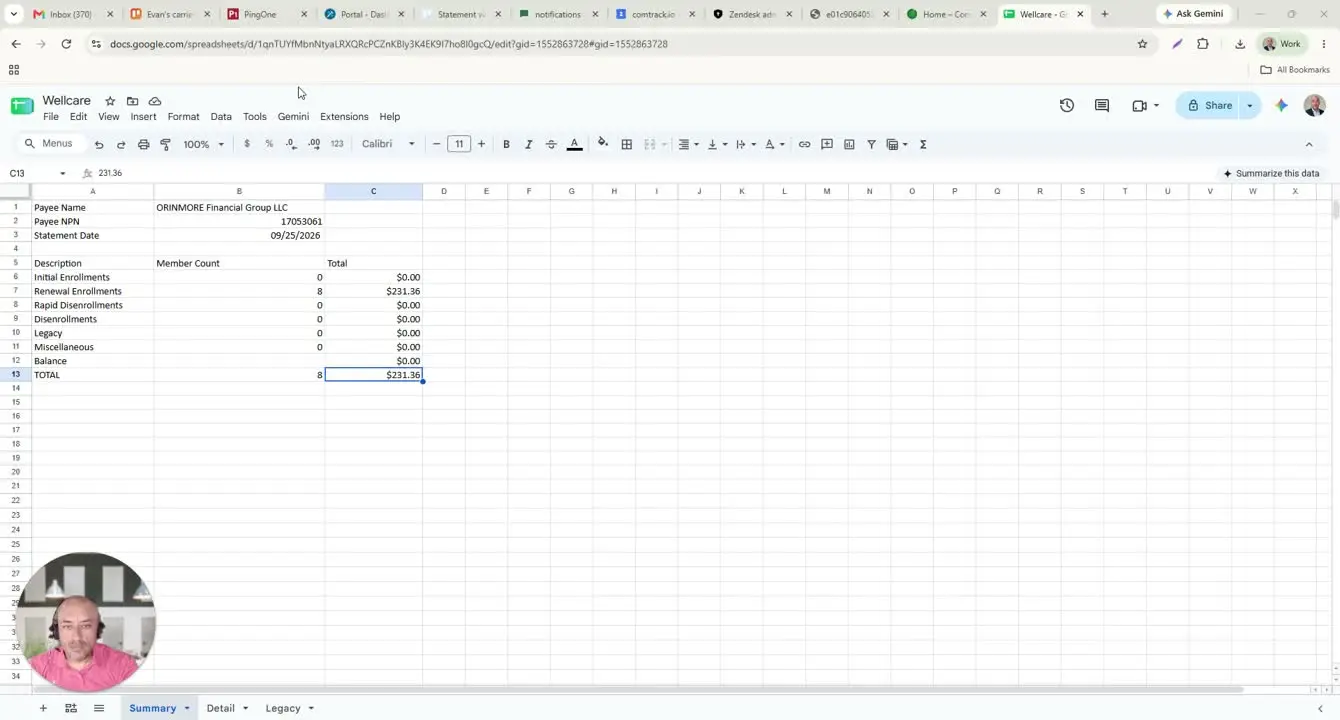
- Log in to your portal.
- Navigate to the Centene Workbench.
- This is the starting point for locating commission statements.
2. Open the Statement section 0:18
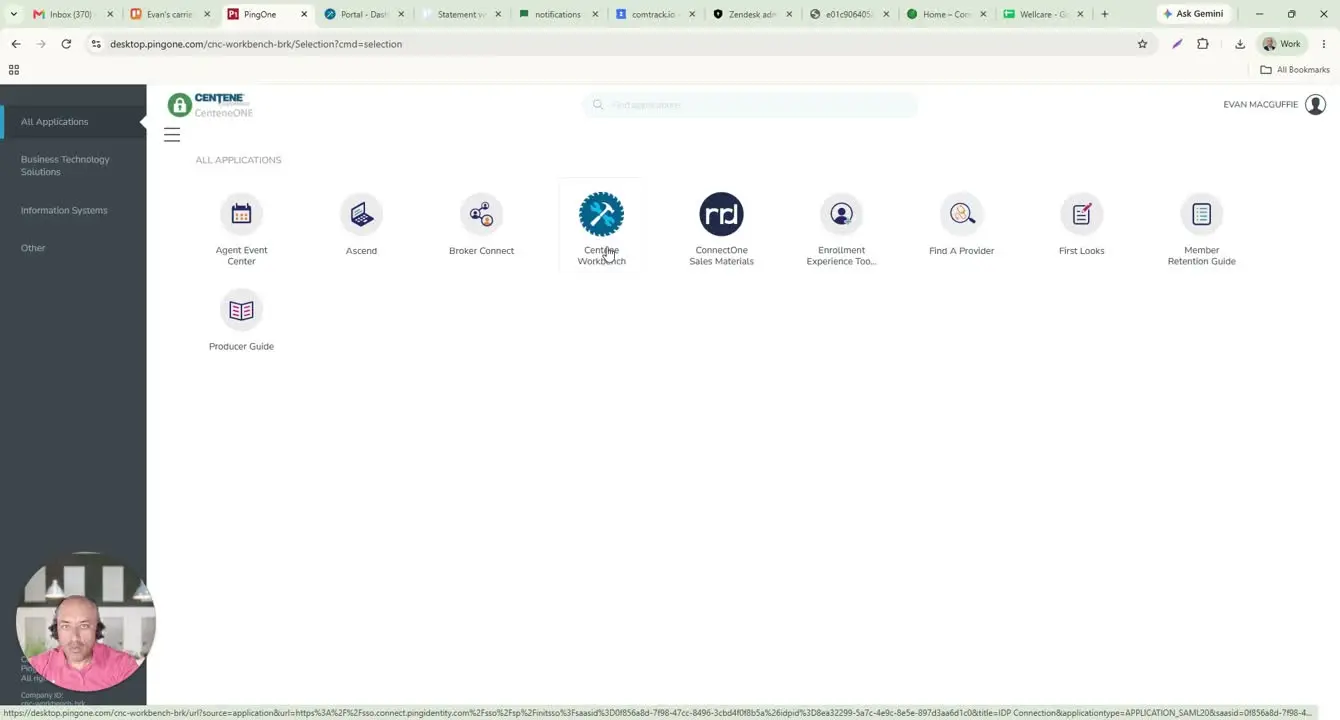
- From the Centene Workbench screen, select Statement.
- This section contains the available commission statements organized by month.
3. Select the correct monthly statement and download it 0:24
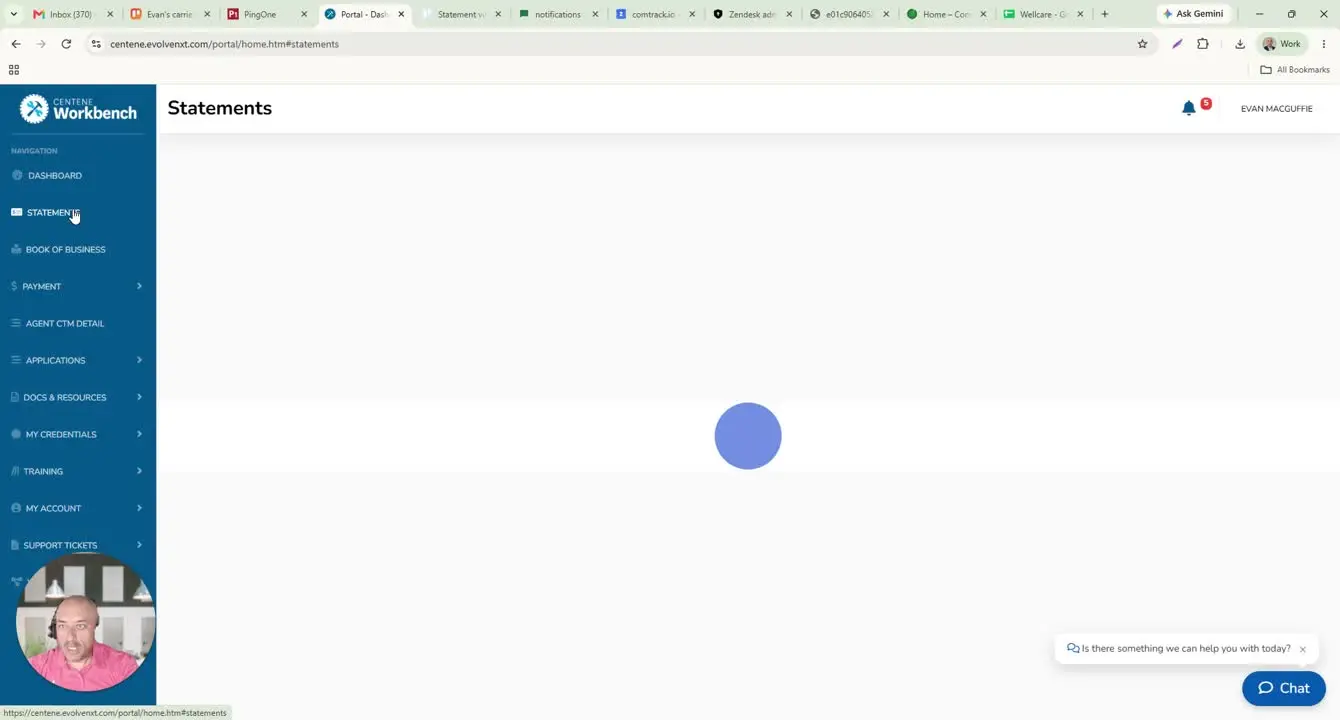
- Review the list of statements shown for different months.
- Choose the statement you need.
- Download the file, typically by selecting the Excel option.
4. Review the workbook tabs and summary information 0:42
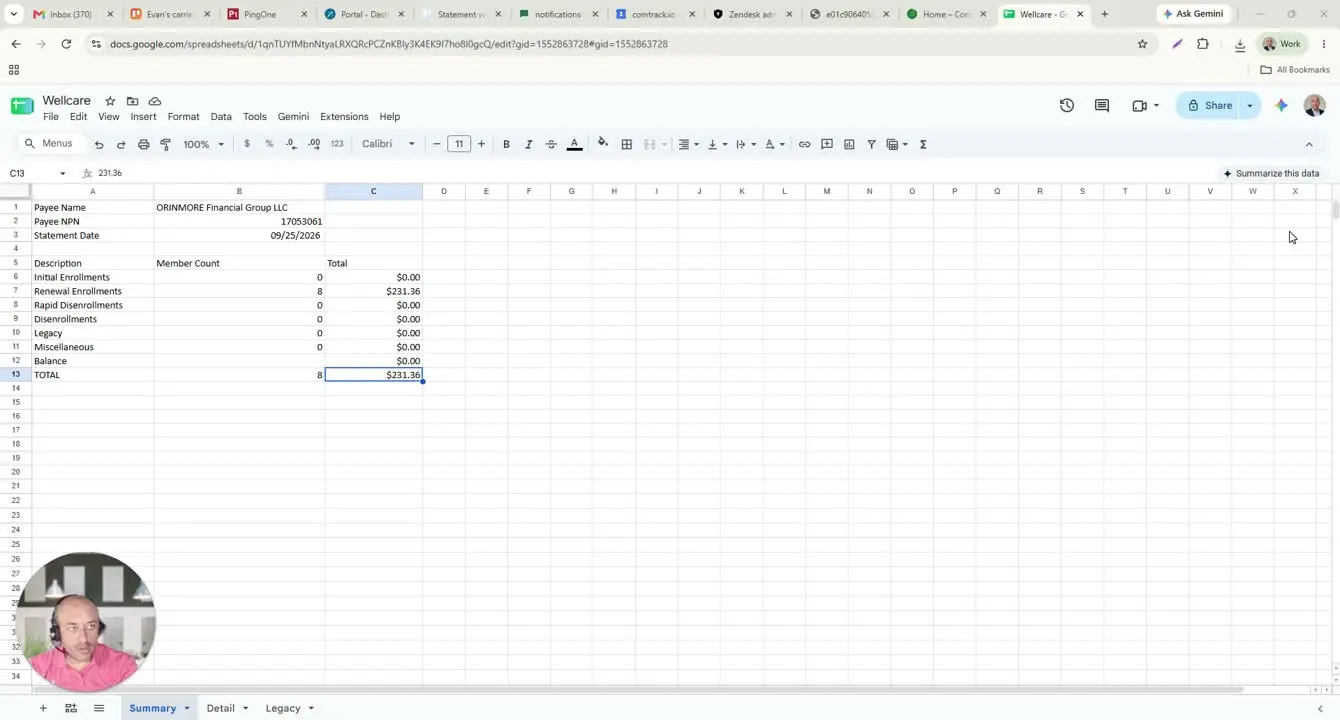
- Open the downloaded Excel file.
- Confirm the workbook includes tabs such as:
- Summary
- Detail
- Legacy
- In the Summary tab, identify:
- Payee name
- Agent NPN
- Payee NPN
- Statement date
- Use this tab to confirm who is being paid and when the statement was generated.
5. Interpret the commission categories in the Summary tab 1:05
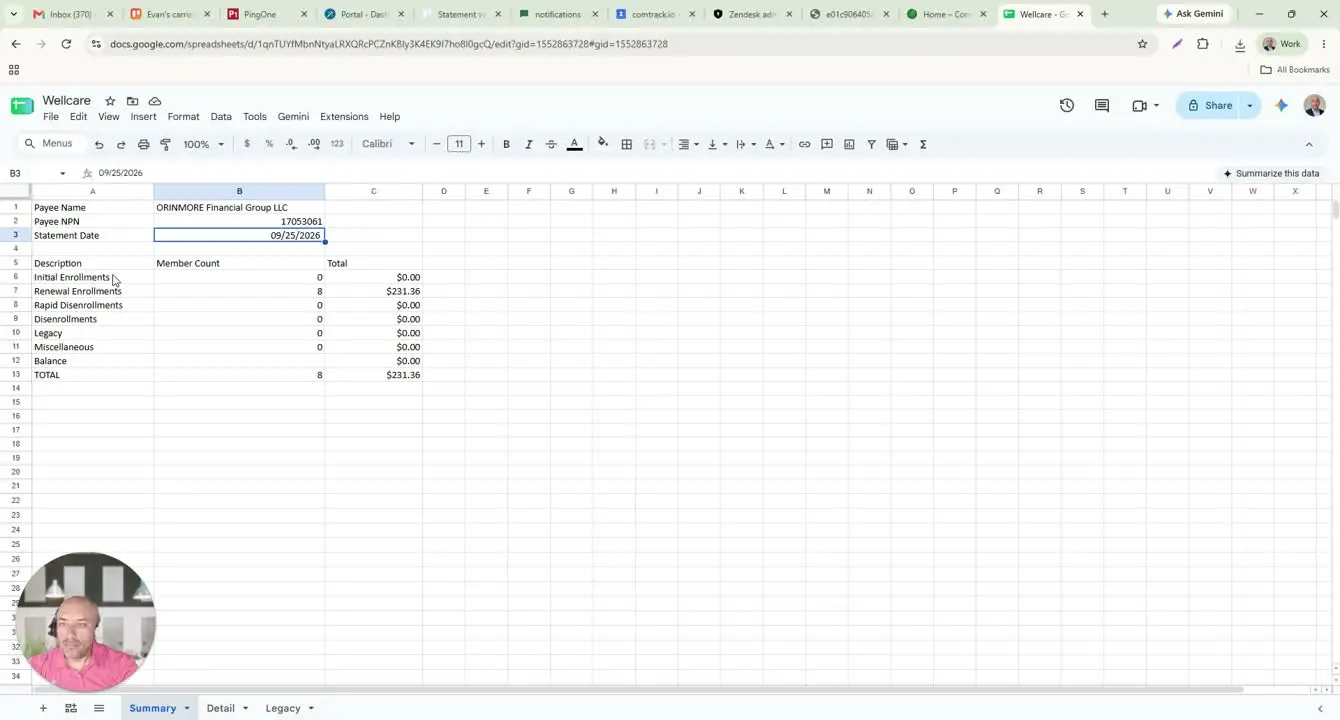
- Review the description section, which breaks commissions into categories such as:
- Initial enrollments
- Renewal enrollments
- Rapid disenrollments
- Disenrollments / chargebacks
- Legacy items
- Miscellaneous items
- Check the total to understand the overall commission amount for the statement period.
- Use the counts and totals to verify that the statement aligns with expected activity.
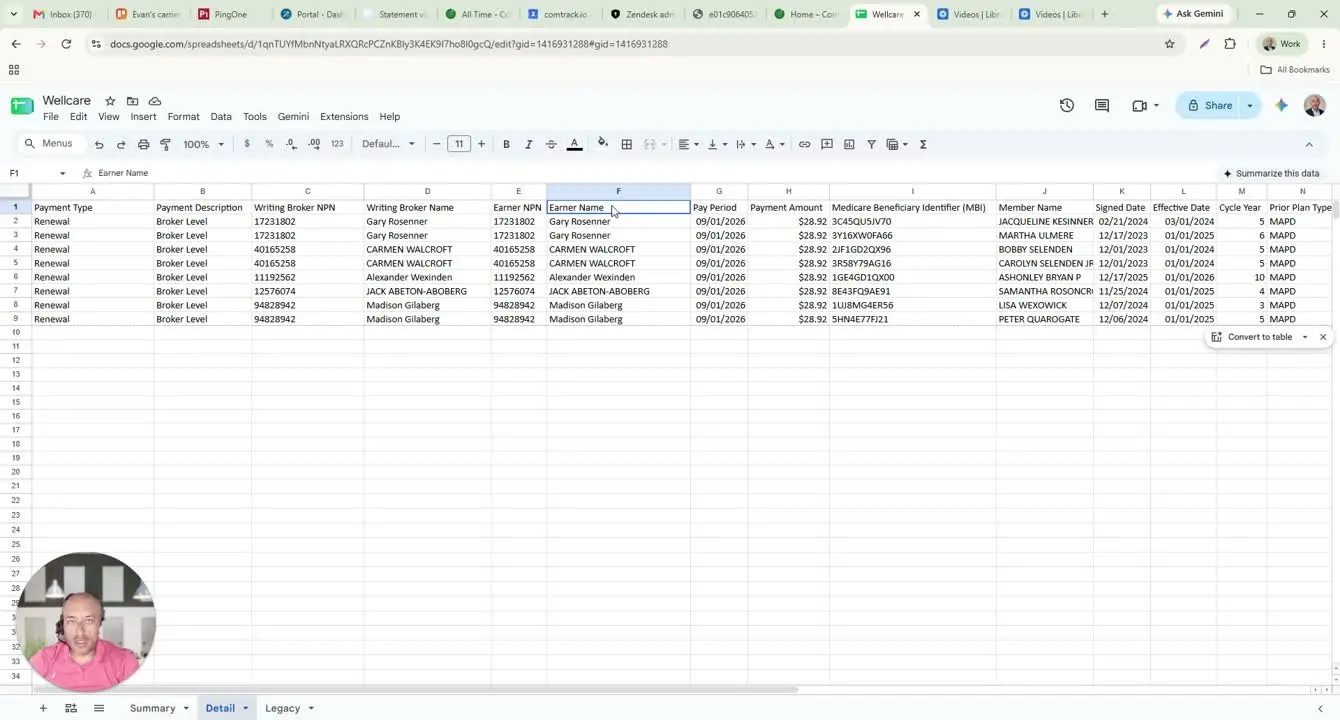
6. Verify the Detail tab for transaction-level accuracy 1:38
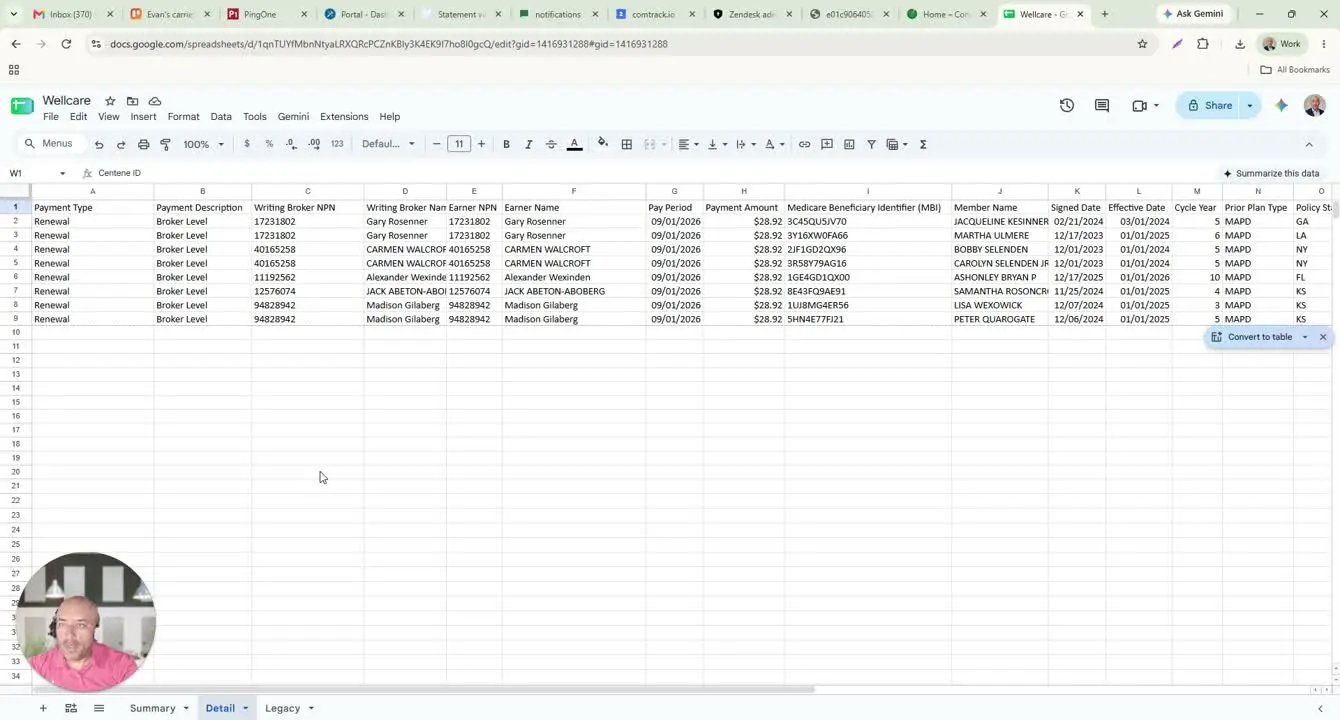
- Open the Detail tab to review individual commission records.
- Match the payment type to the Summary tab (for example, renewal).
- Confirm the payment description and whether the commission is listed at the broker level.
- Understand that broker level means the commission is paid to the writing agent rather than an override or upline.
7. Confirm agent, member, and payment fields in Detail 2:15
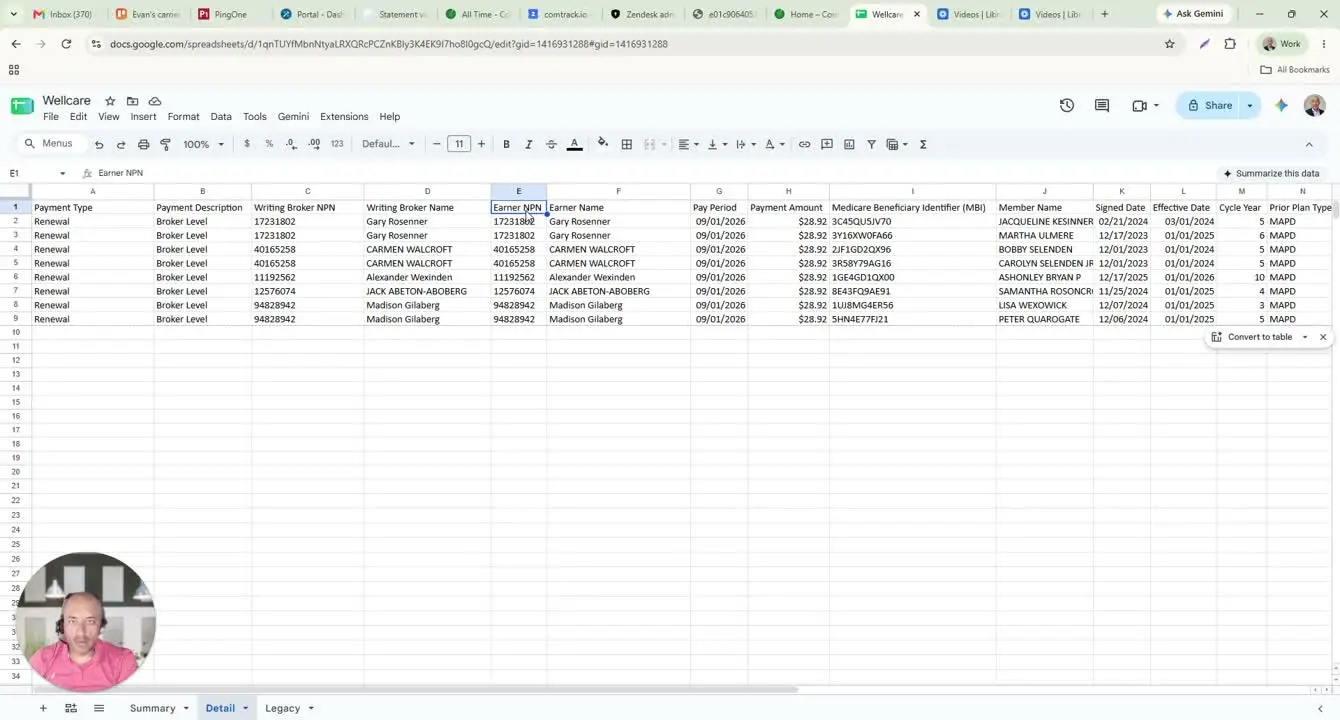
- Review the following fields in the Detail tab:
- Writing broker name and NPN
- Earner name and NPN
- Agency name, if the payment is made to an agency
- Pay period
- Payment amount / commission
- Verify the Medicare beneficiary identifier and member name.
- Check the sign date and effective date to confirm policy timing.
8. Review plan and cycle information for context 3:03
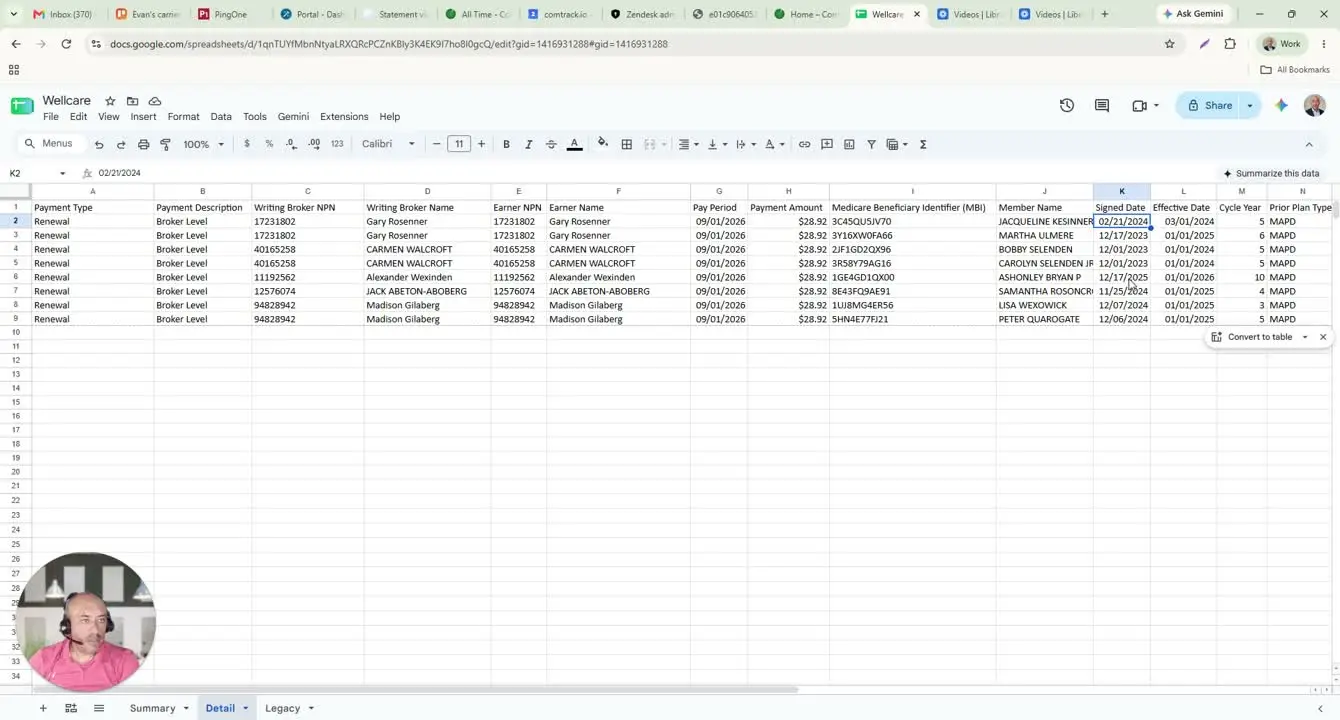
- Locate the cycle year to understand the member cycle count used by Centene.
- Review the prior plan field to determine whether the member came from another plan.
- Check the plan type and full plan name to identify the product being paid.
- Use these fields to distinguish between initial and renewal business.
9. Upload the statement into ComTrack for easier processing 3:45
- If the statement is difficult to read manually, open ComTrack.
- Drag and drop the Excel statement file into ComTrack.
- Confirm the system is ready to process the file.
10. Run the digest and review the processed output 4:12
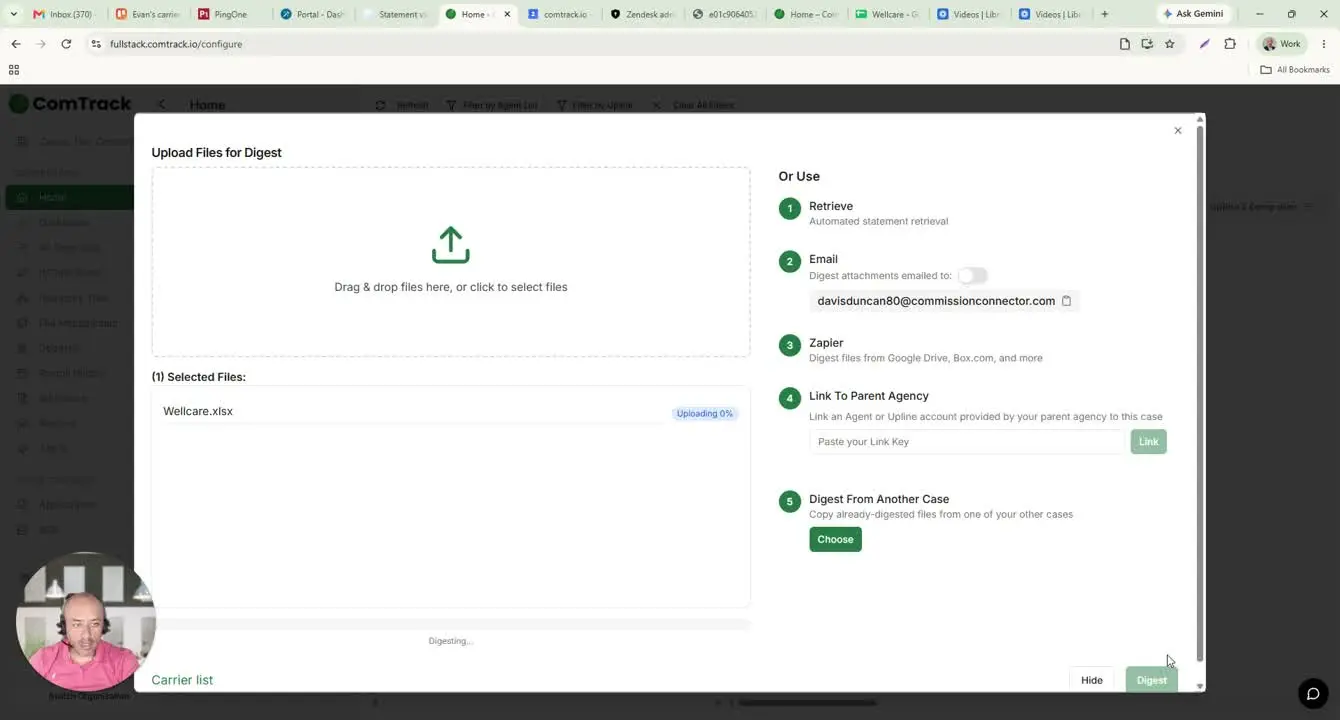
- Click the Digest button.
- Confirm the action by selecting OK if prompted.
- Review the processed data under All Time Data.
- Verify that the output includes organized columns such as:
- Agent name
- Carrier
- Payment period
- Client full name
- Effective date
- Commission amount
- Use the formatted output to simplify review and reporting.
Cautionary Notes
- Do not assume the Summary and Detail tabs will always match without checking. Always verify payment type, amount, and counts.
- Broker level indicates payment to the writing agent, not necessarily the agency or upline.
- Some fields may be abbreviated or formatted differently depending on the carrier statement.
- The naming convention can be confusing; confirm member and policy details carefully before using the data for reporting.
- If the statement is uploaded into ComTrack, ensure the file is the correct monthly statement before digesting it.
Tips for Efficiency
- Use the Summary tab first to quickly identify the statement’s overall commission categories and totals.
- Use the Detail tab only after confirming the summary totals to save time.
- Upload the file into ComTrack when you need cleaner formatting or faster data review.
- Keep a consistent checklist for verifying: payee, NPN, payment type, amount, member name, and effective date.
- Save processed ComTrack output for future reference and reconciliation.