
Objective
This SOP explains how to retrieve Aetna Medicare Advantage commission statements, identify the differences between the available statement formats, and organize the data for easier commission tracking. It also outlines how to upload the statements into ComTrack for cleanup, aggregation, and reporting.
Key Steps
1. Access Aetna Compensation Reporting 0:00
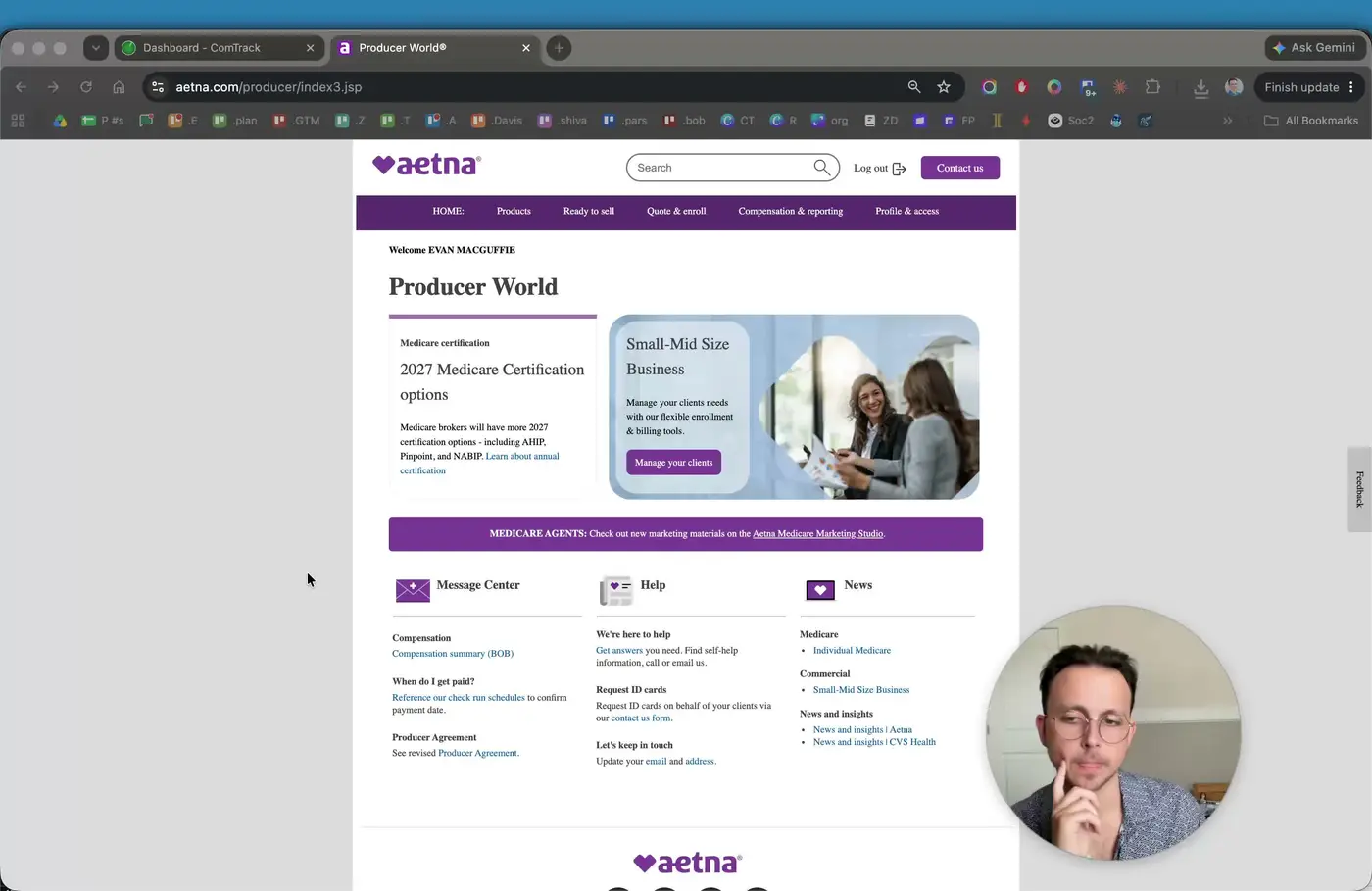
- Log in to the Aetna Medicare Advantage portal.
- Navigate to Compensation Reporting.
- Select Detailed Reporting to begin retrieving commission statements.
- If multiple entities are linked to your account, choose the correct entity from the drop-down before continuing.
2. Open Multi-Agency Compensation Details 0:18
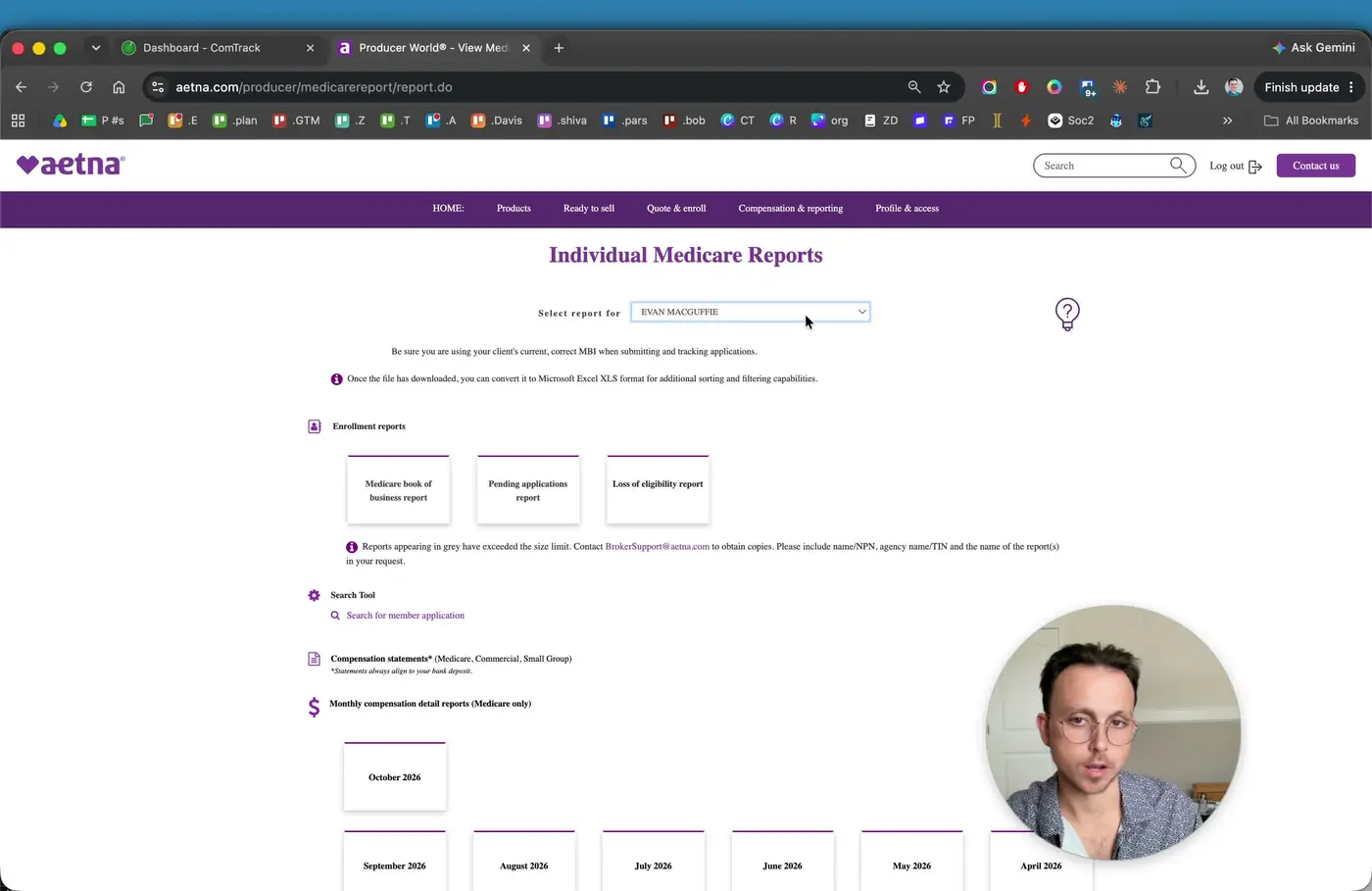
- Under Multi-Agency, click Compensation Details.
- Select the statement you want to review (for example, a specific month such as September).
- Confirm the statement selection before downloading or reviewing the file.
3. Retrieve the Alternative Statement Location 0:32
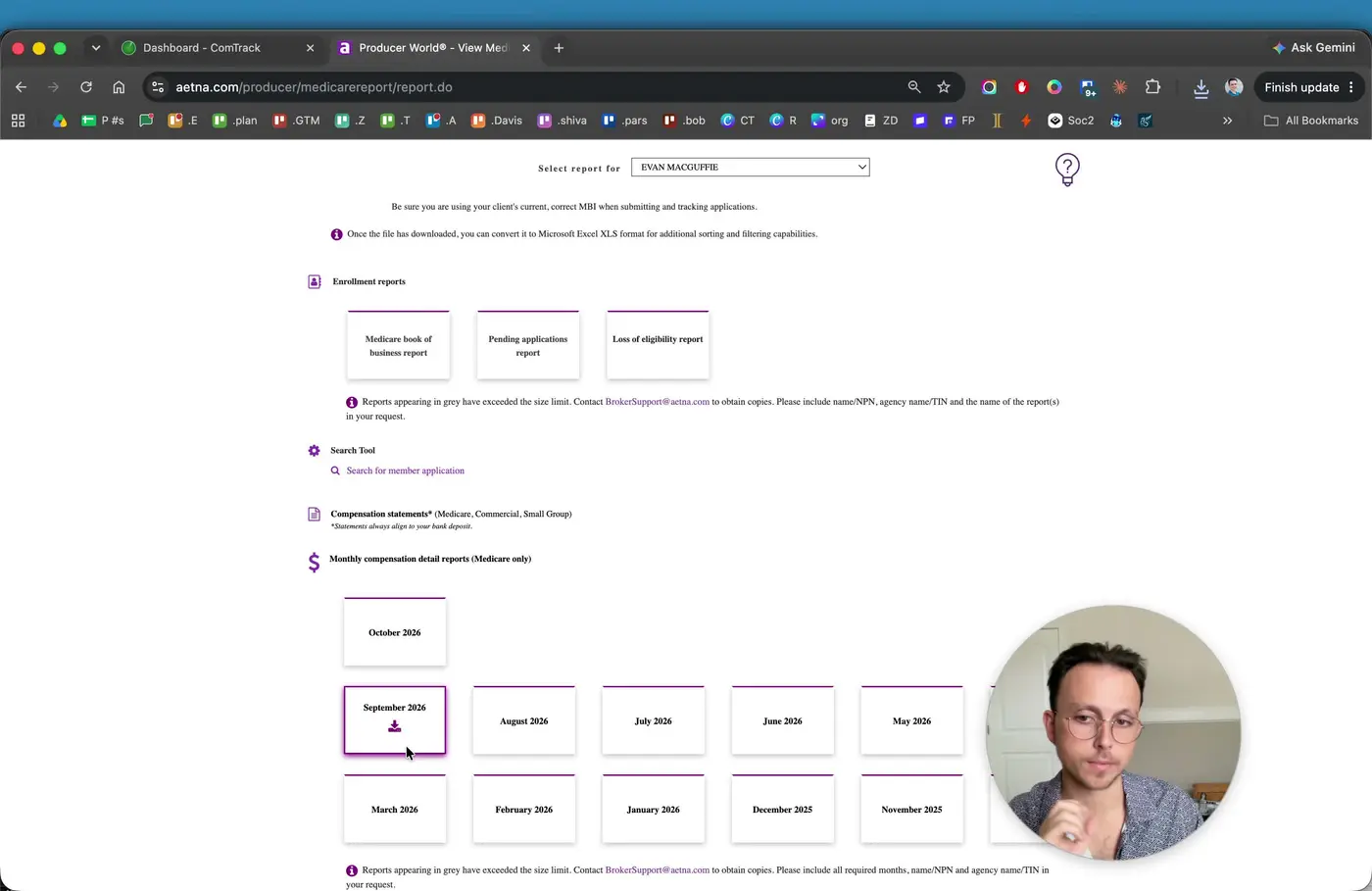
- For the second download path, go to Resources.
- Open Compensation Statements.
- Use the drop-down to select the applicable statement or entity.
- Click Select to load the statement list.
4. Download the Statement as Excel 1:00
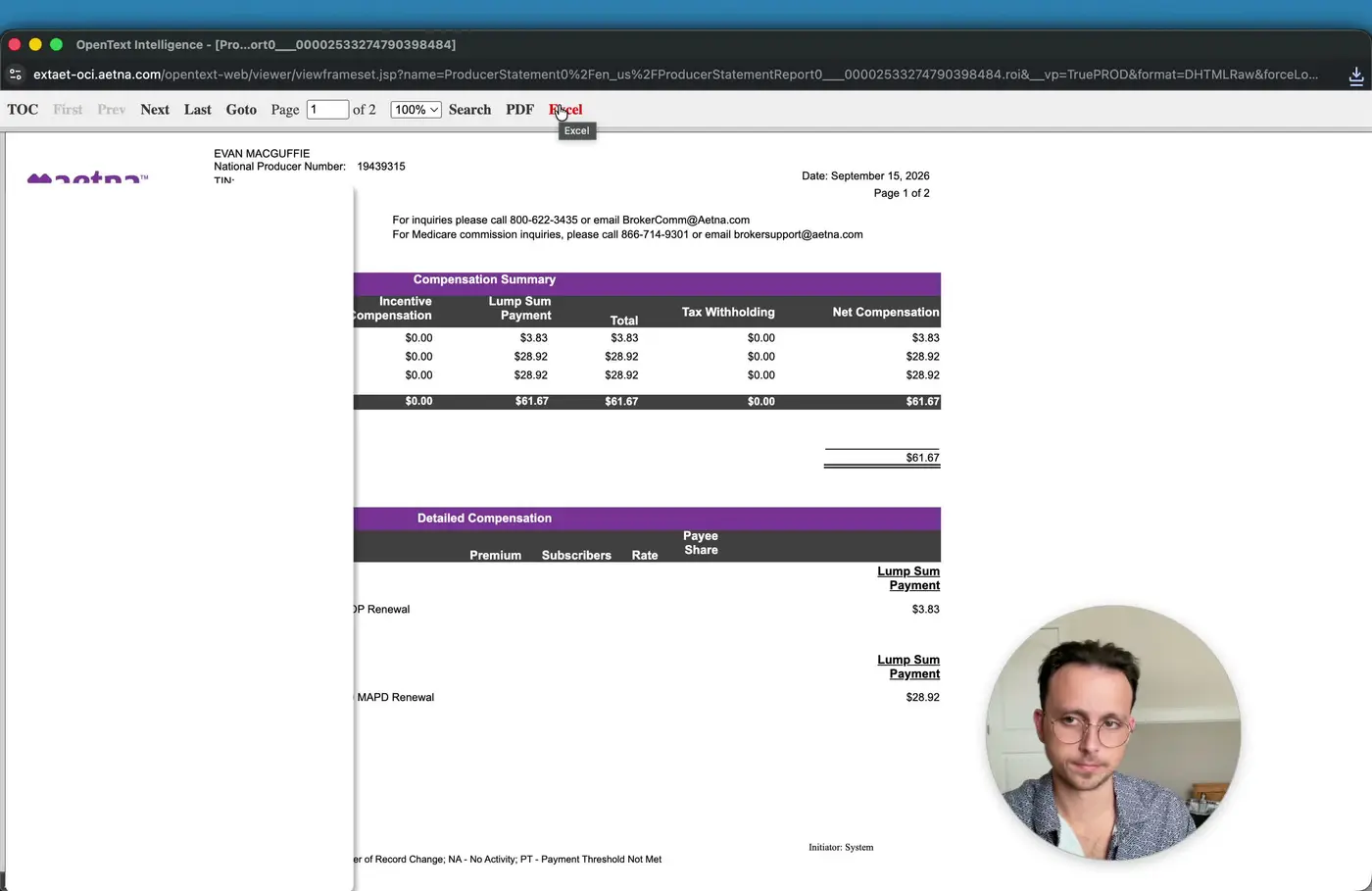
- After selecting the statement, download the file as Excel.
- Save the file using a clear naming convention that identifies the carrier and statement period.
- Keep both versions if you plan to compare the monthly summary against the detailed statement.
5. Understand the Difference Between the Two Aetna Files 1:22
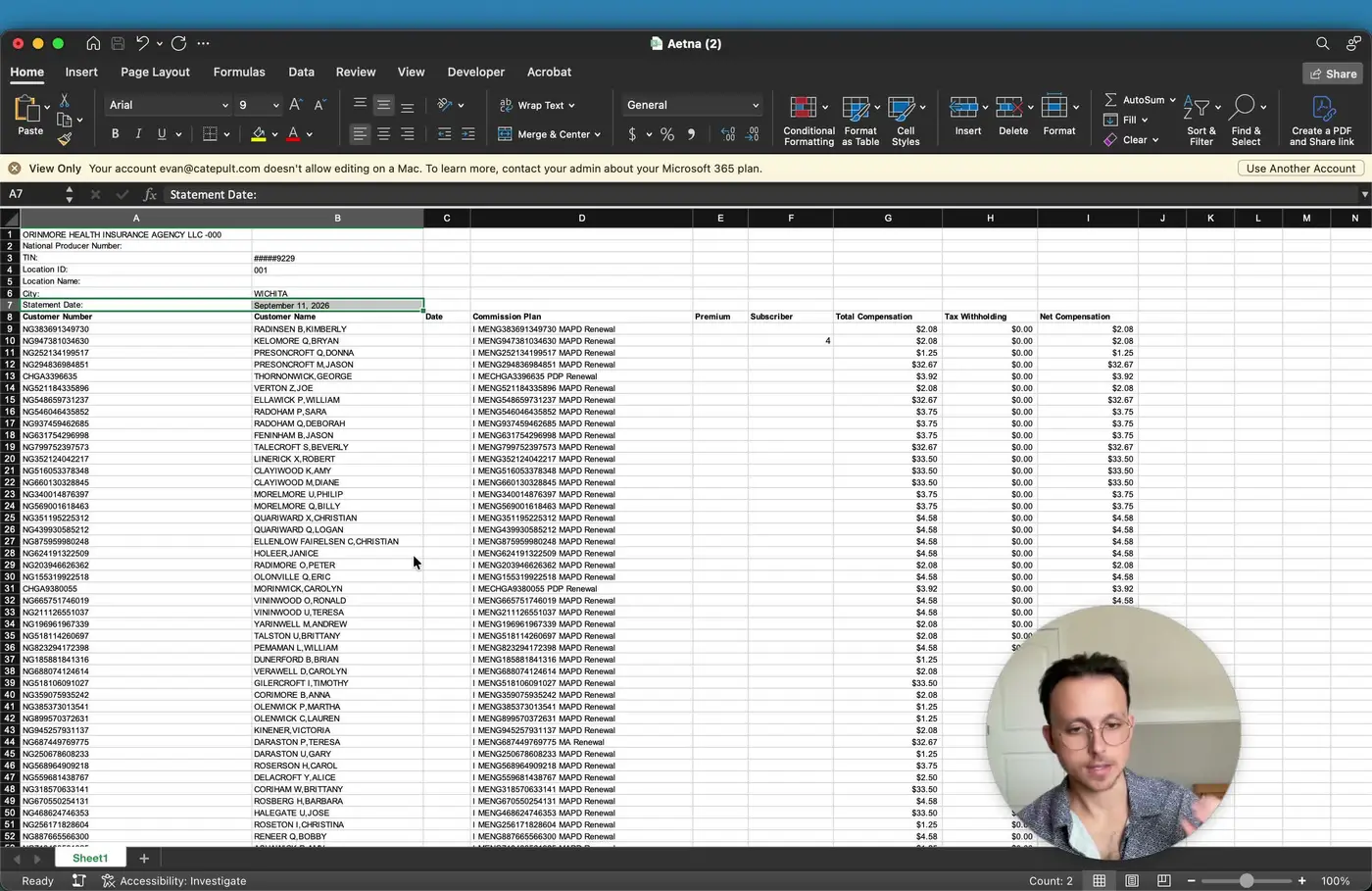
- Recognize that one file is a monthly aggregated statement and the other is a more detailed, dated statement.
- The detailed version may show a specific statement date and may represent weekly or otherwise segmented data.
- The monthly summary is generally preferred because it contains more useful tracking information.
6. Review the Detailed Statement Fields 1:44
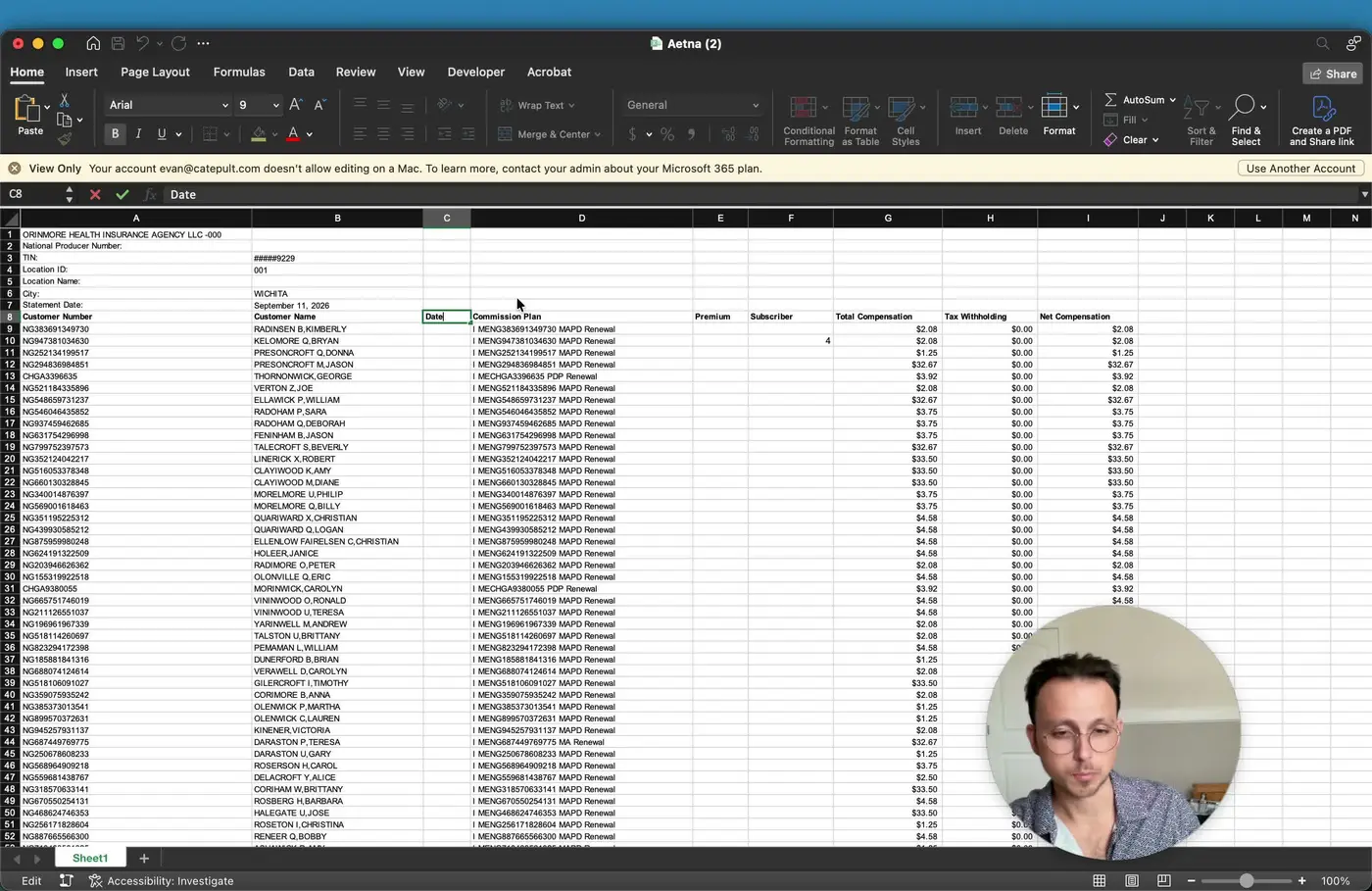
- Inspect the detailed file for fields such as:
- Customer number
- Customer name
- Commission plan
- Member ID / policy number
- Plan type
- Commission type (e.g., PDP, renewal, advance, chargeback)
- Premium
- Subscriber count
- Total compensation
- Tax withholding
- Net compensation
- Note that this file may not clearly show the agent name, which can make attribution harder.
7. Review the Monthly Summary Fields 3:05
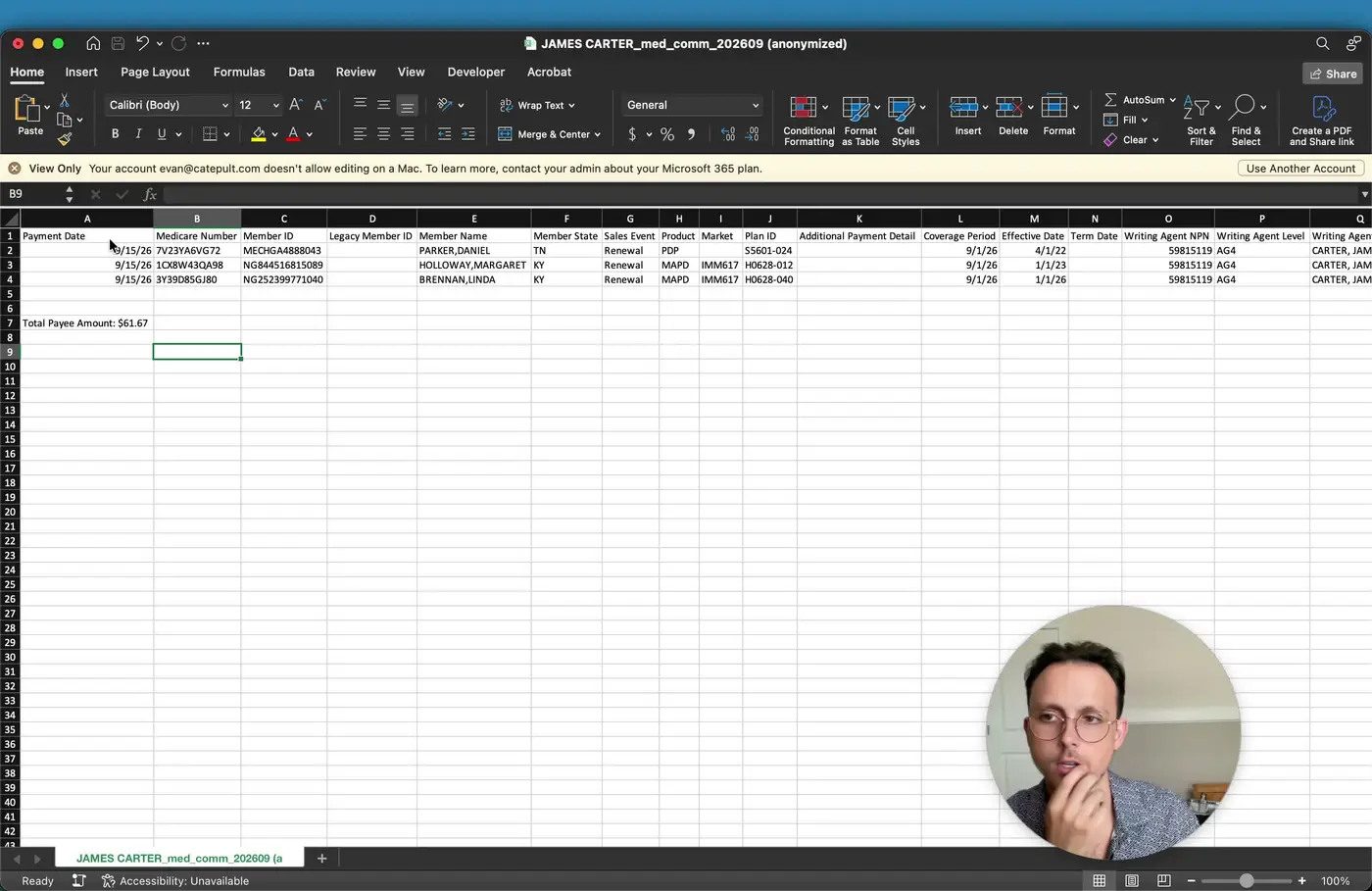
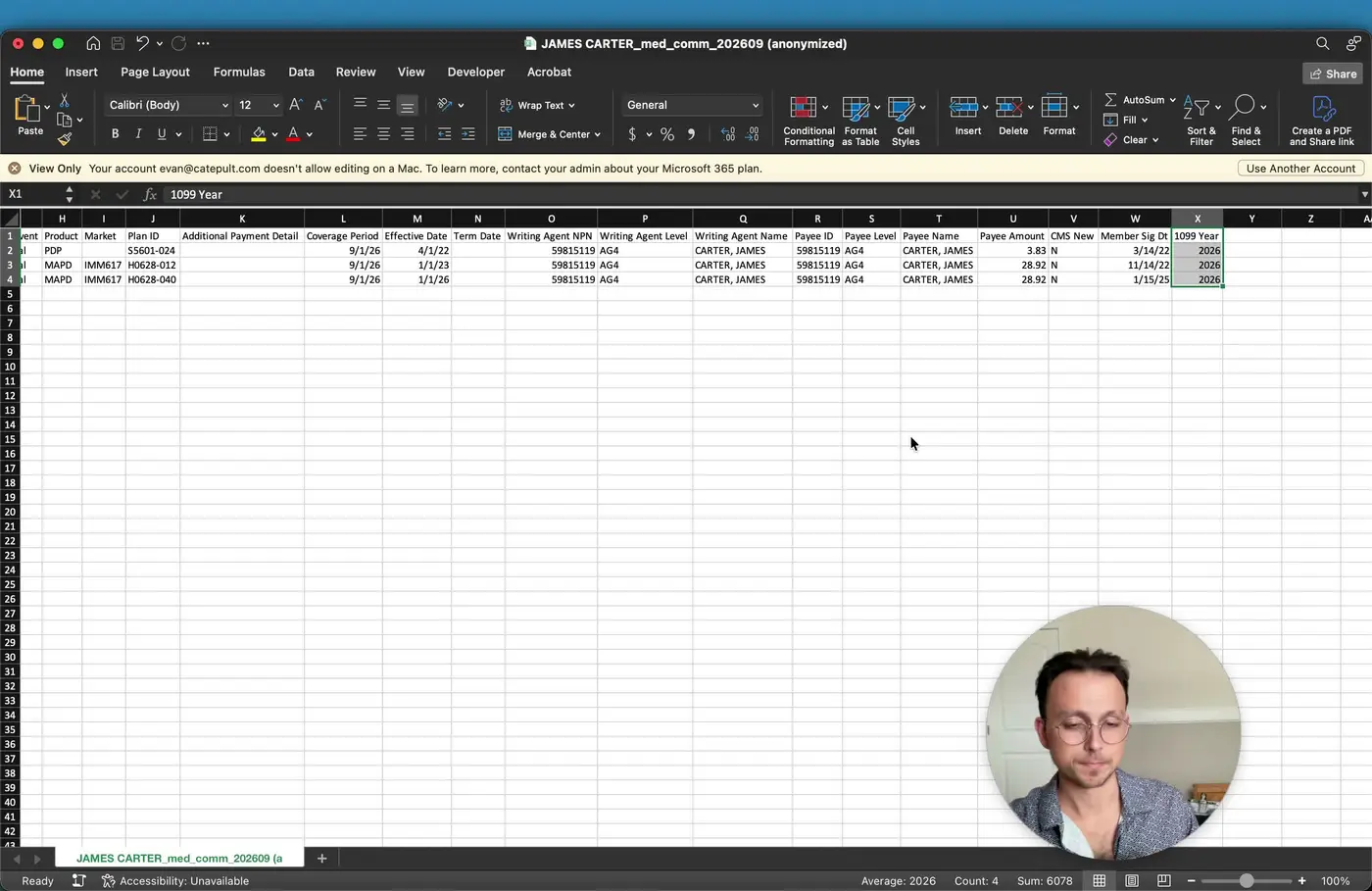
- Open the monthly summary statement and review the expanded data set.
- Key fields may include:
- Payment date
- Medicare number
- Member ID
- Legacy member ID
- Name
- State
- Sales event
- Product
- Market
- Plan ID
- Additional payment detail
- Coverage period
- Term date
- Agent NPN
- Agent name
- Payee ID
- Payee level
- Amount
- New-to-Medicare indicator
- Signature date
- Use this version when you need better visibility into who wrote the policy and how the commission was earned.
8. Upload Statements into ComTrack for Cleanup and Aggregation 5:06
- Upload the downloaded statements into ComTrack.
- Start the processing workflow by selecting the upload/dive action.
- Allow the system to recognize, clean, and aggregate the statements into a master commission file.
- Verify that the imported data includes the correct carrier, payment period, client name, and compensation amounts.
9. Validate Agent Attribution and Commission Type 5:42
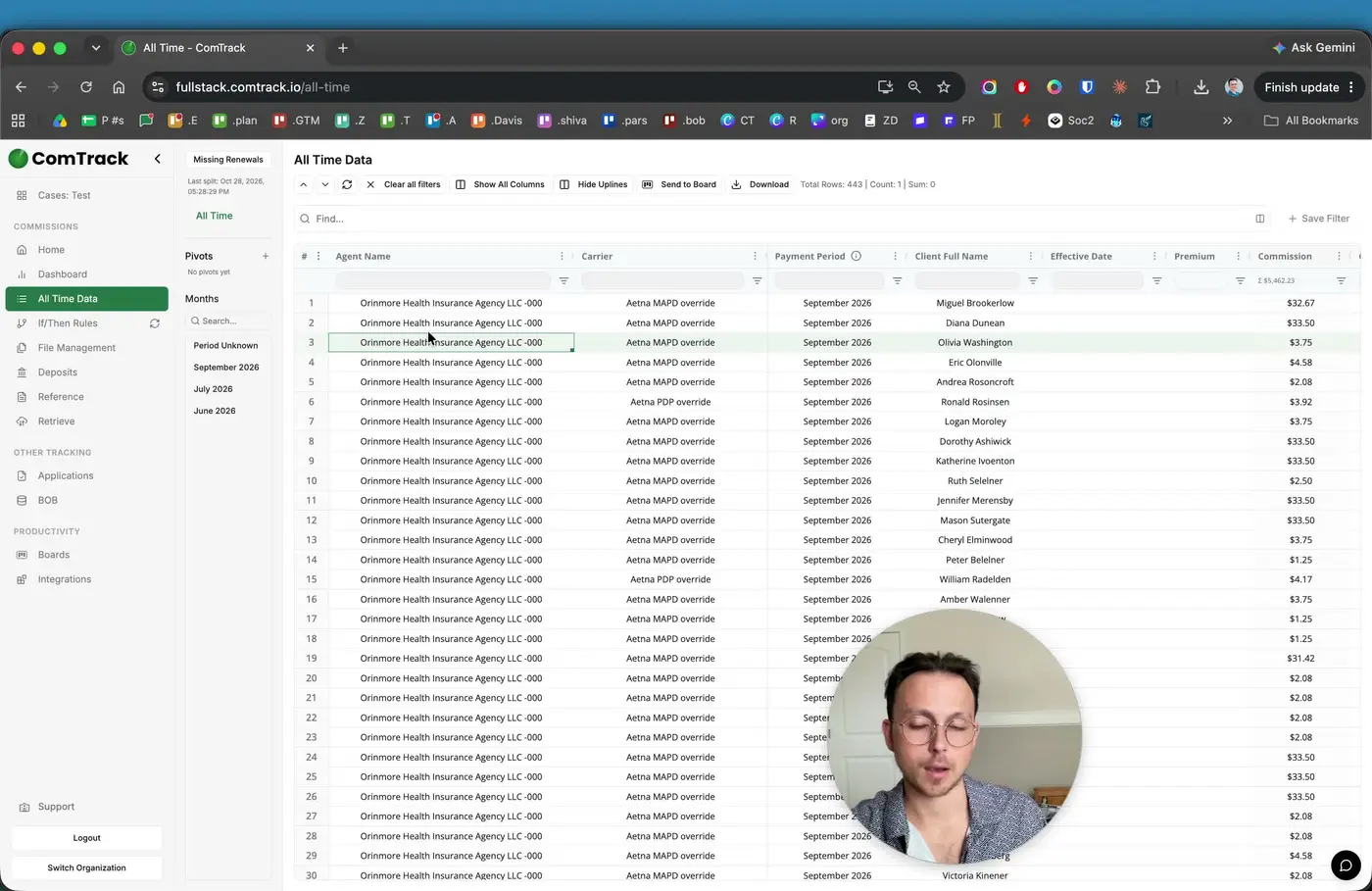
- Check that the agent name is populated correctly, especially when the source statement does not include it directly.
- Confirm whether each record is a street commission or an override.
- Review examples by agent to ensure the system is assigning the correct compensation type and name mapping.
10. Use the Dashboard to Analyze Commission Data 6:21
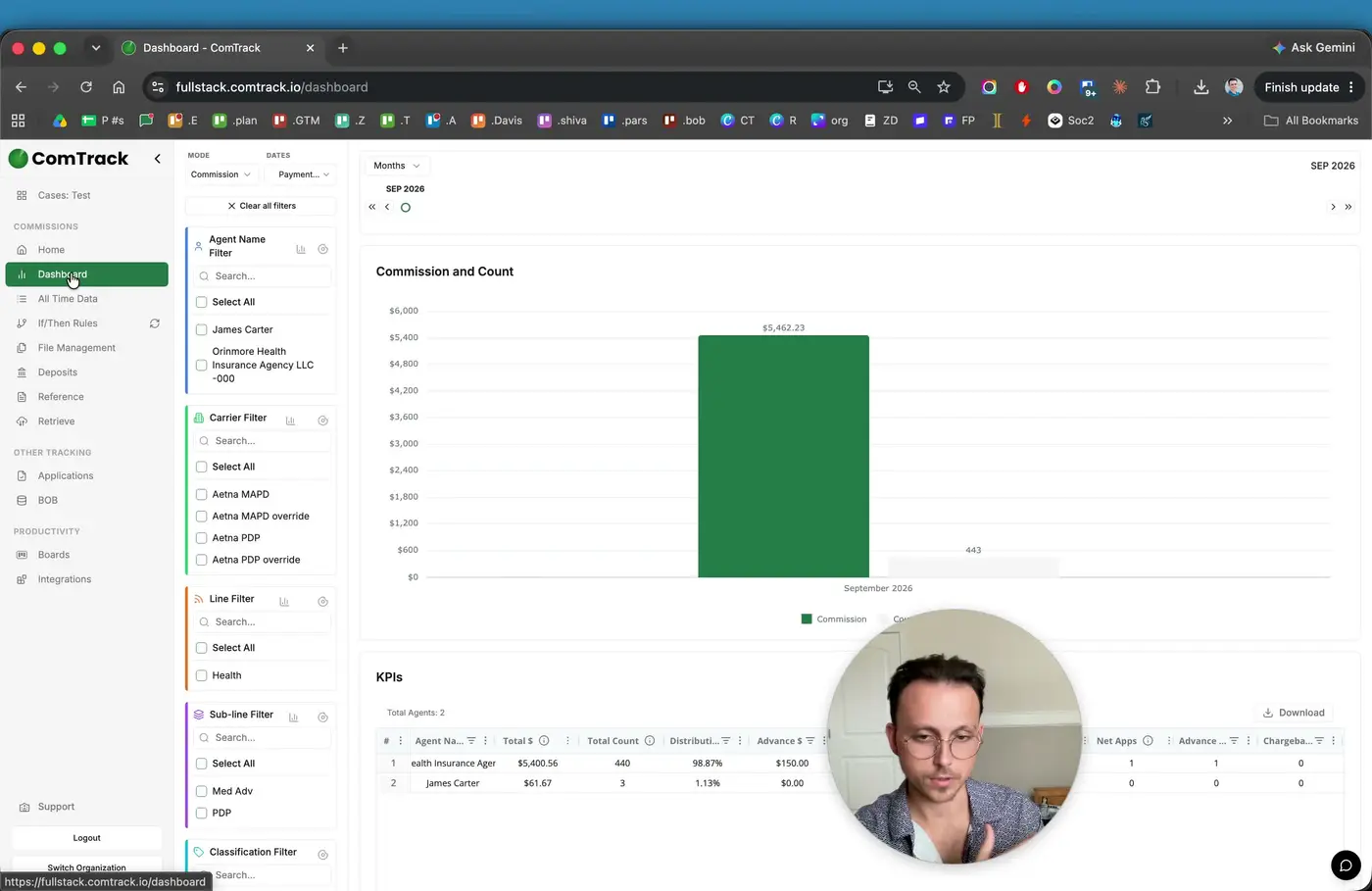
- Once the data is cleaned and aggregated, open the dashboard.
- Filter and compare:
- Overrides vs. street commissions
- Carrier-by-carrier performance
- Other available parameters on the left-side filters
- Use the dashboard to visualize commission trends and identify business patterns.
Cautionary Notes
- Do not rely solely on the detailed Aetna statement if you need to identify the writing agent; it may not include the agent name.
- Confirm whether the statement is a monthly summary or a segmented/detailed file before using it for reporting.
- If multiple entities are linked to your account, make sure you select the correct one before downloading.
- Verify that uploaded data in ComTrack matches the source statement to avoid misattribution or duplicate records.
Tips for Efficiency
- Prefer the monthly summary statement when available because it contains more complete attribution and commission detail.
- Use a consistent file naming convention for easier retrieval and comparison.
- Upload statements into ComTrack regularly so data stays current and easier to reconcile.
- Use dashboard filters to quickly isolate overrides, street commissions, and carrier-specific results.
- Keep both statement versions when possible so you can cross-check missing fields or discrepancies.