
Objective
This SOP explains how to download an AFLAC commission statement, interpret the key fields on the statement, and normalize the data in ComTrack for clean reporting. It is designed to help a team member avoid duplicate records, understand advance and interest entries, and consolidate commissions accurately.
Key Steps
1. Download the statement from the AFLAC portal 0:16
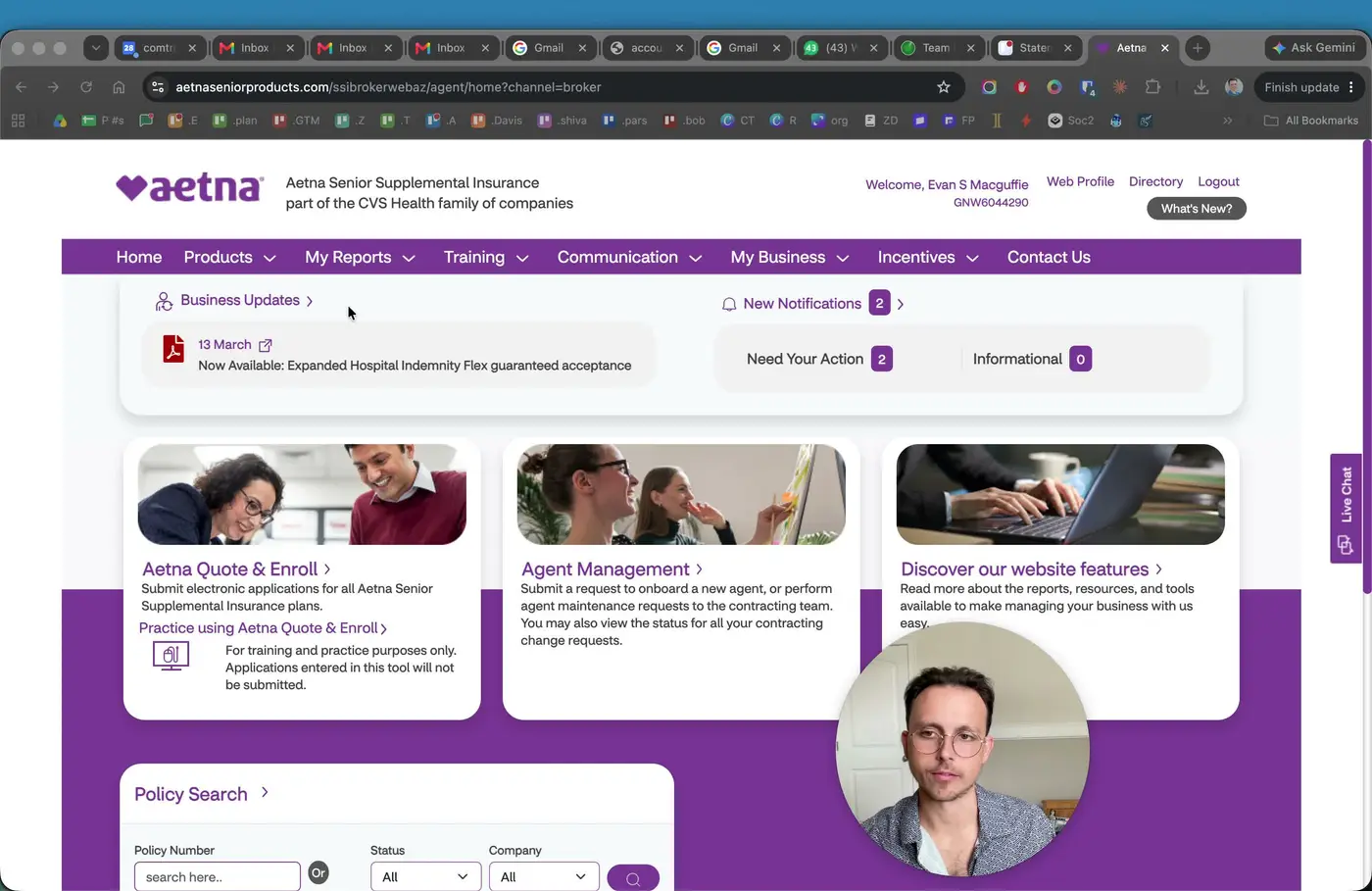
- Log in to the AFLAC portal and navigate to My Reports → Commission Dashboard.
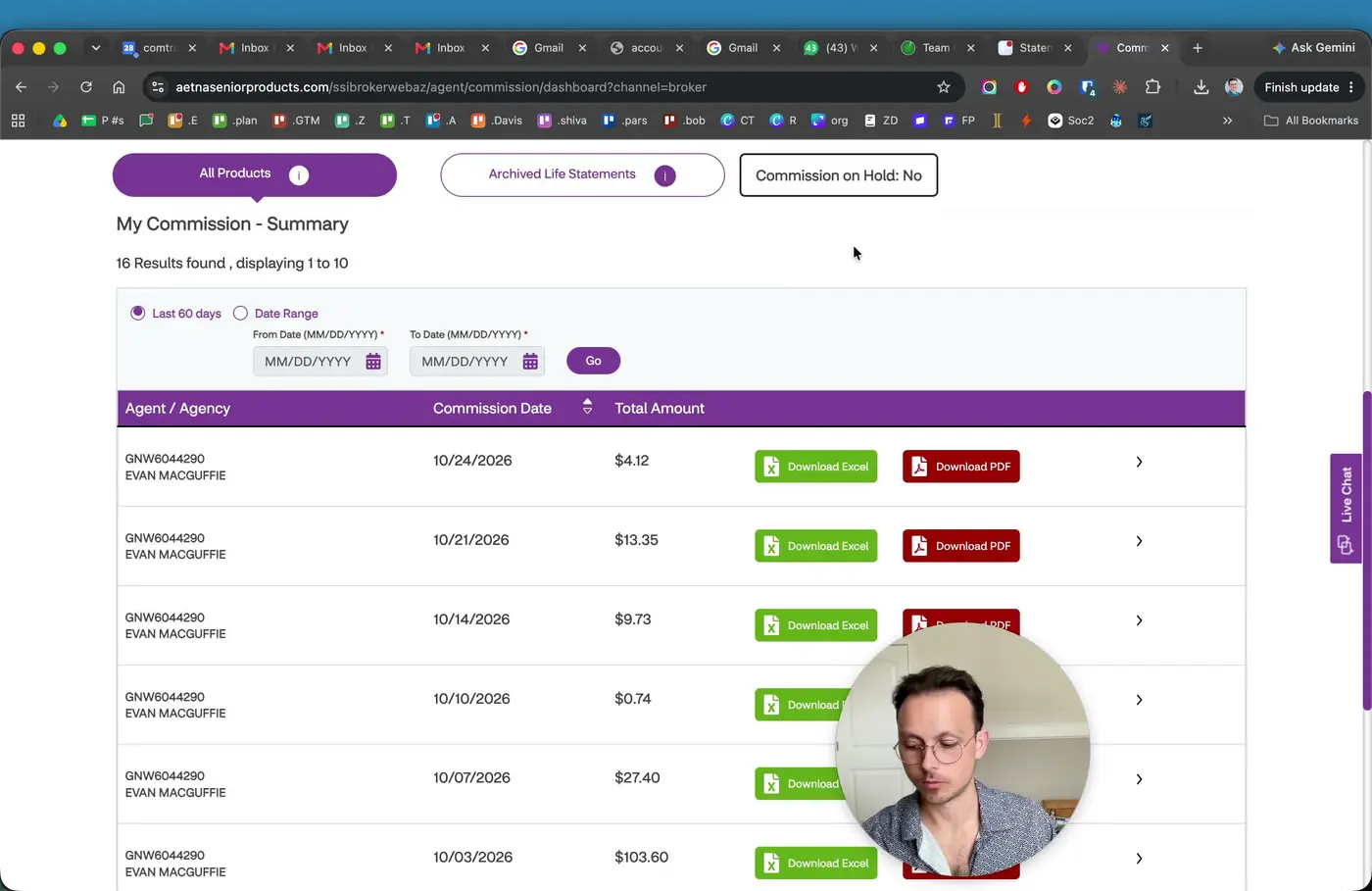
- Download the statement file as an Excel file.
- Do not use “Search By” if you want a single clean statement file.
- Download one statement at a time to avoid duplicate rows and messy combined data.
2. Open the statement and identify the worksheet structure 0:46
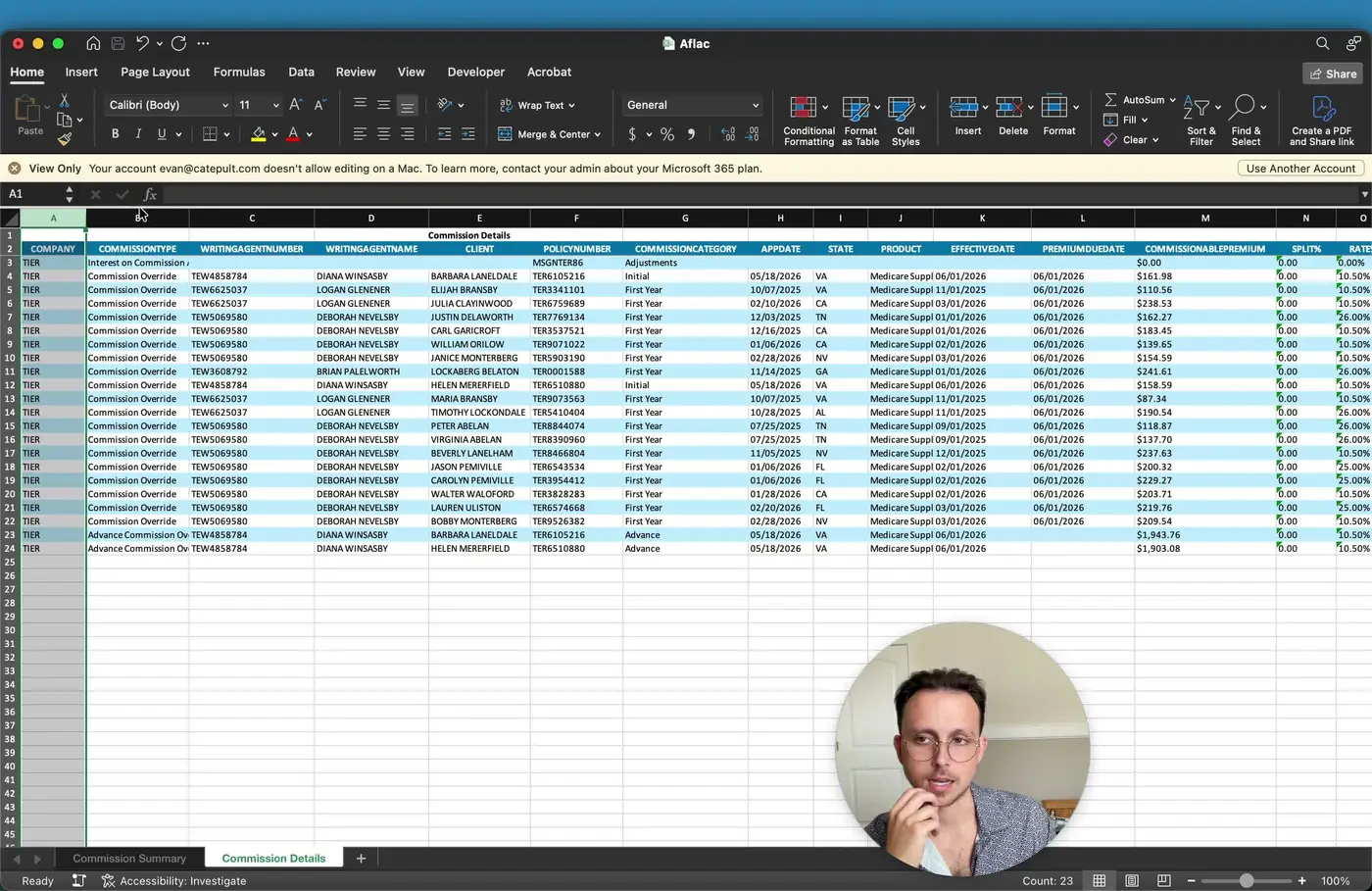
- Open the downloaded Excel file.
- Confirm the file contains two tabs:
- Commission Summary
- Commission Details
- Use the Commission Details tab for line-by-line review of commissions and statement activity.
3. Review the core policy and commission fields 1:17
- In the Commission Details tab, review the following fields:
- Writing Agent Number / Name
- Client Name
- Policy Number
- Commission Category
- App Date (application date)
- State
- Product (e.g., Med Supp, Plan G, Plan N)
- Effective Date
- Premium Due Date
- Use these fields to identify which policy each row belongs to and what period the payment applies to.
4. Understand premium, split, rate, and advance terms 1:55
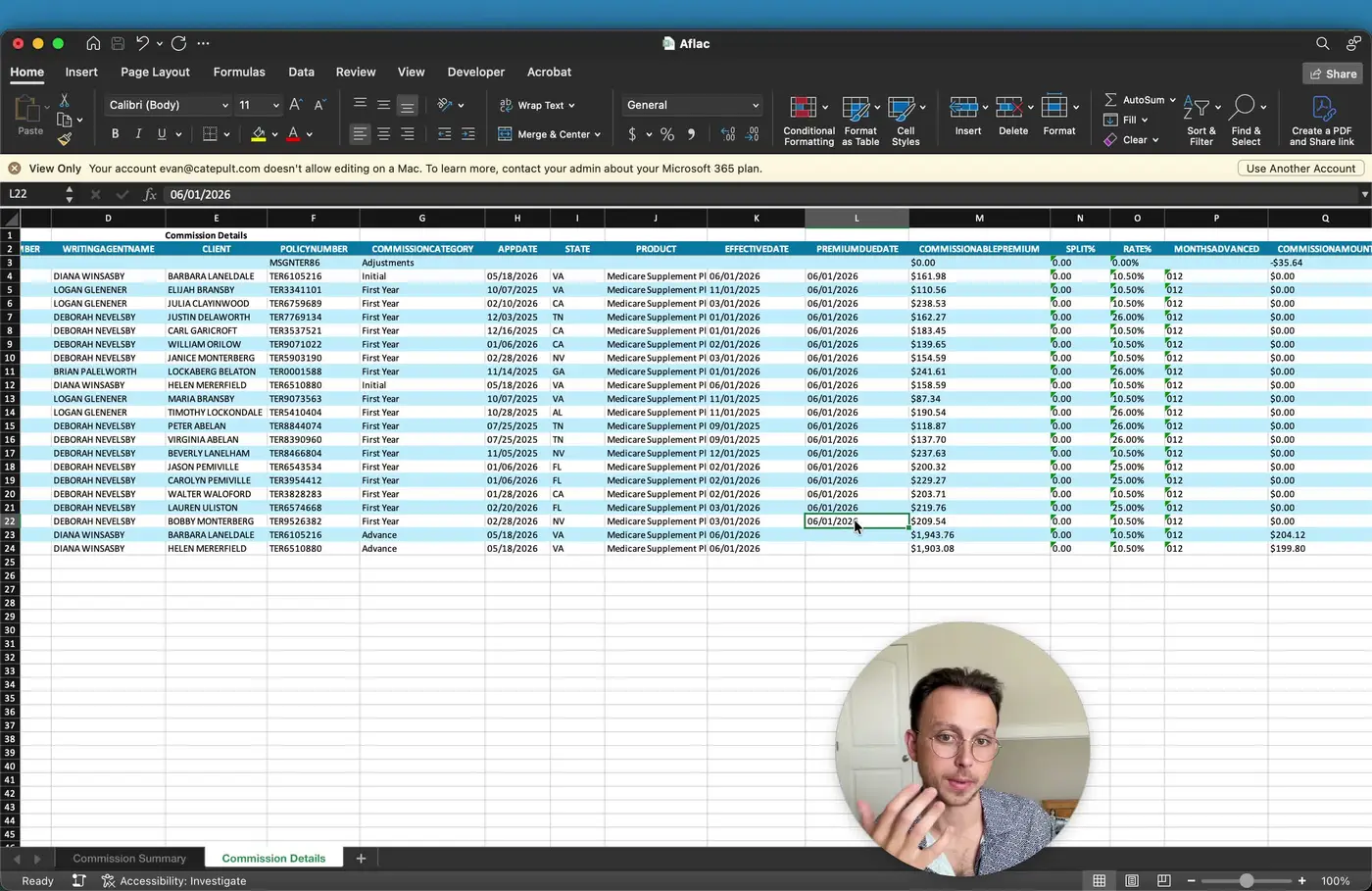
- Check Commissionable Premium to see the premium amount used to calculate commission.
- Review Split to determine whether the commission was shared with another writing agent.
- Default is usually 0.
- Review Commission Rate to confirm the percentage used for payment.
- Review Months Advanced to determine the advance period on the contract (commonly 6, 9, or 12 months).
5. Identify and interpret interest charges on advances 2:33
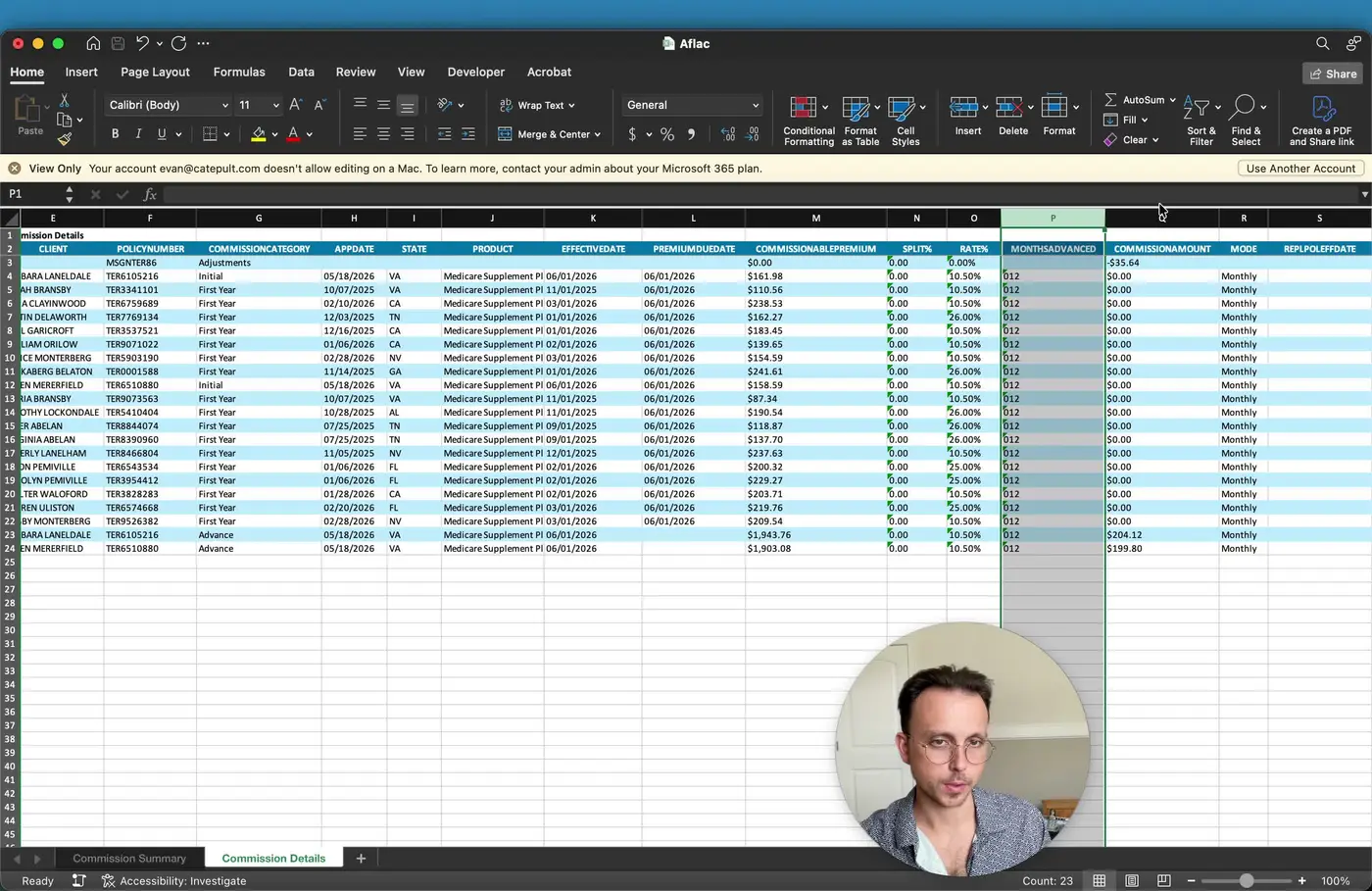
- Look for rows where the Commission Amount appears unusual or is labeled as interest.
- Recognize that AFLAC’s TPA is Aetna, and advance interest may be charged against the agent rather than the carrier.
- Treat entries such as interest on commission advance as a fee/interest charge, not as a normal commission payment.
- Do not assume the row represents the full advance principal; it may only show the interest portion.
6. Distinguish zero-dollar rows from paid commission rows 3:52
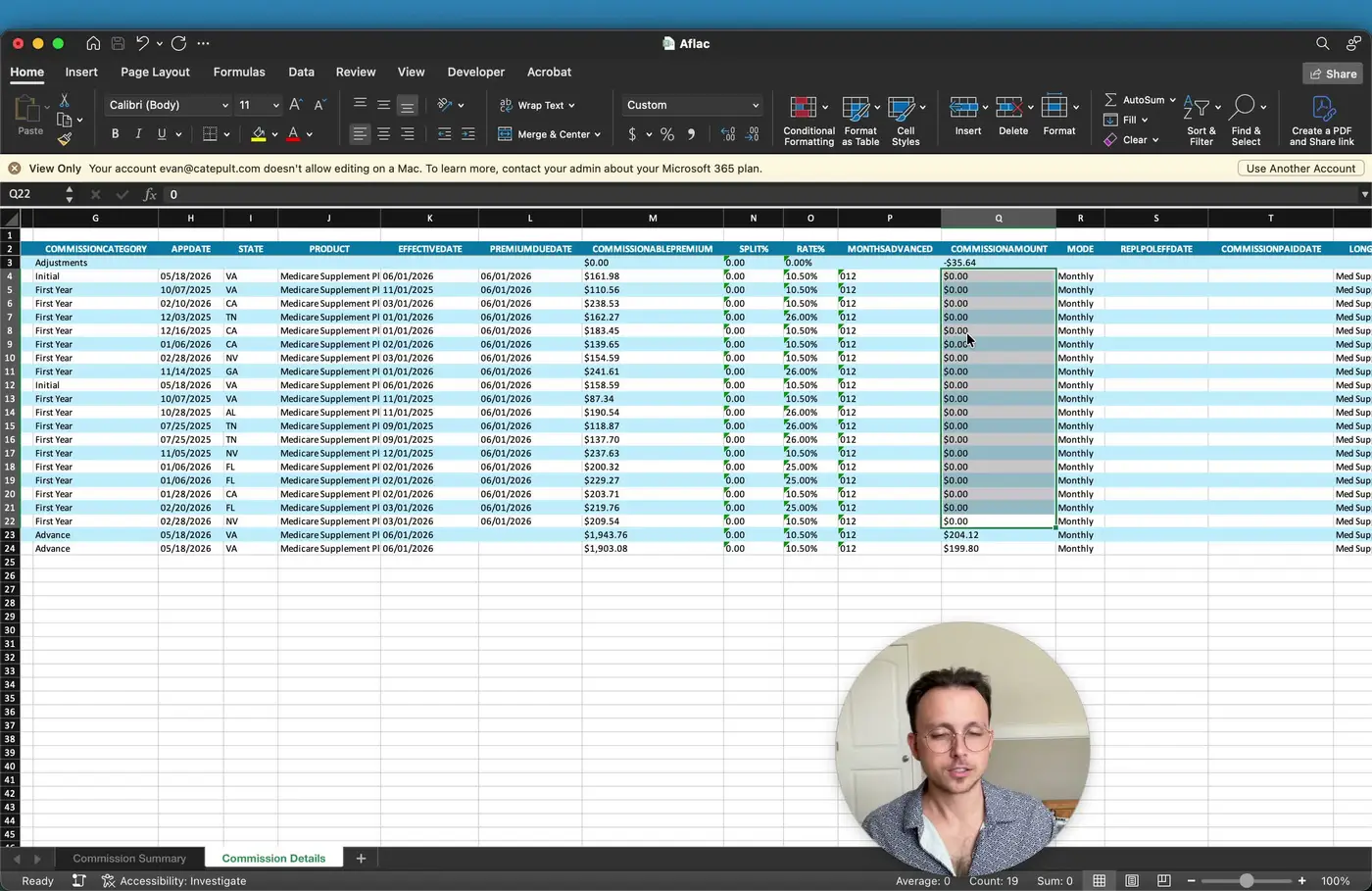
- Review rows with Commission Amount = 0 and compare the Effective Date and Premium Due Date.
- Understand that many zero rows indicate the policy has already been paid in advance and is now reducing the advance balance.
- If the policy was already paid on a prior statement, the current row may show no new commission due.
- Use the effective date history to confirm whether the row falls within the advance paydown period.
7. Confirm when a row represents a new advance payment 5:12
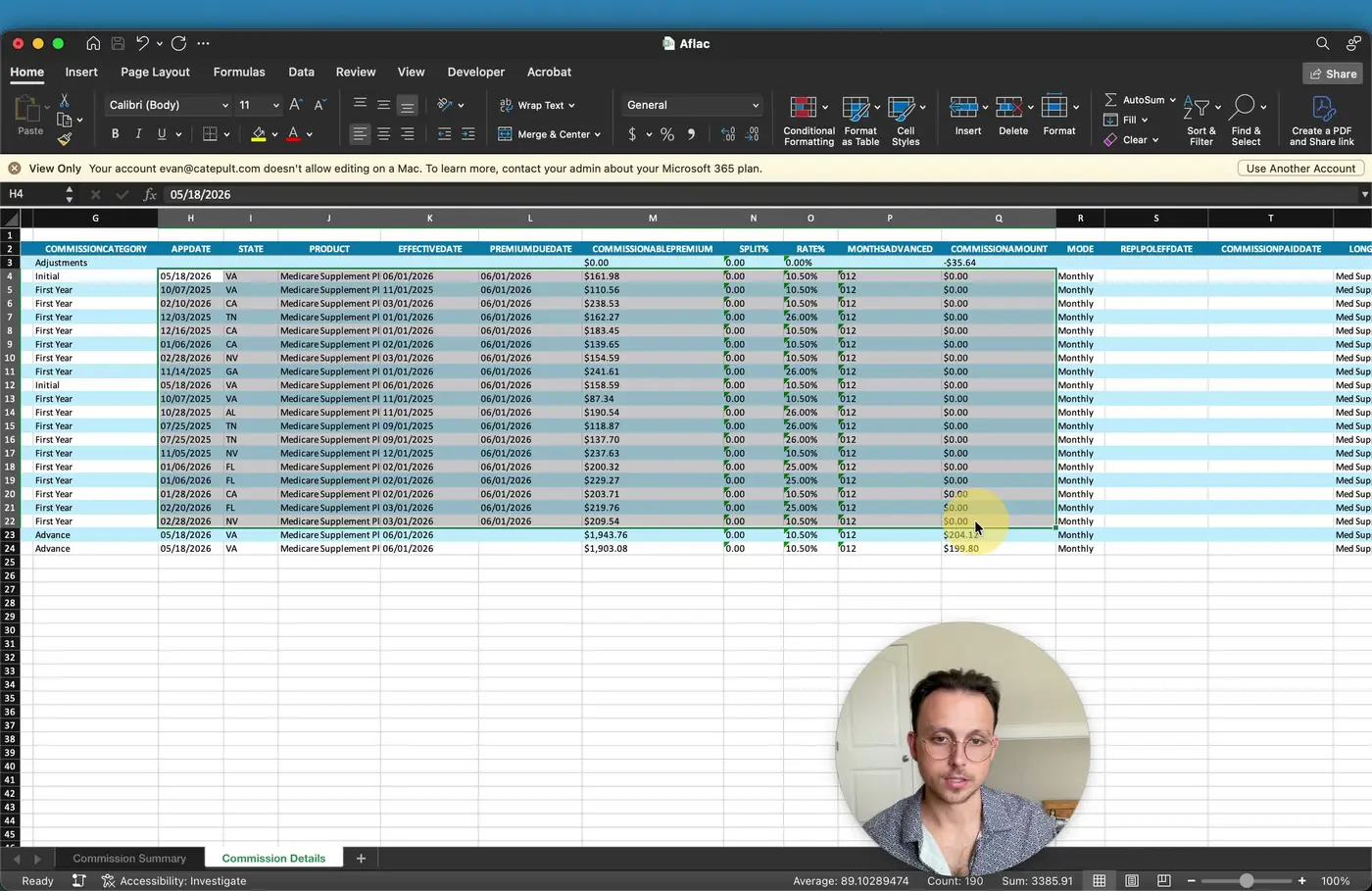
- Identify rows where the statement shows an advance payment.
- Confirm the policy was written recently and is going into effect now.
- Verify the commission is based on the contract advance percentage (for example, 10% or 10.5%).
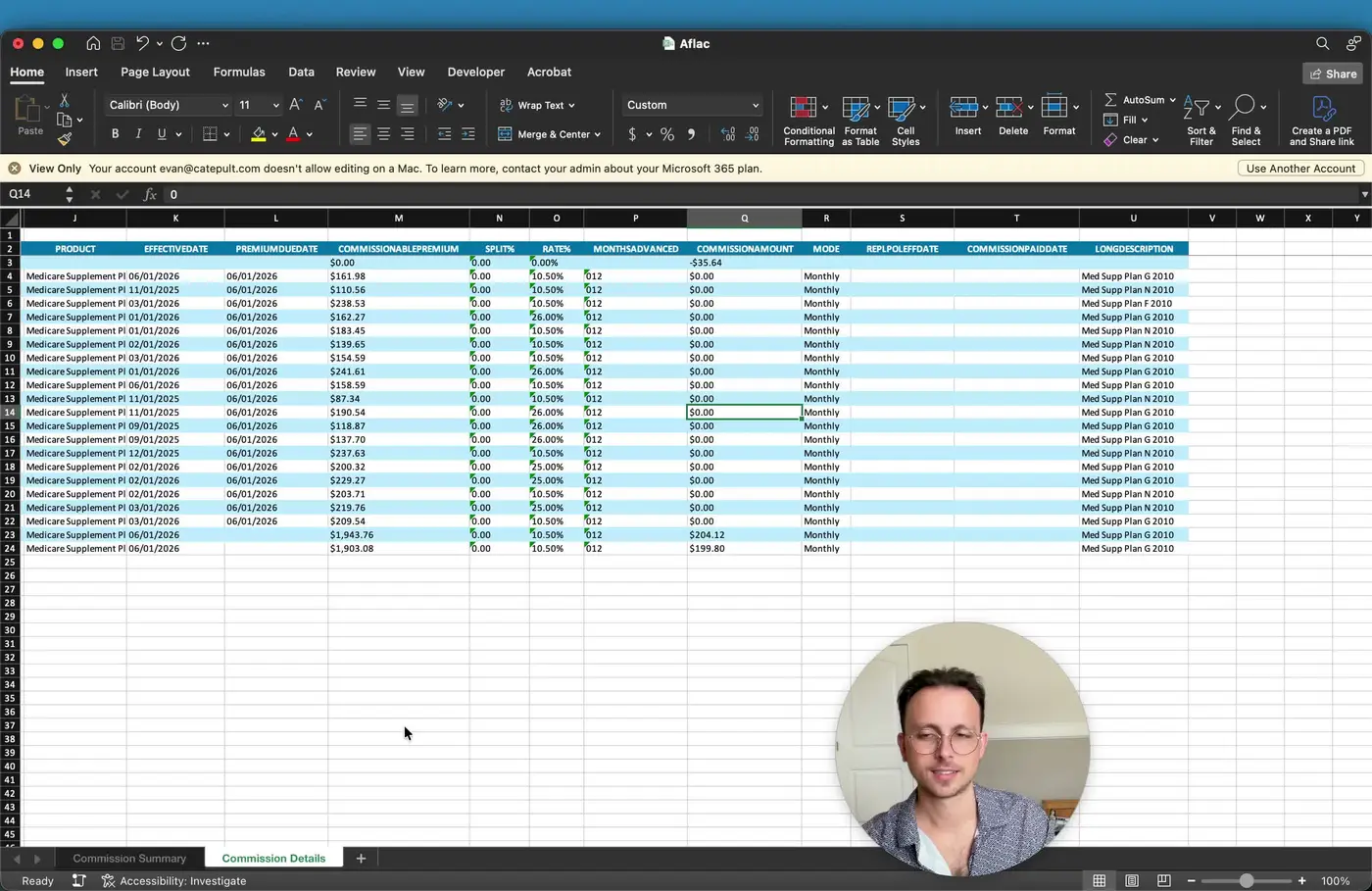
- Use the long description field to understand the plan or product version associated with the row.
8. Normalize the statement in ComTrack 6:49
- Drag the downloaded Excel file into ComTrack.
- Allow ComTrack to automatically recognize and convert the file.
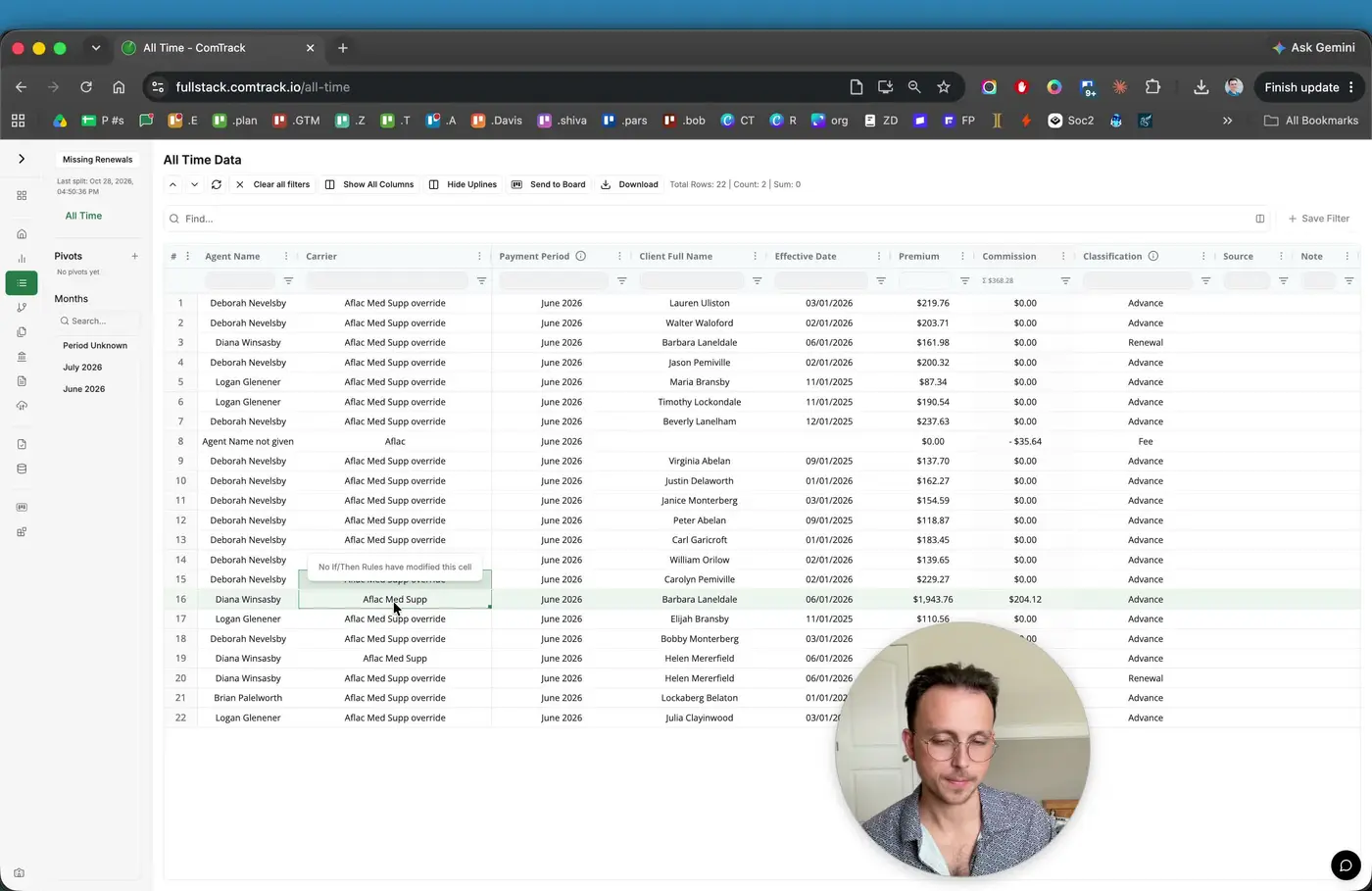
- Review the imported data in the all-time view to confirm the following:
- Agent name is populated correctly
- Carrier is identified correctly
- Aflac Med Supp overrides and normal Med Supp commissions are separated properly
- Interest rows are classified as fees
- Confirm the data is clean and ready for reporting.
9. Review consolidated reporting and dashboard output 7:34
- Use the dashboard to visualize the normalized commission data.
- Confirm the statement is consolidated with other carriers into a single master commission view.
- Verify the data is organized, clean, and ready for ongoing tracking and analysis.
Cautionary Notes
- Do not use “Search By” when downloading from the portal if you need a clean, non-duplicated statement.
- Do not combine multiple statements before reviewing them; process one at a time to avoid duplicate rows.
- Zero-dollar rows are not necessarily errors; they often indicate prior advance payment or paydown activity.
- Interest rows should be treated as fees/interest charges, not standard commission income.
- The portal may display Tier or other naming conventions even though the business is AFLAC; this is normal due to back-office setup.
Tips for Efficiency
- Always download statements as Excel for easier import and review.
- Use the Commission Details tab first when validating individual rows.
- Check Effective Date and Premium Due Date together to quickly determine whether a row is a new advance, a paydown, or a zero row.
- Import directly into ComTrack to save time on manual cleanup and aggregation.
- Use the dashboard to compare AFLAC with other carriers in one consolidated view.