
Objective
This SOP explains how to access Aetna Senior Supplemental Insurance (SSI) commission statements, interpret the key fields, identify renewals versus advances, and consolidate statement data into ComTrack for cleaner tracking and reporting. It is designed to help a team member avoid duplicate records, understand payment timing, and maintain accurate commission records.
Key Steps
1. Access the correct commission statement source in Aetna 0:09
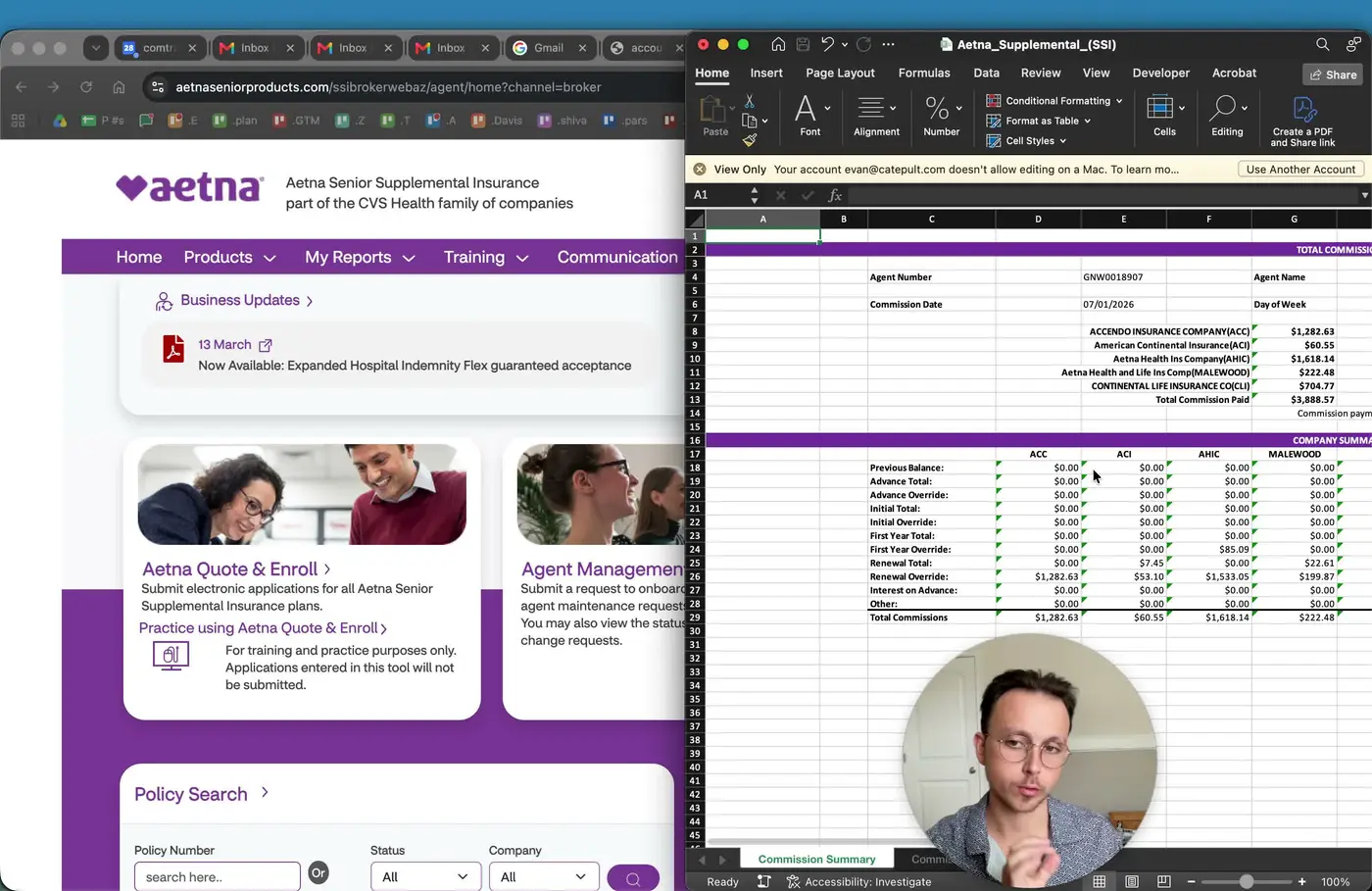
- Log in to the Aetna portal.
- Navigate to My Reports → Commission Dashboard.
- Use the Defined Statements section to download commission statements as Excel files.
- Prefer defined statements over date-range searches to keep records clean and consistent.
2. Avoid duplicate or merged records by using defined statements only 0:33
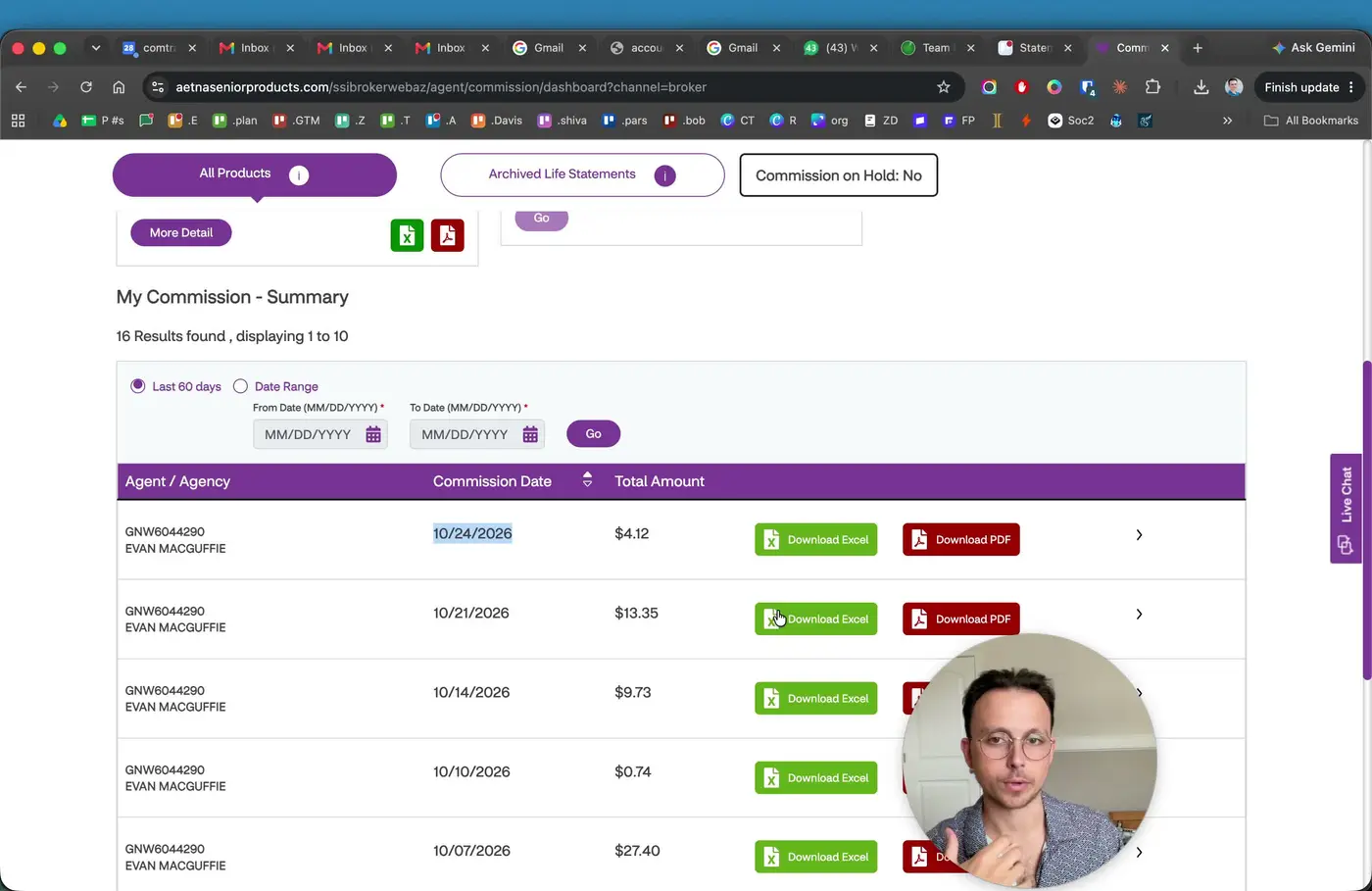
- Do not rely on the start/end date search when possible.
- Date-range searches can combine multiple statements into one file.
- Combined files may create duplicate entries over time and make tracking messy.
- Standardize on defined statements for every download to maintain accurate historical records.
3. Confirm the carrier and subsidiary represented on the statement 0:59
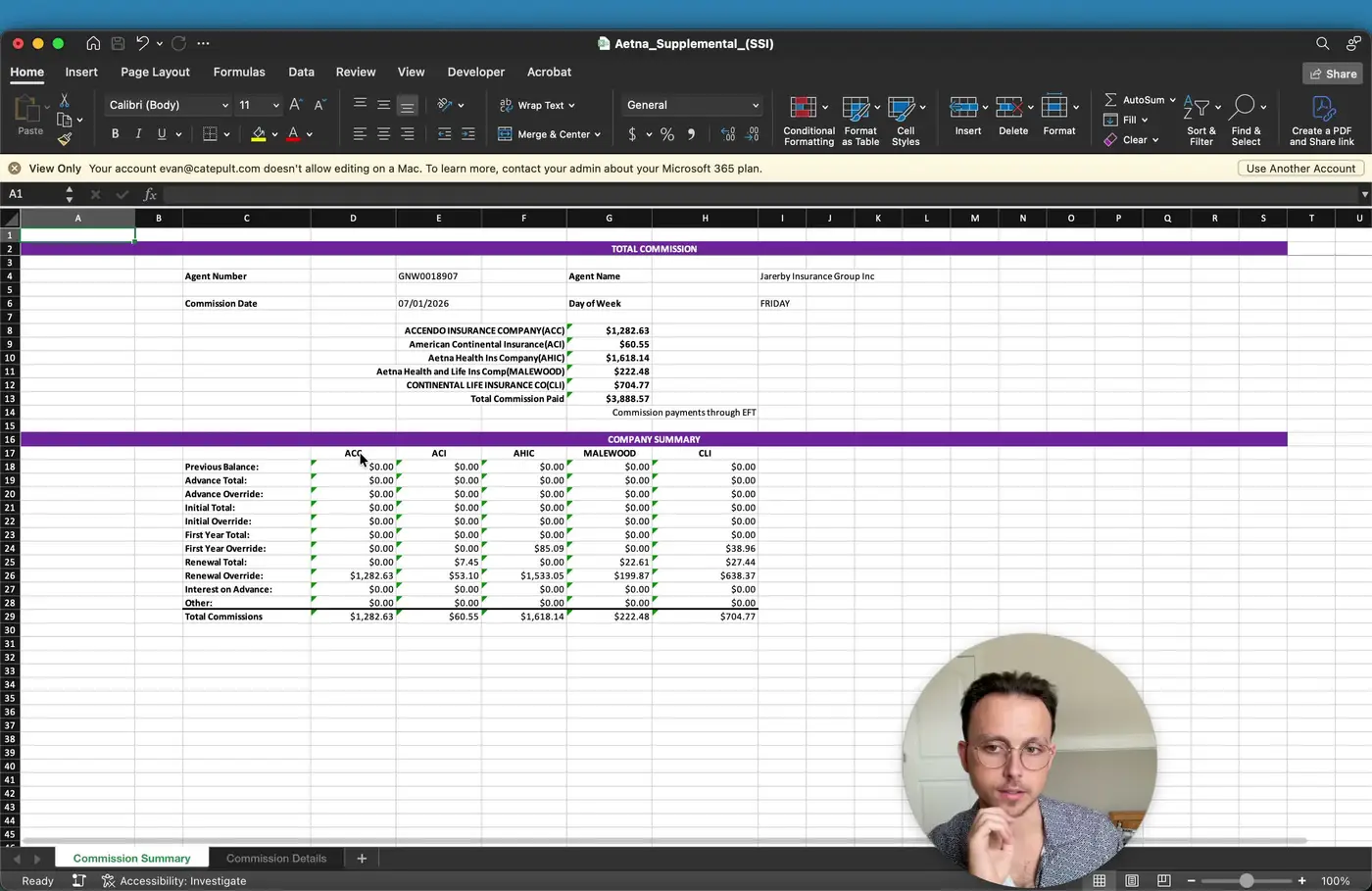
- Review the statement header to identify which Aetna subsidiary is included.
- Recognize that Aetna SSI may include multiple subsidiaries such as:
- Accendo
- ACI
- AHIC
- Continental Life
- Treat these as part of the Aetna SSI family when organizing commission data.
4. Review the statement header details before analyzing line items 1:24
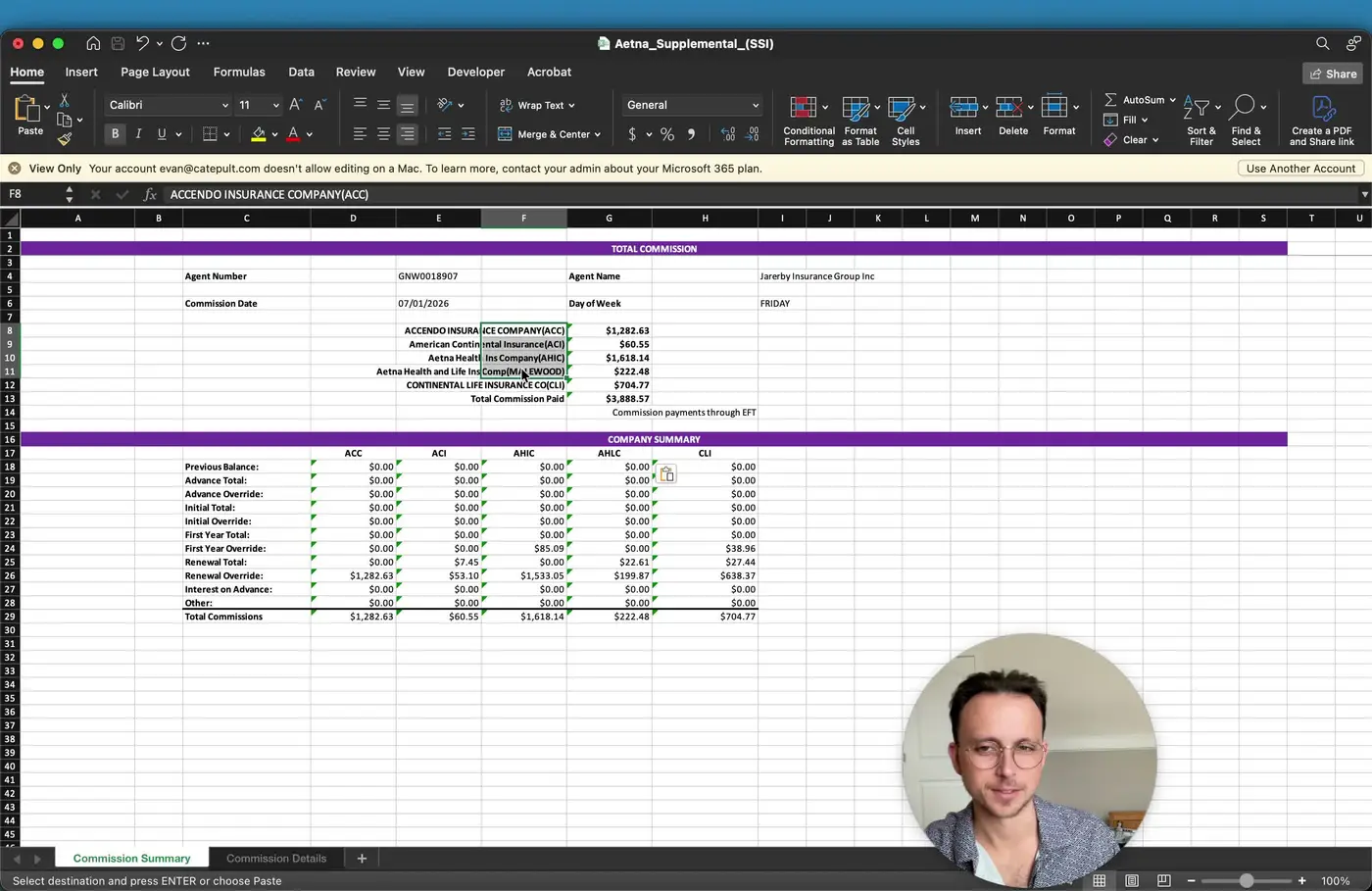
- Confirm the commission statement date.
- Verify the writing agent information shown on the statement.
- Check that the statement belongs to the correct agent and reporting period.
- Use the header as a quick validation step before reviewing detailed transactions.
5. Interpret the Commission Details tab fields 1:34
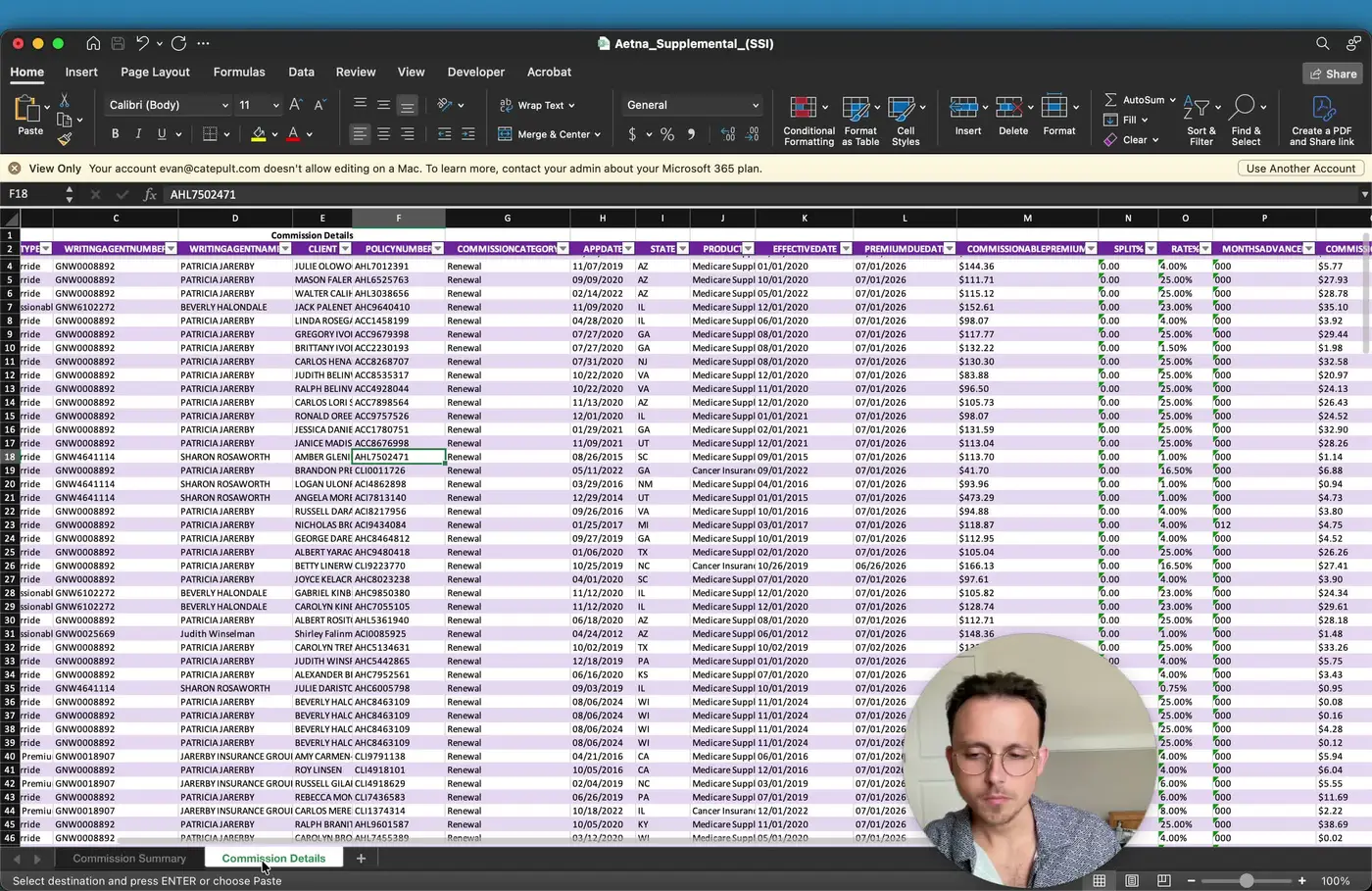
- Open the Commission Details tab.
- Review the following fields for each line item:
- Company / carrier
- Commission type
- Writing agent number
- Writing agent name
- Client name
- Policy number
- Commission category
- Application date
- State
- Product
- Effective date
- Premium due date
- Commission price / premium basis
- Split
- Commission rate months advanced
- Commission amount
- Long description
- Use these fields to understand what was paid, when it was paid, and why.
6. Use dates to determine what coverage period the commission applies to 2:15
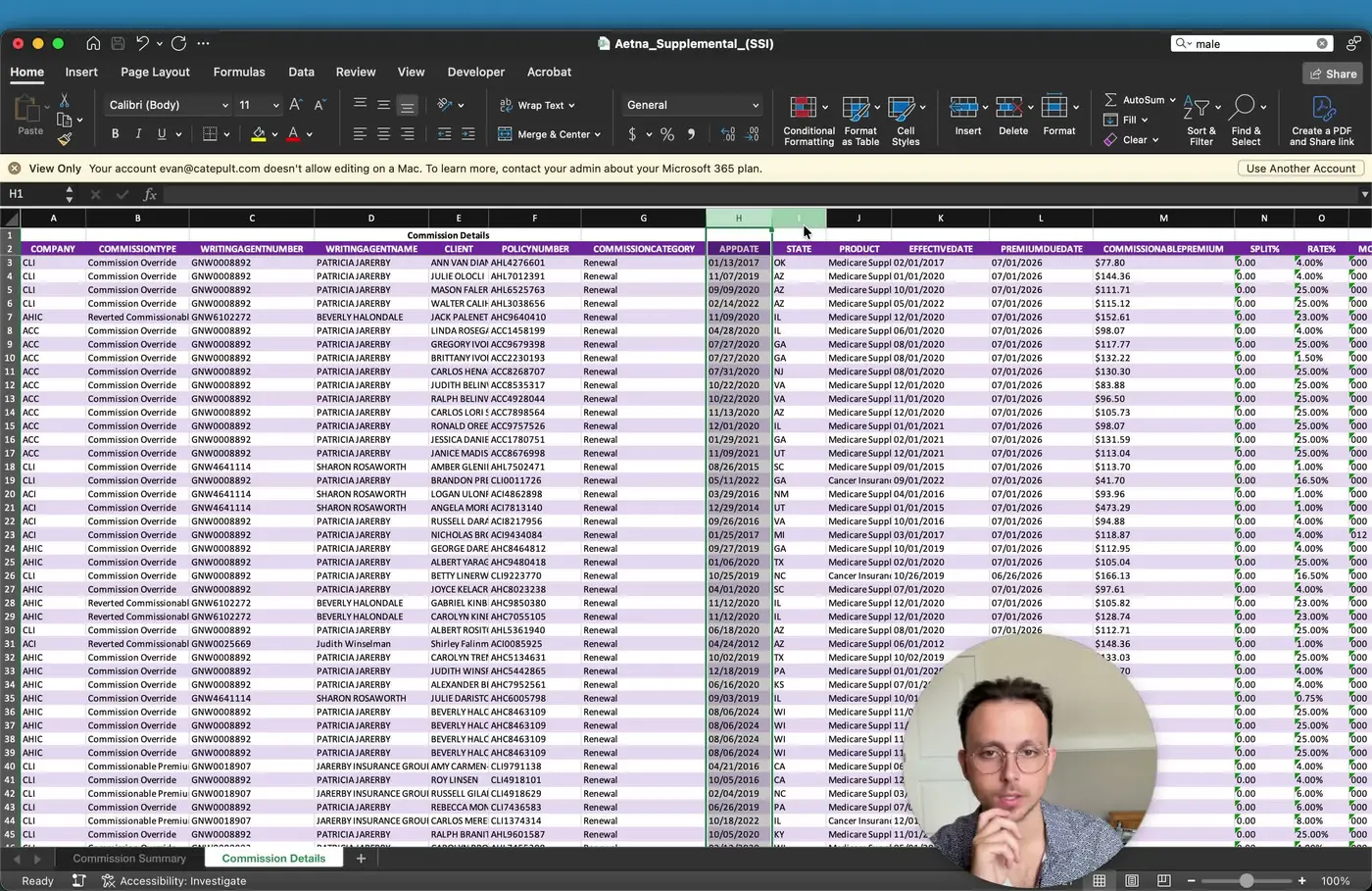
- Compare the effective date and premium due date to identify the coverage month being paid.
- Expect most entries on a 7/1 statement to relate to the July coverage period.
- Note that some entries may reflect a prior premium payment date while the commission is paid on the statement date.
- Use these dates to reconcile the commission with the actual policy billing cycle.
7. Identify commission structure: monthly, split, and advance payments 2:53
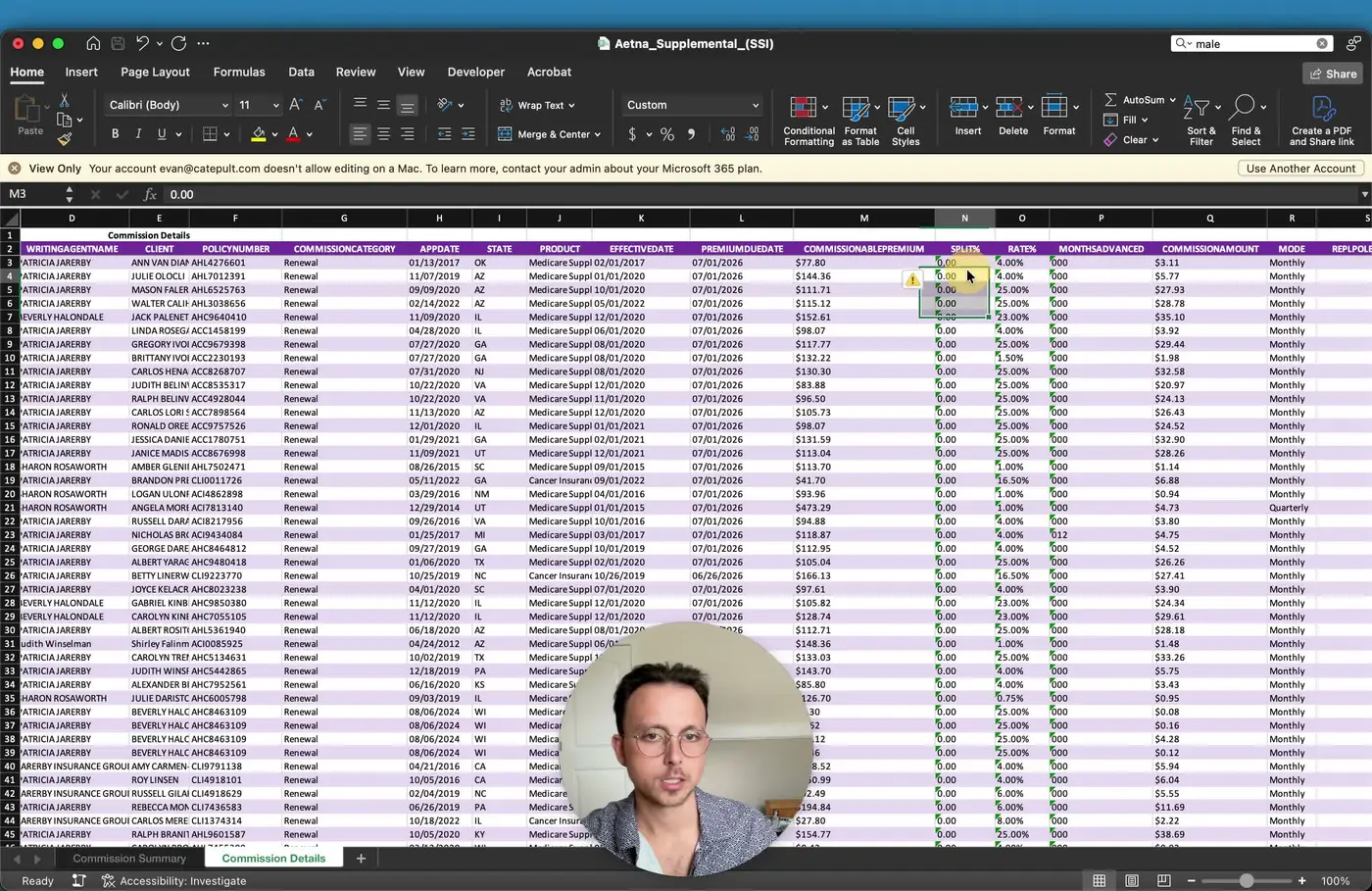
- Review the split field to see whether the commission is shared with another agent.
- If no split exists, the value will typically be 0.
- Review commission rate months advanced to determine whether the policy was paid in advance.
- Common advance values may include 3, 6, 9, or 12 months depending on the contract.
8. Distinguish renewals from new sales and advances 3:36
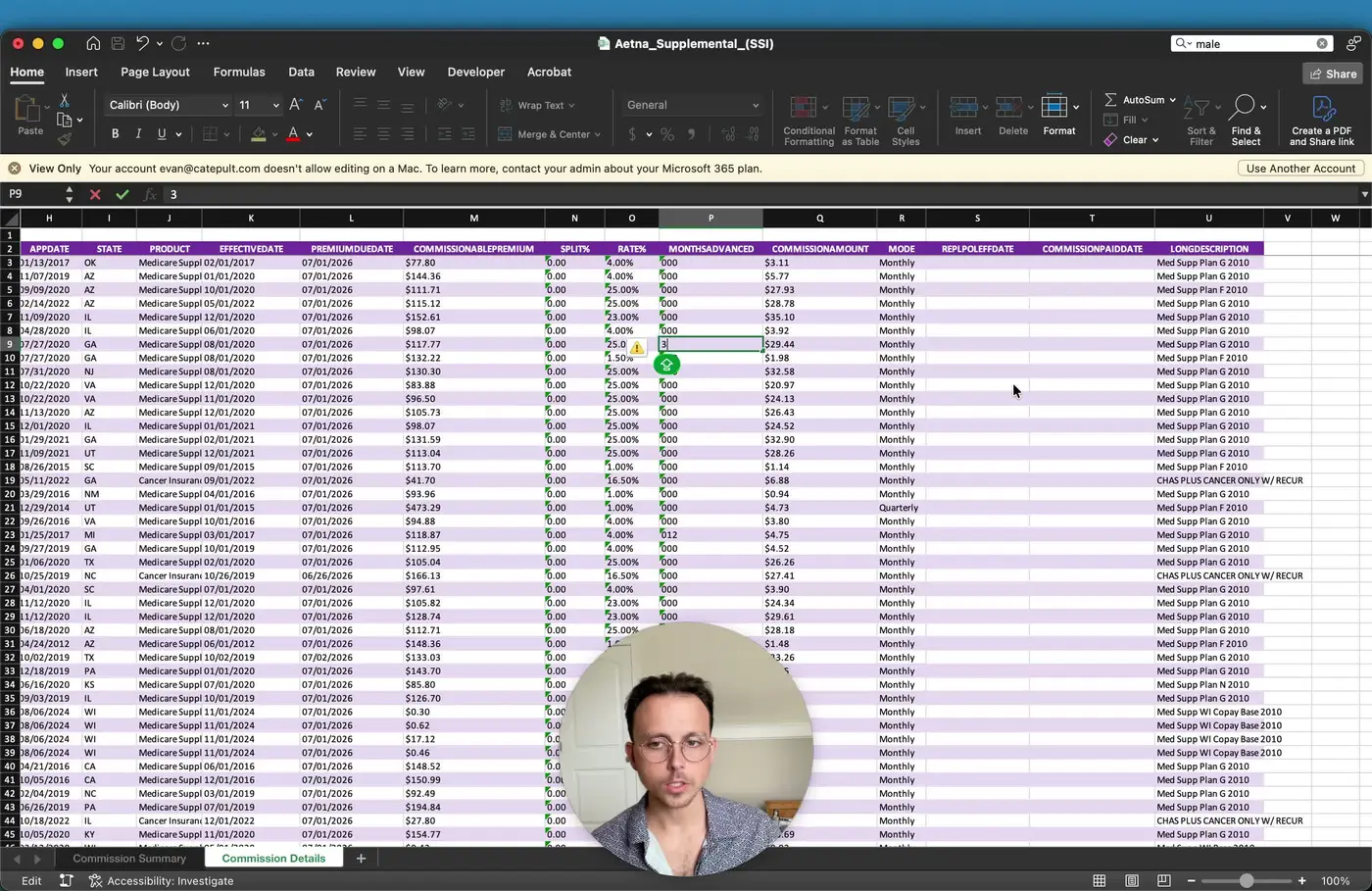
- Check the commission category to determine whether the item is a renewal or a new sale.
- In the example shown, the statement contains renewals.
- For new business, the statement may show advance-related payment behavior.
- Use the category and payment amount together to understand the commission stage.
9. Check for replacement policies and transition dates 3:57
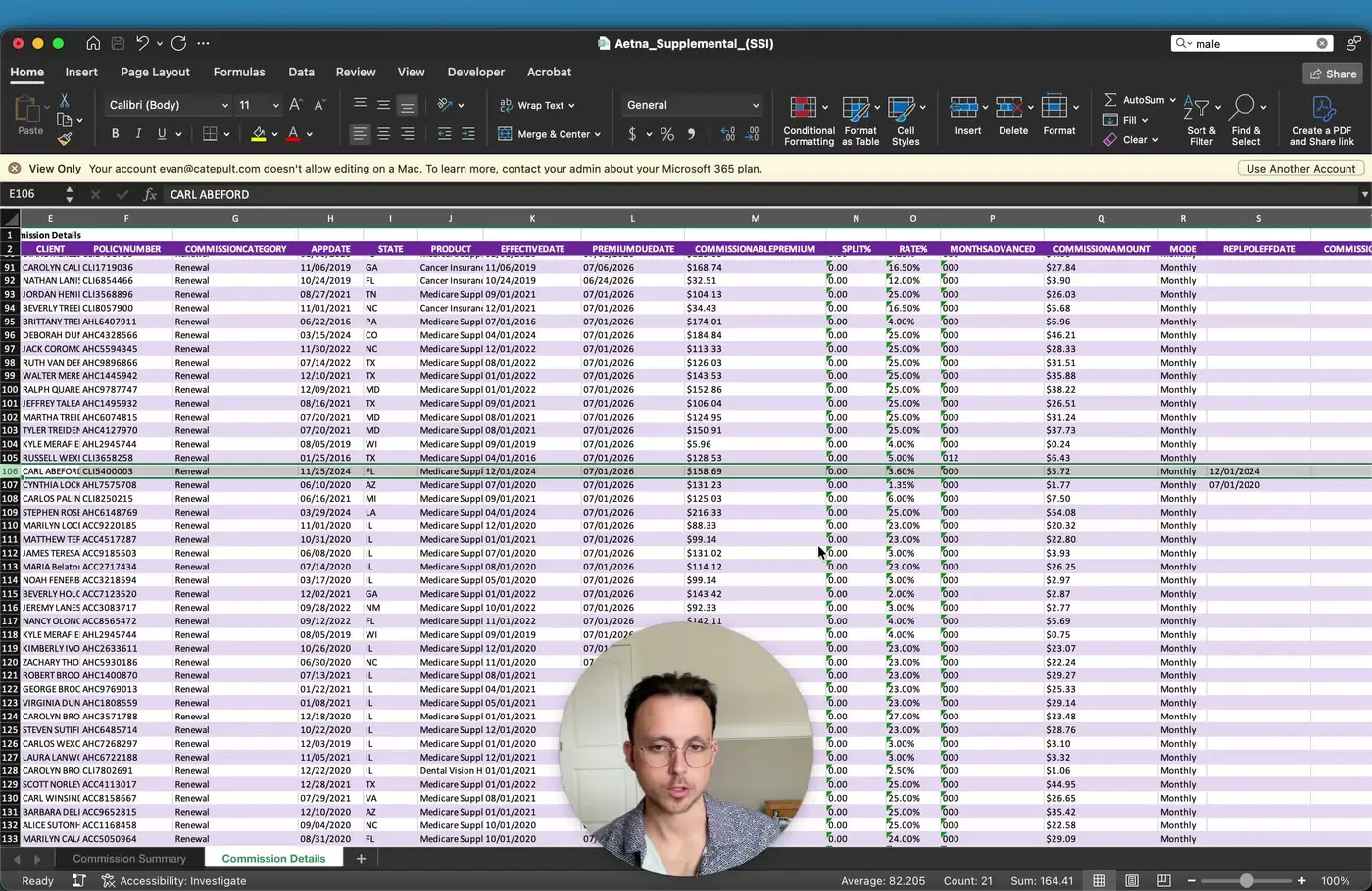
- Review the replacement date when a policy replaces an existing policy.
- Use this date to identify when the old policy ended and the new policy became effective.
- Confirm replacement timing carefully so the policy history is recorded correctly.
- This is especially important when policies transition on the same effective date.
10. Interpret advance commissions and zero-dollar follow-up entries 4:15
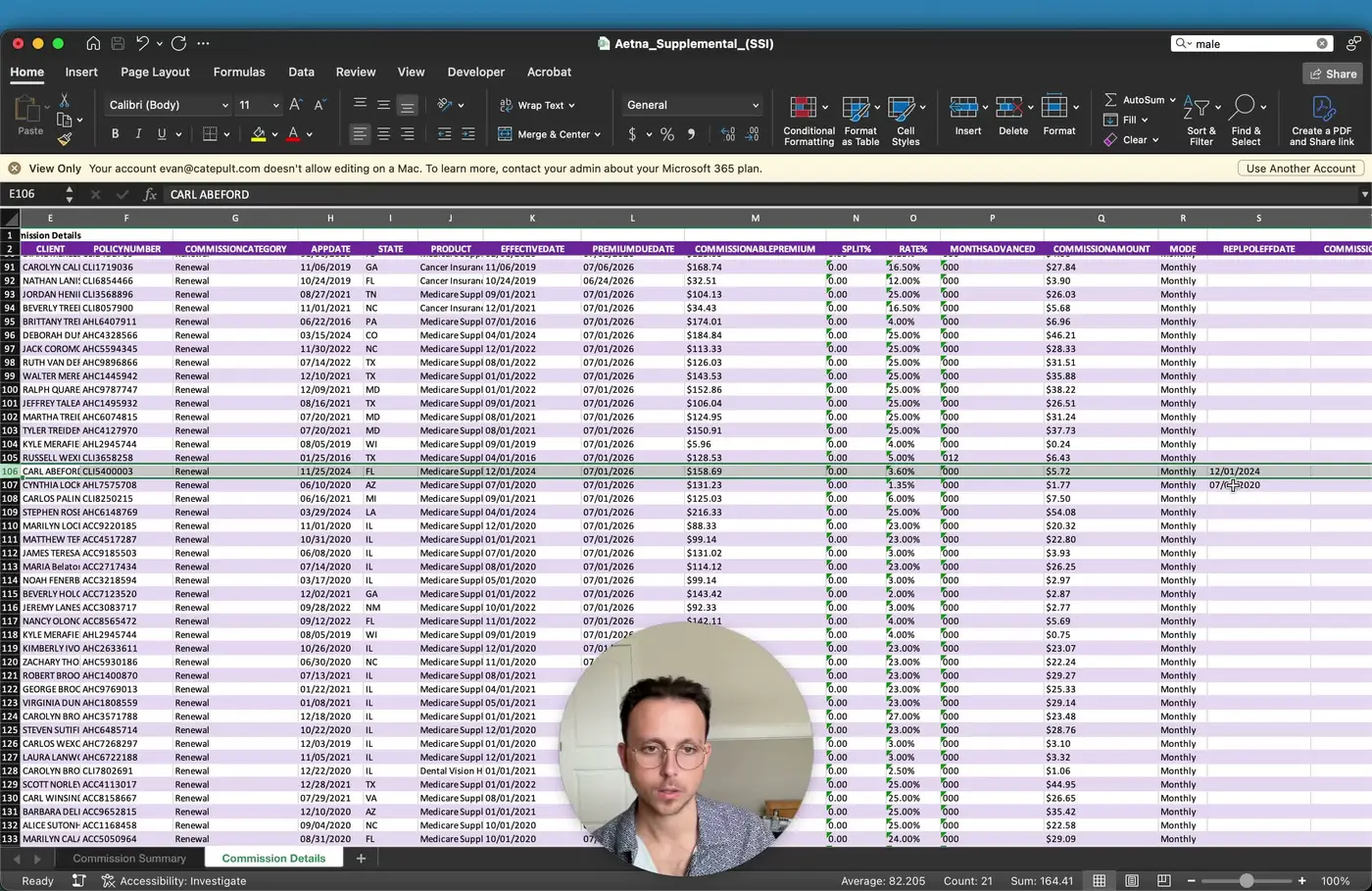
- When a policy is advanced, the statement may show a commission payment upfront.
- The line item may later show advance and a corresponding months-advanced value.
- After the advance is paid, later monthly entries may show 0 commission because the agent has already been paid.
- Continue tracking until the policy reaches renewal months, such as month 13, when commissions resume.
11. Recognize initial and first-year commission behavior 5:17
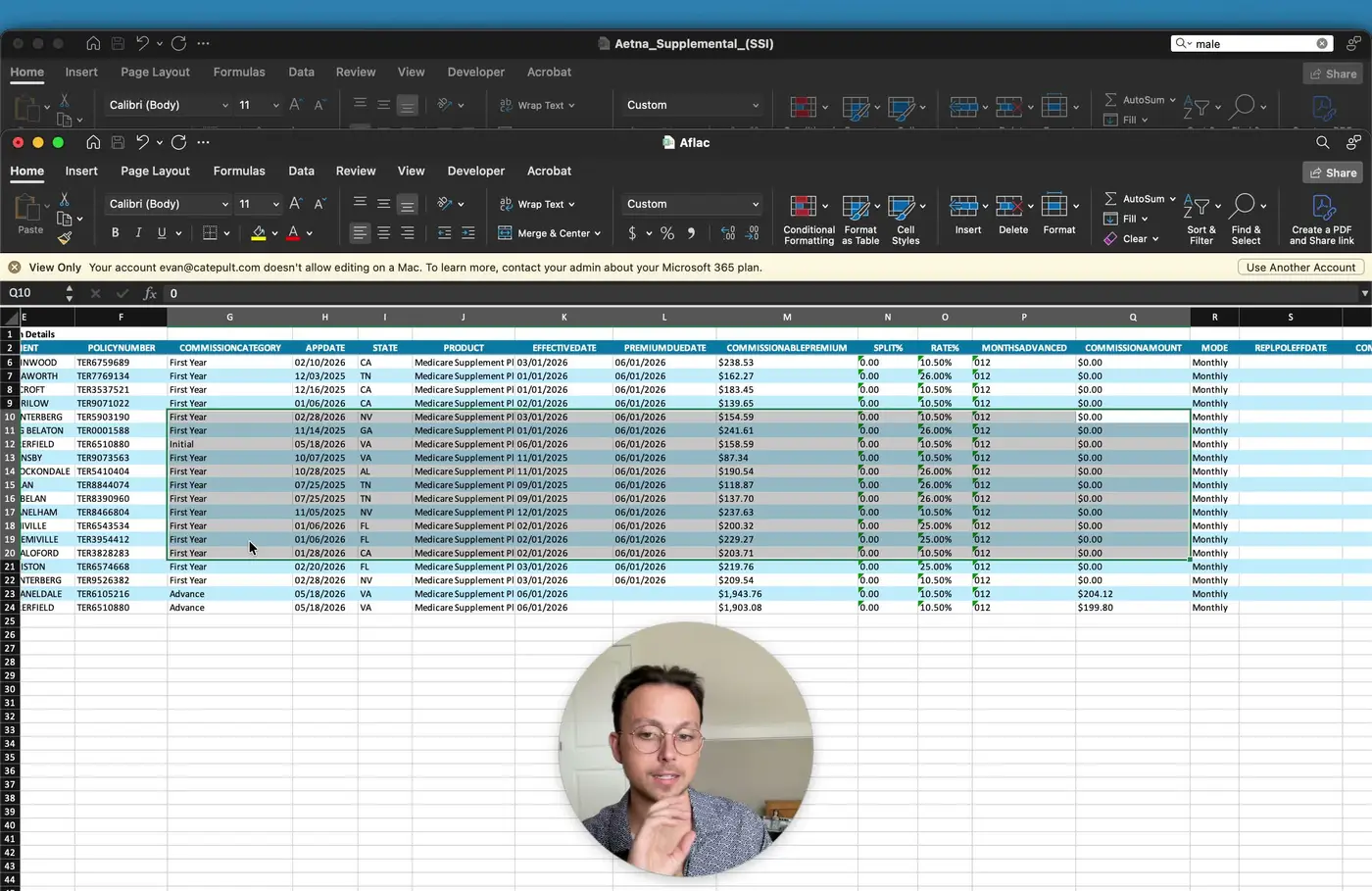
- Use the initial label to identify the first premium payment on a policy.
- Verify this by checking whether the effective date and premium due date match.
- Use the application date to confirm when the policy was written.
- Understand that the advance may have been paid on an earlier statement before the first premium was collected.
12. Understand how first-year months appear after the initial payment 6:08
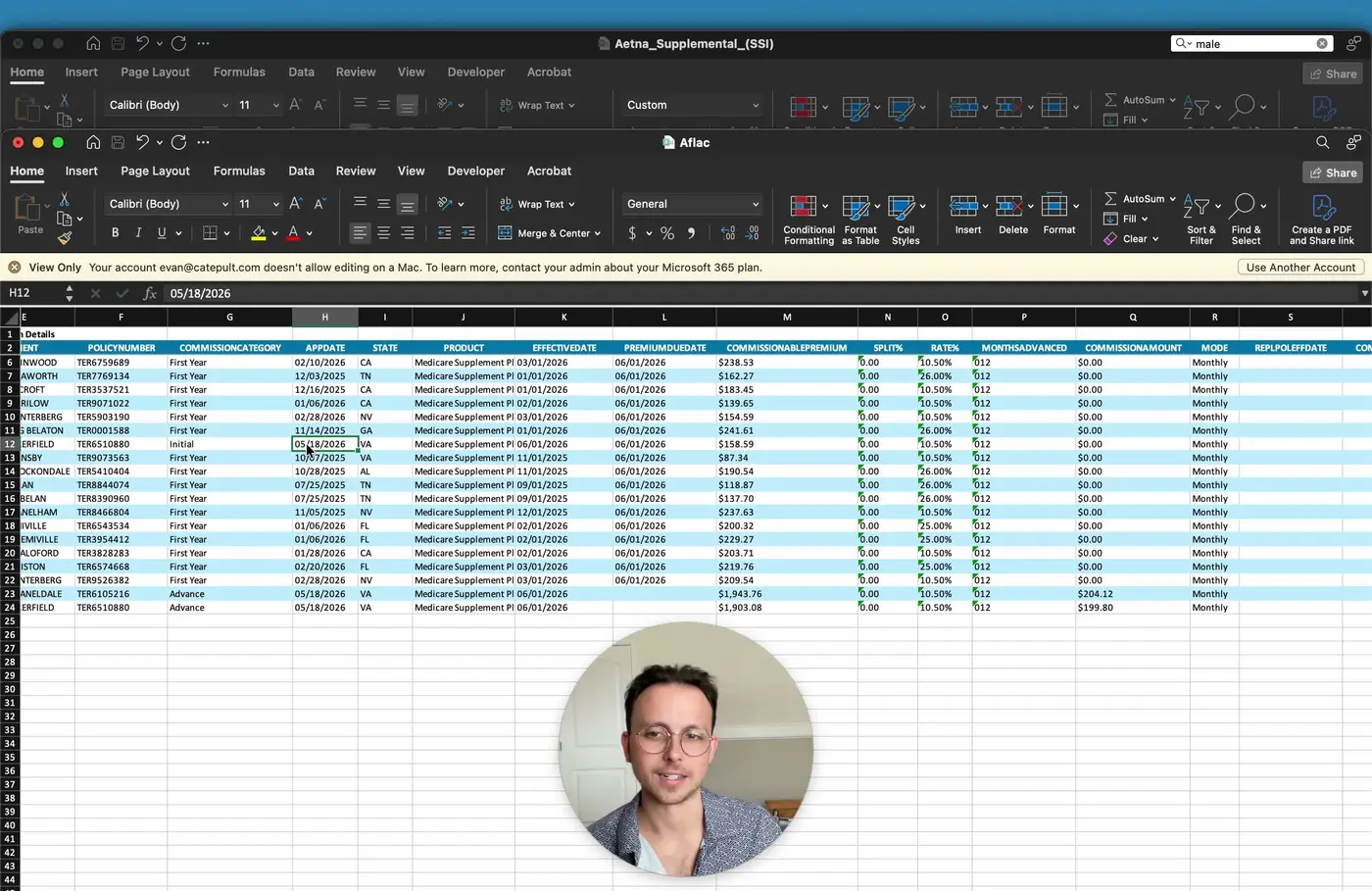
- After the first premium is paid, later entries may show first year.
- If the advance has already been paid, these entries may show 0 commission.
- This reflects that the client is still paying premiums while the agent is no longer receiving additional advance compensation.
- Continue monitoring until the policy transitions into renewal commission status.
13. Digest commission statements into ComTrack for clean aggregation 6:35
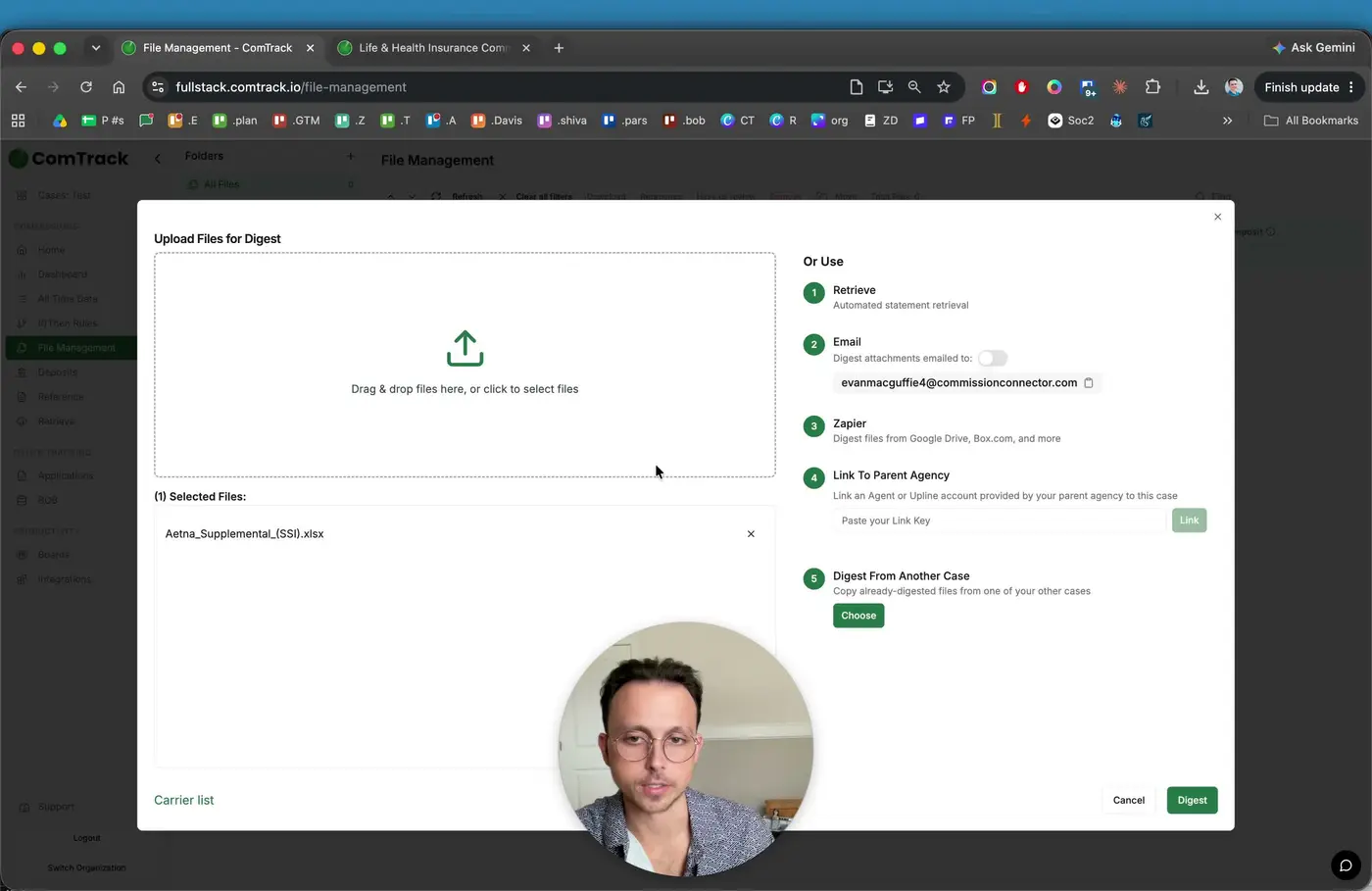
- Open ComTrack and select the relevant commission statements.
- Upload or select the Aetna statement and any other carrier statements you want to consolidate.
- Click Digest to process the files.
- Let ComTrack automatically read the carrier format and clean the data.
14. Review the master commission data after digestion 6:55
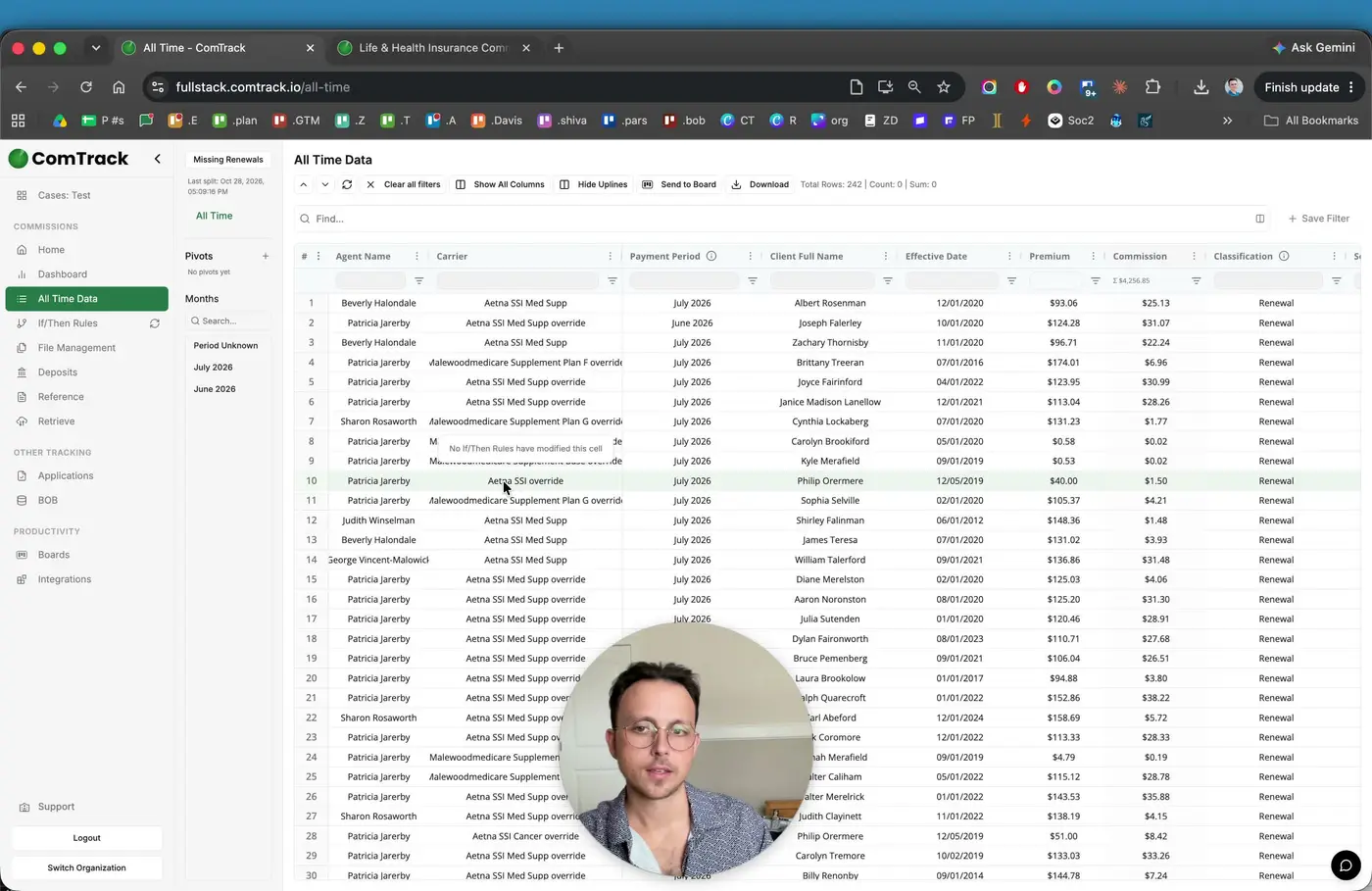
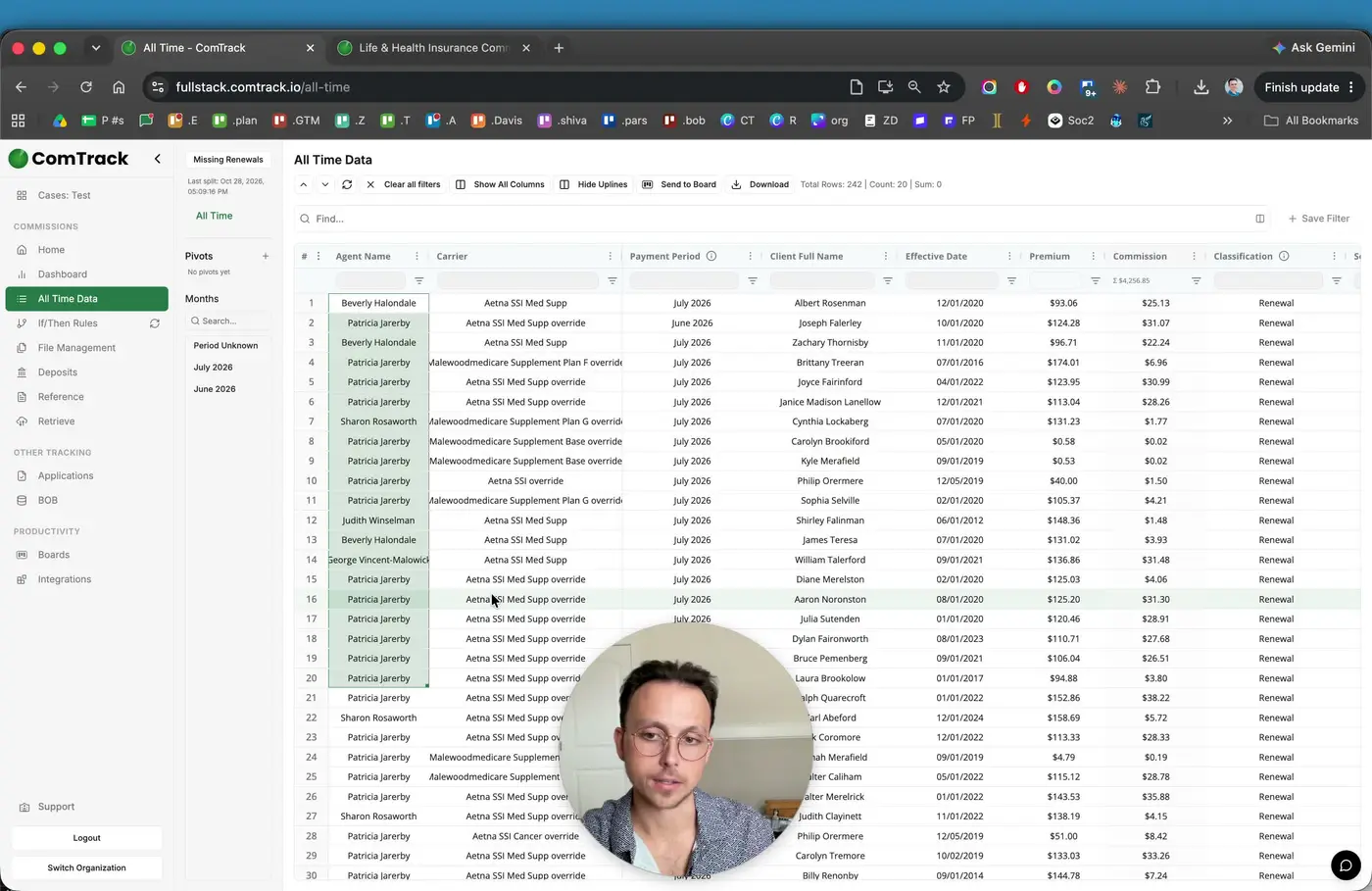
- Confirm that ComTrack has aggregated the statement data into the all-time data view.
- Use filters to review by:
- Carrier
- Agent
- Payment period
- Client name
- Effective date
- Verify that the imported data matches the original statement details.
15. Use dashboards and reporting to analyze commission trends 7:20
- Open the dashboard to visualize commission performance.
- Review carrier mix to see which carriers generate the most business.
- Compare overrides versus street business if needed.
- Use the dashboard to support ongoing commission analysis and business planning.
Cautionary Notes
- Always use Defined Statements when downloading from Aetna to avoid duplicate or merged records.
- Do not assume every zero-dollar line item is an error; it may reflect an already-paid advance.
- Confirm whether a line item is a renewal, initial payment, first-year entry, or replacement policy before categorizing it.
- Be careful when interpreting dates, especially when the premium due date and effective date differ.
- Aetna SSI includes multiple subsidiaries; make sure you are grouping them correctly under the Aetna SSI umbrella.
Tips for Efficiency
- Standardize your workflow by downloading only defined statements every time.
- Use ComTrack digestion to reduce manual cleanup and speed up reconciliation.
- Filter by carrier first, then by agent or payment period, to narrow down large datasets quickly.
- Keep a consistent naming or filing convention for downloaded Excel statements.
- Review statement headers before line items to catch mismatches early and save time later.