
Objective
This SOP explains how to download an Allstate Health Solutions commission statement, interpret the key fields in the CSV file, and review the same statement in CommTrack for a cleaner, easier-to-read summary. It is designed to help team members quickly verify commissions, advances, adjustments, and totals without manual calculations.
Key Steps
1. Log in to the Allstate website and open Statements 0:11
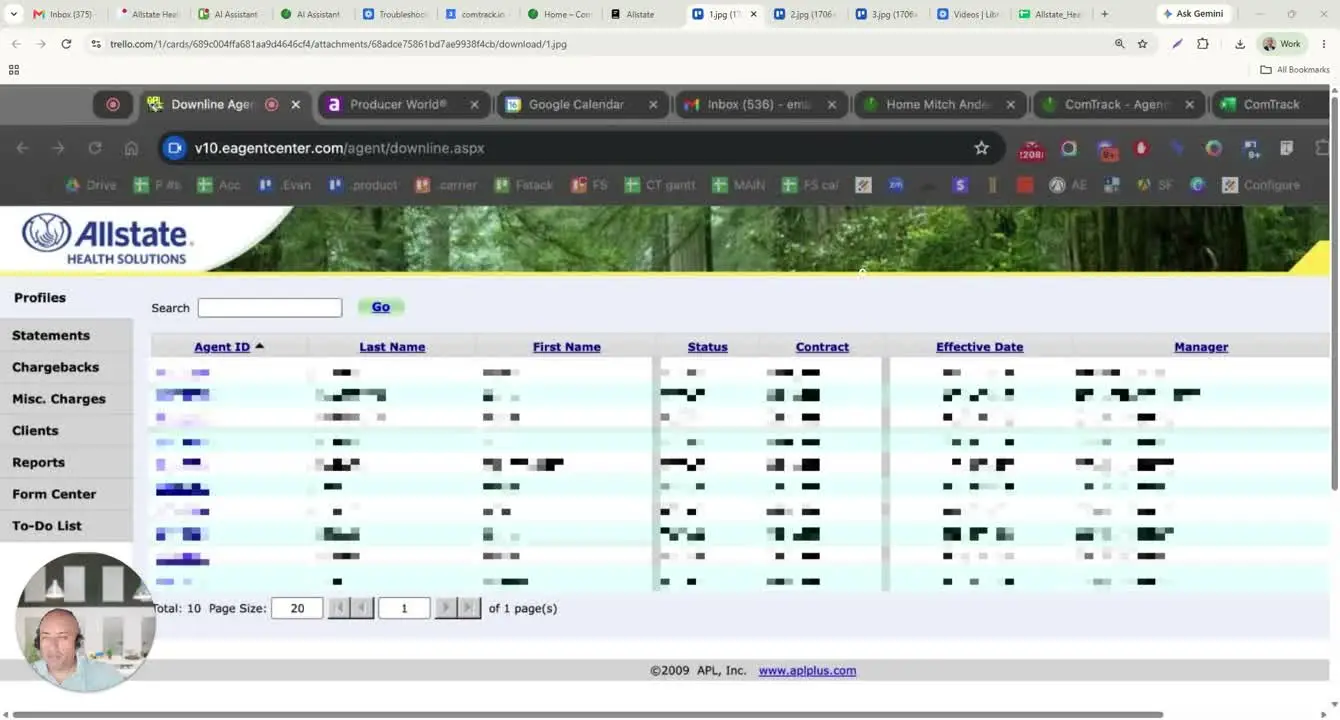
- Go to the Allstate website and log in.
- Select the first agent ID shown after login.
- Click Statements to access available commission statements.
2. Download the statement for the desired month 0:26
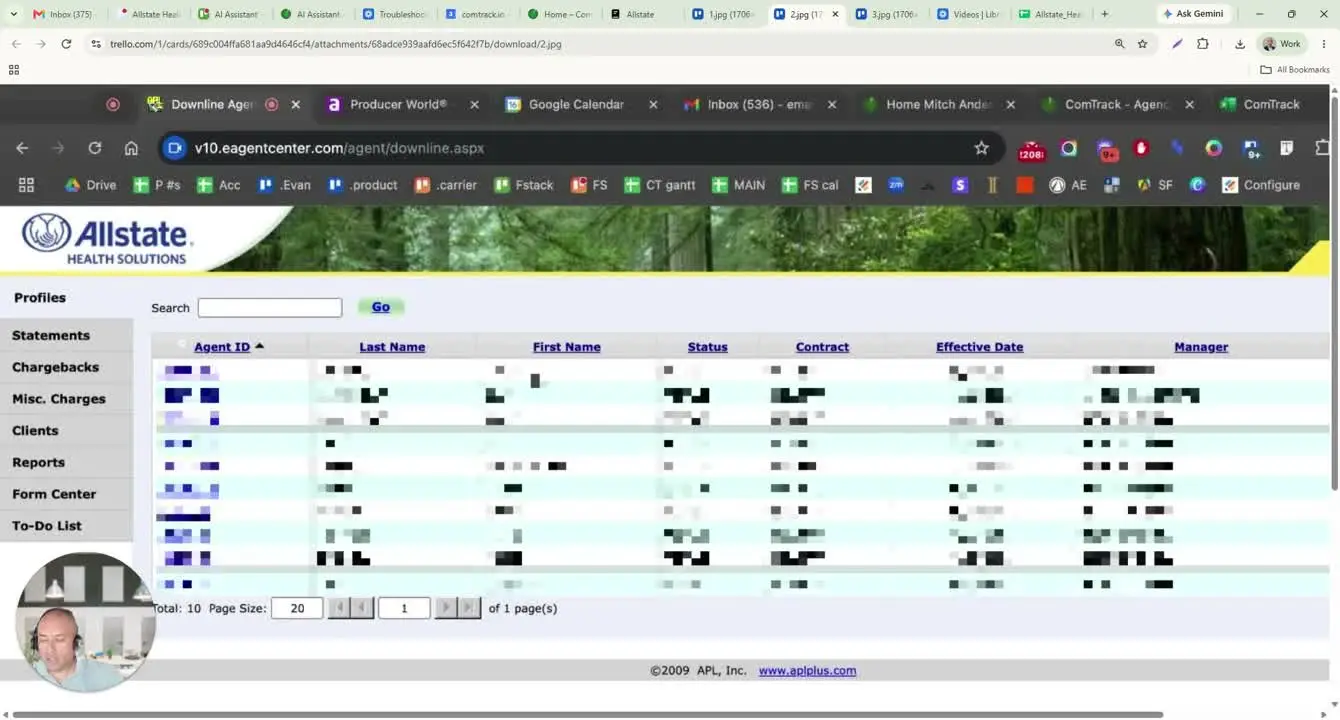
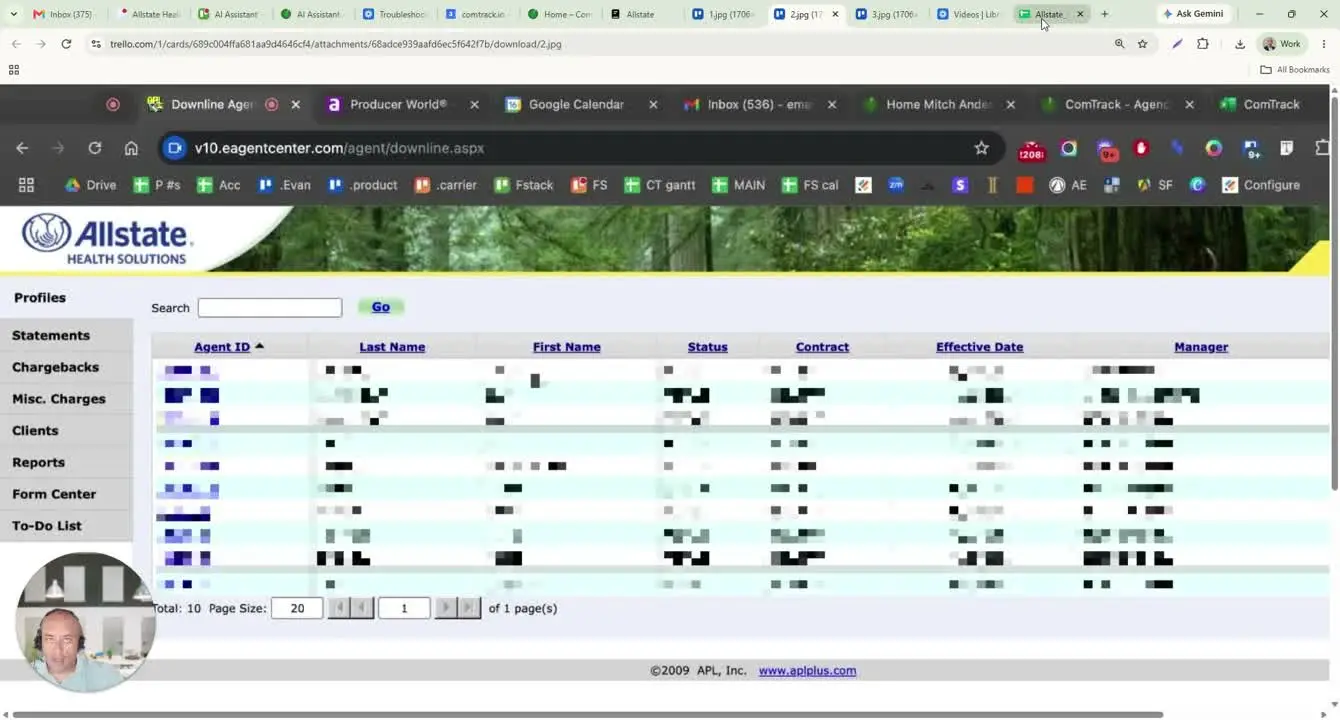
- In the Statements section, choose the statement month you want to review.
- Download the statement, which will generate a CSV file.
- Save the file in a location where it can be easily uploaded into CommTrack.
3. Confirm the CSV structure before reviewing data 0:37
- Open the downloaded CSV file.
- Verify that the file contains one tab/sheet only.
- Use the statement date/processing date as the reference point for the commission cycle.
4. Review the core policy and agent fields 0:47
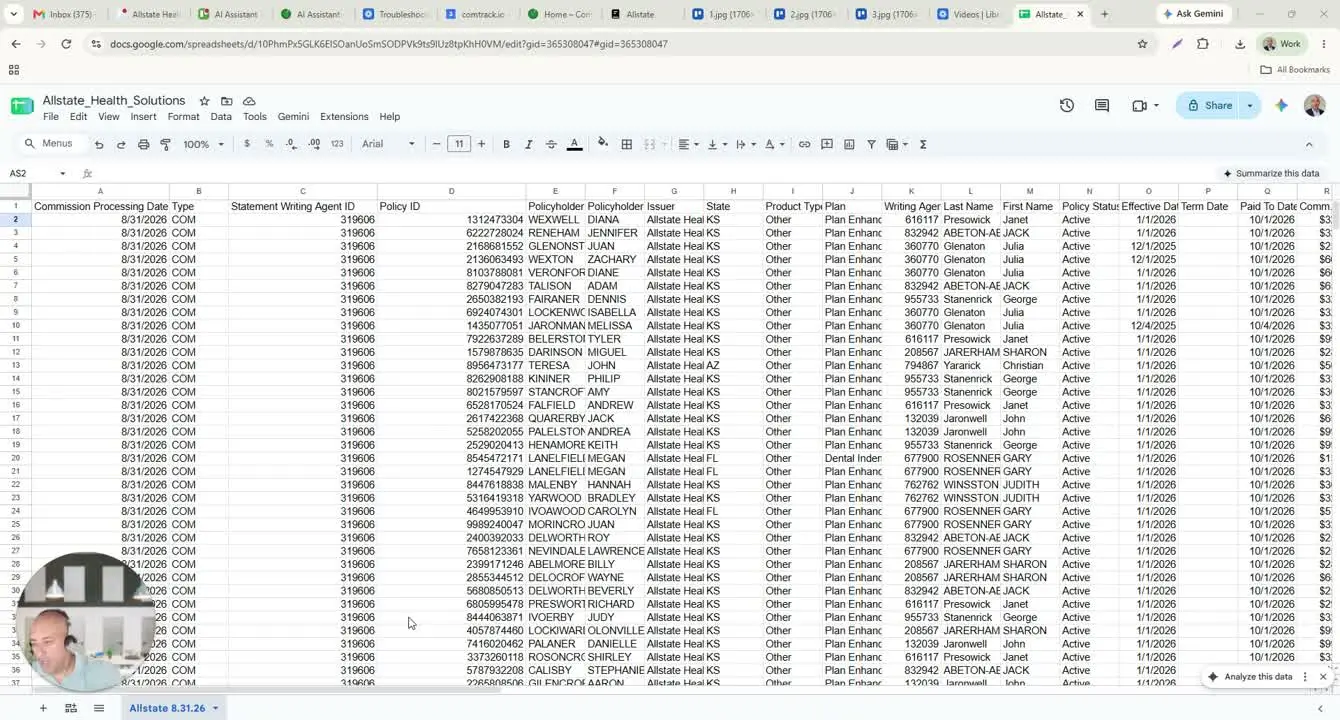
- Check the generation date / commission processing date to identify the statement cycle.
- Review the type column:
Com= commissionCBK= chargeback
- Confirm the statement writing agent ID, policy ID, and policy holder name.
- Review the issuer, state, product type, and plan name/form number to identify the policy details.
5. Review policy status and premium timing fields 1:53
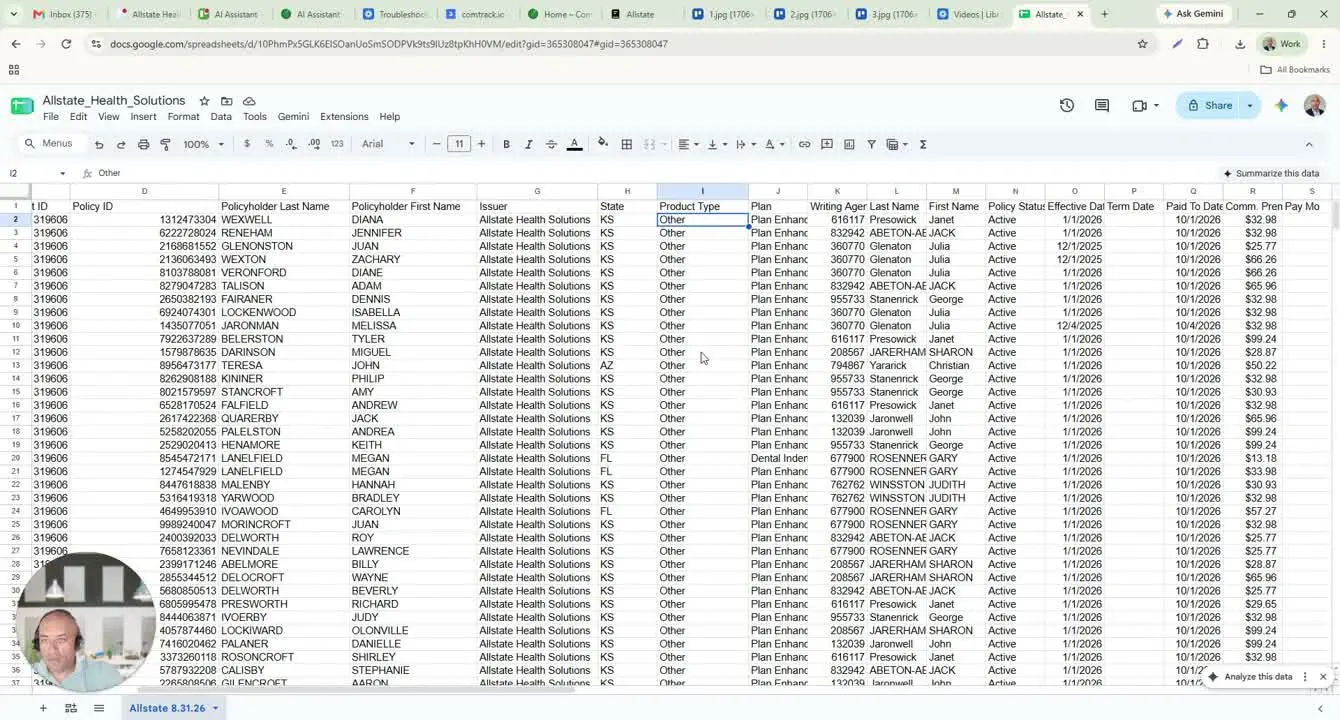
- Check the policy status to confirm whether the policy is active.
- Review the effective date to see when the policy started.
- Review the pay-to-date to confirm how far premiums have been paid through.
- Use these fields to identify active policies and spot terminated policies if they appear.
6. Review commission basis and payment schedule fields 2:43
- Check the commission premium to see the amount used to calculate commission.
- Note that this field may show a negative amount for reversals.
- Review pay-in-month to see how many months of premium are represented on the row.
- Check the pay schedule and pay code to understand the commission frequency and schedule applied.
- Review the commission rate to confirm the percentage used for the calculation.
7. Identify enrollment type, advances, and special commission fields 3:29
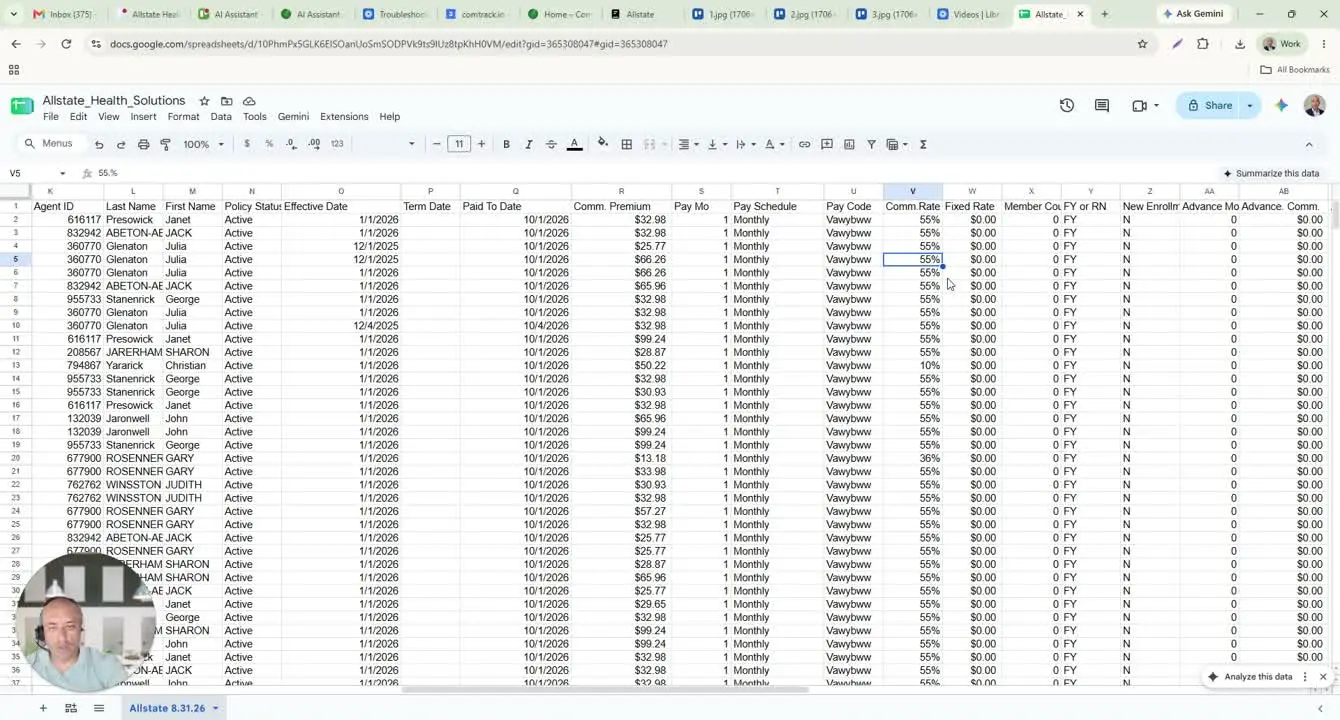
- Review member count for any member changes.
- Check whether the row is marked FY or RN to determine if it is first-year or renewal business.
- Review new enrollment:
- If marked Yes, the row may trigger an advance.
- Check advance month, advance commission, and advance fixed to identify any advance payment amounts.
- Review admin fee rate if present, though it may be zero or unused in some statements.
8. Review street-level and overwrite-level commission fields 4:41
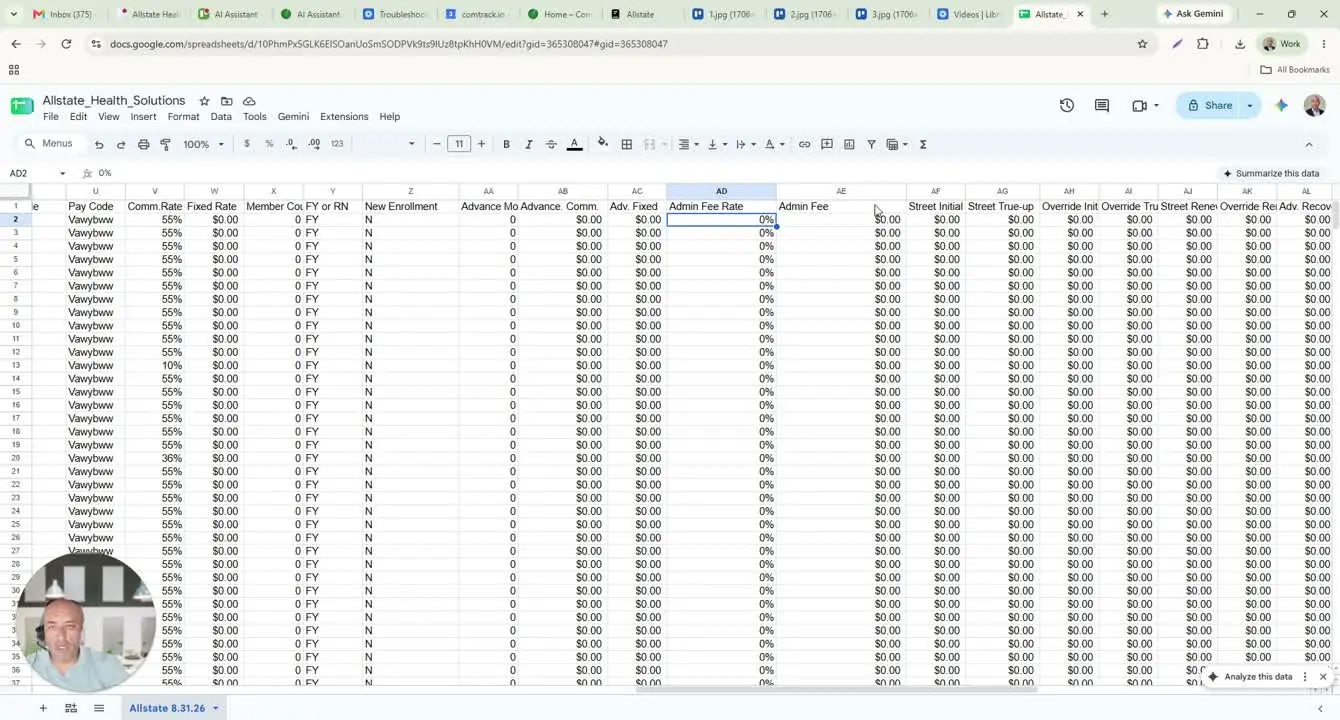
- Check the following fields for commission breakdowns:
- Street initial
- Overwrite initial
- Street renewal
- Overwrite renewal
- Use these fields to understand how the commission is split between initial and renewal activity at both street and overwrite levels.
- Compare the true-up fields where applicable to confirm final commission adjustments.
9. Review earned commissions, adjustments, and notes 5:09
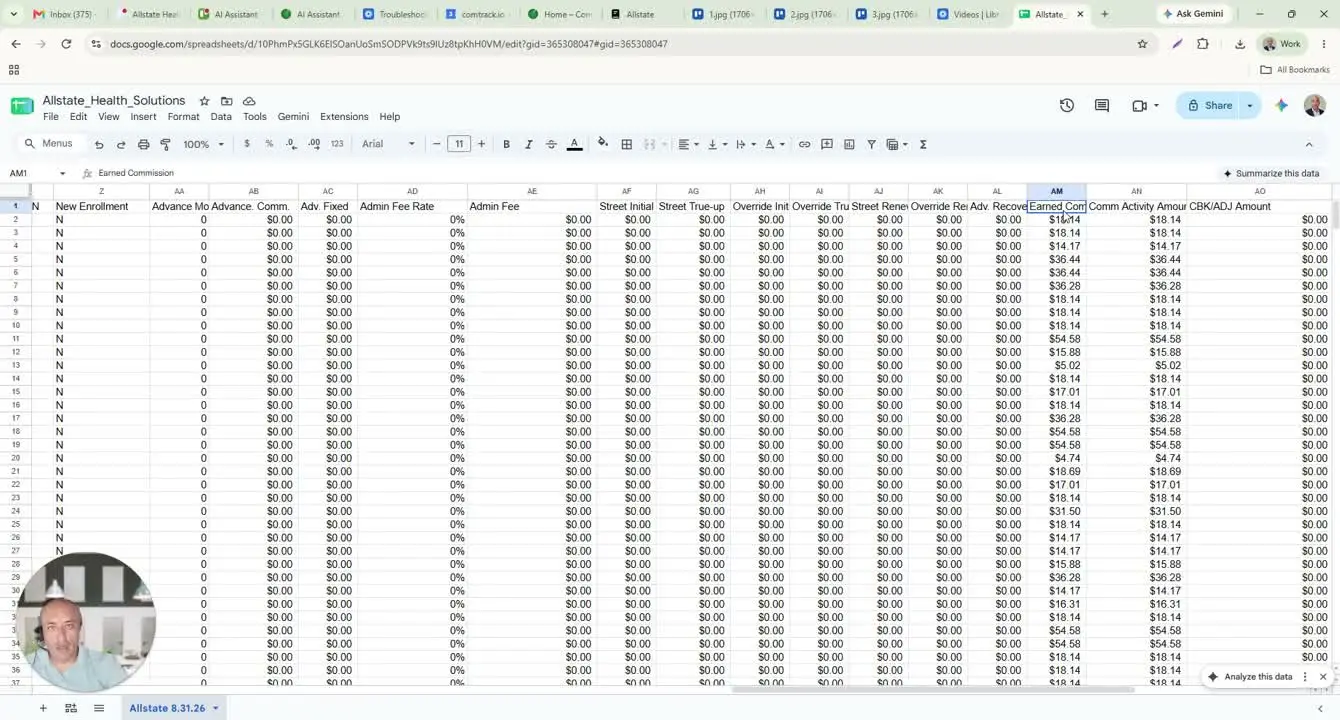
- Check earned commissions to see the commission amount being paid for the row.
- Review commission activity amount to see the earned commission plus any advance amounts.
- Look for adjustments or chargebacks if present.
- Review any remaining adjustment amounts and the associated notes/description fields.
- Check whether the adjustment applies to an advance or to the agent balance.
10. Import the downloaded statement into CommTrack 6:25
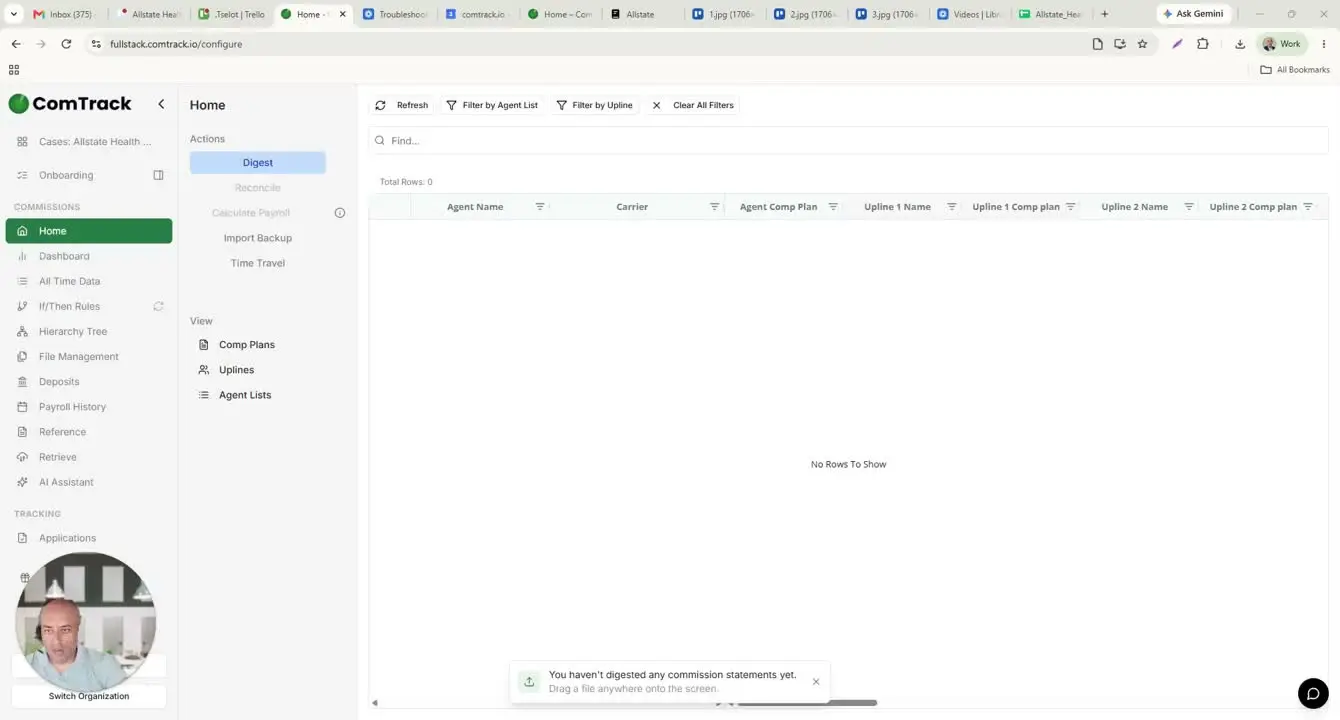
- Open CommTrack.
- Upload or drop the downloaded CSV statement into the system.
- Click Digest to process the file.
- When the confirmation appears, click OK to accept it.
11. Review the formatted statement in CommTrack 6:49
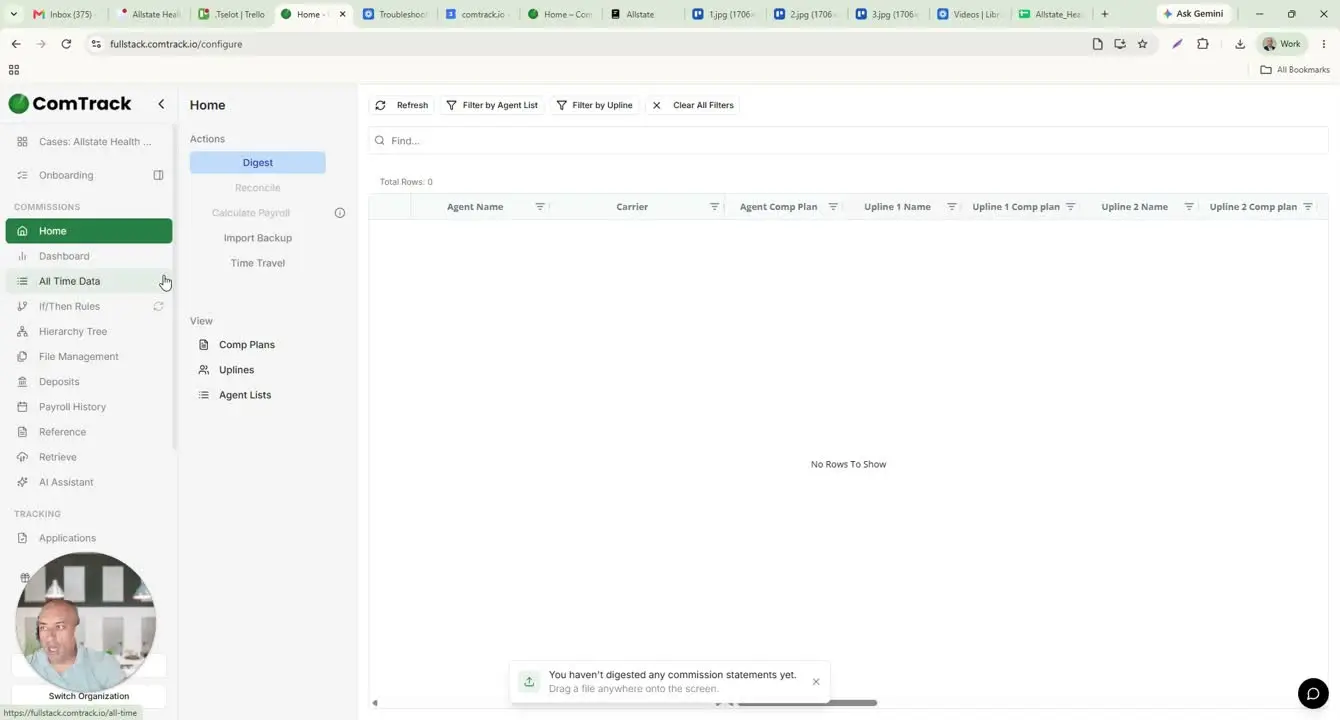
- Go to All Time Data in CommTrack.
- Review the formatted statement output.
- Confirm the organized fields, including:
- Agent name
- Carrier name
- Payment period
- Client full name
- First name / last name
- Effective date
- Premium
- Commission amount
- Use the total displayed at the top to verify commissions without manually summing rows.
Cautionary Notes
- Do not rely on the raw CSV alone if you need a quick summary; it contains many fields and can be difficult to interpret manually.
- Verify the statement month and processing date before using the data for reporting or reconciliation.
- Watch for negative values in commission premium or adjustment fields, as these may indicate reversals or chargebacks.
- New enrollment rows may trigger advances, so confirm whether the payment is an advance or earned commission.
- Use CommTrack totals carefully and confirm they match the statement period you intended to review.
Tips for Efficiency
- Use the statement processing date as your first checkpoint to confirm you opened the correct cycle.
- Focus first on the most important fields: policy ID, policy holder, effective date, premium, commission amount, and adjustments.
- Import the file into CommTrack whenever possible to avoid manual calculations.
- Use the All Time Data view in CommTrack for a cleaner, standardized summary.
- If reviewing multiple statements, process them one at a time to avoid mixing statement periods.