
Objective
This SOP explains how to review an FMED commission statement, identify the key fields in each tab, and verify how the same statement appears after being imported into ComTrack. It also outlines how to use ComTrack’s retrieve function to automate future statement collection.
Key Steps
1. Identify the statement tabs and overall structure 0:00
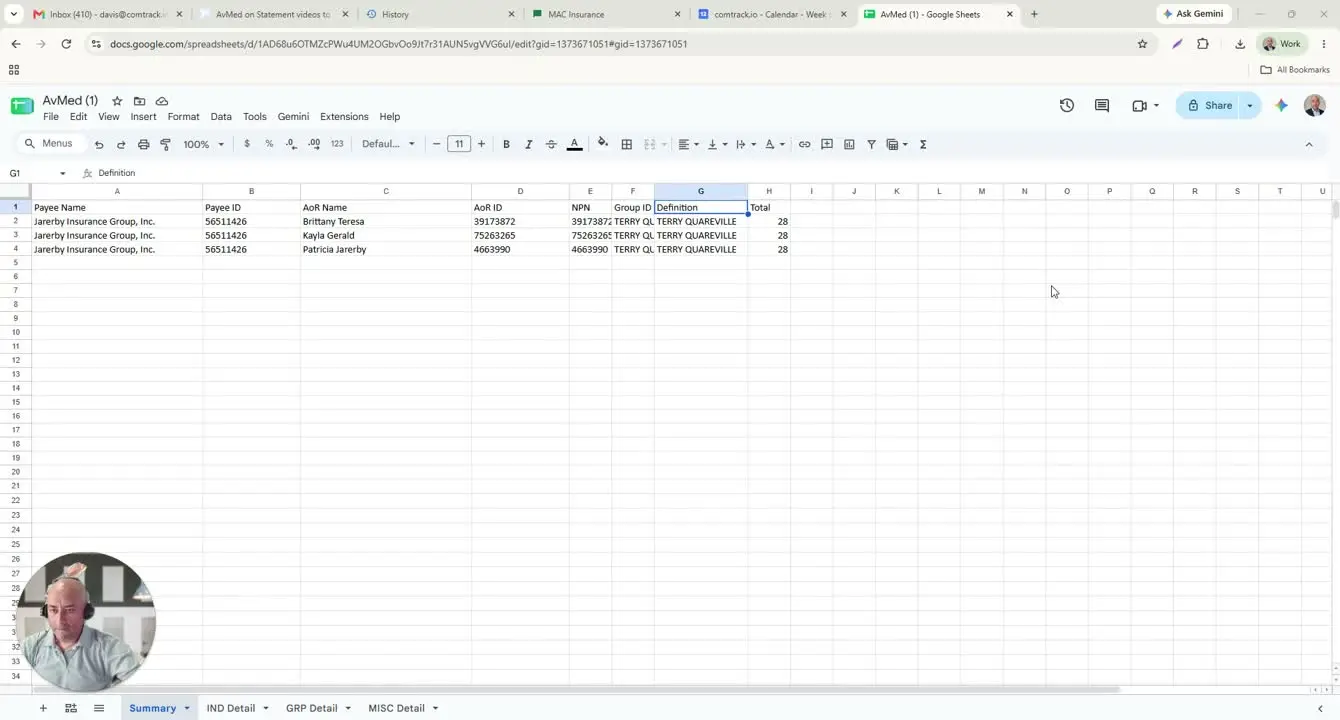
- Open the FMED Commission Statement and confirm it contains four tabs:
- Summary
- Individual Detail
- Group Detail
- Miscellaneous Detail
- Use the Summary tab to get a high-level view of the commission statement.
- Use the detail tabs to review the underlying transaction-level data.
2. Review the Summary tab fields 0:11
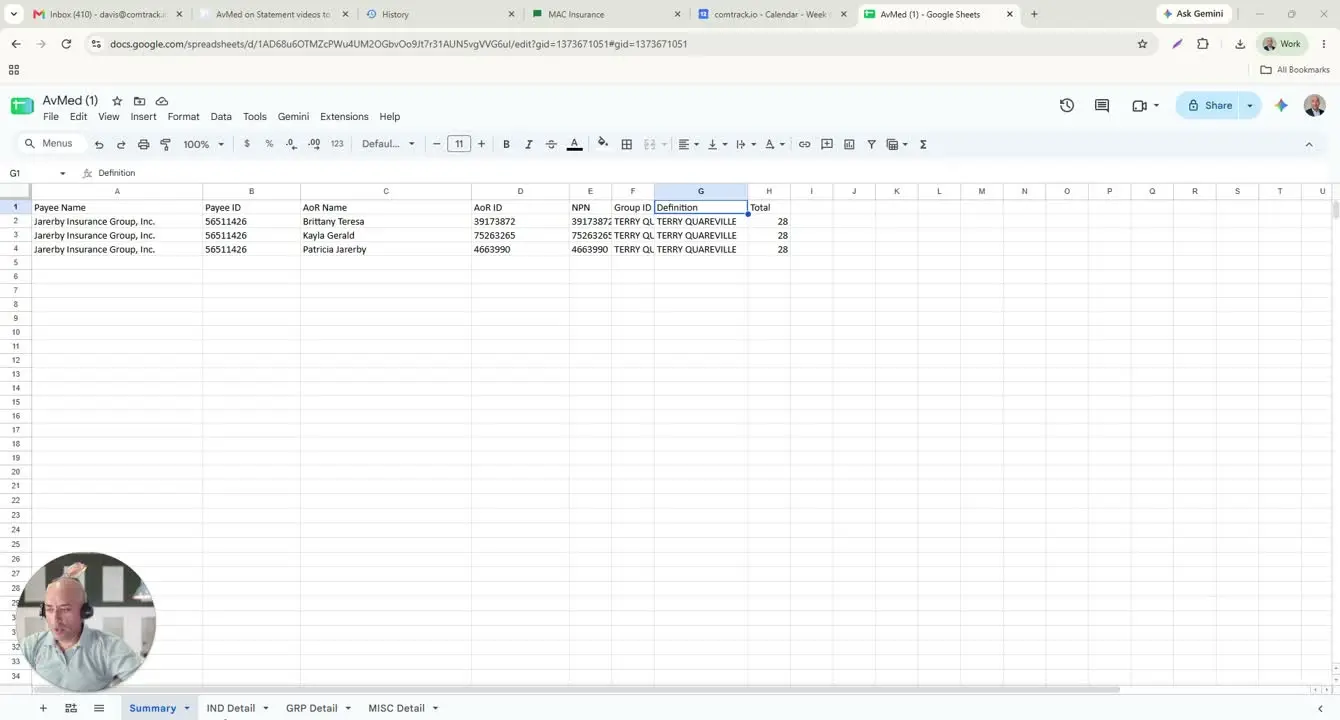
- Locate the key summary fields and confirm what each represents:
- Payee Name: the agency being paid
- Payee ID: the FMED payee ID number
- AOR Name: the Agent of Record
- AOR ID: the Agent of Record identifier
- NPN: often matches the AOR ID
- Group ID: the group identifier, which may appear as a name rather than a number
- Definition: the commission schedule arrangement or related grouping label
- Total: the total commission amount for the statement
- Use this tab to confirm the statement’s overall totals before drilling into details.
3. Confirm where the detailed commission data comes from 1:20
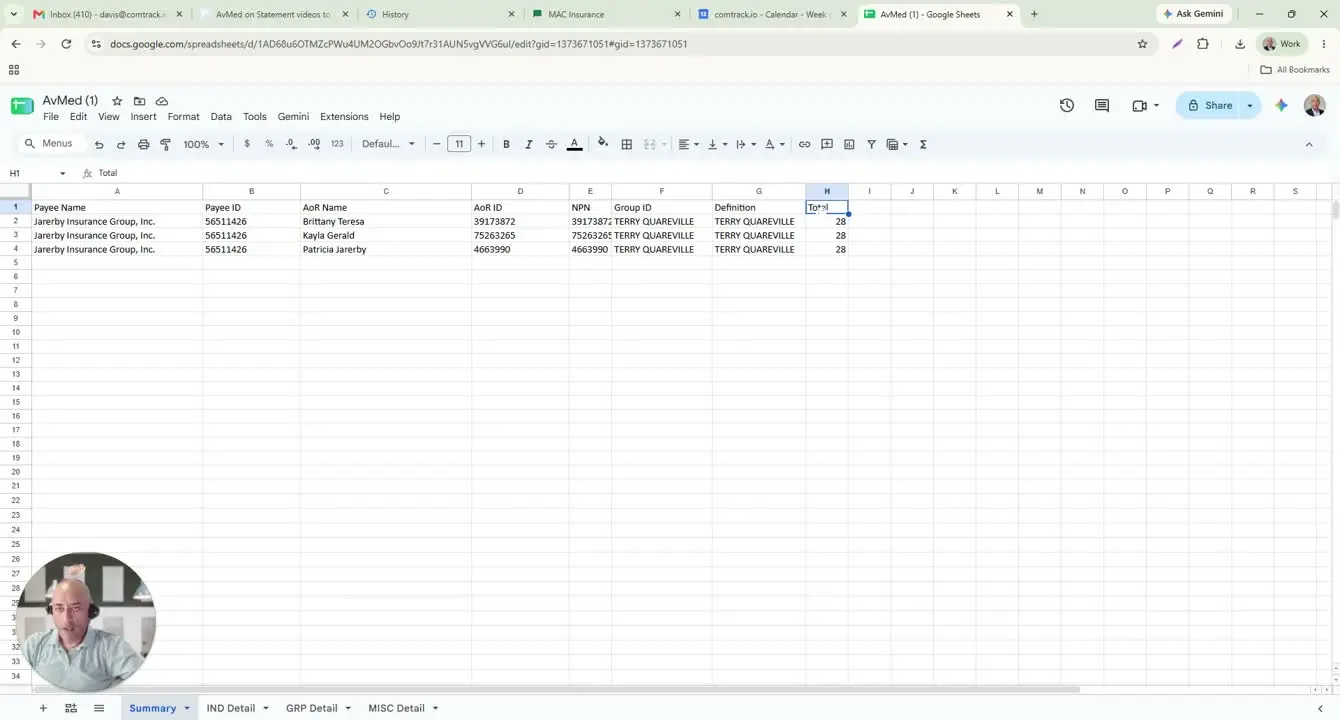
- Understand that the Summary tab is populated from the detailed records.
- In this example, the detailed values are coming from the Individual Detail tab.
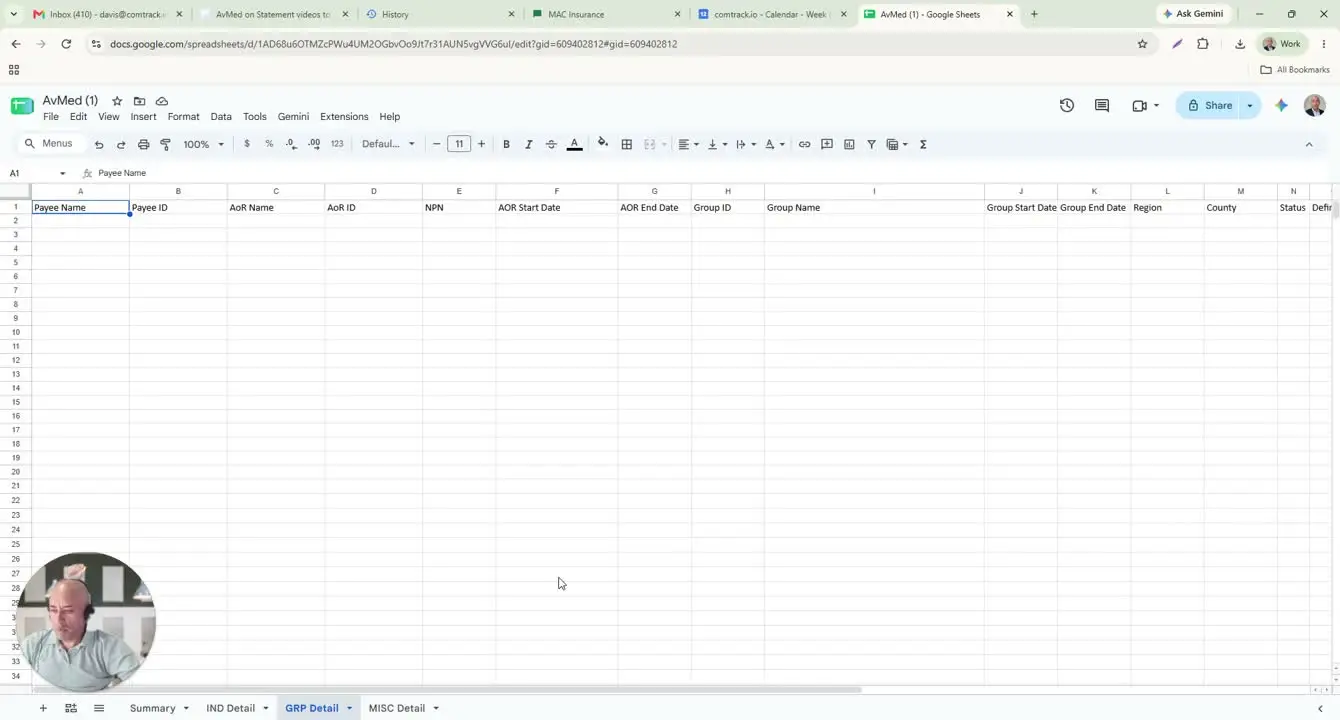
- Recognize that Group Detail and Miscellaneous Detail may be empty when the statement only contains individual policies.
4. Read the Individual Detail tab fields 1:41
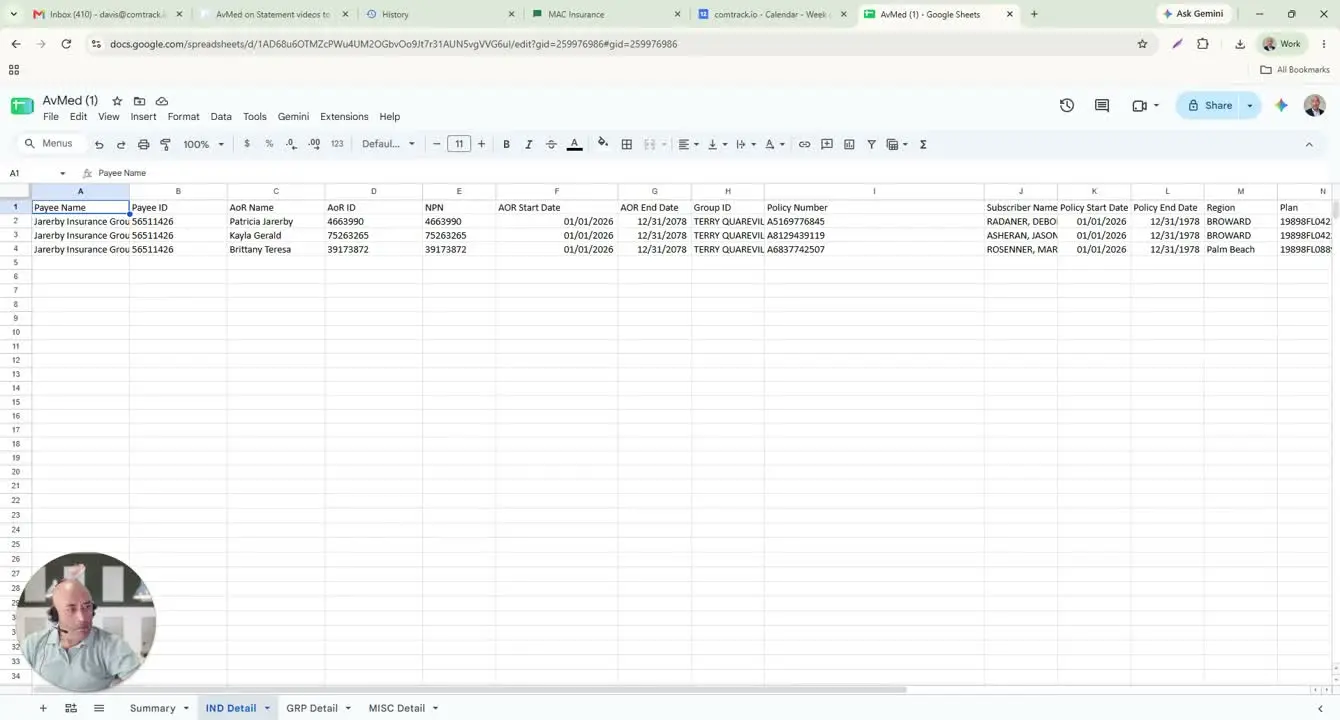
- Review each row as an individual policy commission record.
- Confirm the following fields:
- Payee Name / Payee ID: the agency receiving payment
- AOR Name / AOR ID: the agent credited for the policy
- AOR ID may match the NPN
- AOR Start Date: when the agent became the Agent of Record
- AOR End Date: when the agent stopped being the Agent of Record
- Group ID: the group or schedule applied to the policy
- Policy Number: the AvMed policy number
- Subscriber Name: the policyholder’s first and last name
- Policy Start Date: when the policy became effective
- Policy End Date: when the policy ended
- Region: the member’s county
- Plan: the federal plan / HIOS plan ID / plan code
- Status: the policy status code
- Definition: the commission arrangement label
- Premium Month: the month the premium is being paid for
- Statement Date: the date AvMed issued the statement
- Premium: the premium amount used to calculate commission
- Applied Rate: the commission rate applied
- Total: the commission amount for the row
5. Interpret the plan and commission calculation fields 3:10
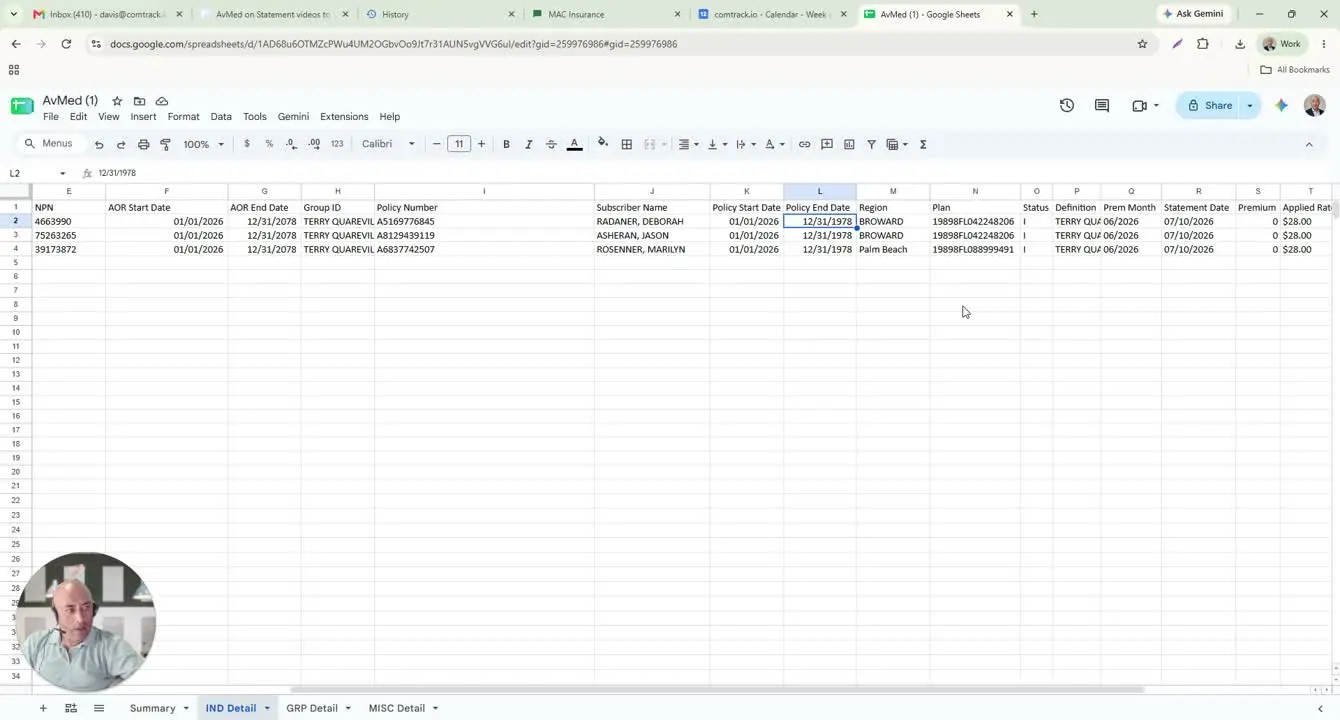
- Break down the Plan field into its components when needed:
- HIOS plan ID
- Issuer ID
- State identifier (Florida)
- Plan code
- Check the Premium field to see whether commission is based on premium or a flat amount.
- If the premium shows zero, verify whether the commission is instead based on a flat dollar amount per policy.
- Confirm the Applied Rate and Total for each row to ensure the commission calculation is understood correctly.
6. Download or access the statement for review 4:36
- Use the statement downloaded from the portal or received by email.
- Open the file in a format that can be imported into ComTrack.
- Prepare to compare the raw statement against the processed version inside ComTrack.
7. Import the statement into ComTrack using Digest 4:51
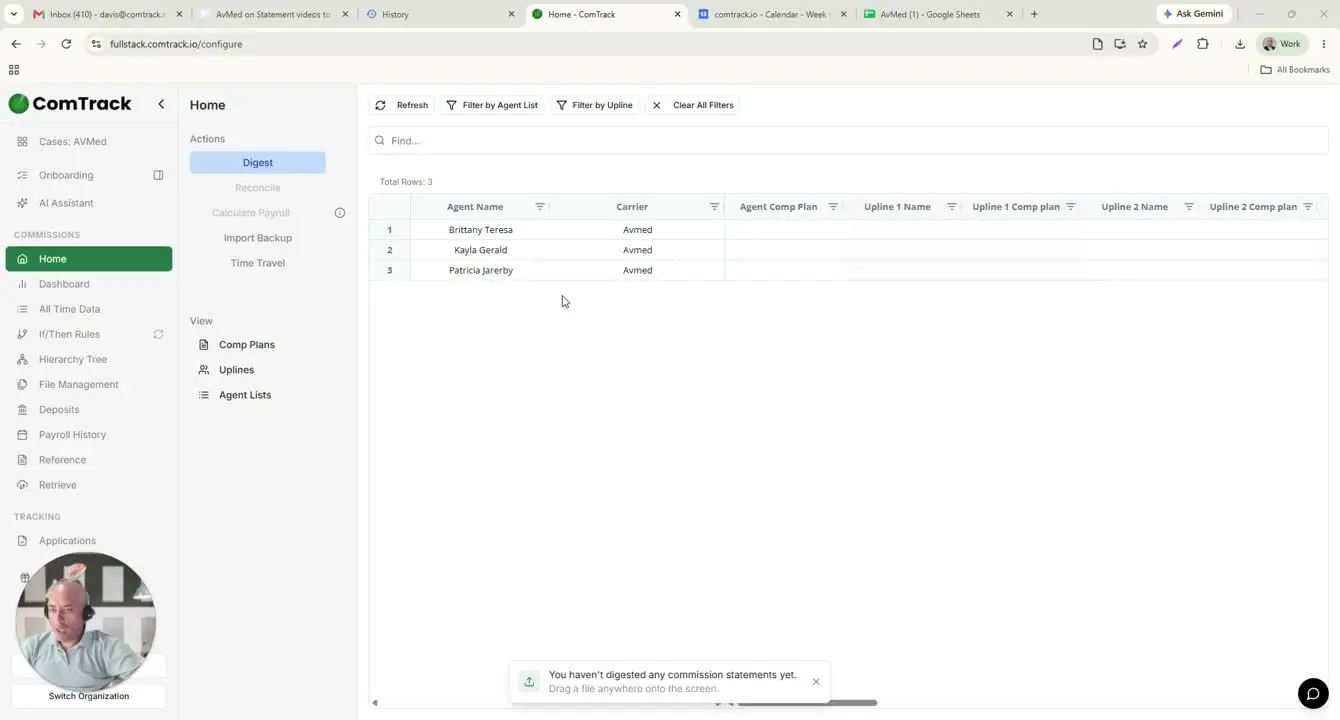
- Drop the exact same commission statement into ComTrack.
- Click Digest to process the file.
- Confirm the system successfully reads the statement.
- Select OK when prompted to proceed.
- Use the processed output to review the statement in a cleaner, standardized format.
8. Use ComTrack retrieve to automate statement collection 5:23
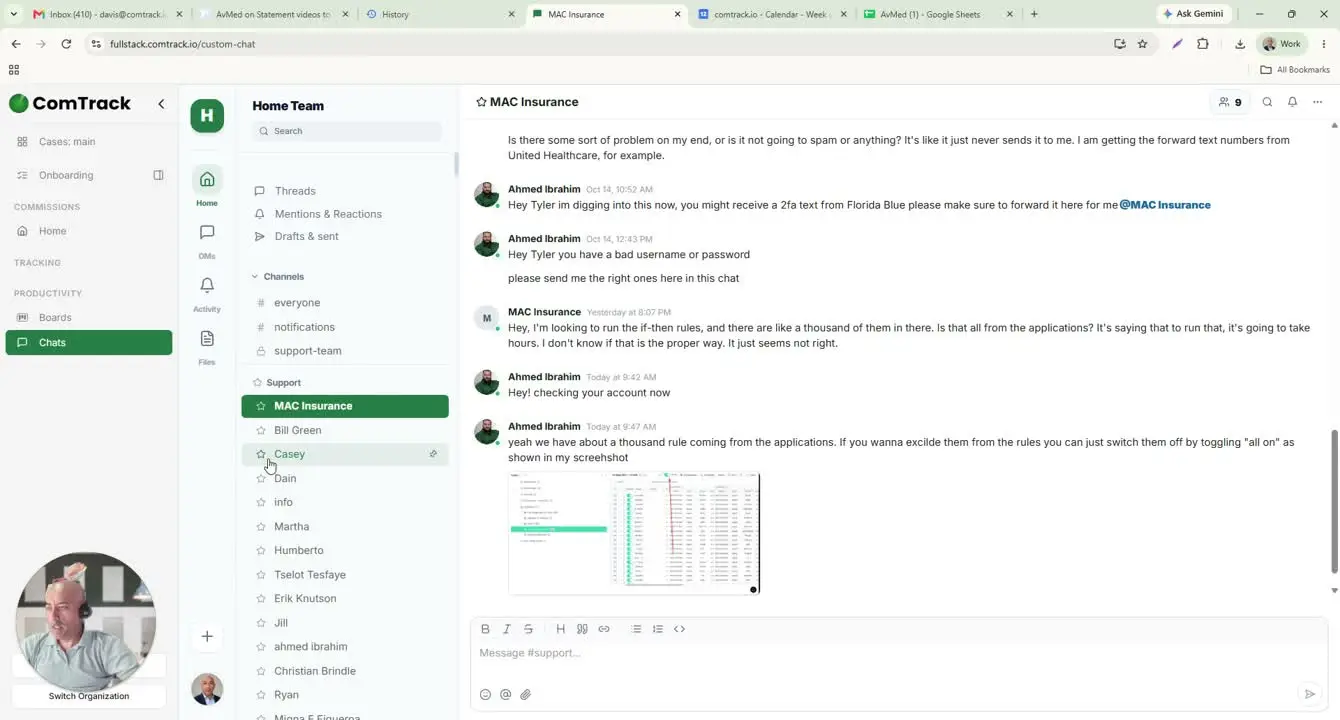
- Set up the Retrieve function in ComTrack if you want to avoid manual downloads.
- Enter the carrier or FMO username and password one time and save the credentials.
- Allow ComTrack to pull commission statements directly from the carrier portals.
- Use this feature to reduce manual work and centralize statement collection.
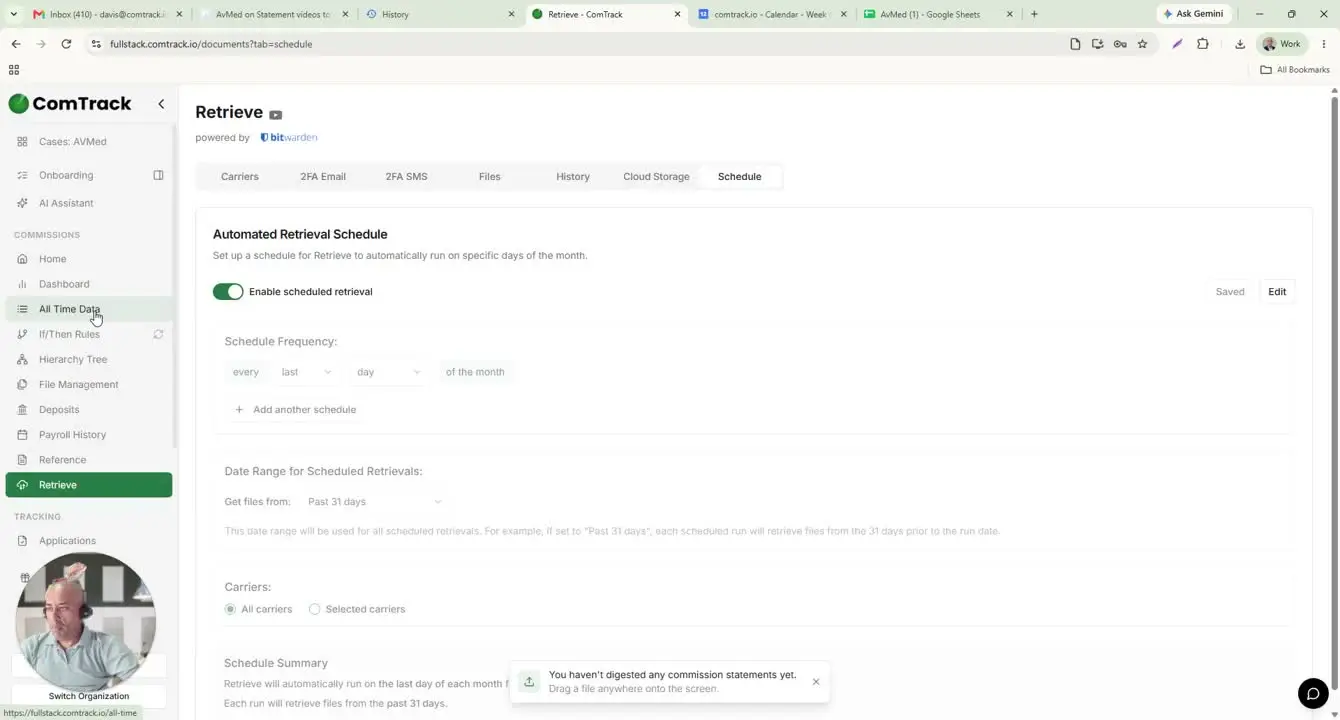
9. Schedule automated retrievals when needed 6:15
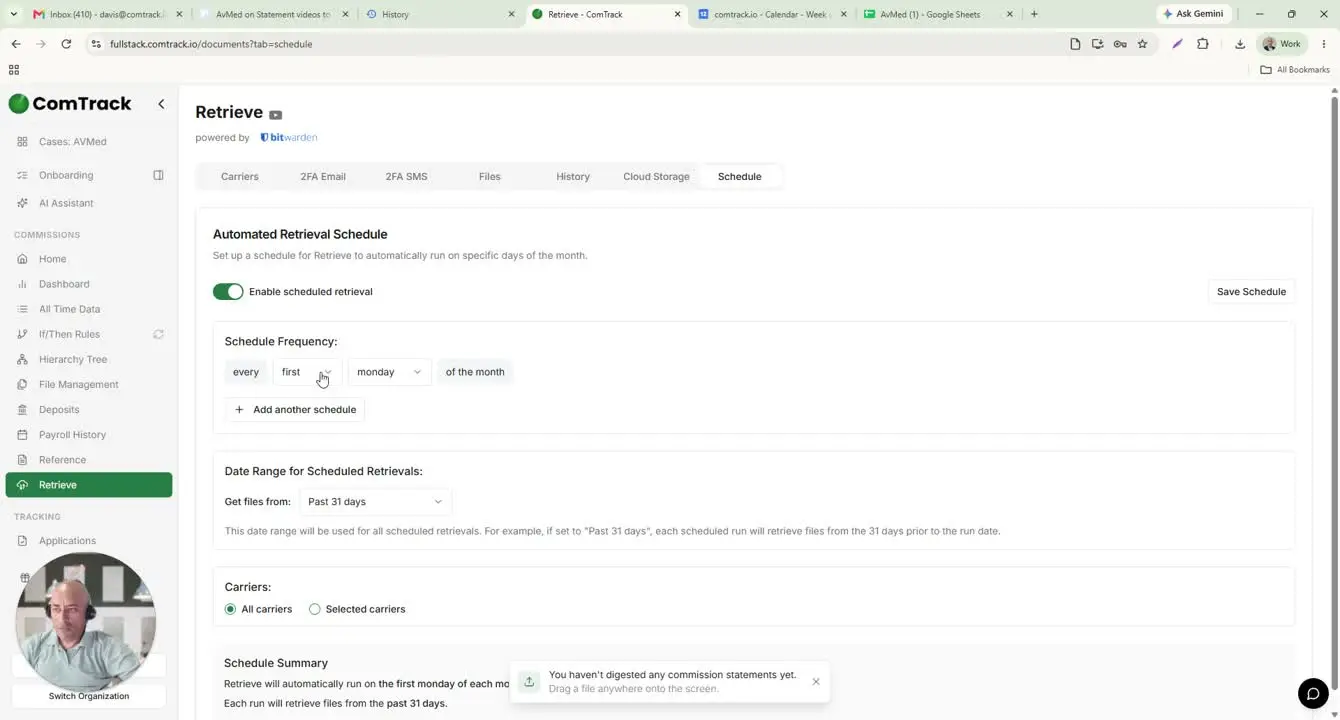
- Create a retrieval schedule if you want ComTrack to run automatically.
- Choose the frequency and date range that fits your workflow, such as:
- Every last day of the month
- Past 14 days
- Past 31 days
- Past 90 days
- Save the schedule so ComTrack continues retrieving statements automatically.
10. Review the ComTrack-organized output 6:35
- Verify how ComTrack organizes the statement data into readable columns.
- Confirm the key output fields:
- Agent name
- Carrier
- Payment period
- Client full name in first-name/last-name format
- Effective date
- Premium, if applicable
- Flat amount, if applicable
- Total commission
- Classification for each commission received
- Use this view to quickly validate and analyze commissions without manually interpreting the raw statement.
Cautionary Notes
- Do not assume every tab will contain data; Group Detail and Miscellaneous Detail may be blank depending on the statement type.
- Verify whether commission is premium-based or flat-rate-based before calculating totals.
- Confirm that the AOR ID and NPN match only when applicable; do not rely on this without checking the statement.
- Use the correct statement file when importing into ComTrack to avoid processing the wrong period or carrier.
- Protect login credentials used for Retrieve and only store them in approved systems.
Tips for Efficiency
- Use the Summary tab first to get a quick overview before reviewing row-level details.
- In ComTrack, use Retrieve instead of manual downloads whenever possible to save time.
- Set up scheduled retrievals for recurring carrier statements to reduce repetitive work.
- Standardize your review process by checking the same fields in the same order for every statement.
- Use the ComTrack output to quickly identify commission totals, payment periods, and classifications without manually sorting raw data.