
Objective
This SOP explains how to download an Oscar Health commission statement, interpret the key fields in the Excel file, and compare the raw statement to the simplified view in ComTrack. It is designed to help a team member quickly locate commission data, understand what each column means, and identify totals and payment details accurately.
Key Steps
1. Access the Oscar commissions portal 0:00
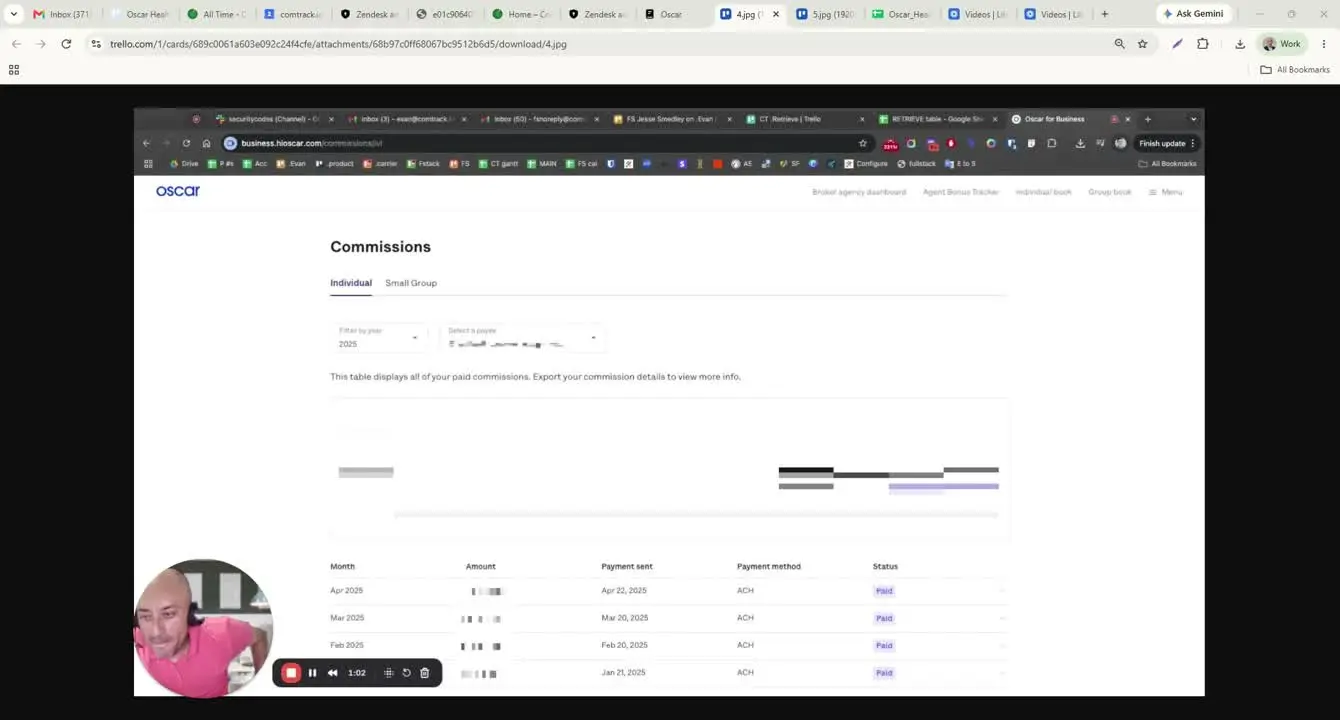
- Open the Oscar Health business portal at
business.hioscar.com. - Navigate to the Commissions tab.
- Use this area to access downloadable commission statements for ACA Marketplace plans.
2. Download the correct monthly statement 0:14
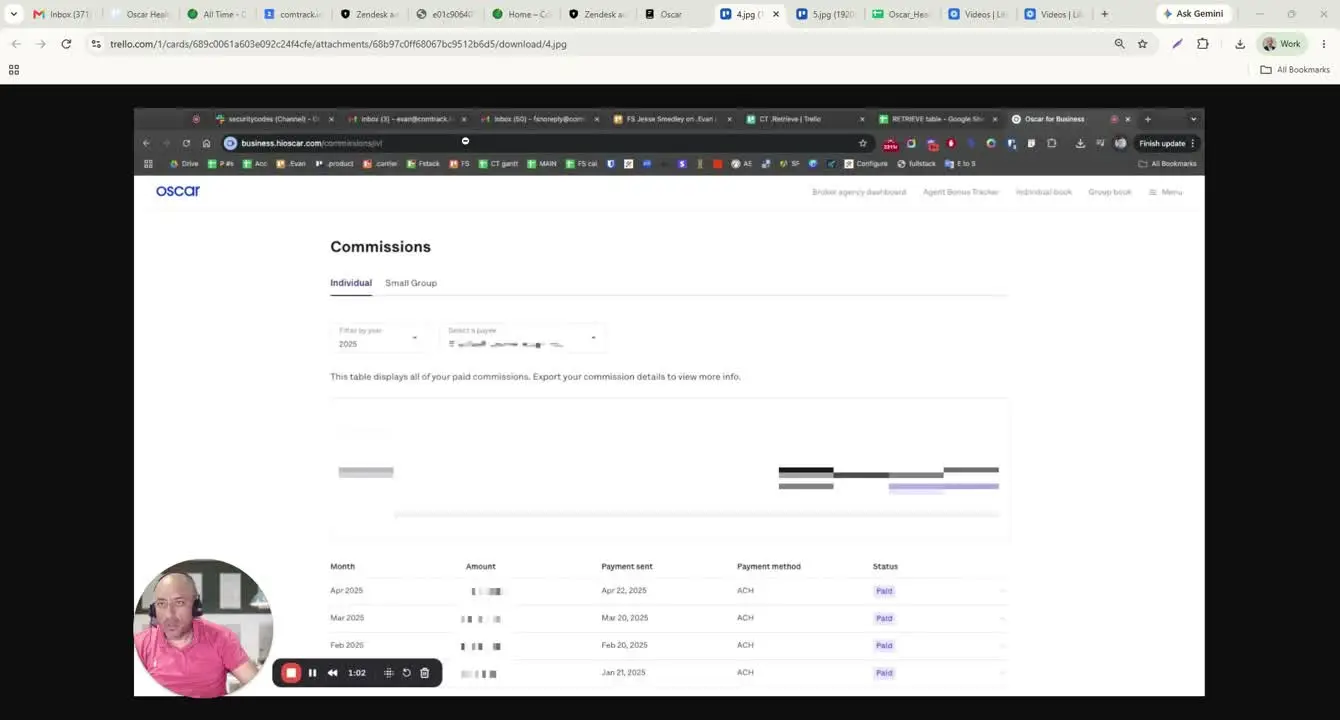
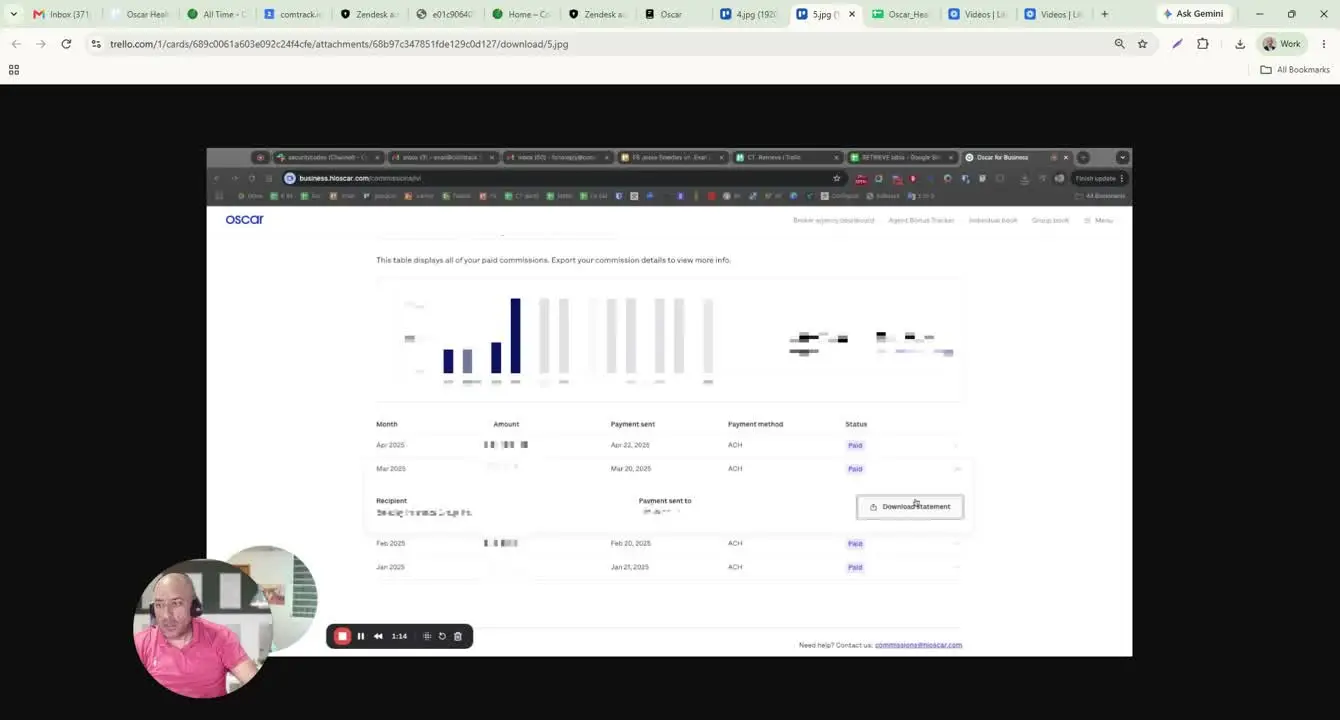
- Locate the month you need to review.
- Click Download Statement to export the commission statement.
- Save the file as an Excel spreadsheet for review and recordkeeping.
3. Identify the statement structure 0:26
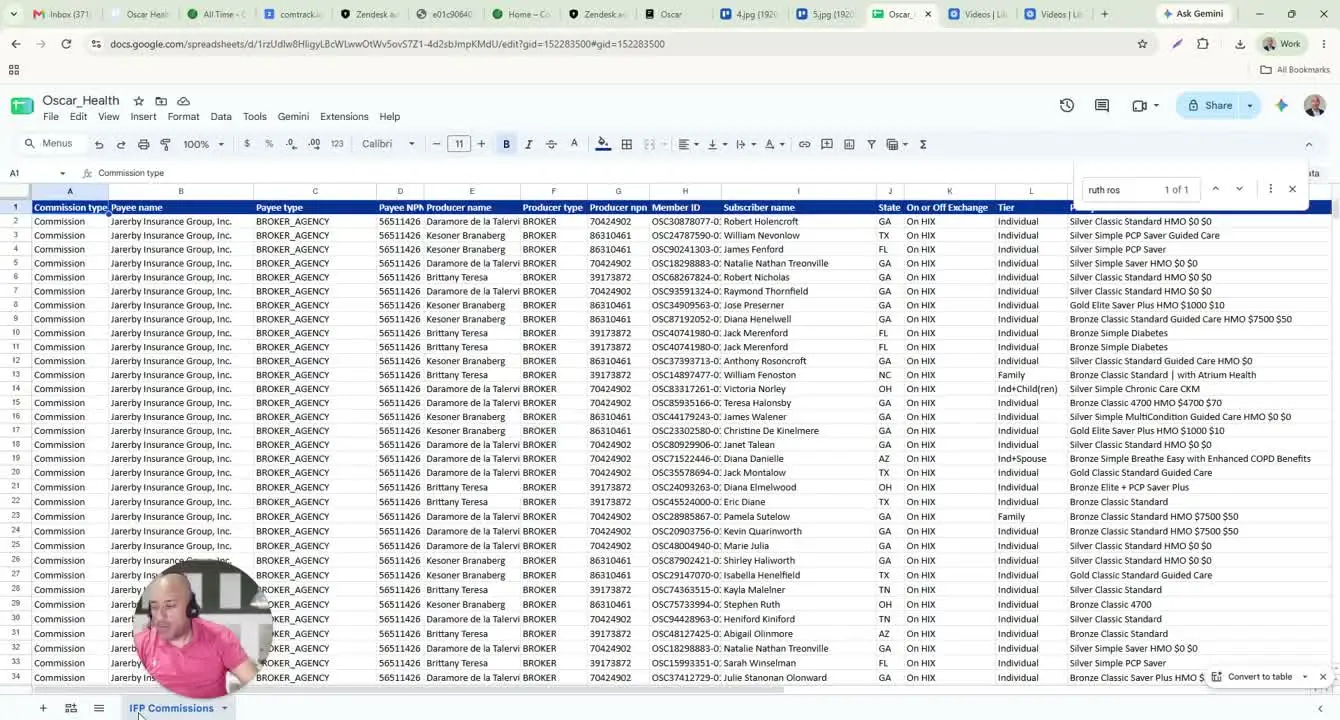
- Open the downloaded Excel file.
- Confirm that the report contains a single tab for IFP commissions.
- Note that this statement is not split into multiple tabs; all commission data appears in one worksheet.
4. Review the commission and payee fields 0:44
- Check the Commission Type field.
- If the payment is a standard commission, it will show as commission.
- If it is a reversal, it may show as chargeback.
- Review the payee-related columns:
- Pay Name
- Pay Type
- Pay NPN
- These fields identify the agency or entity receiving payment.
5. Review producer and member details 1:09
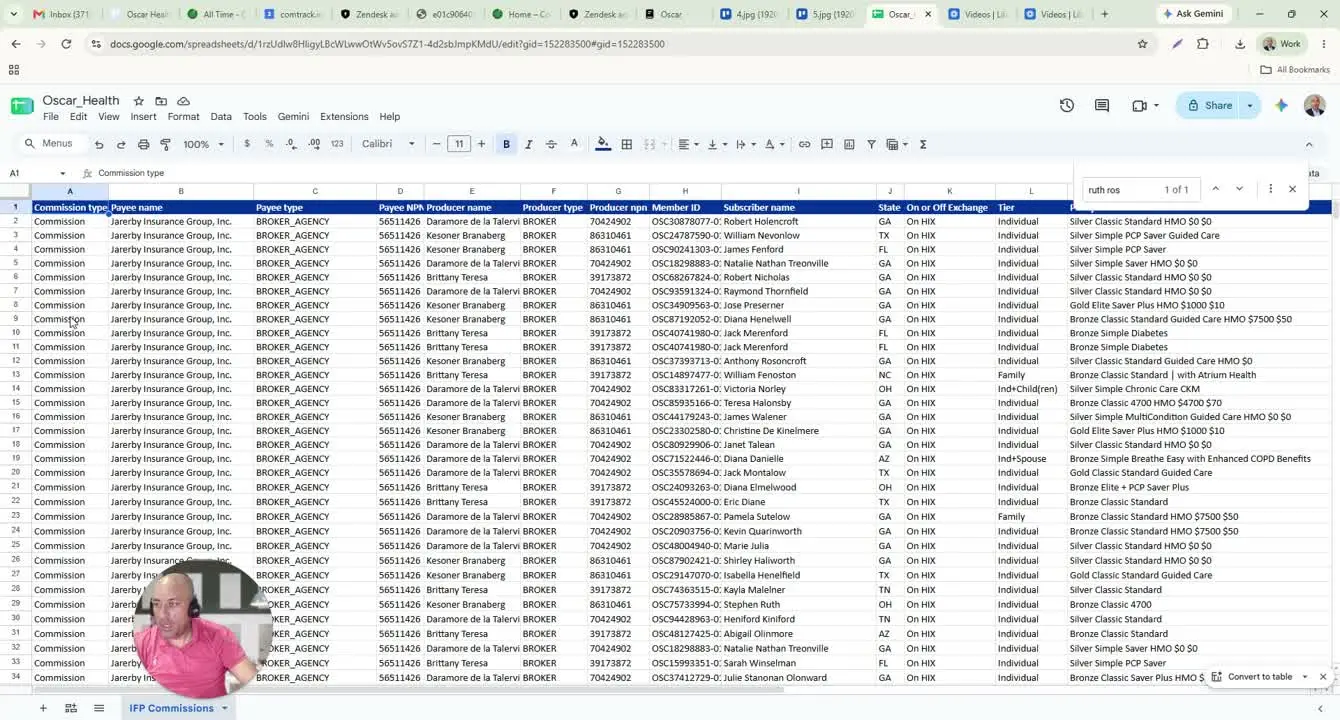
- Review the producer-related columns:
- Producer Name
- Producer Type
- Producer NPN
- These fields identify the agent or agency that wrote the enrollment.
- Review the member-related columns:
- Member ID
- Subscriber Name
- State
- These fields identify the enrolled member and the state tied to the policy.
6. Interpret policy and coverage information 1:41
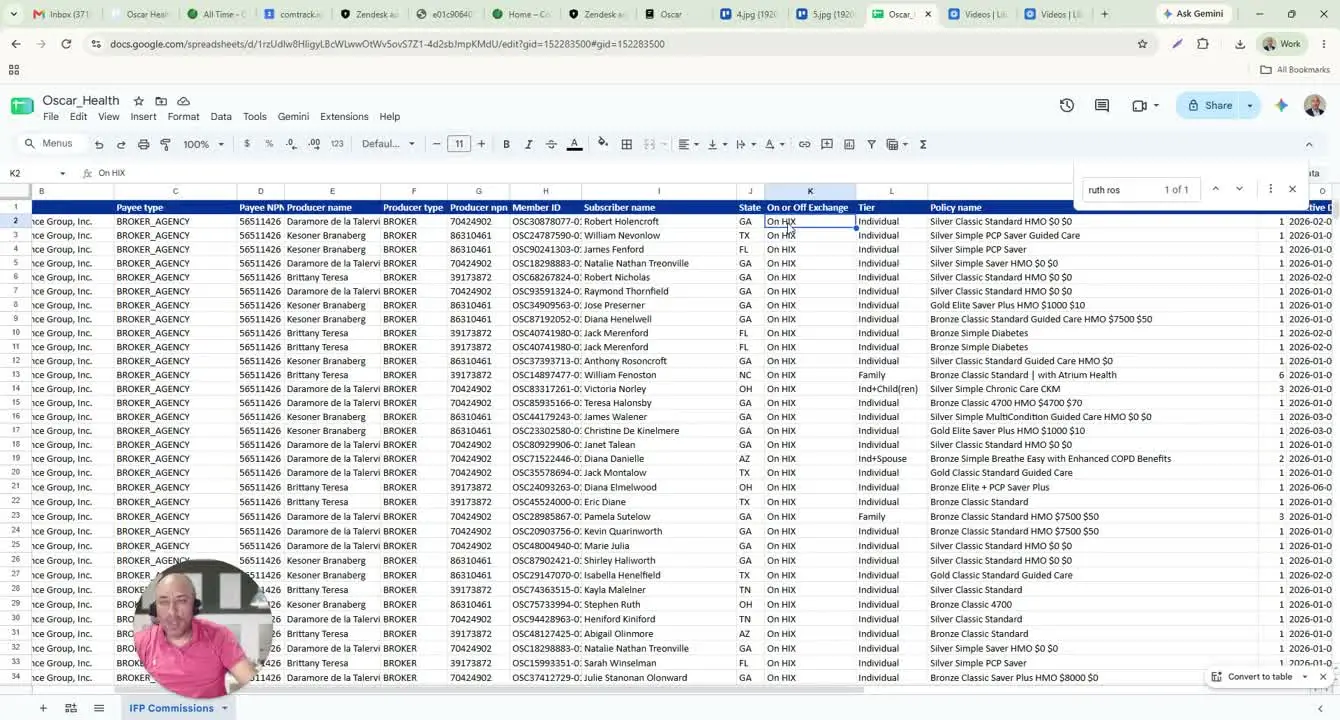
- Review the HIX field to identify the ACA Marketplace policy.
- Review the Tier field to determine coverage type:
- Individual
- Family
- Individual + Children
- Review the plan name and metal level, such as:
- Gold
- Silver
- Bronze
- Check the Lives column to see how many members are covered under the policy.
7. Calculate commission based on state and lives 2:17
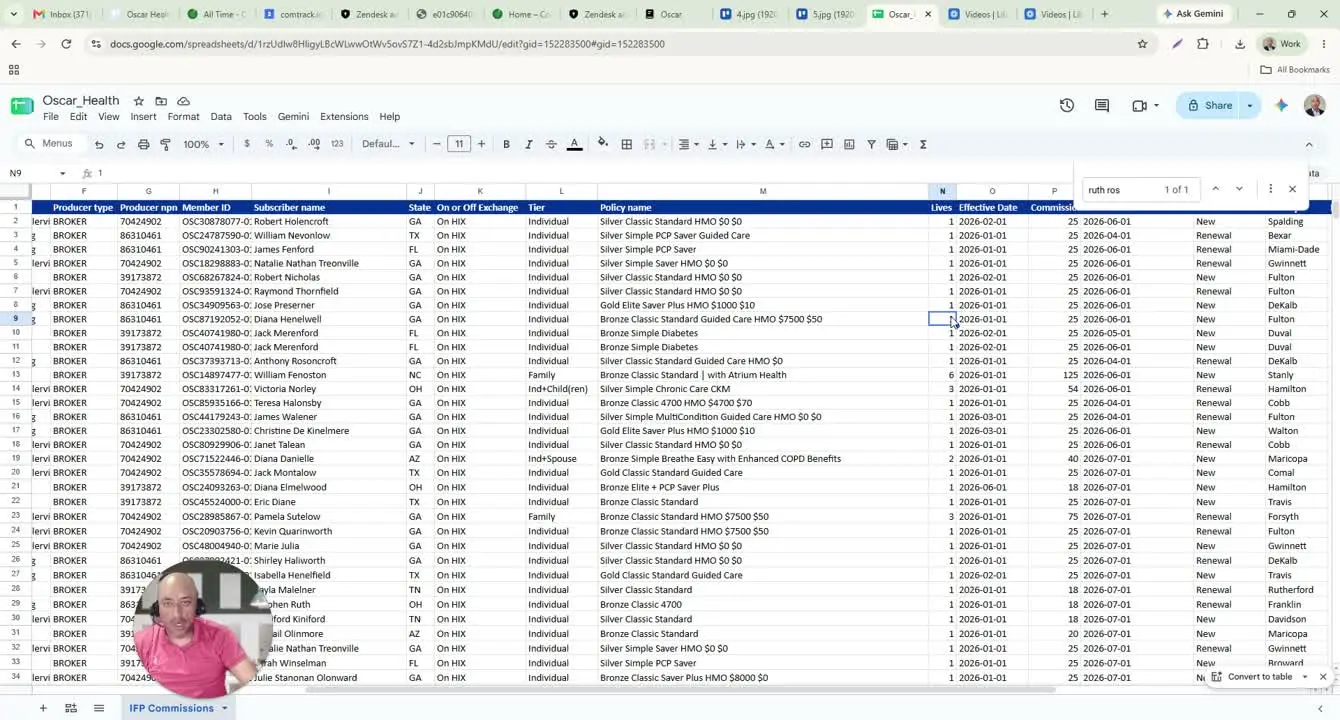
- Use the State field to determine the applicable commission rate.
- Multiply the per-life rate by the number of covered lives.
- Example:
- 1 life at $25 = $25 commission
- 6 lives at $25 = $125 commission
- 2 lives at $20 = $40 commission
- Remember that commission rates vary by state.
8. Review payment month, renewal status, and block reason 3:10
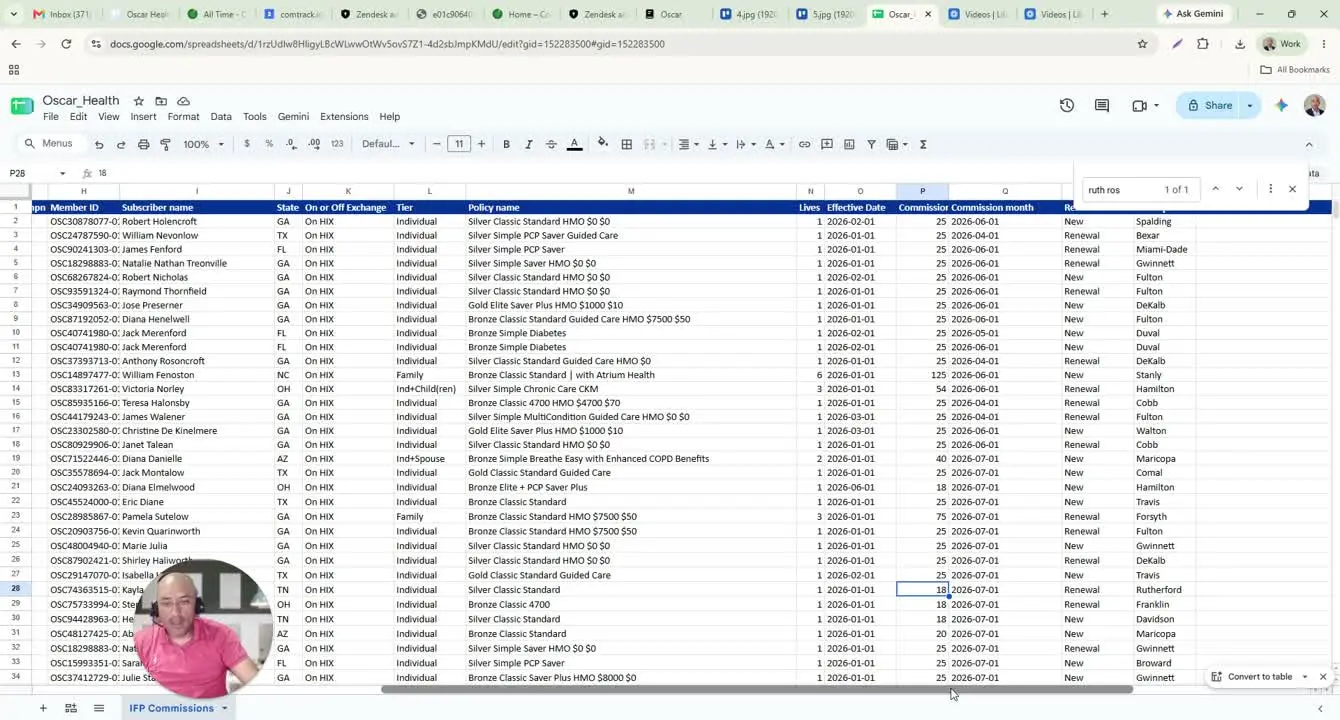
- Check the Commission Month to confirm the coverage month tied to the payment.
- Review Renewal Status to determine whether the payment is for:
- A new policy
- A renewal
- Review the County field if needed for location context.
- Check Block Reason to understand why a commission may not be paid.
- Example: the client stopped paying the bill.
- Other block reasons may also apply.
9. Use ComTrack to simplify the statement 4:03
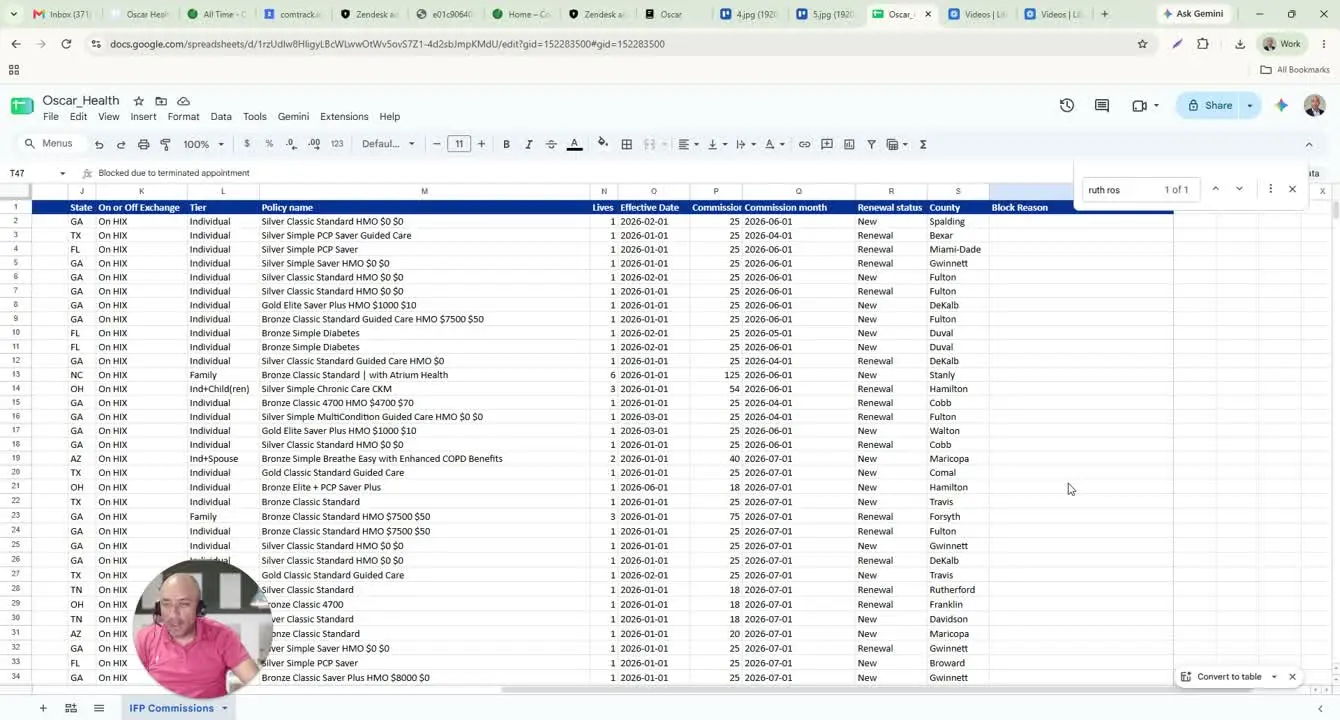
- If the raw Oscar statement is difficult to read, upload the same commission statement into ComTrack.
- Allow ComTrack to process and format the file.
- Use ComTrack when you need a cleaner, easier-to-read summary of the statement.
10. Confirm the formatted output in ComTrack 4:36
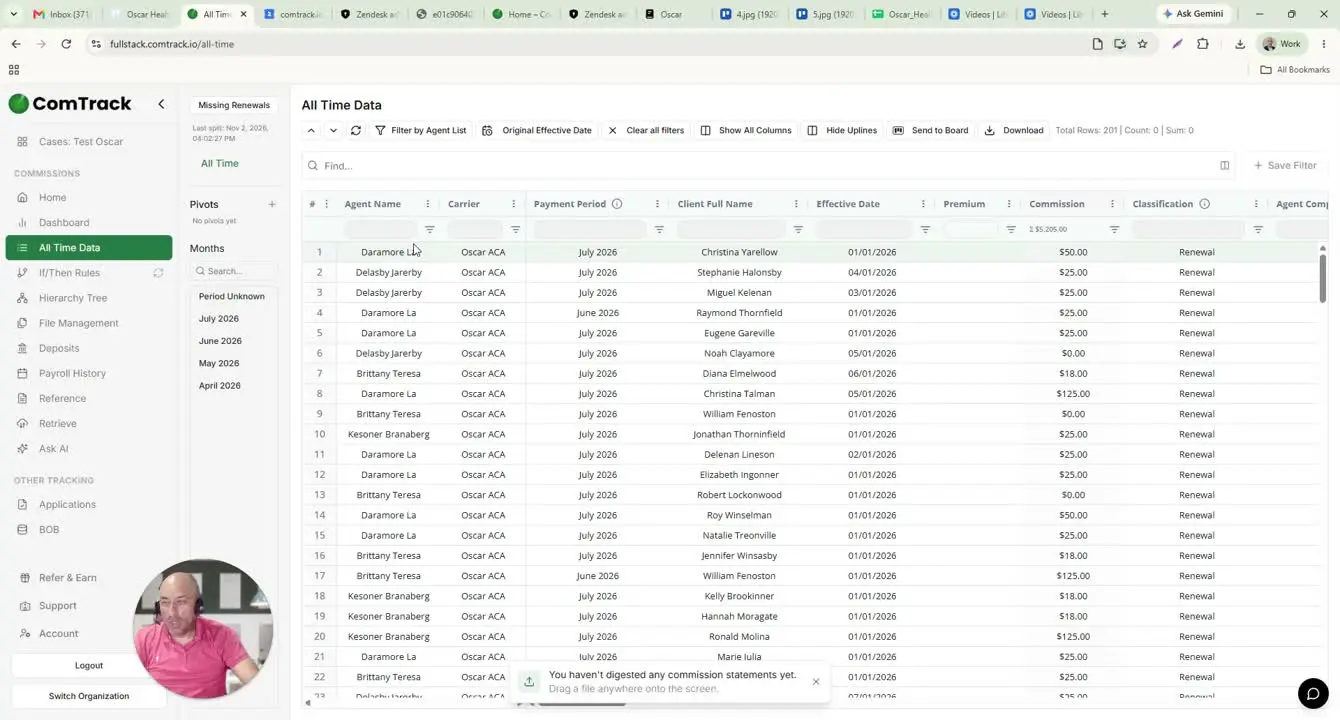
- Verify that ComTrack displays the data in a simplified format.
- Confirm the following fields are visible and organized clearly:
- Agent name
- Carrier
- Payment period
- Client full name
- Effective date
- Commission amounts
- Total commission at the top
- Use this view for faster review and easier reporting.
11. Compare totals between Oscar and ComTrack 5:15
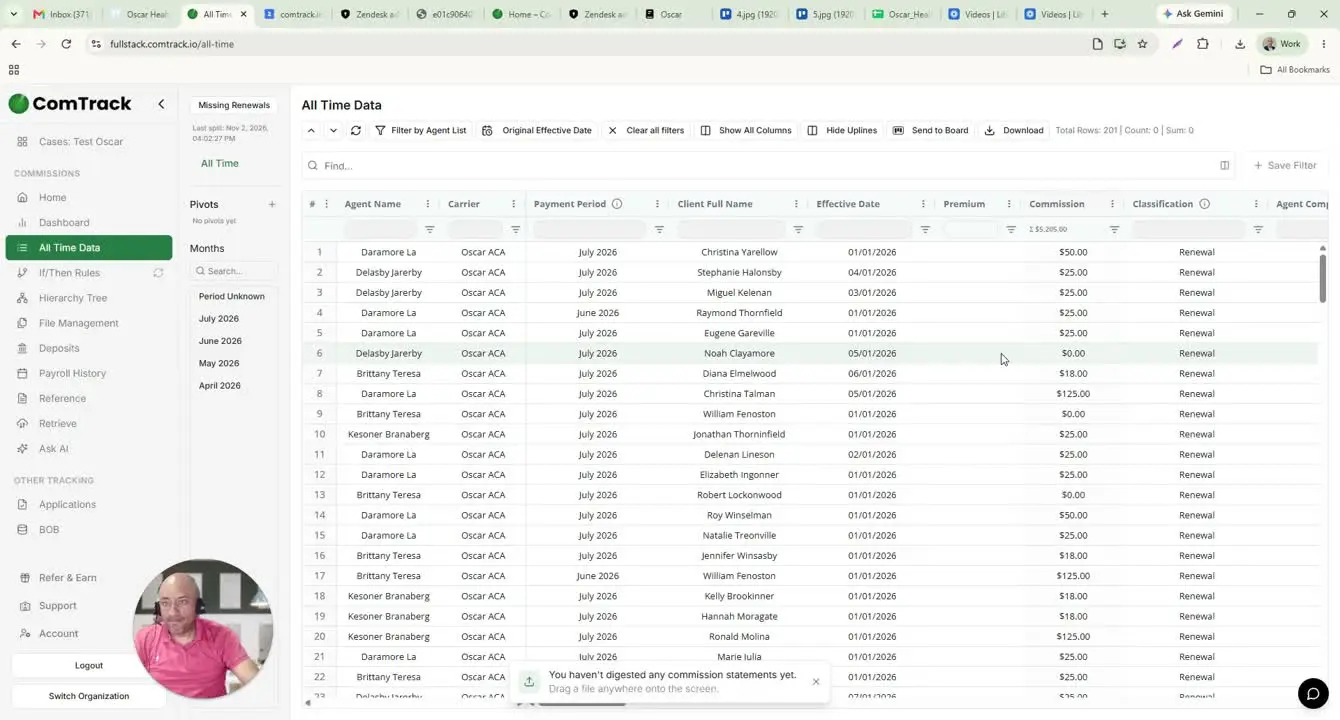
- Note that the Oscar statement lists individual commissions but does not provide a total.
- If using the raw Oscar file, calculate totals manually or with a spreadsheet formula.
- In ComTrack, use the built-in commission total shown at the top for quicker reconciliation.
Cautionary Notes
- State matters: commission rates vary by state, so do not assume the same rate applies to every policy.
- Lives matter: the number of covered lives directly affects the commission amount.
- Chargebacks are different from commissions: always verify the commission type before calculating or reporting payment.
- Block reasons indicate payment issues: if a commission is missing or reduced, check the block reason before escalating.
- Oscar files do not show a total automatically: totals must be calculated manually unless using ComTrack.
Tips for Efficiency
- Download the statement immediately after locating the correct month to avoid working from the wrong file.
- Use ComTrack when you need a faster, cleaner summary instead of manually reading the raw Excel statement.
- Keep a simple checklist for each statement review: commission type, payee, producer, member, state, lives, month, renewal status, and block reason.
- When reviewing multiple policies, sort or filter by state to quickly confirm the correct commission rate.
- Use spreadsheet formulas for manual totals if you are not using ComTrack.