
Objective
This SOP explains how to locate, download, and interpret an Elevents Anthem commission statement from the portal. It also outlines an optional automated method for retrieving statements through Retrieve to save time and centralize commission data.
Key Steps
1. Log in to the Elevents Anthem portal and open Book a Business 0:00
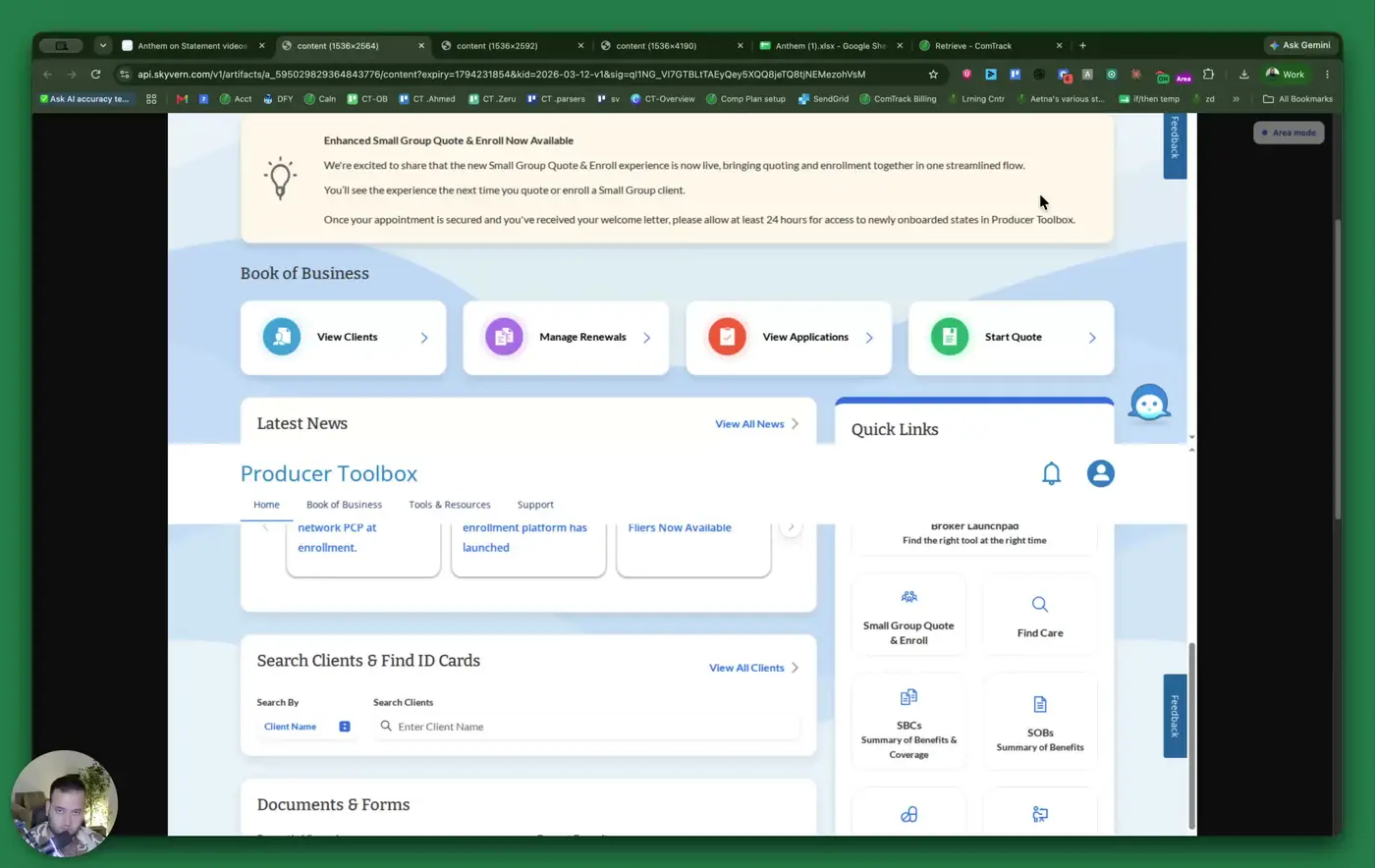
- Sign in to the Elevents Anthem portal.
- From the homepage, select Book a Business.
- Confirm you are on the page that displays charts, bars, and payment-period information.
2. Find the correct payment period and expand the month 0:20
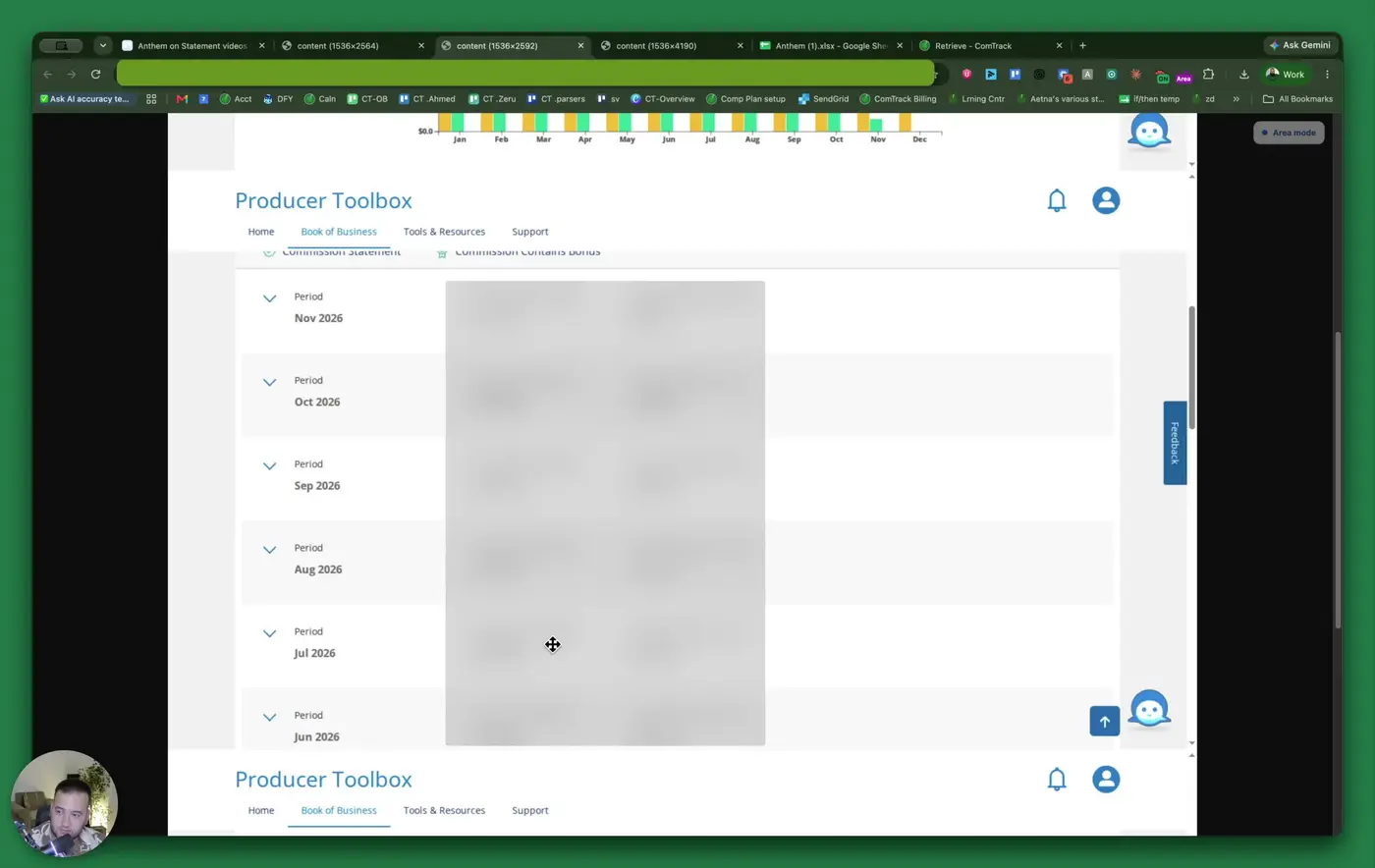
- Scroll down to the Payment Periods section.
- Locate the month you need.
- Click the expand button next to that month to view the available statements.
- Verify the number of statements listed for that period before downloading.
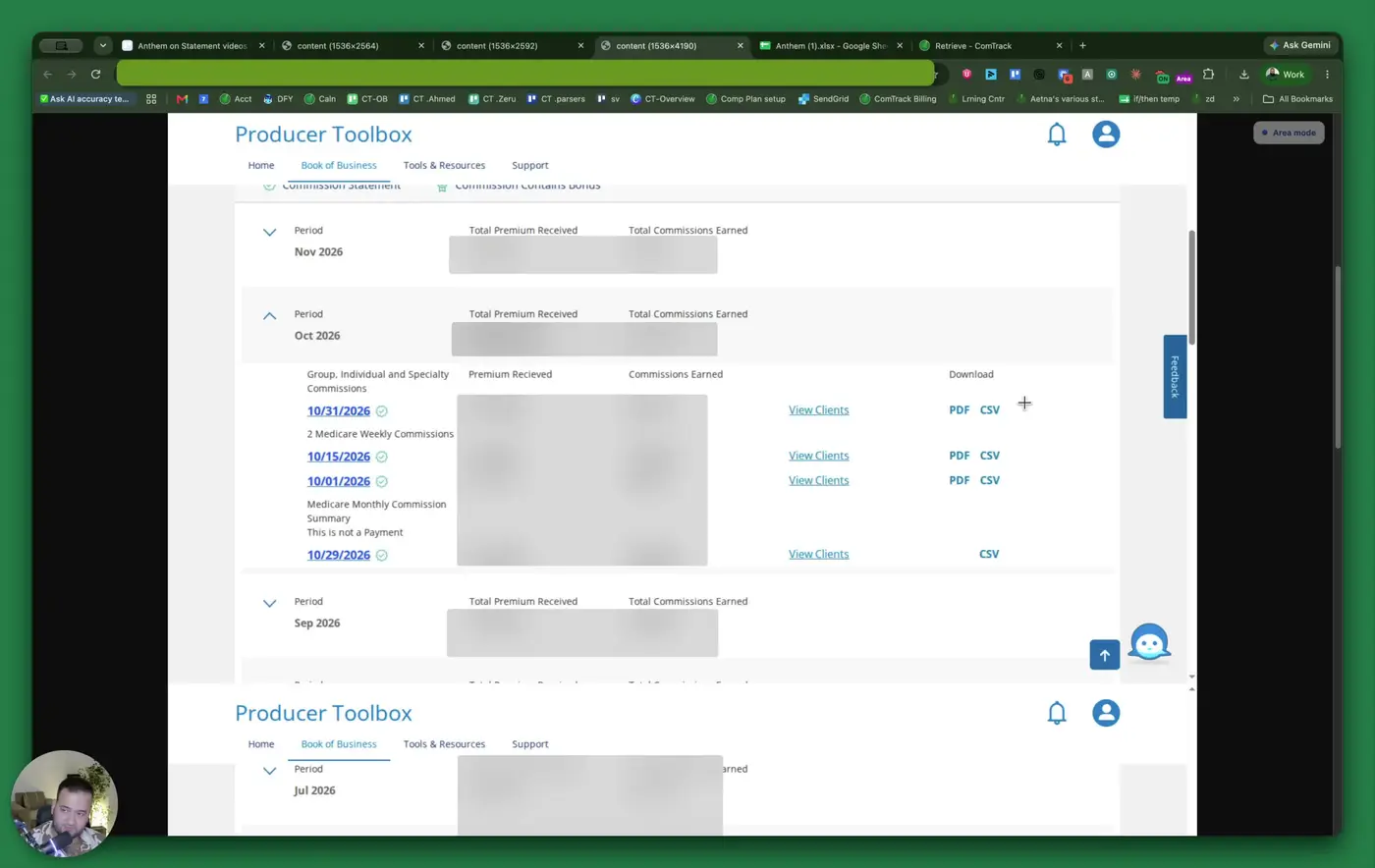
3. Download the statement in CSV format 0:40
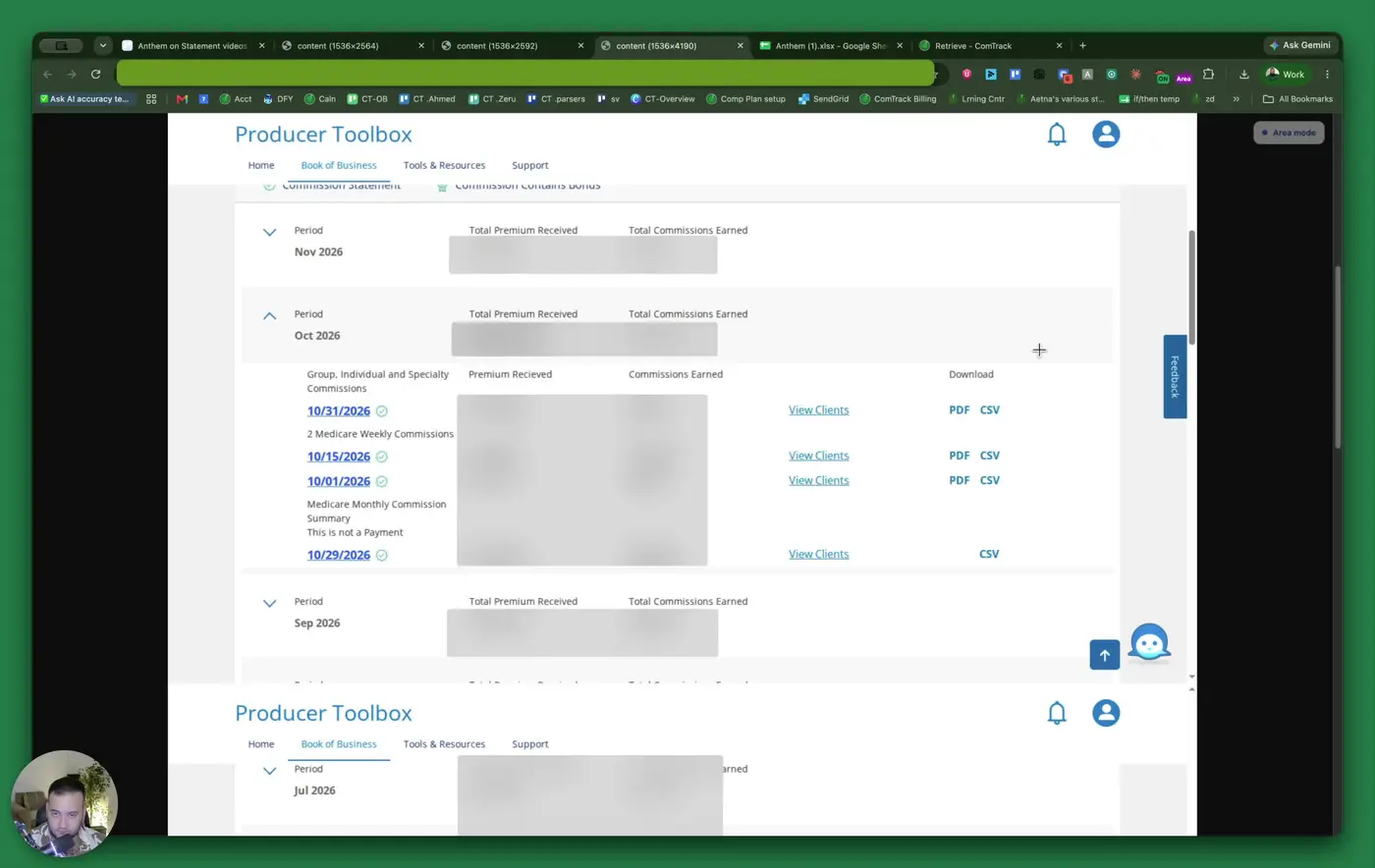
- Choose the statement format.
- Select CSV instead of PDF when possible.
- Download the file and save it in the appropriate folder for commission records.
- Use PDF only if CSV is unavailable or specifically requested.
4. Review the statement summary at the top of the file 0:56
- Check the top summary rows for key totals and identifiers.
- Confirm the agent/broker number.
- Review the period ending date to understand the coverage period.
- Note the total premium received this month and total paid to date.
- Record the grand total commissions paid this month for reconciliation.
5. Interpret the detail columns for each commission row 1:35
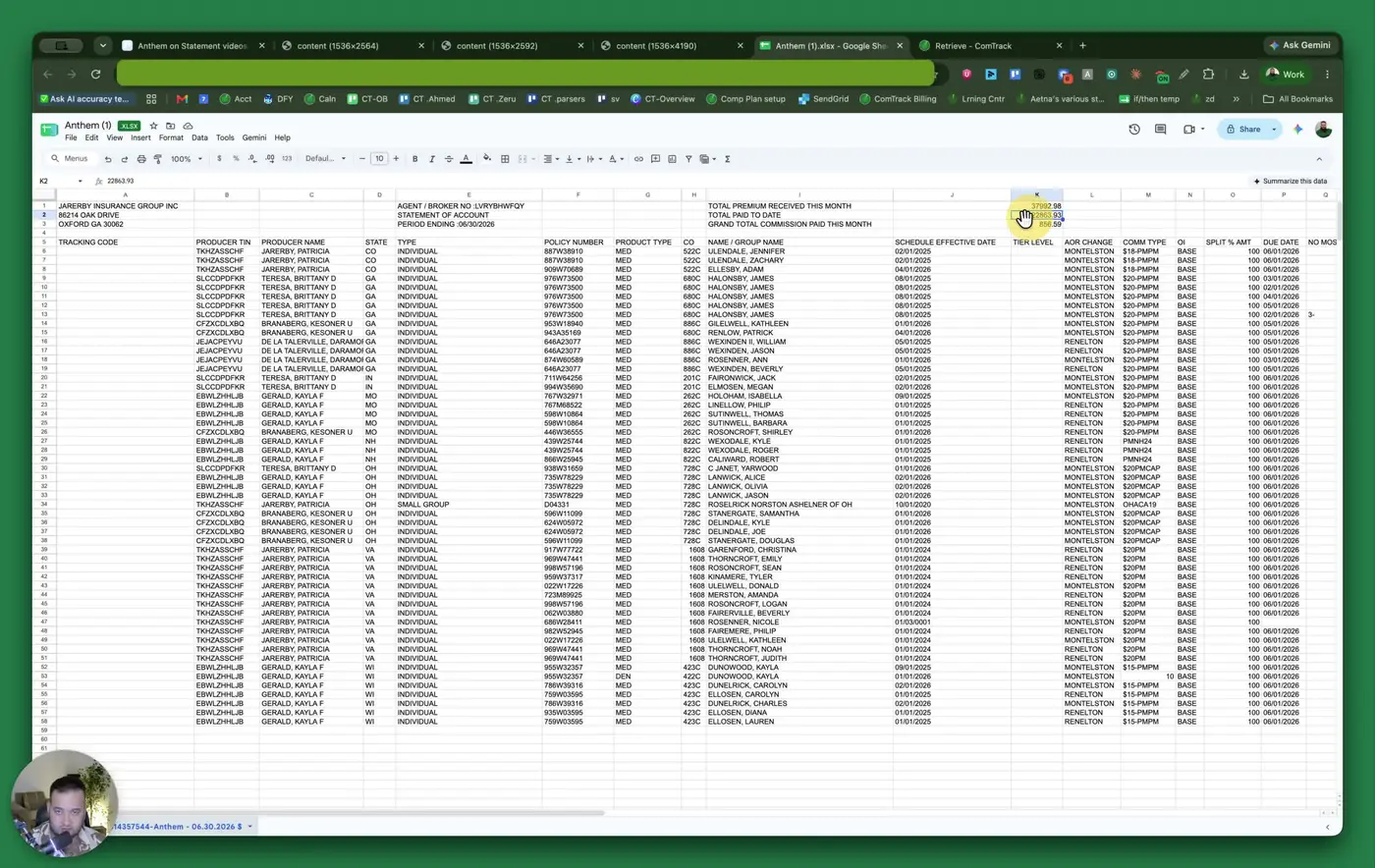
- Use the row-level columns to understand each commission entry.
- Review the following fields:
- Tracking code: Anthem’s internal tracking number.
- Producer / TIN: Agent identifier and tax ID.
- Producer name and state.
- Client type: Individual, small group, etc.
- Policy number and product type (for example, medical or dental).
- CO / company code and group name if applicable.
- Effective date and tier level.
- AOR: Agent of record.
- Comm type: Commission schedule, such as per member per month (PMPM).
- OI: Commission type, such as base commission.
- Split percentage / amount: Your share of the policy.
- Due date and number of months.
- MBR count: Number of members on the policy.
- INT PRM: Interest of premium.
- ADV BAL: Advanced balance still owed.
- Premium received and settlement-to-date premium.
- Settlement-to-date commission and current commission.
- Comments: Carrier notes explaining the row.
6. Use comments and totals to identify special conditions 5:03
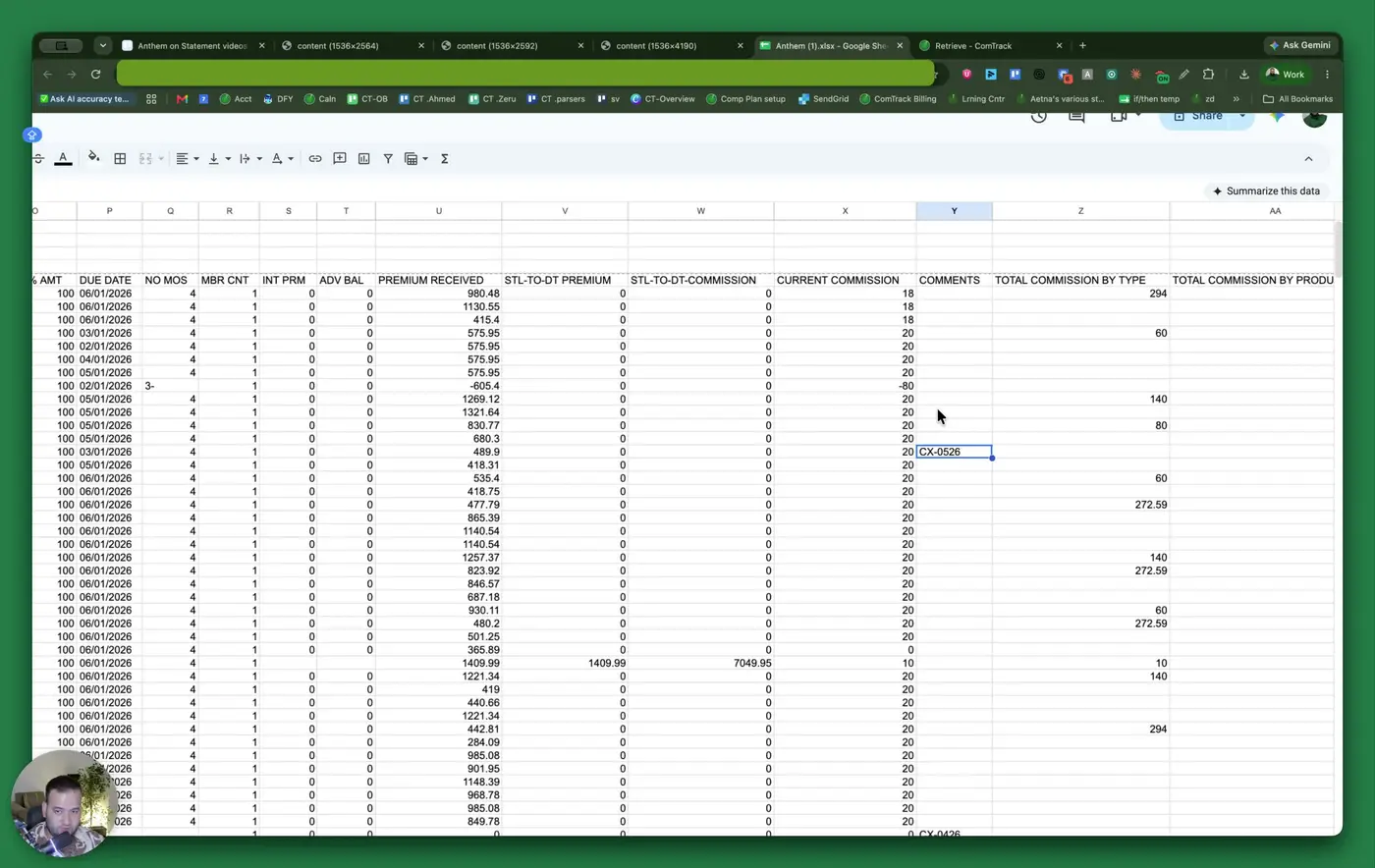
- Check the Comments field for cancellation or other carrier notes.
- Example: CX indicates a cancellation.
- Review Total commission by type to see subtotals by commission category.
- Review Total commission by producer to confirm the agent-level subtotal.
7. Review group-policy fields for reconciliation context 5:36
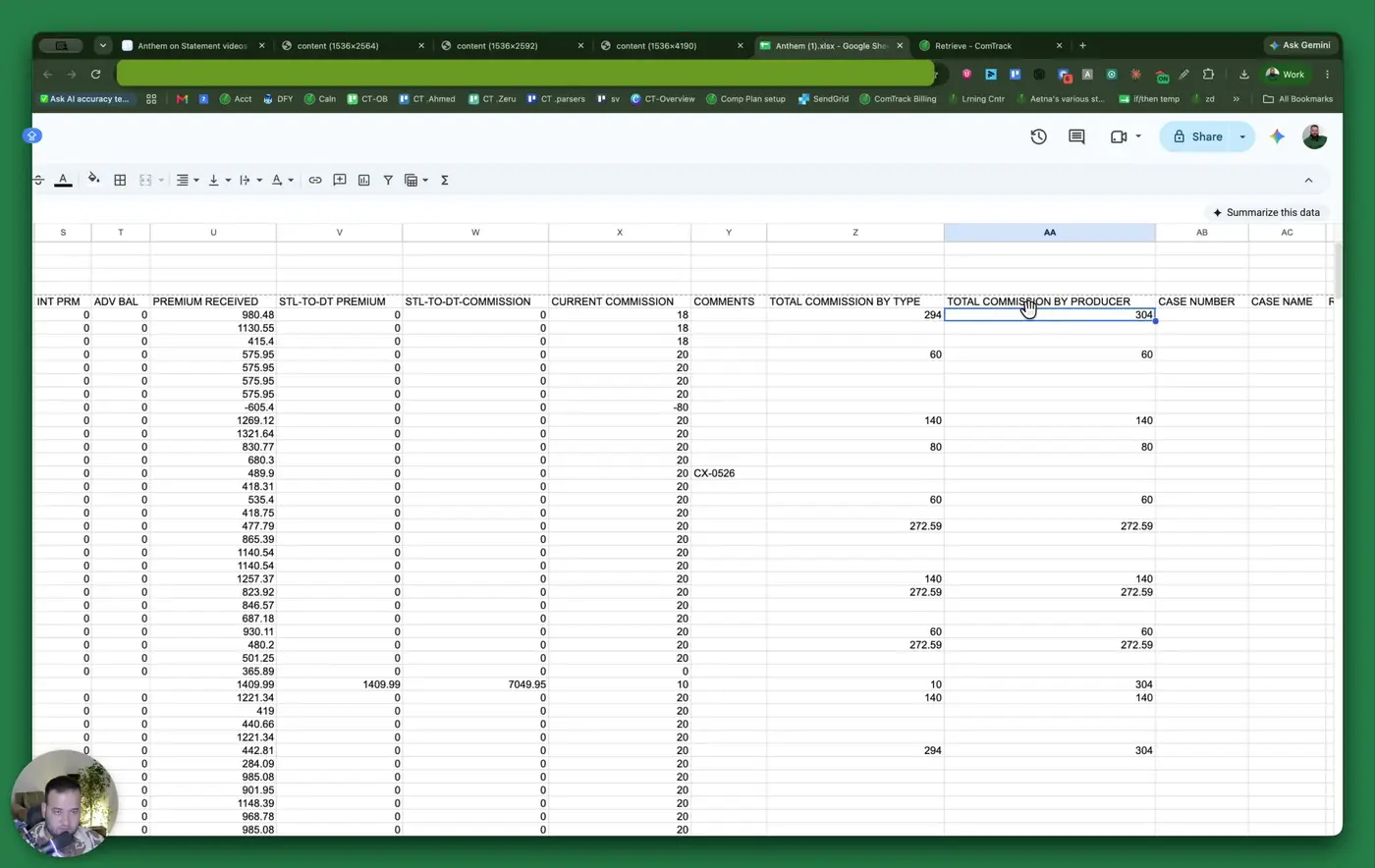
- Check Case number and Case name for group policy identification.
- Review Recon days to see how many days Anthem took to reconcile the payment.
- If recon days are zero, the payment was processed normally.
- If recon days are greater than zero, investigate whether a late payment or retroactive coverage change caused the delay.
8. Confirm policy status and enrollment details 6:20
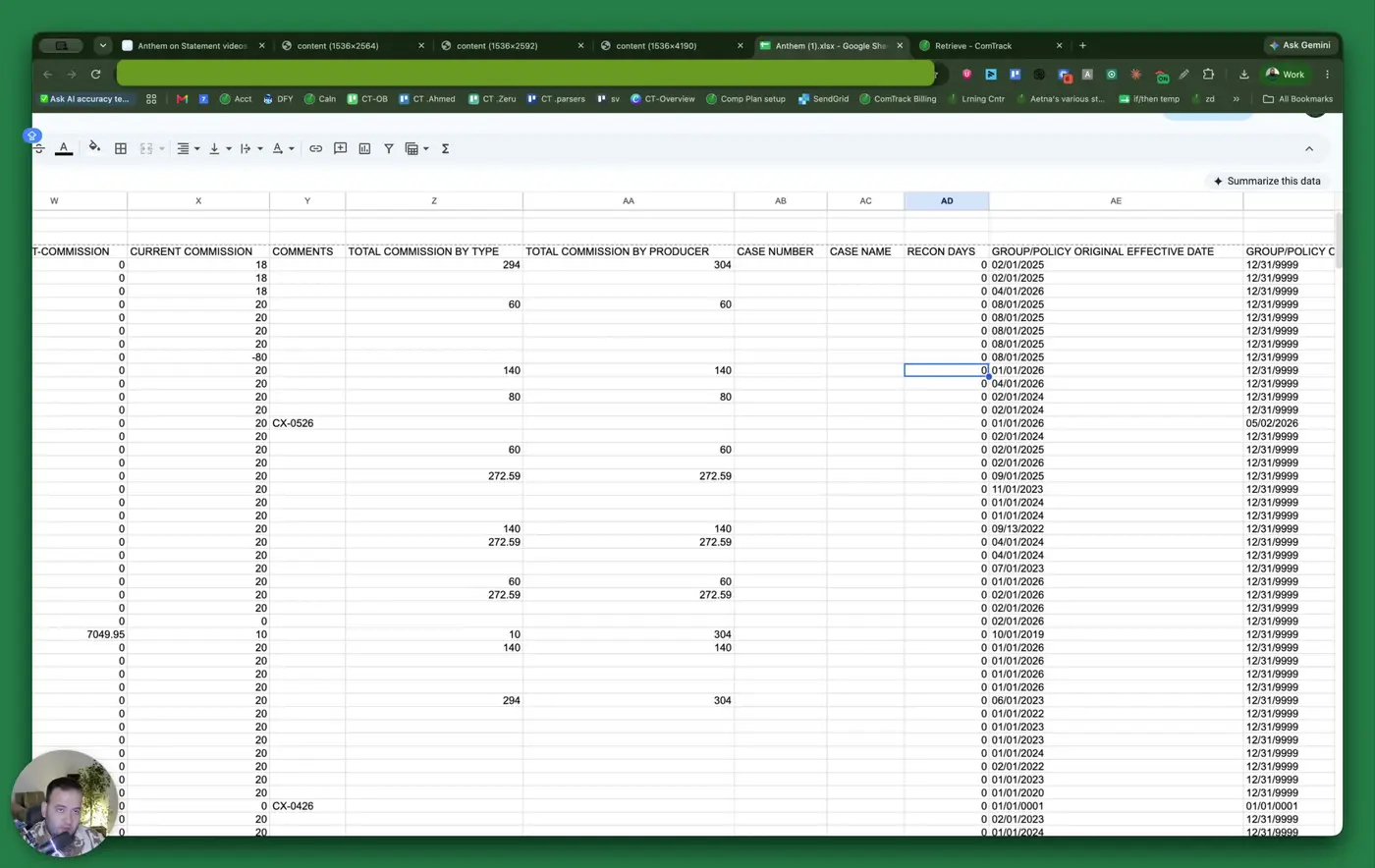
- Review the Original effective date to identify when the policy first started.
- Check the Cancellation date.
- If the cancellation date shows a far-future placeholder date, the policy is still active.
- Review the Exchange indicator:
- Y = ACA marketplace policy
- N = Direct policy
- Confirm Enroll count to verify the number of enrolled members.
9. Verify settlement dates and contract level 7:08
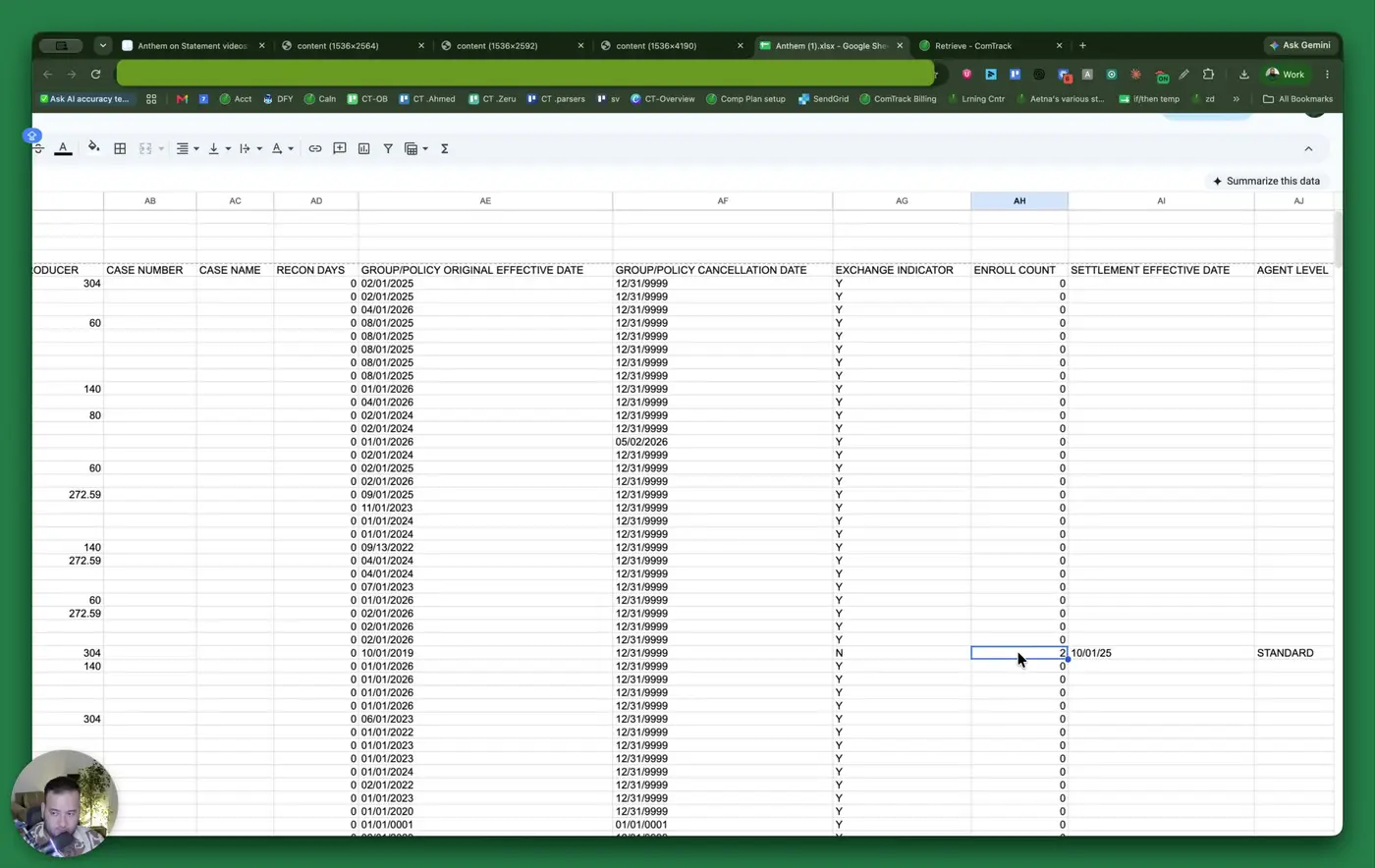
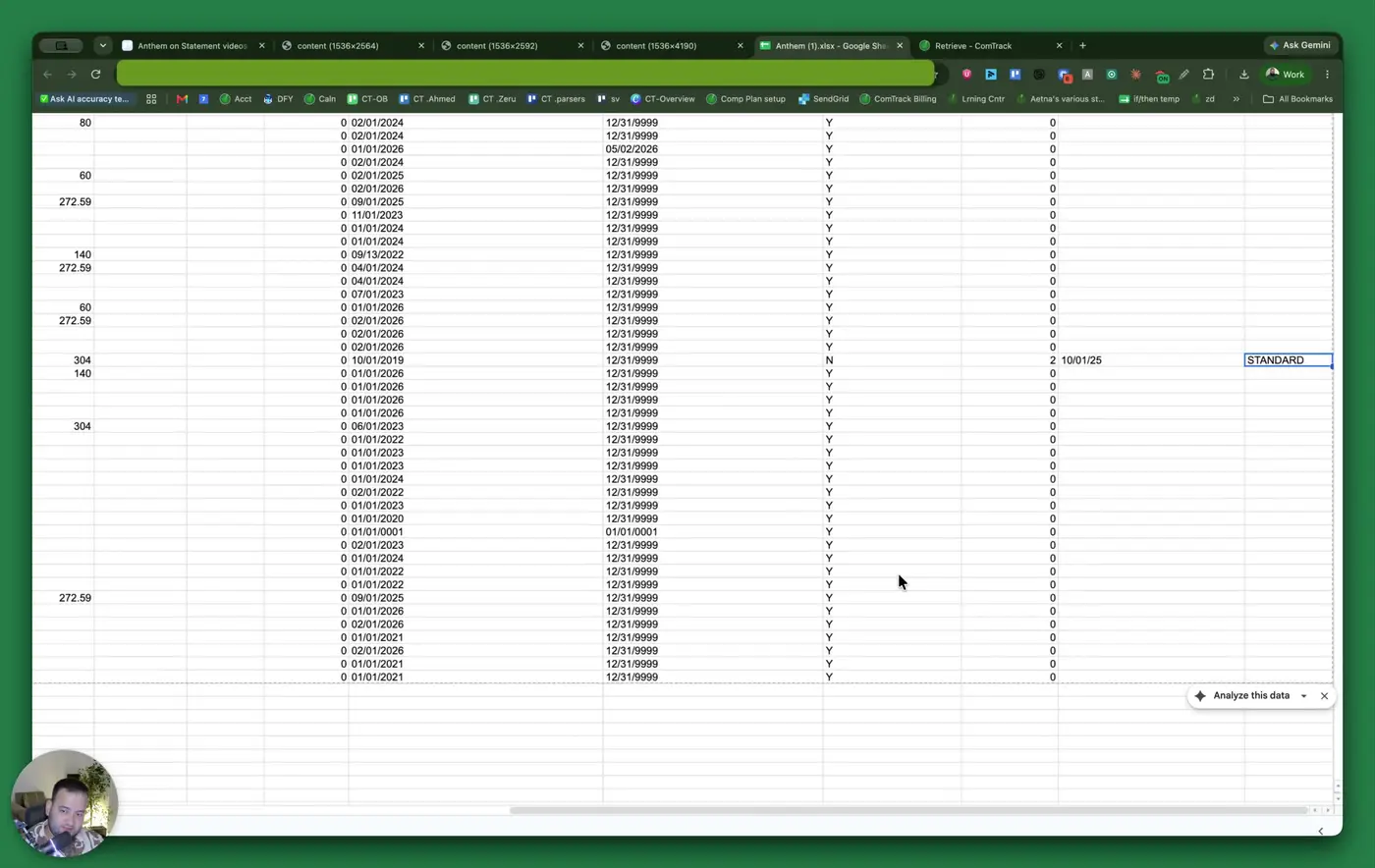
- Review the Settlement Effective Date to determine when the current payment setup began.
- Look for changes in settlement dates when renewals or contract changes occur.
- Compare settlement dates with settlement-to-date premium and commission values to identify changes in payment structure.
- Confirm the agent level or contract level shown on the statement.
10. Optional: Use Retrieve to automate statement collection 7:53
- Open Retrieve if you want to automate commission downloads.
- Search for Anthem and select the Elevents Anthem carrier entry.
- Enter and save your username and password.
- Click Run.
- Choose how far back to retrieve data:
- 30 days
- 60 days
- 90 days
- Custom range
- Click Start Retrieve to begin the process.
- Wait for the system to finish processing, which may take up to about 20 minutes.
- Review the dashboard to see Anthem commissions and combined carrier data.
Cautionary Notes
- Always verify the statement period before using the data to avoid recording commissions in the wrong month.
- CSV is preferred for easier sorting, filtering, and importing into other systems.
- Do not assume a row is active without checking comments and cancellation dates.
- Recon days greater than zero may indicate a payment delay or retroactive change and should be reviewed.
- Placeholder future dates may indicate an active policy, not an actual future cancellation.
Tips for Efficiency
- Use CSV whenever possible to simplify analysis and reconciliation.
- Save downloaded statements in a consistent folder structure by carrier and month.
- Use the comments field first when looking for cancellations or exceptions.
- If you process Anthem statements monthly, consider using Retrieve to reduce manual work.
- Use the dashboard in Retrieve to compare Anthem with other carriers in one place and speed up commission review.