
Objective
This SOP explains how to download an ACE commission statement, identify the key fields on the statement, and use ComTrack to simplify and normalize the data for commission tracking. It is designed so a team member can quickly understand what each column means and how to process the statement accurately.
Key Steps
1. Download the ACE commission statement from the portal 0:00
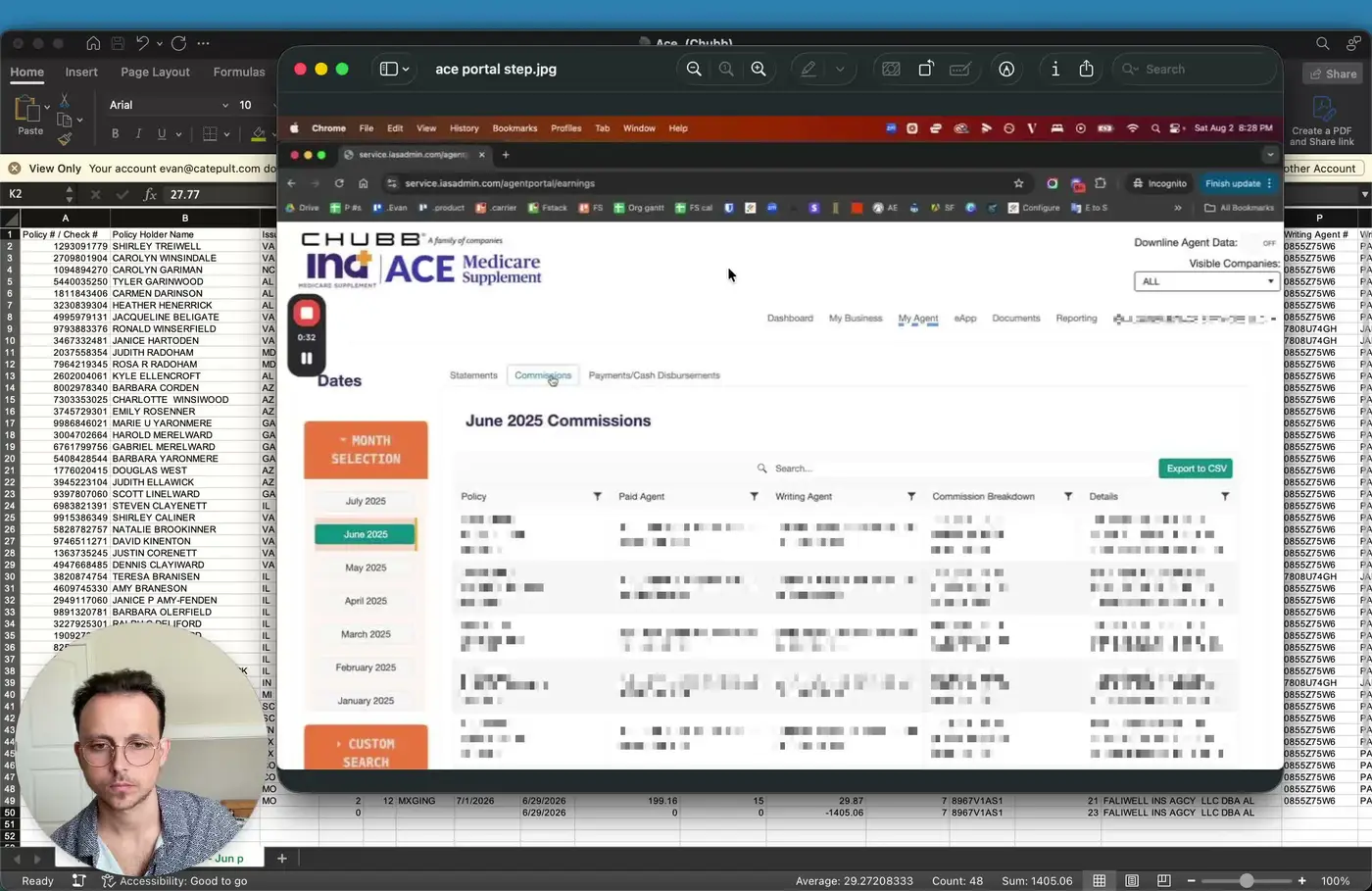
- Log in to the portal and navigate to MyAgent.
- Open Statements.
- Click Commissions.
- Download and export the statement as a CSV file.
- PDF is available, but CSV is preferred for easier processing and review.
2. Review the statement layout and identify the core columns 0:23
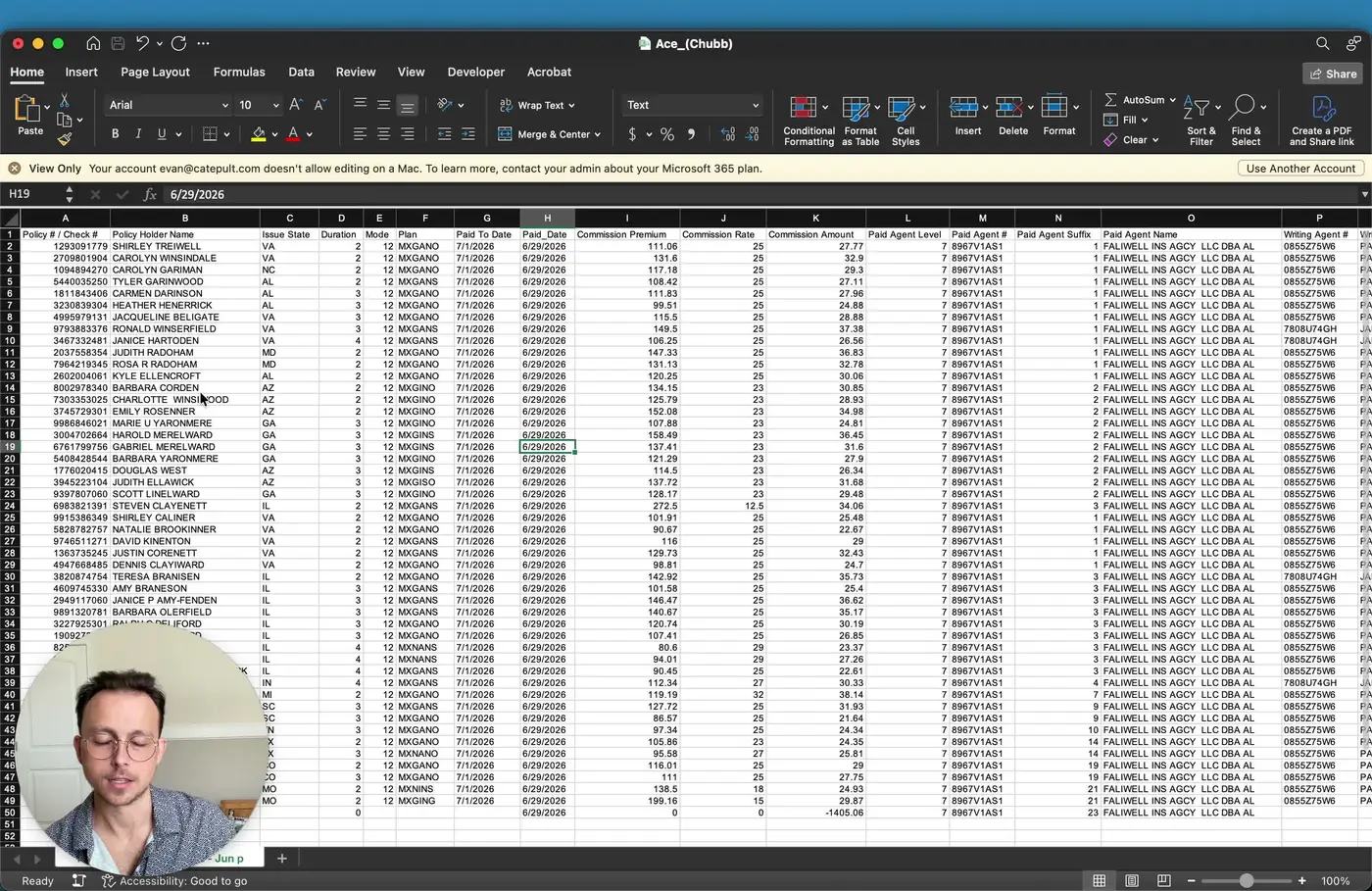
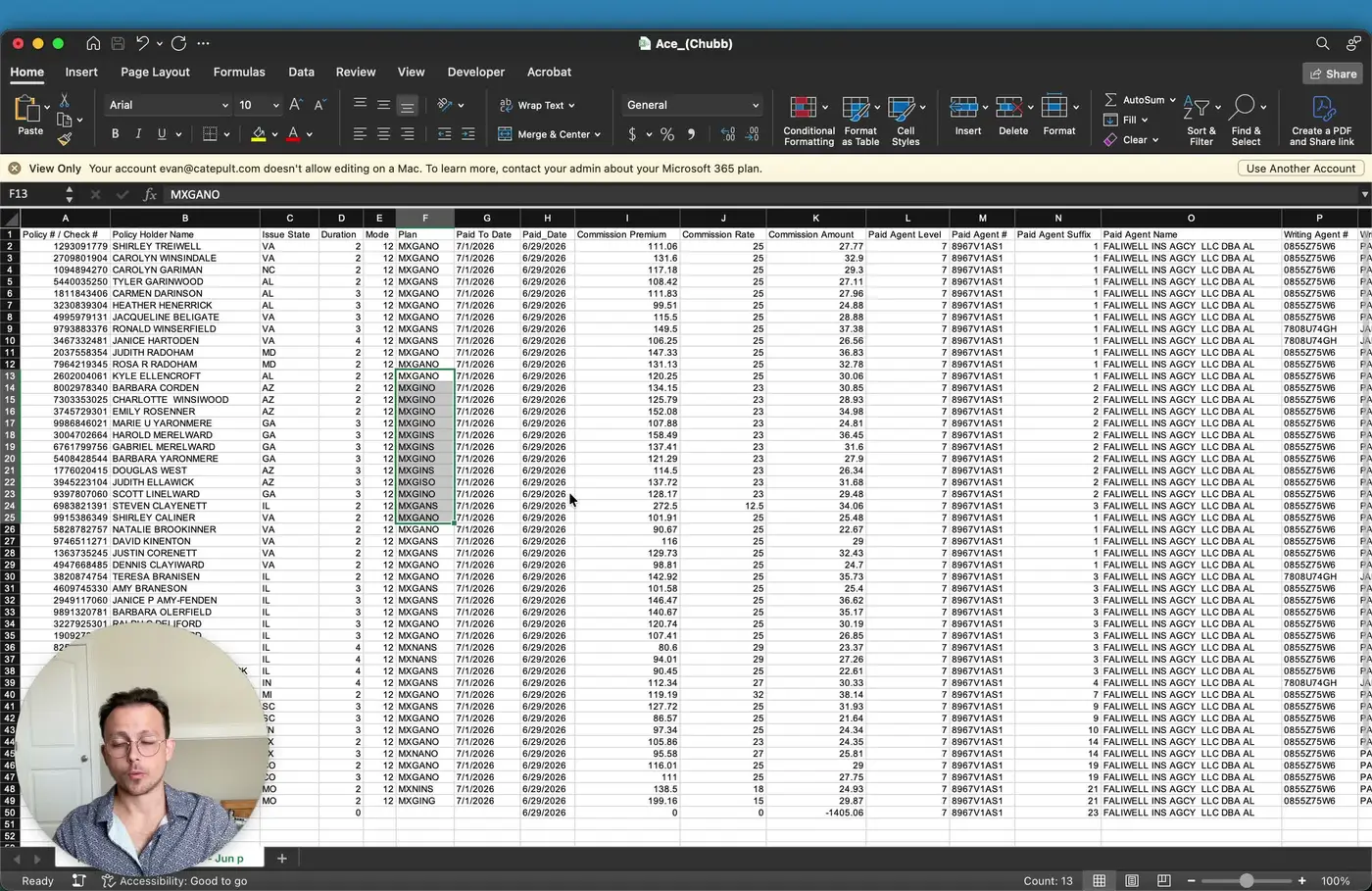
- Open the exported ACE statement and review the column structure.
- Key fields to locate include:
- Policy Number
- Check Number
- Policy Letter Name
- State
- Duration
- Mode
- Understand that Duration refers to the policy’s year on the books, not the number of months.
3. Interpret the policy product code and plan details 0:50
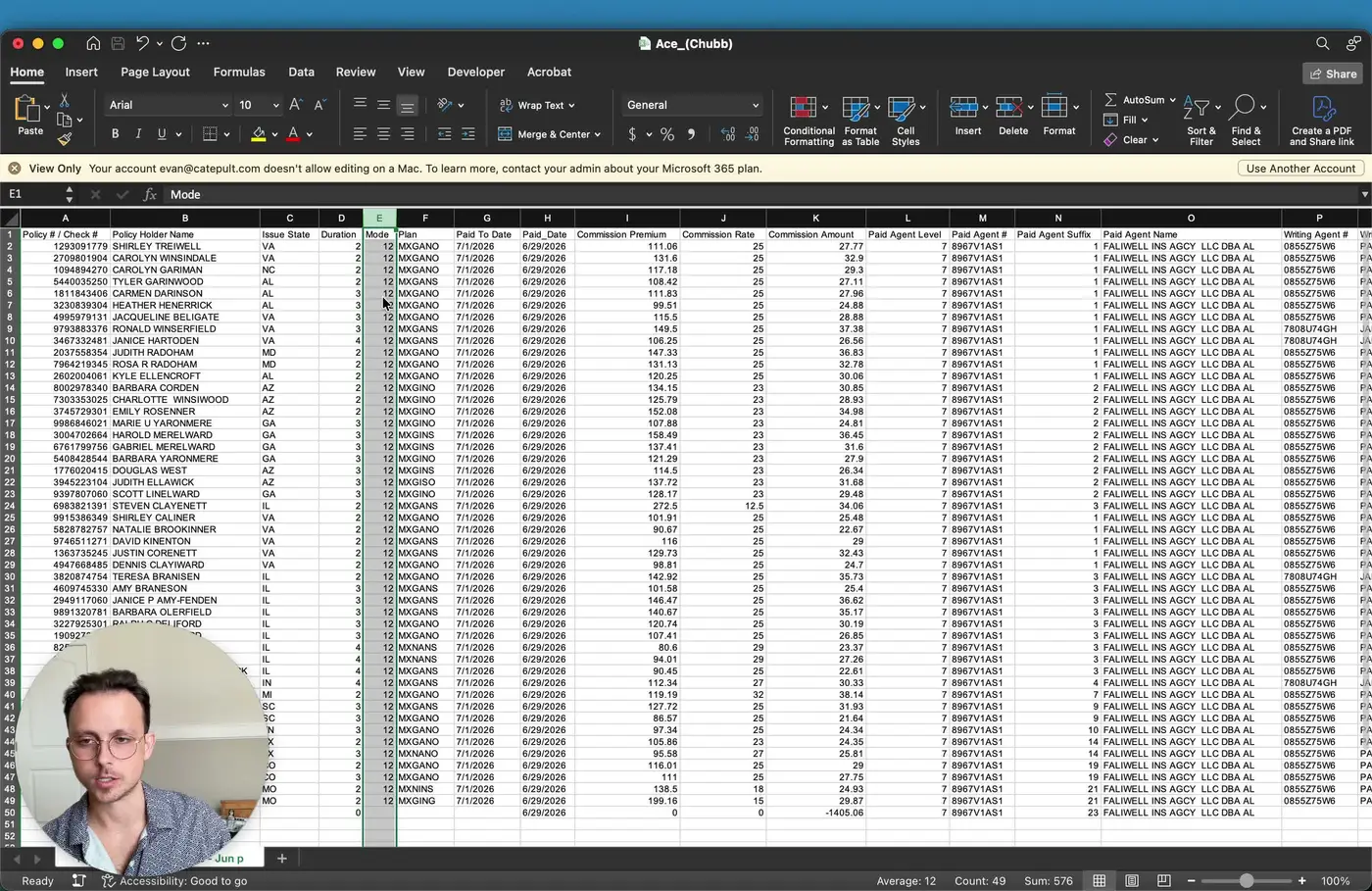
- Review the Plan field carefully; this is the product code and is one of the most important fields.
- The code typically begins with MX.
- Use the code positions to identify plan details:
- Position 3: MedSupp plan type, such as Plan G, Plan N, Plan F, or High Deductible G/F.
- Position 4: Attained Age or Issue Age.
- Position 5: Non-tobacco (N) or Smoker (S).
- Position 6: OSRG indicator, such as Open Enrollment, Standard, Underwritten, or Guaranteed Issue.
- Note that Guaranteed Issue business may pay less than underwritten business.
4. Verify payment timing and premium-related fields 2:10
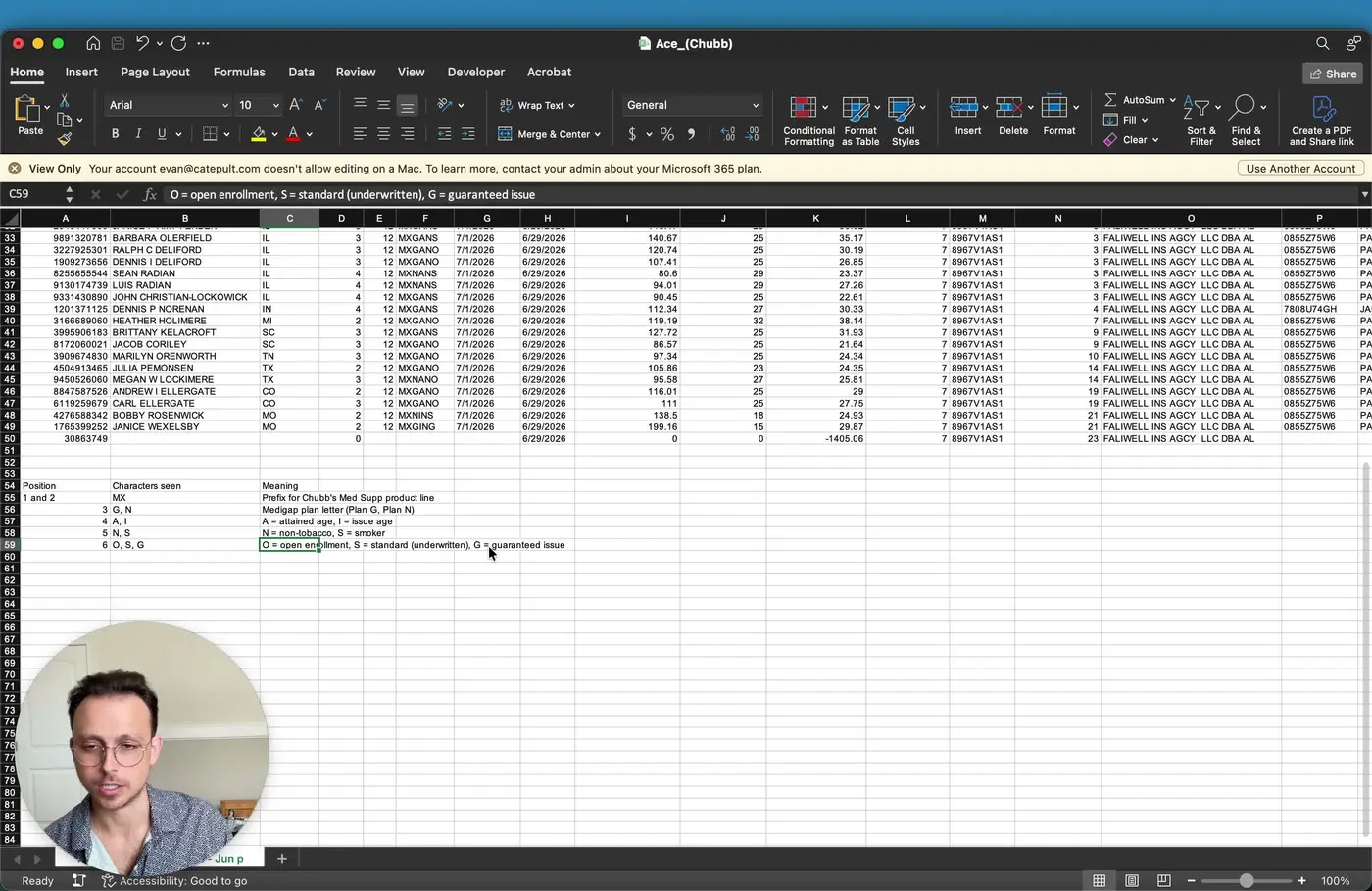
- Check the Paid to Date field to confirm how current the client is on premium payments.
- Confirm the Paid Date field, which shows the last date the premium was paid.
- Expect that ACE may display a paid date that is a few days different from the actual payment date.
- Review the Premium field and interpret it in relation to the payment Mode.
- Review the Commission Rate as a percentage and the Commission Amount as the actual amount paid.
5. Confirm commission level and paying agent information 3:05
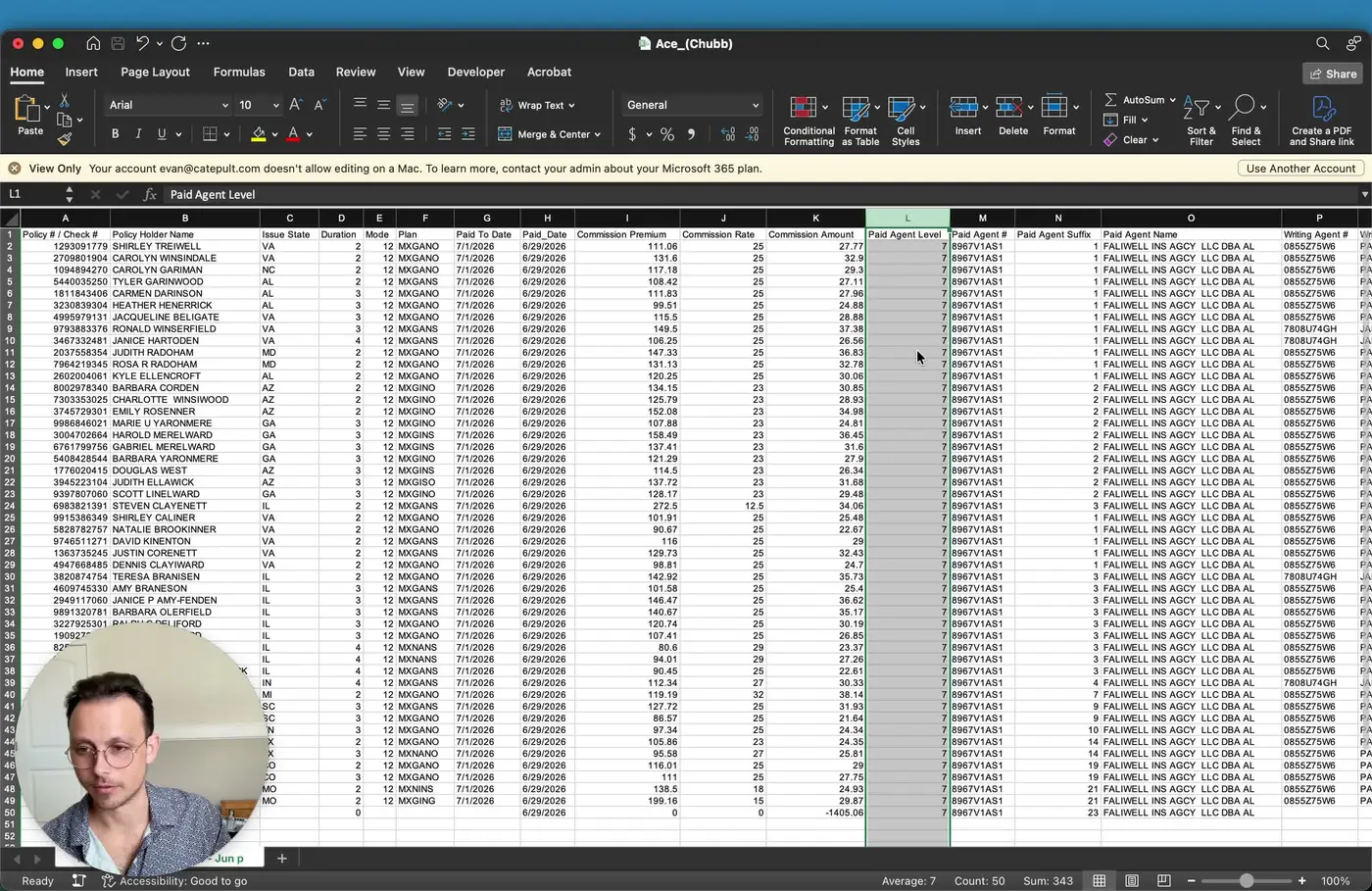
- Review the Page and Level field to identify the commission level with ACE.
- Identify the Paid Agent Number, Paid Agent Suffix, and Paid Agent Name to determine who received the commission.
- Understand that the Paid Agent may differ from the Writing Agent.
- If the writing agent is appointed or assigned to an agency, the agency may receive the commission instead of the individual agent.
6. Compare writing agent vs. paid agent details 3:35
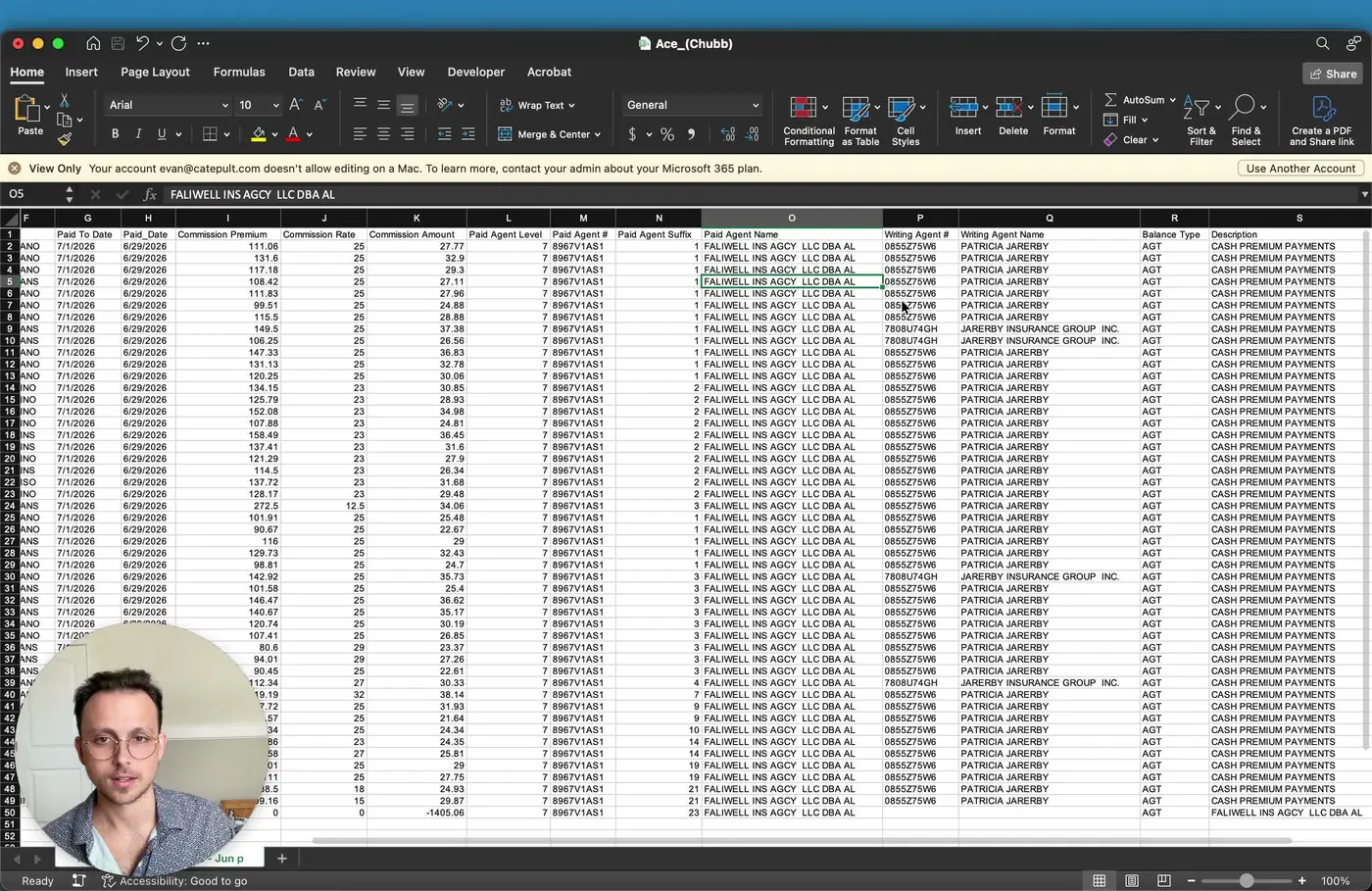
- Compare the Writing Agent Number/Name with the Paid Agent Number/Name.
- If they differ, the commission is being paid to a different entity than the person who wrote the policy.
- In the example described, the writing agent is an individual, but the agency receives the commission because of the appointment/LOA relationship.
- If the writing and paid agent fields match, the same person or entity is both writing and receiving the commission.
7. Review balance, description, and effective date fields 4:12
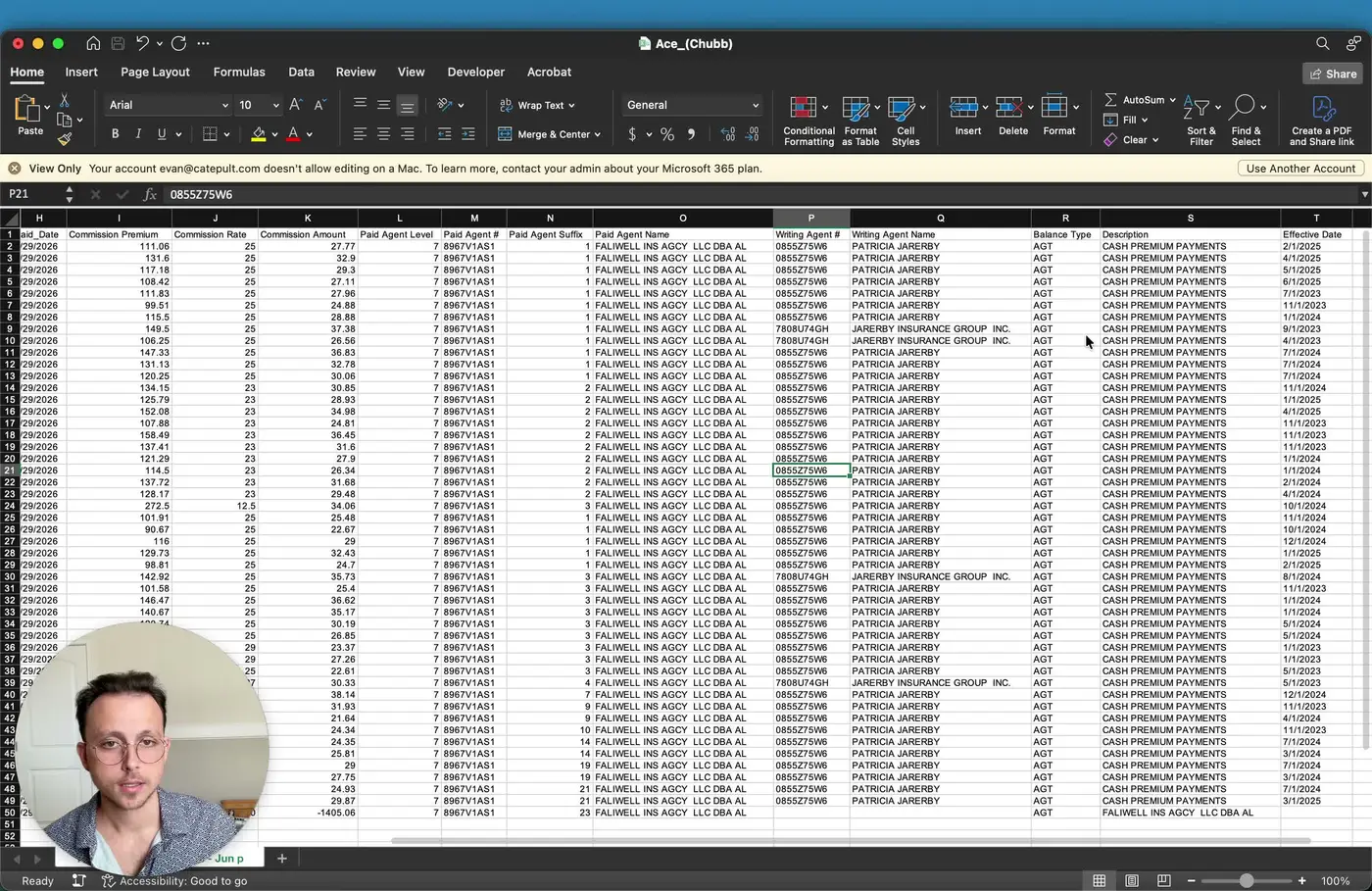
- Check the Balance Type field; in the examples discussed, it appears as AGT.
- Review the Description field.
- Most commonly, this will show Cash Premium Payments.
- Other possible descriptions may include Chargeback or Advance Balance Reduction.
- Confirm the Effective Date for the commission entry.
8. Identify the check row and distinguish it from policy rows 4:43
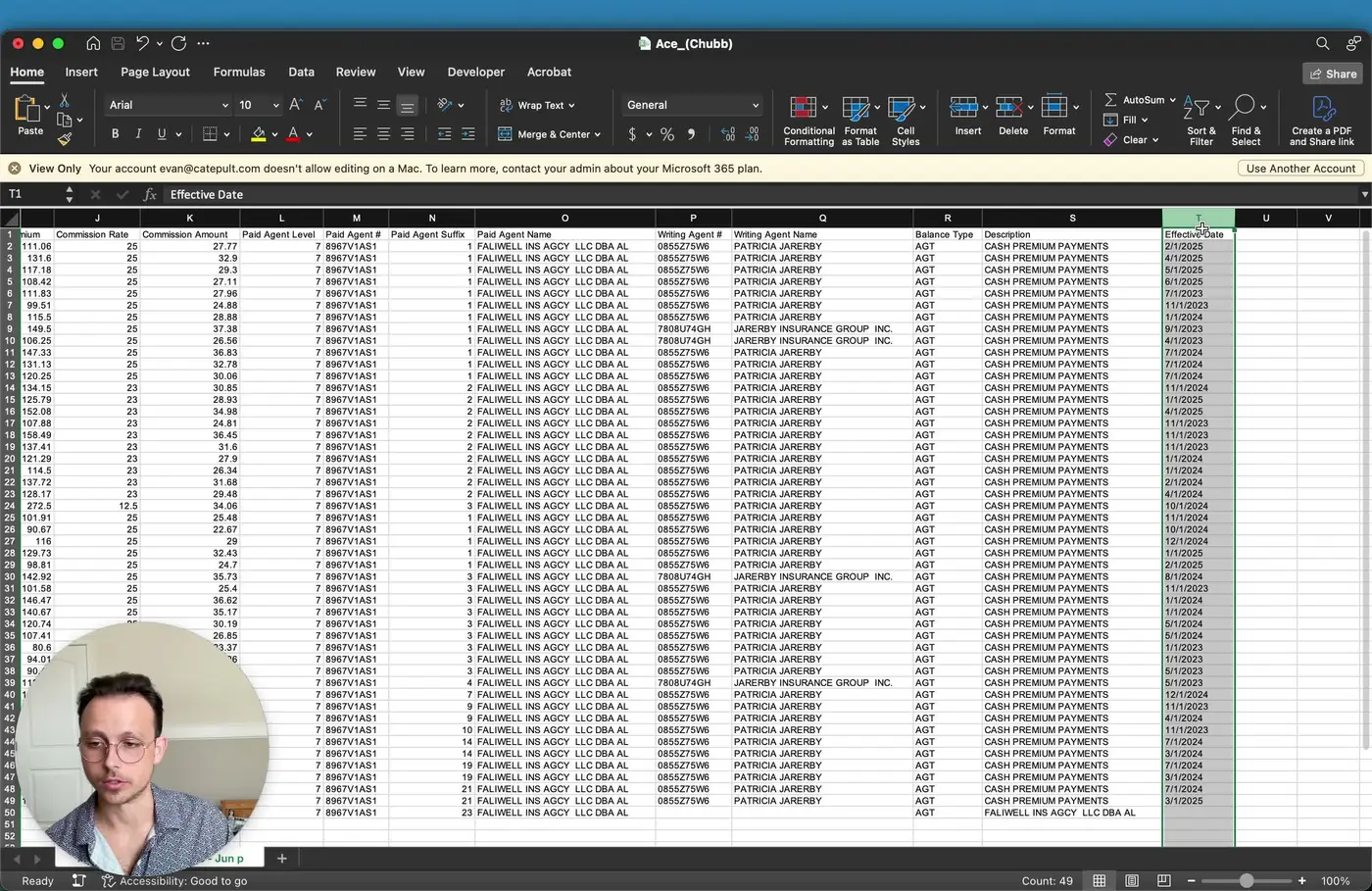
- Look for the final row associated with the statement, which represents the check rather than a policy.
- In the check row:
- The value in the policy number column is replaced by the check number.
- There is no client name or state listed.
- The row shows the check date.
- The payment is tied to the agency receiving the commission.
- Use this row to confirm the overall payment record for the statement.
9. Use ComTrack to simplify and normalize the statement 5:30
- Drag and drop the ACE statement into ComTrack.
- Release the file and click Digest.
- Allow ComTrack to recognize and process the statement automatically.
- Click OK after digestion completes.
- ComTrack will clean, normalize, and aggregate the data with other carrier statements for easier review.
10. Validate the normalized output in ComTrack 6:02
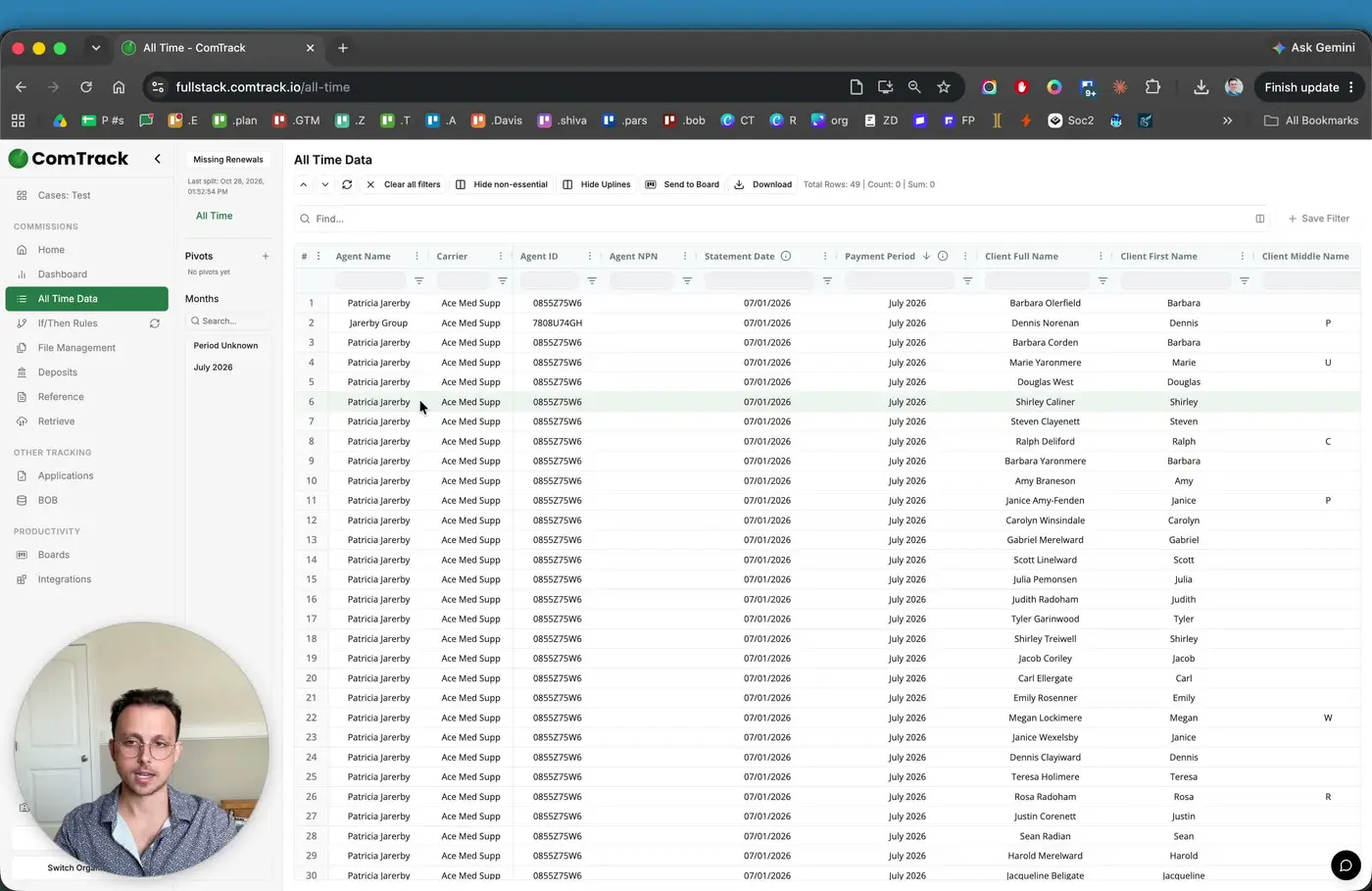
- Review the processed statement in ComTrack to confirm the data imported correctly.
- Check that the system displays key fields such as:
- Agent name
- Carrier
- Agent ID
- Client details
- Scroll to the right to verify that ComTrack correctly identified the plan type and plan name.
- Confirm that the system converts the raw product code into a readable label such as Plan G, Plan F, or Plan N.
11. Confirm commission amount formatting and final review 6:54
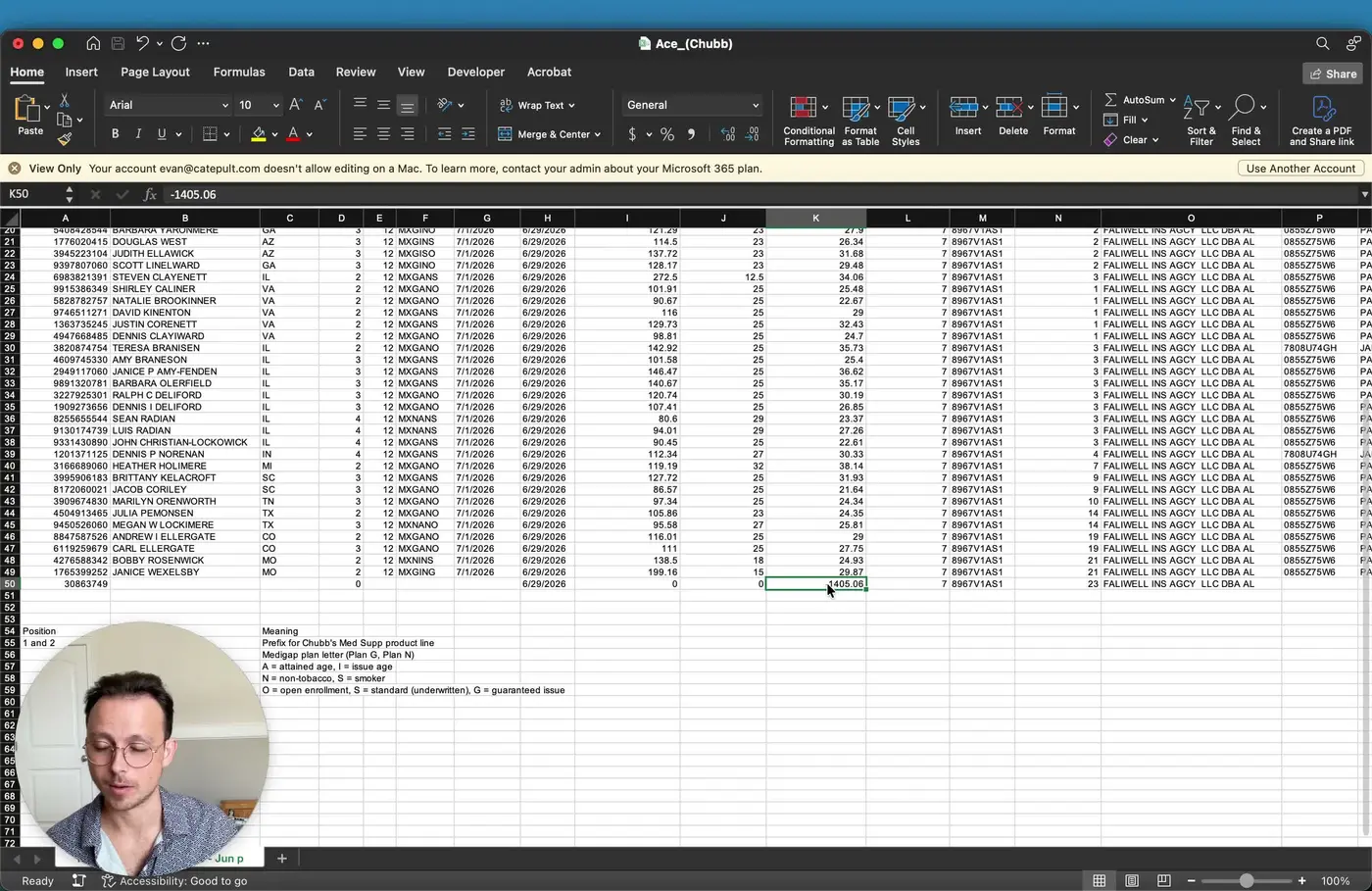
- Note that the commission amount may appear as a negative number on the ACE statement.
- Treat the negative value as the amount paid to you, even though it is displayed with a minus sign.
- Perform a final review to ensure the statement has been interpreted correctly and the data is ready for tracking or reconciliation.
Cautionary Notes
- CSV is preferred over PDF because it is easier to process and analyze.
- The Plan field is highly coded and can be confusing; verify it carefully before using it for reporting.
- Guaranteed Issue business may pay less than underwritten business.
- The Paid Date may not exactly match the actual payment date shown in your records.
- The Paid Agent may differ from the Writing Agent; do not assume they are the same.
- The commission amount may appear as a negative number, even though it represents money paid to the agency or agent.
- The Paid Agent Suffix was not clearly defined in the transcript and may require internal confirmation if it becomes relevant.
Tips for Efficiency
- Use ComTrack to reduce manual interpretation and standardize statement data across carriers.
- Focus first on the Plan, Paid Agent, and Check row fields, since these are the most likely to cause confusion.
- Keep a reference guide for ACE product codes so plan types can be identified faster.
- When reviewing multiple statements, compare the Paid to Date and Paid Date fields to quickly spot inconsistencies.
- Use the normalized ComTrack output for reporting instead of manually reading the raw ACE statement whenever possible.